Upgrade from classic pipeline to OpenPipeline
- Latest Dynatrace
- Upgrade guide
- 13-min read
OpenPipeline handles ingestion, routing, and processing of all record types—from logs and business events to spans, Smartscape events, and more—with Grail storage, DQL-based processing, and object-level access control. OpenPipeline is the Latest Dynatrace solution to processing and replaces the classic pipeline for logs and business events.
This article walks you through the principles to manually convert your classic processing rules to OpenPipeline, permission management, access control for your teams, and routing so that teams can get started with processing in OpenPipeline independently.
Why upgrade?
- Unified processing model: Manage processing for multiple signal types in OpenPipeline, including logs, business events, security events, spans, and more.
- Scalable data handling: OpenPipeline handles high throughput at scale, supporting additional ingest sources and increased data volume.
- Grail data flow: Processing is Grail-based only, providing a consistent approach from ingest through DQL processing to storage.
- Granular ownership: With OpenPipeline scoped ownership and access to pipelines, teams can manage day‑to‑day processing, and administrators can retain control.
What is new?
What will you do?
You'll identify the data sets processed by the classic processing rules and the users responsible for this data. You'll then create a catch-all pipeline, containing all the classic processing rules translated via the OpenPipeline API - GET translate classic pipeline endpoint, and a catch-all route for all records. Once the route is active, data is processed by OpenPipeline instead of the classic pipeline.
Finally, you can turn off classic processing rules. Once the migration is stable, you can split the OpenPipeline processors into dedicated pipelines per team or data type.
Before you begin
Prerequisites
-
Dynatrace version 1.295+
-
Dynatrace SaaS environment powered by Grail and AppEngine
-
DPS license with log or business event capabilities
-
Permissions:
openpipeline:configurations:writesettings:objects:admin
-
Extensions are upgraded to their latest major version. Older versions may reference classic entity fields that are no longer supported in Latest Dynatrace. For more information, see Manage Extensions.
Prior knowledge
- Familiarity with classic processing rules for log or business event
- Basic understanding of DQL
- Knowledge of pipeline access control
Breaking changes
Some behaviors differ between the classic pipeline and OpenPipeline and can break downstream consumers (DQL queries, dashboards, alerts, automations). The following table summarizes the key technical differences of processing logs via the log classic pipeline and OpenPipeline.
| Technical point | Log classic pipeline | OpenPipeline | Required action |
|---|---|---|---|
Data type support |
|
| Review queries that relied on implicit string coercion |
Content field limit | 512 kB | 10 MB | No action required |
Field name case sensitivity | Case-insensitive | Case-sensitive1 | Update DQL queries and downstream consumers to use OpenPipeline field casing before rerouting data |
Query language | LQL, DQL | DQL | Translate LQL processing statements to DQL; see Conversion to DQL for Logs and the classic command reference |
Connect log data to traces | Built-in rules | Automatic2 | No action required |
Technology parsers | Built-in rules | Add a Technology bundle in the Processing stage for each relevant built-in technology rule of the classic pipeline. | |
Metric dimension naming | Not supported | Supported | No action required. Existing definitions keep working; new metrics can use dimension names. |
Metric-key | Mandatory | Optional | No action required. Existing definitions keep working; new metrics can drop the prefix. |
Classic references on telemetry | Classic entities and classic metrics are extracted from telemetry data. Telemetry data is enriched with classic-entity fields ( | Classic entities, classic metrics, and classic-entity fields aren't applicable to Latest Dynatrace. | Review and update DQL queries, dashboards, alerts, and automations based on classic entities, classic metrics, or classic-entity fields. |
When you ingest logs via Log Monitoring API v2 - POST ingest logs, field names are automatically converted to lowercase after data is routed to the Classic pipeline. While both pipelines run side by side, two records of the same type can end up with inconsistent casing depending on which pipeline they hit, silently breaking case-sensitive queries.
The enrichment runs automatically and is no longer rule-based, so it isn't visible as a processor in your pipeline.
New concepts
- Pipeline
Collection of processors executed in an ordered sequence of stages to structure, separate, and store data.
- Processor
Pre-formatted processing instruction that focuses either on modifying or extracting data. It contains a configurable matcher and processing definition.
- Routing
Directing data to a pipeline, either based on matching conditions (dynamic) or by explicit pipeline selection (static).
How to upgrade
1. Check your migration readiness
The OpenPipeline usage overview ready-made dashboard shows the current state of your migration. It tracks how much of your log and business event volume still flows through the classic pipeline versus OpenPipeline, and lists each record type with its migration status.
-
Go to
 Dashboards > OpenPipeline usage overview.
 -
Verify that the percentage in Ingest via OpenPipeline vs. classic pipeline is above 0%.
When the percentage is above 0%, your data is still reaching the classic pipeline. When you go to
 Settings > Process and contextualize > OpenPipeline and select your configuration scope (Logs or Business events), you still see the Classic route in Dynamic routing.
2. Identify the data sets currently processed by classic pipelines
-
Go to
 Notebooks or
  Logs and filter on the
 dt.openpipeline.pipelinesfield to identify the records routed to the classic pipeline.fetch logs| filter in(dt.openpipeline.pipelines, "logs:default") -
Review the corresponding classic processing rules and their context:
- Go to Settings > Process and contextualize > OpenPipeline and select your configuration scope (Logs or Business events).
- Go to Pipelines > Classic pipeline to view your classic processing rules.
- Work on one data stream at a time to reduce risk and simplify validation. For each rule, perform the following actions:
- Learn the matcher expressions and processor definitions. If sample data is used, export it for reuse during testing.
- Identify downstream consumers such as dashboards, alerts, metrics, and automations to understand potential impact.
- Identify the users or teams responsible for that data.
- Go to
3. Convert your classic processing rules
The OpenPipeline API - GET translate classic pipeline endpoint generates an OpenPipeline pipeline JSON from your existing classic pipeline configuration.
Classic processing rules and OpenPipeline are based on different languages. The translated processors apply the same logic as your classic rules, but the final output also depends on the pipeline they run in, such as stage order and other processors. Complex rules might require manual corrections, so use the API output as a starting point and validate the results.
-
Call the translation API.
-
Logs
GET https://{your-environment-id}.apps.dynatrace.com/platform/openpipeline/v1/classic-pipelines/translate?configuration=logs&skipBuiltinProcessingRules=true -
Business events
GET https://{your-environment-id}.apps.dynatrace.com/platform/openpipeline/v1/classic-pipelines/translate?configuration=bizevents
The response contains the pipeline JSON (
value). WhenwithWarningistrue, at least one rule could not be fully translated. The affected processors are replaced with stubs that need manual rewrites. -
-
Logs Add a technology bundle processor to the JSON for each excluded built-in rule. Insert it at the beginning of
processing.processorsand setenabled: trueif at least one of the bundle's classic rules was enabled. -
Logs Business events Fix processors, stage by stage.
-
Apply these checks across all processors in all stages; start with the Permission, Metric extraction, Bucket assignment, and Davis stages, and then the Processing stage.
- Adjust the processor
idlength to 4–100 characters, then verify its uniqueness within the stage. - Convert LQL matchers using the
POST /matcher/lqlToDqlendpoint. Function-like expressions such aslqlMatchValue()orlqlMatchFullText()in the processor's matcher field signal that the classic matcher contained LQL and needs deliberate conversion. - Make sure the processor number across all stages stays within the 1,000 limit, or use multiple specific pipelines.
- Adjust the processor
-
In the Davis stage, remove duplicate keys from each Davis event processor (
event.name,event.type,dt.davis.is_merging_allowed,event.description). -
In the Processing stage, resolve one DQL processor at a time.
- Truncate
sampleDatato ≤8,192 characters. - If the
descriptioncontainsDQL translation failed due to an unexpected issue.orAuto-translated DQL script is invalid. <reason>, rewrite the processor manually. The original classic script is indql.script. - Check for placeholder calls for classic functions with no automatic equivalent (
directTransformationUnsupported_). - Validate the rewritten script with the
POST /dql-processor/verifyendpoint. Thedescriptionreports only the first error; fix and validate iteratively.
- Truncate
-
-
Logs Check
event.typein matchers.In the classic logs pipeline,
event.typewas set automatically toLOGon every record. OpenPipeline does not set it and so the value is always null. For each processor with anevent.typereference, open it in OpenPipeline and update the matcher:event.type == "LOG". Removeevent.type == "LOG"from the processor condition. If it was the only condition, replace the whole matcher withtrue.event.type == "<non-LOG value>". Remove the processor entirely. If the processing is still needed, recreate it in the appropriate OpenPipeline configuration scope, instead of logs.isNotNull(event.type). Replace the matcher withtrue.(event.type == "LOG" OR isNull(event.type)). Remove it from the processor's matcher condition.
4. Create the catch-all pipeline and route data to it
Create the pipeline and catch-all route via Settings API.
-
Create the pipeline using the following values.
schemaId:builtin:openpipeline.<your-configuration-scope>.pipelines, replacing<your-configuration-scope>withlogsorbizevents.value: The pipeline JSON.
-
Create the catch-all route using the following values.
schemaId:builtin:openpipeline.<your-configuration-scope>.routing, replacing<your-configuration-scope>withlogsorbizevents.enabled:truematcher:truepipelineType:custompipelineId: The object ID of the catch-all pipeline.
-
Make sure to position the new route above the default route entry.
The new route is active.
- Data that matches the condition is processed according to the catch-all pipeline.
- Data that doesn't match is processed by the default route and continues to be processed by the classic pipeline until you turn off the rules.
Keep classic rules enabled until all data is reliably routed and processed by OpenPipeline. Compare OpenPipeline output against the classic processing rule output until the results match. If they don't, identify translation gaps and fix them in the catch-all pipeline.
5. Turn off the corresponding classic processing rules
After you have validated your OpenPipeline configuration, turn off the classic processing rules you converted.
-
Go to
Dashboards > OpenPipeline usage overview and verify that the percentage in Ingest via OpenPipeline vs. classic pipeline is 0%.The dashboard shows the percentage of records migrated based on routing. Zero classic pipeline usage does not guarantee that all data is fully converted, only that it was not routed via the Classic route. Before turning off a classic processing rule, ensure that data that arrives rarely or does not match any OpenPipeline route is accounted for, including sensitive data, masking, and filtering.
-
If the remaining classic pipeline usage comes from processing rules your environment no longer needs, you can turn off those rules even if usage is above 0%.
-
To turn off the classic processing rules:
- Go to Settings > Process and contextualize > OpenPipeline and select your configuration scope (Logs or Business events).
- Go to Pipelines > Classic pipeline to view your classic processing rules.
- Turn off the classic processing rules.
- Go to
6. Set up access control for your teams
The first user to create or edit a pipeline becomes its owner. By default, only the owner and administrators can see and manage it. For teams to get started with processing in OpenPipeline independently, as administrator, you need to set up IAM policies and access control for them.
-
Grant environment-level permissions.
-
Go to Account Management > Identity and Access Management.
-
Create a policy to grant read or write access to the relevant pipeline schemas for a user or user group. For example, to grant write access to log and business event pipelines:
ALLOW settings:objects:write WHERE settings:schemaId IN ("builtin:openpipeline.logs.pipelines", "builtin:openpipeline.bizevents.pipelines")For more policy patterns, see Owner-based access control in OpenPipeline.
-
-
Review and distribute object-level access.
Once permissions are in place, review pipeline ownership and share access with the teams responsible for each pipeline. As administrator, you can transfer ownership or grant accessor rights to any pipeline. To learn how to access, transfer ownership, or make a pipeline public, see Set access control in OpenPipeline.
Upgrade complete
The classic pipeline no longer processes your data. The catch-all pipeline in OpenPipeline carries the equivalent processing logic of your classic pipeline and routes all records. Your teams can access the pipelines and manage data-processing independently.
Next steps
The upgrade establishes parity with your classic pipeline setup. You can refine, split, and validate iteratively.
-
Refine processing.
- Inspect the OpenPipeline output in Notebooks to identify gaps or opportunities.
- Add or update processors on the pipeline to address what you observe.
- Verify the result in Notebooks.
- Check the OpenPipeline usage overview dashboard to confirm coverage hasn't dropped.
- Inspect the OpenPipeline output in
-
Split processing by teams or services.
You can add pipelines that perform specific processing, split by team or by service, and hand ownership to teams.
- Create pipelines for specific teams or services.
- Move the relevant processors from the catch-all pipeline to the new one.
- Create the associated route and position it above the catch-all one.
- Manage the pipeline access and ownership.
Repeat for each team or service. The catch-all pipeline gradually converges to only the rules that are truly generic and shared across all data; each dedicated pipeline owns its specific processing.
Learn more
-
Data flow in OpenPipeline: The end‑to‑end path data follows from ingest through storage.
-
Processing in OpenPipeline: Pipelines, stages, and processors used to transform data.
-
Owner-based access control in OpenPipeline: Policies and scopes that manage pipeline access level and ownership.
-
Configure a processing pipeline: Step‑by‑step pipeline configuration guidance.
-
OpenPipeline processing examples: Examples of OpenPipeline processor configuration that can be compared with the log processing examples to clarify conceptual differences.
Example: Rename attributes
Classic pipeline
USING(INOUT to_be_renamed, content)| FIELDS_RENAME(better_name: to_be_renamed)OpenPipeline
Rename fields processor: Enter the field name that you want to be renamed and the new name.
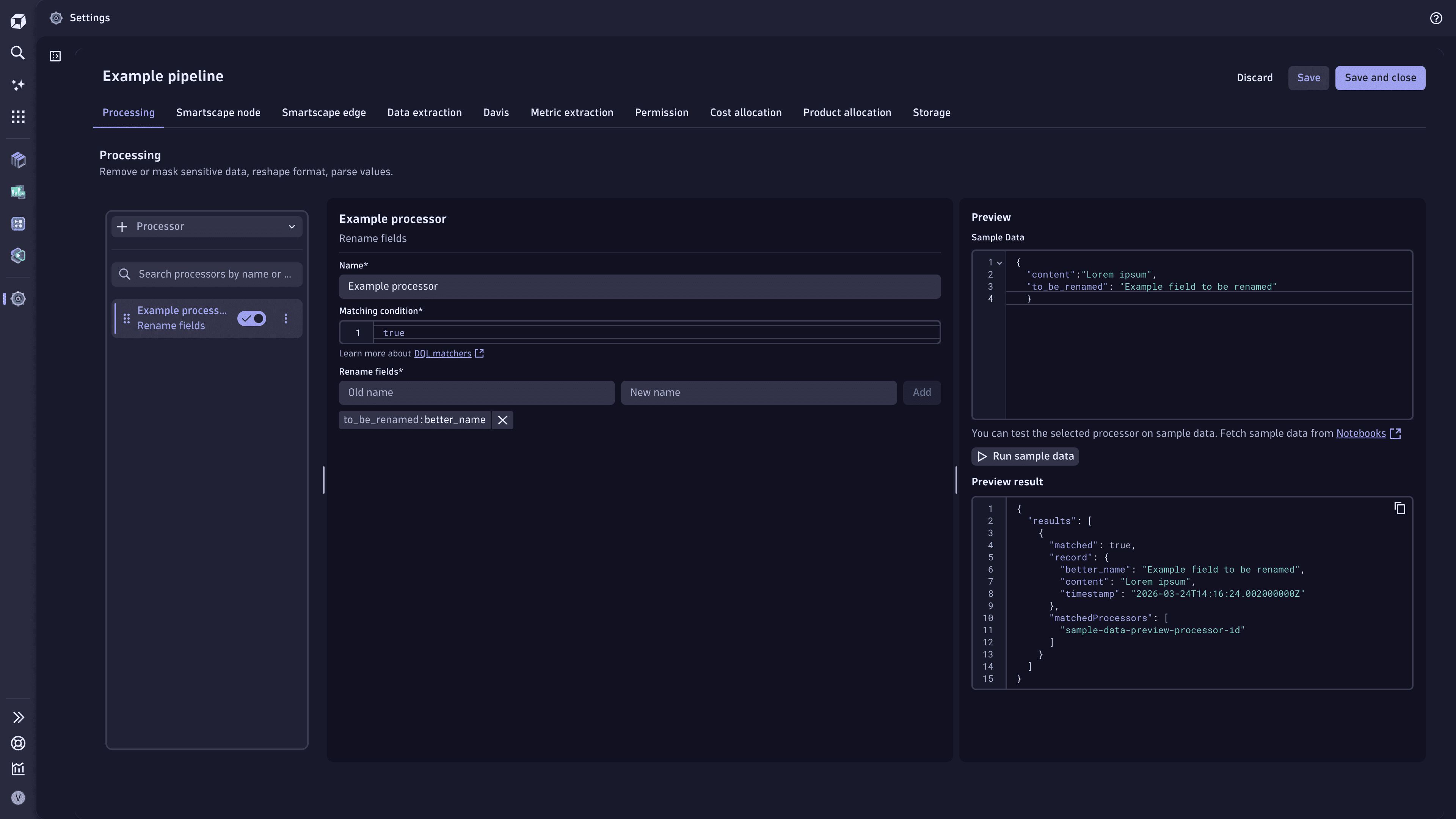 Example processor that renames fields in OpenPipeline
FAQ
Can classic pipelines and OpenPipeline run side by side?
Yes.
Data is processed according to the first matching route. As long as the classic processing rules are in place in your environment, the classic pipeline is accounted for in OpenPipeline and is the default processing mechanism. When you create new pipelines and associated routes, position the new route above the default route so that OpenPipeline processes data accordingly. If some data doesn't match the new route condition, it's still routed by the default route to the classic pipeline.