Log processing with classic pipeline
- Latest Dynatrace
- Explanation
- 4-min read
For new accounts created from September 2026, classic pipeline is not available. Use OpenPipeline to process your data.
Latest Dynatrace
Even though the classic processing pipeline is still available for some environments created before September 2026, we recommend upgrading to OpenPipeline as a scalable and powerful solution to manage, process, and analyze your data. Processing with the classic pipeline will be deactivated in a future release.
To learn more, see Log processing with OpenPipeline.
Dynatrace can transform your incoming log lines for improved clarity, analysis, and further transformation based on the log processing rules that you define. This approach is known as log processing with the classic pipeline or classic log processing pipeline.
Log processing occurs as log data arrives in the Dynatrace SaaS environment and before it is written to disk (stored). By setting log processing rules, you can process the log data as soon as it reaches Dynatrace. After the log data is processed, it's sent to storage and is available for further analysis. This method allows to process log data from all log ingest channels.
For example, you can extract numerical values from log lines using the classic log processing pipeline, turn these into metrics on the Dynatrace Platform, and include them in dashboards and problem detection.
Log processing does not affect DDU consumption of log ingest.
Log processing with the classic pipeline is based on rules that contain a matcher and a processing rule definition.
- The matcher narrows down the available log data for executing this specific rule.
- The processing rule is a log processing instruction about how Dynatrace should transform or modify the log data from the matcher.
Log processing steps
The classic log processing pipeline includes the following steps:
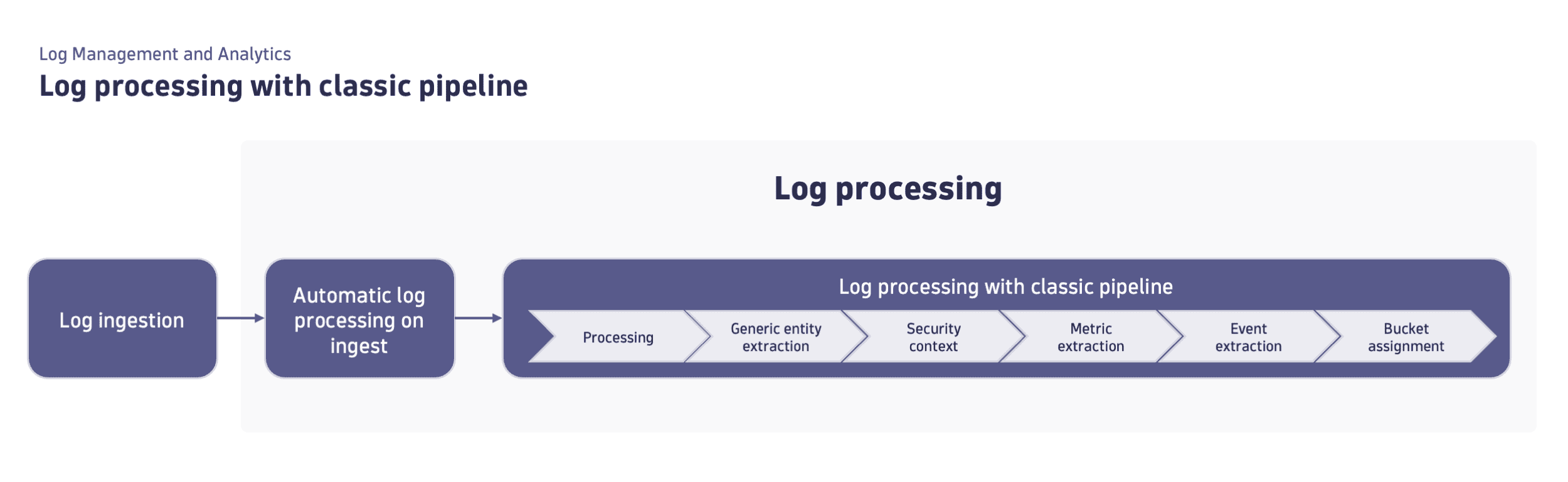
Log processing rules
Go to Settings (Dynatrace Classic) or Settings Classic > Log Monitoring > Processing to view log processing rules that are in effect, reorder the existing rules, and create new rules. Rules are executed in the order in which they're listed, from top to bottom. This order is critical because a preceding rule may impact the log data that a subsequent rule uses in its definition.
All processing rules that match a log record are applied from top to bottom. An output from one rule is an input for the next one.
Expand Details to examine a rule definition. A log processing rule consists of the following:
- Rule name
- Matcher
- Rule definition
You can turn any rule on or off in the Active column.
Built-in rules
By default, log processing with the classic pipeline includes many enabled built-in rules responsible for cleaning up or normalizing log data. The name of every built-in rule starts with [Built-in].
You cannot modify these rules directly, but you have the ability to turn them off, copy their definitions, and create new rules with your modifications.
Add a log processing rule
To create a log processing rule
-
Go to Settings (Dynatrace Classic) or Settings Classic > Log Monitoring > Processing.
-
Select Add rule.
-
Provide the name for the log processing rule.
-
Provide a log query in the Matcher section.
A log search query narrows down the available log data for executing this specific rule. Add a Matcher to your rule by pasting your matcher-specific DQL query.Matching based on previous rules is not supportedThe matcher operates on the initial data set before applying any processing rules. Matching records modified by preceding rules is not supported. For example, the modified field in rule 1 and used for matching in rule 2 will contain the original value for that field and will not use the modified field in rule 1.
-
Provide the processing rule definition.
The processing rule definition is a log processing instruction about how Dynatrace should transform or modify your log data.The rule definition is created using log processing commands, functions, and pattern matching (Dynatrace Pattern Language) that allows you to add, transform, or remove incoming log records. This gives you total control over how your log data is presented to Dynatrace log monitoring.
-
Test the log processing rule.
-
Provide a log sample.
You can test the rule definition by providing a fragment of the sample log manually in the Paste a log / JSON sample text box. Make sure it's in JSON format. Any textual log data should be inserted into the
contentfield of the JSON. -
Run the test.
Select Test the rule and view the result in the Test result text box.
-
-
Select Save changes.