Execute queries
- Latest Dynatrace
- How-to guide
You can define and execute your Dynatrace Query Language (DQL) queries in the query input section.
To customize query display, go to the settings menu in the upper-right corner and enable Wrap lines (…) and Use condensed (…).
To format a DQL query into a more readable, multi-line layout, use Cmd+L (macOS) or Ctrl+L (Windows/Linux) in the query editor. This is useful when working with complex queries or queries pasted from other sources as a single line.
Query node behavior
When you create a DQL query or update the DQL query content, not just its format, a new node is created to the query tree. For example, adding comments or line breaks to your query won't create a new node; they only modify the format.
Revert query
If you modify a query and are unhappy with the result, you can revert it to the original state by selecting in the upper-right corner of the query input before executing it.
Run query in the same node
If you write a query and want to fix mistakes, test something specific, or simply to avoid creating too many nodes, you can execute the query without creating a new node by selecting Run and overwrite node in the menu next to Run.
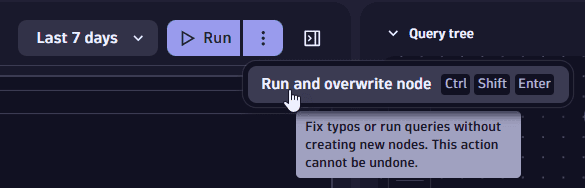
Increase the number of returned records
By default, the maximum number of returned records per query is 1,000. To increase this limit, go to App settings in the upper-right of  Investigations and select one of the available options in Set max record limit.
Your selected setting will apply to all subsequent queries until you modify it again. Alternatively, you can use the limit command in your DQL query to control the number of returned records dynamically.
Increasing the record limit may impact DDU consumption and query execution time.
Increase the result size limit
By default, the maximum result size per query is 100 MB. To increase the limit, go to App settings in the upper-right of Investigations and enter your desired value in Set max result size limit (MB). You can increase it up to 300 MB.
Your selected setting will apply to all subsequent queries until you modify it again.
Increasing the result size limit may impact DDU consumption and query execution time.
Specify timeframe
The query uses the timeframes you have defined for your DQL query or in the timeframe selector next to Run. If you don't specify any timeframe, the default (-2h) is used, which fetches logs from the last two hours. For details, see Define timeframes.
Combine functionalities
You can combine DQL query execution with other functionalities. For example, you can
-
Insert preset patterns from DPL Architect into your queries. For details, see Extract fields with DPL Architect.
-
Open a query in another app and continue your investigation from there. For details, see Collaborate with other apps.
-
Enhance DQL queries by adding filters directly from your query results or from the evidence lists. For details, see Filter logs.
-
Instantly switch from one dataset to another with the log pivoting function. For details, see Pivot results.
Add fields to the query
You can add a field from the records details window to the query.
-
Double-click to open the record details window.
-
Hover over a field, then right-click and select Add field.
This modifies the current query and adds the
fieldsAddcommand to the query input.
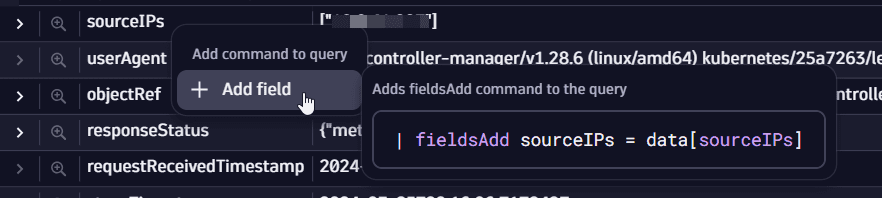
When dealing with complex types, you can extract new fields from complex objects like records from the record details window to the query.