Timestamp/splitting configuration
- Latest Dynatrace
- Tutorial
- 17-min read
Dynatrace allows you to define rules that control log data timestamps.
Timestamp detection
By default, log monitoring automatically detects only the most common and unambiguous subset of date formats supported. For details, see Supported timestamp formats. Each time a timestamp pattern is detected, the line will be treated as the beginning of the log entry. All following lines without a detected timestamp will be treated as a continuation and reported as a single multi-line log record.
You can also control timestamp detection by using the following options in  Settings > Collect and capture > Log monitoring > Configure log module > Advanced settings:
-
Detect container time zones: This option enables the automatic detection of the timezone in a container's logs, if the timezone is not explicitly defined or configured.
-
Default timezone for agents: This options enables the default timezone for the agent if more specific configurations are not defined.
-
Timestamp search limit: This option defines the number of characters in every log line (starting from the first character in the line) where the timestamp is searched.
No timestamp detected
When log monitoring is unable to determine the time format, it treats each log line as a separate log entry with an automatically assigned timestamp (observation timestamp) using a one-minute time resolution, except for lines starting with whitespaces (space, tab), which are treated as a continuation of an entry.
Timestamp search limit
Regardless of format, the timestamp typically occurs within the first 64 characters of a log entry. However, the timestamp can occur elsewhere, in which case you can raise this limit on the OneAgent configuration page: Settings > Collect and capture > Log monitoring > Configure log module > Timestamp/splitting rules.
Timestamp rules
Regardless of where it occurs in a log entry, a timestamp may be written in multiple formats. Dynatrace supports some timestamp formats by default, but sometimes multiple formats may fit the incoming log data and match the timestamp to an incorrect timestamp pattern.
Because of this, log monitoring also enables you to define a specific date format using timestamp rules that specify what should be considered a timestamp in a log record. These rules contain a timestamp pattern, time zone, and matchers.
- Pattern—Defines what should be considered a timestamp in your logline.
- Timestamp search limit—Specifies the count of characters in each log line, measured from the beginning of the line, where the timestamp is searched.
- Entry boundary—Optional field. Specifies the entry boundary. You need to provide a fragment of the text from the first line of the entry. The pattern is treated literally, which means that there is no support for the asterisk (*) as a wildcard.
- Timestamps in indented lines—Enable this option if you don't want to parse timestamps in lines that start with whitespace characters.
- Time zone—Defines the timestamp time zone. Optional if your timestamp pattern includes the timezone indicator (
%z). - Matcher—Narrows down the range for the rule and applies the timestamp pattern only to matched log entries. Because you can't use the
log.contentattribute in the timestamp pattern matchers, the highest granularity is a log source. Granularity is at this level because the timestamp pattern is used to split the contents of a log source into separate log records, so it is used before thelog.contentattribute's value (or any other attributes set on an individual log record's level) is determined.- If you create multiple rules matching the same log data, all defined time formats are searched for.
- If you have at least one rule matching a given log, predefined formats are not applied to it.
Timestamp configuration examples
Consult the timestamp formats below as configuration examples:
-
Timestamp without the default separator:
%Y-%m-%d-%H.%M.%SExample:2024-09-05-12.30.01 -
Using only timestamps from the beggining of the log entry (%^):
%^%F %TExample:2024-09-05 12:30:01 -
Searching for a timestamp with the field name (JSON):
"validTimestamp":"%Y-%m-%dT%H:%M:%S"Example:"validTimestamp": "2024-09-05T12:30:01" -
Timestamp with timezone offset:
%m-%d-%Y %H:%M:%S %zExample:09-05-2024 12:30:01 +01:00 -
Timestamp with timezone name or abbreviation:
%m-%d-%Y %H:%M:%S %ZExample:09-05-2024 12:30:01 UTC -
Timestamp excluding the year (the current year is used to evaluate the timestamp):
%b %t%d-%H:%M:%SHere,%tmaches zero or one white space characters. Example:Apr 4-12:30:01orApr 14-12:30:01 -
Any timestamp with the
myTime.*prefix:myTime%*: %Y-%m-%dT%H:%M:%SExample:myTimeOfCreation: 2024-09-05T12:30:01You can overwrite the default timezone by defining the timezone without the timestamp pattern. -
Two digits year format:
%m/%d/%y %H:%M:%S %ZExample:09/05/24 12:30:01 America/Chicago
Multiple timestamp patterns in the same log source
When ingesting log entries, OneAgent parses the log entry for a timestamp. To do this, it uses a list of matcher patterns.
- When the log entry contains one timestamp, OneAgent evaluates the timestamp against the list of matcher patterns, starting with the first pattern in the list. If the entry’s timestamp matches one of the patterns, OneAgent uses that timestamp as the beginning of the log entry.
- When the log entry contains two or more timestamps, OneAgent evaluates the timestamp against the list of matcher patterns, starting with the pattern that was matched in the previous log entry.
Therefore, it is possible that even if the log entry’s first timestamp matches the first pattern in the list of matching patterns, OneAgent will actually match the second timestamp—because the previous log entry matched the second pattern. See the code block below for an example.
Log entry 1: Pattern 1, Pattern 2Log entry 2: Pattern 2Log entry 3: Pattern 1, Pattern 2
For log entry 3, even if "Pattern 1" appears first in the list of matcher patterns, OneAgent will actually match "Pattern 2".
To ensure OneAgent evaluates only your desired timestamp patterns, carefully select which patterns are in your matching list. In the example above, to guarantee Pattern 1 is always used, remove Pattern 2 from your list. This may result in messages that only contain Pattern 2 timestamps to be dropped.
For example, if your log file contains both %FT%T (2024-01-01T12:30:01) and %F %T %Z (2024-01-01 12:30:01 UTC) patterns, and OneAgent successfully matches the first pattern in a line, it will prioritize that pattern for subsequent lines.
Supported scopes
Four hierarchy scopes are supported: host, host group, and environment.
The hierarchy scopes are merged into one list in the following order:
- Host rules
- Kubernetes cluster rules
- Host group rules
- Environment rules
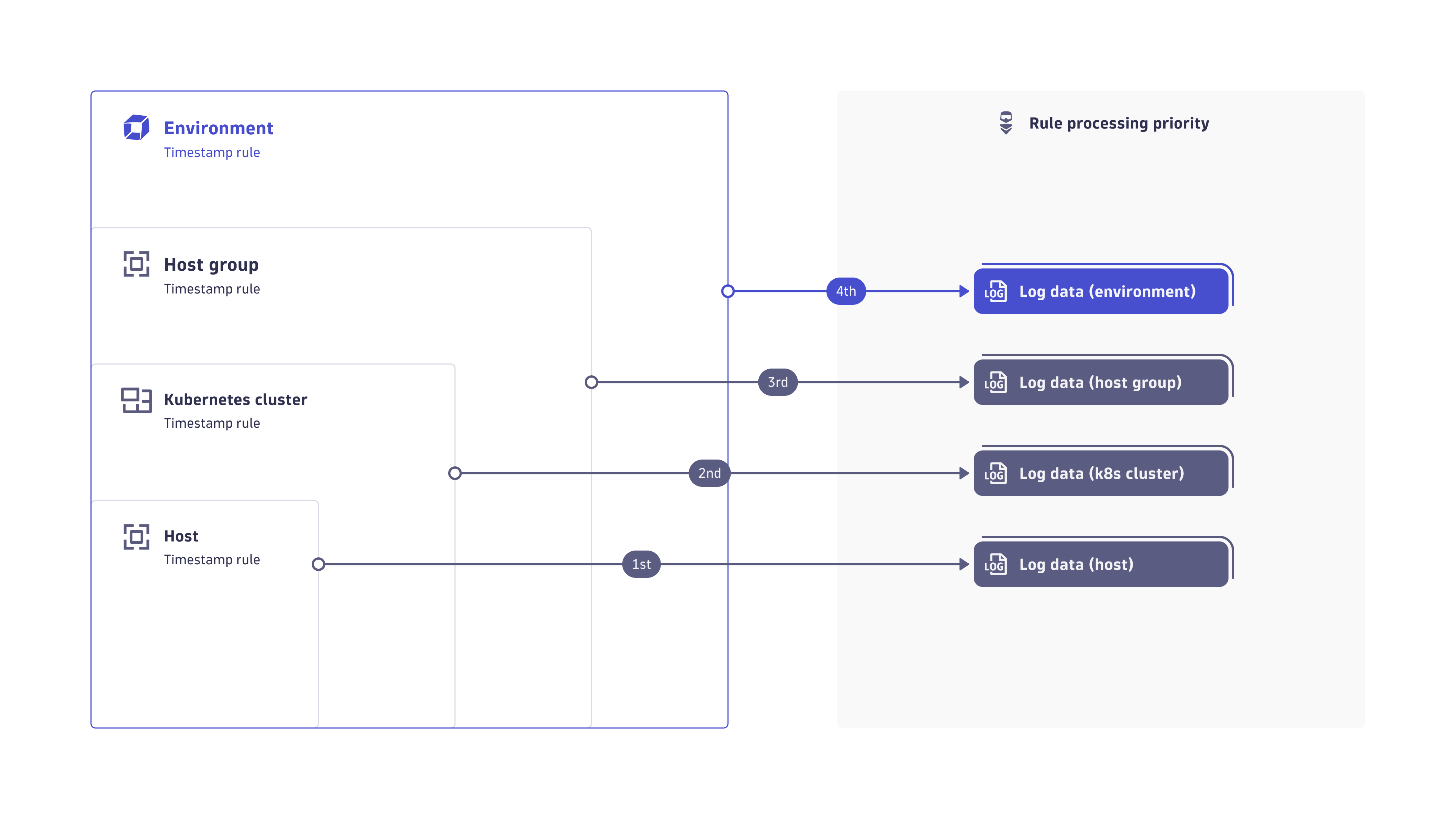
The OneAgent receives the merged list (merged lists from its respective hosts, host groups, and environments) with no indication of which scopes are defined.
Host scope
The host scope can be accessed through the host settings for a specific host.
- Go to Settings and in the upper-left corner, select Go to scope, search for the host, and select it.
- Go to Collect and capture > Log monitoring > Configure log module > Timestamp/splitting rules.
- Configure timestamp detection by adding rules with a set of matchers that specify what should be considered a timestamp in the log record.
Kubernetes cluster scope
The Kubernetes cluster scope can be accessed via  Kubernetes.
- Go to Kubernetes and select Clusters.
- Select the cluster that interests you to display the cluster overview page.
- Go to > Settings > Collect and capture > Log monitoring > Configure log module > Timestamp/splitting rules.
- Configure timestamp detection by adding rules with a set of matchers that specify what should be considered a timestamp in the log record.
Host group scope
The host group scope can be accessed via the host group settings.
- Go to Settings and in the upper-left corner, select Go to scope, search for the host group, and select it.
- Go to Collect and capture > Log monitoring > Configure log module > Timestamp/splitting rules.
- Configure timestamp detection by adding rules with a set of matchers that specify what should be considered a timestamp in the log record.
Environment scope
The environment scope is available in Settings.
- Go to Settings > Collect and capture > Log monitoring > Configure log module > Timestamp/splitting rules.
- Configure timestamp detection by adding rules with a set of matchers that specify what should be considered a timestamp in the log record.
Create rule
To add a rule (on the host, host group, or environment level) that interprets the incoming log data timestamps
-
Select New rule to open the New timestamp and splitting rule form.
-
Rule name
The name to display for your configuration. -
Pattern
Enter the pattern to be read as a date from the logs. For details on timestamp formats, see Supported timestamp formats and the following list of format specifiers.Pattern Description %*Wildcard matcher.
%!Matches the word boundary. It is any character that is not [0-9A-Za-z_] next to the characters from this group.
%%Matches
%character.%^Matches the beginning of the line.
%AEquivalent to
%a.%aThe locale's full or abbreviated case-insensitive weekday name.
%BEquivalent to
%b.%bThe locale's full or abbreviated case-insensitive month name.
%CThe century as a decimal number. The modified command
%NC, whereNis a positive decimal integer, specifies the maximum number of characters to read. If not specified, the default is 2. Leading zeroes are permitted but not required.%DEquivalent to
%m/%d/%y.%dThe day of the month as a decimal number. The modified command
%Nd, whereNis a positive decimal integer, specifies the maximum number of characters to read. If not specified, the default is 2. Leading zeroes are permitted but not required.%eEquivalent to
%dand can be modified like%d.%FEquivalent to
%Y-%m-%d. If modified with width, the width is applied only to%Y.%GThe ISO week-based year as a decimal number. The modified command
%NG, whereNis a positive decimal integer, specifies the maximum number of characters to read. If not specified, the default is 4. Leading zeroes are permitted but not required.%gThe last two decimal digits of the ISO week-based year. The modified command
%Ng, whereNis a positive decimal integer, specifies the maximum number of characters to read. If not specified, the default is 2. Leading zeroes are permitted but not required.%hEquivalent to
%b.%HThe hour (24-hour clock) as a decimal number. The modified command
%NH, whereNis a positive decimal integer, specifies the maximum number of characters to read. If not specified, the default is 2. Leading zeroes are permitted but not required.%IThe hour (12-hour clock) as a decimal number. The modified command
%NI, whereNis a positive decimal integer, specifies the maximum number of characters to read. If not specified, the default is 2. Leading zeroes are permitted but not required.%jThe day of the year as a decimal number. January 1st is 1. The modified command
%Nj, whereNis a positive decimal integer, specifies the maximum number of characters to read. If not specified, the default is 3. Leading zeroes are permitted but not required.%MThe minutes as a decimal number. The modified command
%NM, whereNis a positive decimal integer, specifies the maximum number of characters to read. If not specified, the default is 2. Leading zeroes are permitted but not required.%mThe month as a decimal number. Jan is 1. The modified command
%Nm, whereNis a positive decimal integer, specifies the maximum number of characters to read. If not specified, the default is 2. Leading zeroes are permitted but not required.%nMatches one ' ' or '\t' white space character.
%oThe 13-digit Unix timestamp in milliseconds.
%pThe locale's equivalent of the AM/PM designations associated with a 12-hour clock. The command
%Imust precede%pin the format string.%REquivalent to
%H:%M.%SThe seconds as a decimal number. The modified command
%NS, whereNis a positive decimal integer, specifies the maximum number of characters to read. If not specified, the default is 2 if the input time has a precision convertible to seconds. Otherwise, the default width is determined by the decimal precision of the input, and the field is interpreted as a long double in a fixed format. The decimal point character should be one of the following:,,., or:. Leading zeroes are permitted but not required.%sThe 10-digit Unix timestamp in seconds.
%TEquivalent to
%H:%M:%S.%tMatches zero or more white space characters.
%uThe ISO weekday as a decimal number (1-7), where Monday is 1. The modified command
%Nu, whereNis a positive decimal integer, specifies the maximum number of characters to read. If not specified, the default is 1. Leading zeroes are permitted but not required.%UThe week number of the year as a decimal number. The first Sunday of the year is the first day of week 01. Days of the same year prior to that are in week 00. The modified command
%NU, whereNis a positive decimal integer, specifies the maximum number of characters to read. If not specified, the default is 2. Leading zeroes are permitted but not required.%VThe ISO week-based week number as a decimal number. The modified command
%NV, whereNis a positive decimal integer, specifies the maximum number of characters to read. If not specified, the default is 2. Leading zeroes are permitted but not required.%WThe week number of the year as a decimal number. The first Monday of the year is the first day of week 01. Days of the same year prior to that are in week 00. The modified command
%NW, whereNis a positive decimal integer, specifies the maximum number of characters to read. If not specified, the default is 2. Leading zeroes are permitted but not required.%wThe weekday as a decimal number (0-6), where Sunday is 0. The modified command
%Nw, whereNis a positive decimal integer, specifies the maximum number of characters to read. If not specified, the default is 1. Leading zeroes are permitted but not required.%yThe last two decimal digits of the year. If the century is not otherwise specified (for example, with
%C), values in the range [69 - 99] are presumed to refer to the years [1969 - 1999], and values in the range [00 - 68] are presumed to refer to the years [2000 - 2068]. The modified command%Ny, whereNis a positive decimal integer, specifies the maximum number of characters to read. If not specified, the default is 2. Leading zeroes are permitted but not required.%YThe year as a decimal number. The modified command
%NY, whereNis a positive decimal integer, specifies the maximum number of characters to read. If not specified, the default is 4. Leading zeroes are permitted but not required.%zThe offset from UTC in the format [+|-]h[h][mm|:mm]. For example, -0430 refers to 4 hours and 30 minutes behind UTC, +4:30 refers to 4 hours and 30 minutes ahead of UTC, and 04 refers to 4 hours ahead of UTC.
%ZThe time zone abbreviation or name. A single word is parsed. This word can only contain characters that are alphanumeric or one of
_,/,-,+.You need to specify at least the month, day, hours, minutes, and seconds, although you can use alternative formats for them. You can include the time zone indicator (
%z) or specify the time zone separately in the rule definition.Rules without a pattern can override the timezone only for default supported timestamps.
-
Timestamp search limit
Use this field to define the number of characters in every log line where timestamp is searched. If you want to ignore timestamps and split logs using the default rules, set this value to
0. Use this field to overwrite the global timestamp search limit (default 64 bytes). -
Entry boundary
Use this field to provide a fragment of the text from the first line of the entry.
-
Timezone
Select the time zone to apply to this pattern.
This setting is not enabled if you have already specified the timezone in the timestamp pattern (%z).You can select
Local time zoneto use the time zone of the host on which the OneAgent is running. -
Skip indented lines: Toggle on to exclude timestamps in lines starting with a whitespace character from being parsed.
-
JSON detection: This option is enabled by default to detect and parse logs in JSON format.
-
Under Matchers, select an Attribute from the dropdown and enter the matching Values to define a specific condition for this rule. Select Add another matcher to add more conditions. Multiple matchers can be included in one rule. For example, the rule can be applied to logs from a specific container, namespace, or log source. Multiple matchers with the same attribute use AND logic between matchers, while matchers with multiple values use OR logic.
Attribute Description Search dropdown logic Process group
Matching is based on the process group ID.
Attributes visible in the last 3 days are listed.
Log source
Matching is based on a log path; wildcards are supported in form of an asterisk. Autocompletion for Log source is only partial. You can either choose one of the predefined values or enter your log source.
Can be entered manually. No time limit.
Log source origin1
Matching is based on the detector was used by the log agent to discover the log file.
Can be entered manually. No time limit.
Matching is based on the host tag. The attribute only supports the tags set with the OneAgent command line tool or with the Remote configuration in a
key=valuepair format. They can be distinguished by the[Environment]prefix on the UI, but you should use the value without the prefix. Multiple tags can be specified in a single matcher, but each tag needs to have the same key, such aslogscope=frontend,logscope=backend.Can be entered manually. No time limit.
Kubernetes container name
Matching is based on the name of the Kubernetes container.
Attributes visible in the last 90 days are listed.
Kubernetes namespace name
Matching is based on the name of the Kubernetes namespace.
Attributes visible in the last 90 days are listed.
Kubernetes deployment name
Matching is based on the name of the Kubernetes deployment.
Attributes visible in the last 90 days are listed.
Matching is based on any of the selected pod annotations. The correct format is
key=value. It requires either the OneAgent Log Module managed by Dynatrace Operator or the Collect all container logs feature flag to be enabled.Can be entered manually.
Matching is based on any of the selected pod labels. The correct format is
key=value. It requires either the OneAgent Log Module managed by Dynatrace Operator or the Collect all container logs feature flag to be enabled.Can be entered manually.
Matching is based on any of the selected workload names. It requires either the OneAgent Log Module managed by Dynatrace Operator or the Collect all container logs feature flag to be enabled.
Can be entered manually.
Matching is based on any of the selected workload kinds. It requires either the OneAgent Log Module managed by Dynatrace Operator or the Collect all container logs feature flag to be enabled.
Can be entered manually.
Docker container name
Matching is based on the name of the container.
Attributes visible in the last 90 days are listed.
DT entity container group ID
Matching is based on any of the selected container groups.
Can be entered manually. No time limit.
Process technology
Matching is based on the technology name.
Can be entered manually. No time limit.
1The minimum required OneAgent version is 1.295.
2Manually or automatically applied tags are not visible to OneAgent.
3The minimum required OneAgent version is 1.289.
4The minimum required OneAgent Log Module version is 1.309.
5The minimum required Dynatrace Operator version is 1.4.2.
-
Select Create.
Rules are executed in the order in which they appear on the Timestamp/splitting rules page.
When you change the rule order (to change the order in which they are executed), allow for two or three minutes of propagation time between when you save the change and when the change takes effect.
Starting with OneAgent version 1.249, you can activate/inactivate your rules by turning on/off the Active toggle. To manage your rules effectively, we recommend that you upgrade your OneAgent to version 1.249. If you have any rules set on the host with OneAgent version earlier than 249, you will not be able to inactivate them, in which case you need to remove such rules by selecting Delete on the rule level or via the REST API.
Rules are executed in the order in which they appear on the Timestamp/splitting rules page.
Configuration limits
You can add a maximum of 100 timestamp rules per each scope (host, host group, Kubernetes cluster, or environment).
REST API
You can use the Settings API to manage your timestamp configuration:
- View schema
- List stored configuration objects
- View single configuration object
- Create new, edit, or remove existing configuration object
To check the current schema version for timestamp configuration, list all available schemas and look for the builtin:logmonitoring.timestamp-configuration schema identifier.
Timestamp configuration objects are available for configuration on the following scopes:
environment—configuration object affects all hosts in a given environment.host_group—configuration object affects all hosts assigned to a given host group.host—configuration object affects only the given host.
To create a timestamp configuration using the API
-
Create an access token with the Write settings (
settings.write) and Read settings (settings.read) permissions. -
Use the GET a schema endpoint to learn the JSON format required to post your configuration. The timestamp configuration schema identifier (
schemaId) isbuiltin:logmonitoring.timestamp-configuration. Here is an example JSON payload with the timestamp configuration:[{"insertAfter":"uAAZ0ZW5hbnQABnRlbmFudAAkMGUzYmY2ZmYtMDc2ZC0zNzFmLhXaq0","schemaId": "builtin:logmonitoring.timestamp-configuration","schemaVersion": "0.1.0","scope": "tenant","value": {"config-item-title": "Added from REST API","date-time-pattern": "%Y-%m-%d %H:%M:%S","timezone": "CET","matchers": [{"attribute": "dt.entity.process_group","operator": "MATCHES","values": ["PROCESS_GROUP-05F00CBACF39EBD1"]},{"attribute": "log.source","operator": "MATCHES","values": ["Windows System Log","Windows Security Log"]}]}}] -
Use the POST an object endpoint to send your configuration.