Manage evidence
- Latest Dynatrace
- How-to guide
During your investigation, you can add relevant fragments from logs and IP addresses as evidence for later use in the Evidence lists section. The Evidence lists section lets you:
- Automatically enrich IP addresses with external reputation data for faster triage
- Filter or search for evidence
Add evidence
You can add
-
A field value or a selected part of the value from the results table to the built-in IoC evidence list or to a custom evidence list created by you.
-
IP addresses (IPv4 and IPv6, also in CIDR notation) to the built-in IP evidence lists (Suspicious or Safe) or to custom IP evidence lists created by you.
There are two ways to add evidence, manually and via query results.
There is no limitation on the number of items (strings or IPs) you can add to a list in your evidence list.
Add manually
-
In the Evidence lists section, select next to the evidence list where you want to add your evidence.
-
Select Add evidence. You can enter evidence directly or upload it from a file in TXT or CSV format.
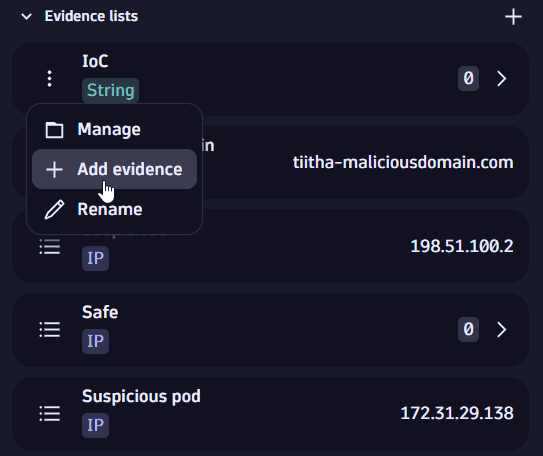 add evidence from the evidence list section
Add via query results
- In the query results table, right-click on a field or on a selected portion of a field.
- In the Add to evidence list section, select where you want to add the evidence.
For example, to add an IP address to an IP evidence list, right-click on an ip_address field or select the IP address from a string-type field with your mouse.
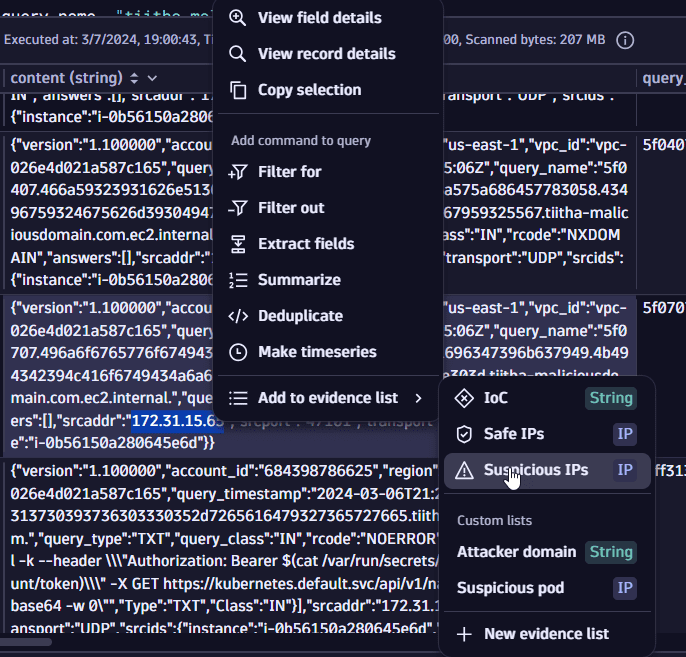
You can also add multiple items at once to an evidence list or create a new list from the selection.
Create custom lists
You can create custom evidence lists from the Evidence lists section and from the query results table.
There is no limitation on the number of lists you can create.
From the evidence lists
-
Select .
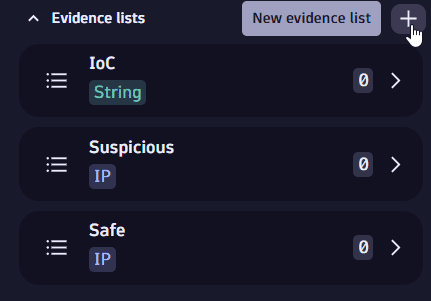 create new evidence list
 -
Select the evidence type, enter the details, then select Confirm.
From the results table
-
Right-click on a field.
-
In the Add to evidence list section, select New evidence list.
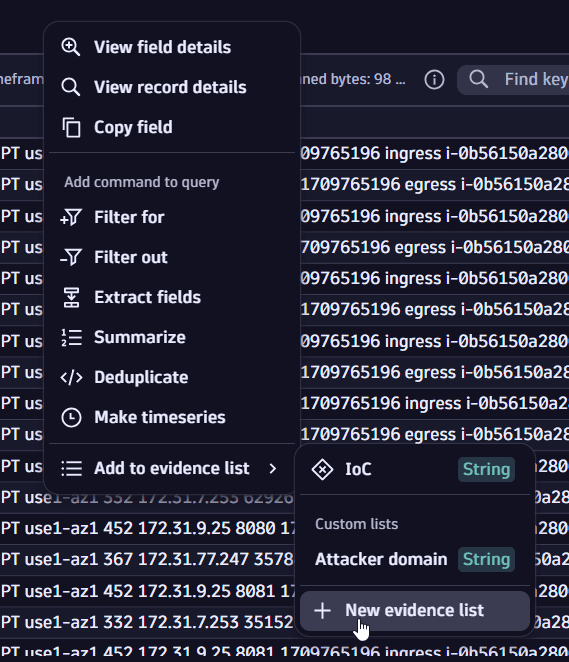 create list from the query results table
 -
Select the evidence type, enter the details, then select Confirm.
Copy items in the evidence list
For quick access to your evidence, you can copy items in your evidence lists.
-
Go to Evidence lists.
-
You have the following options:
-
If there's one item in a list, select for the evidence you want to copy.
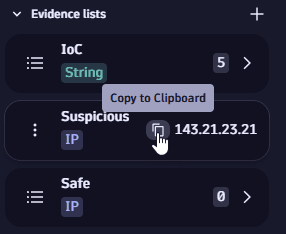 copy one item
 -
If there are multiple items in a list, select to expand the list, then select for the evidence you want to copy.
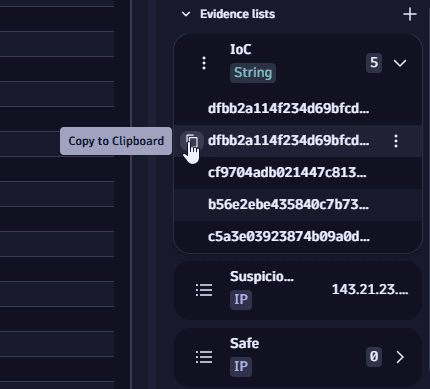 copy one of many items
-
Download evidence lists
You can download evidence lists in any of the supported formats (STIX 2.0 or CSV).
-
In Evidence lists, select next to the evidence list you want to download.
-
Select Download as, then select the desired format.
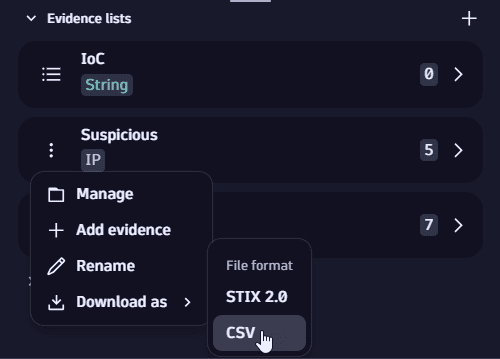 download evidence list
Delete evidence
You can delete items in your evidence list individually or in bulk.
-
In the Evidence lists section, select next to the evidence list where you want to delete evidence.
-
Select
 Manage.
 -
Select the items you want to delete.
-
Select Delete.
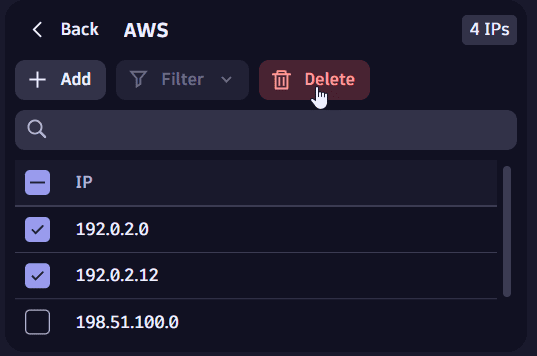
Rename and delete lists
In Evidence lists you can
-
Rename preset and custom evidence lists
- Select next to the evidence list that you want to rename.
- Select Rename.
-
Delete custom lists
- Select next to the evidence list that you want to delete.
- Select Delete.