Services app
- Latest Dynatrace
- App
- 5-min read
 Services delivers comprehensive visibility into your distributed services, enabling teams to quickly identify, investigate, and resolve issues across complex microservice architectures. This unified interface consolidates critical health signals and performance metrics to accelerate troubleshooting and optimize service reliability.
Prerequisites
- Services instrumented with OneAgent or OpenTelemetry.
- Services is installed in your Dynatrace environment.
- You have the minimal set of permissions to use Services.
Get started
Use the views in Services to monitor service health, investigate failures, and analyze endpoint, database, and messaging performance.
On this page, the views marked Early Access require the new Explorer (Early Access). All other views work the same in both the default Explorer view and the new Explorer (Early Access) view.
Explorer view
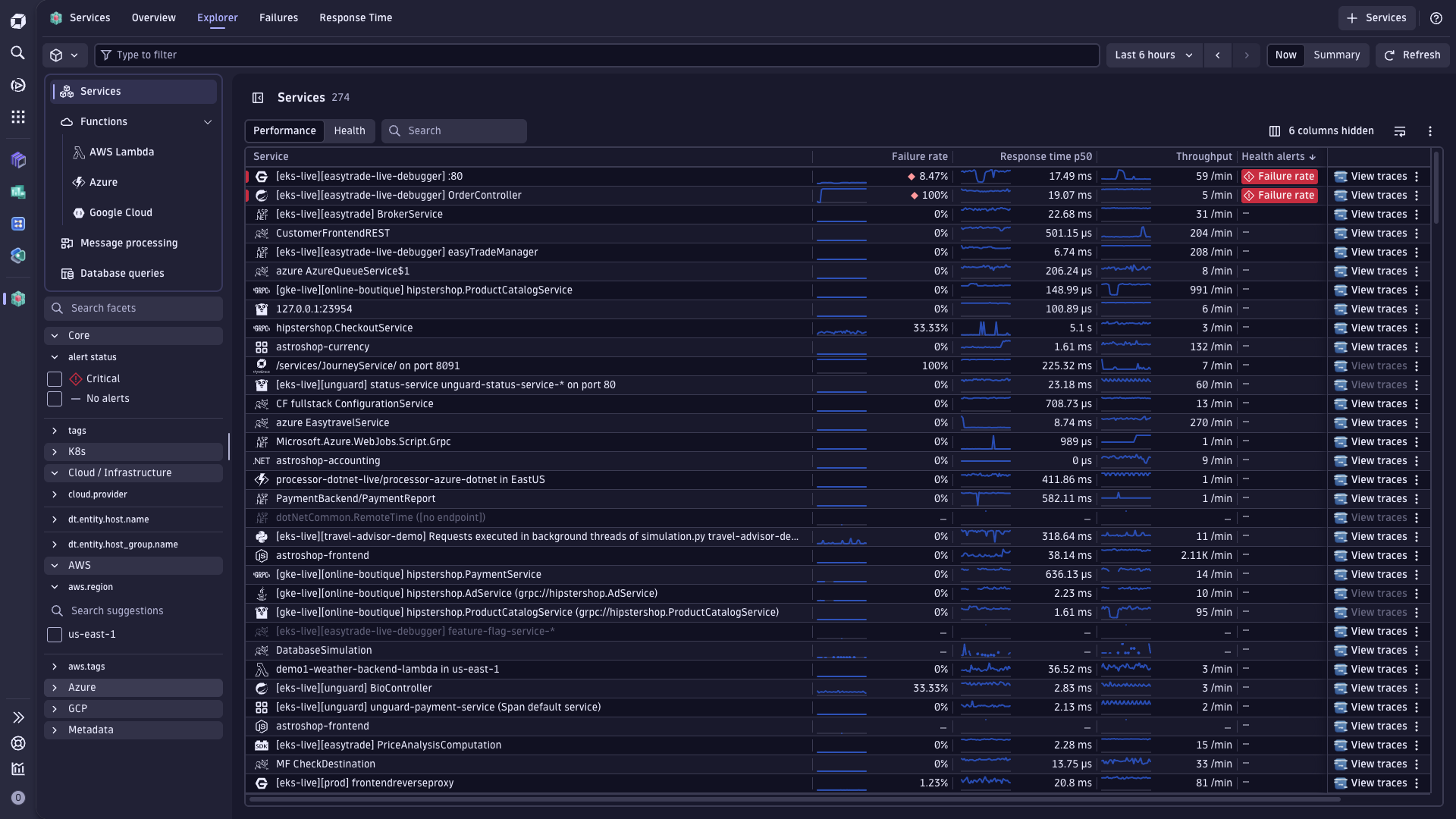
Services includes an Explorer view to monitor, filter, and drill into your services.
The Explorer view provides intelligent health alerts that surface issues demanding immediate attention. You can filter alerts by severity and drill into specific services experiencing degradation. When a service enters a critical state, the app highlights failure rates and provides context around what triggered the alert—whether it's increased errors, latency spikes, or infrastructure problems.
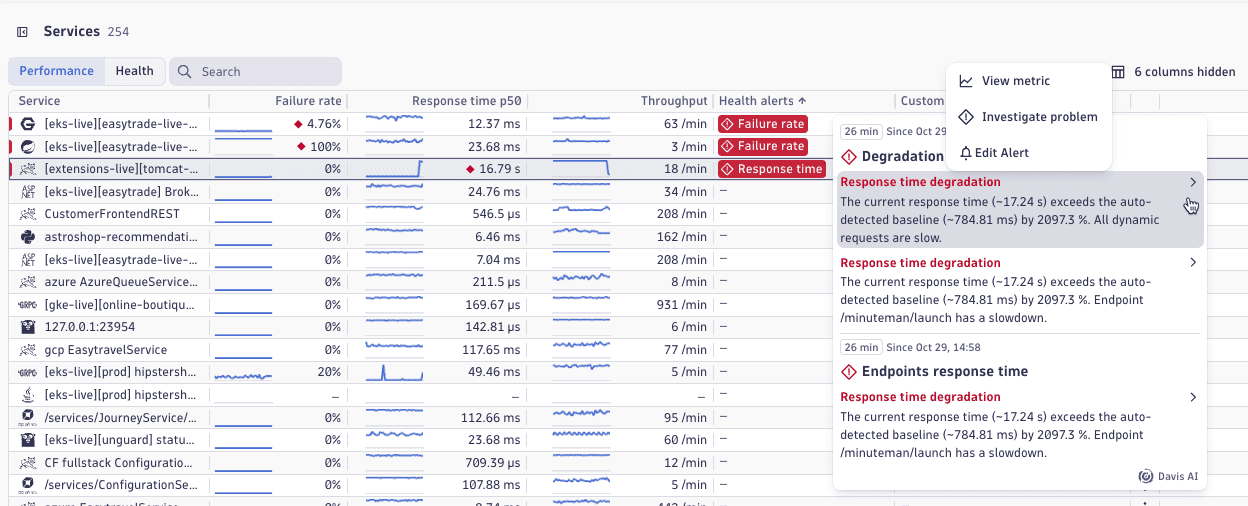
The Explorer view in Services follows the shared Explorer pattern used across Dynatrace apps. For details, see Explorer view in Dynatrace apps.
New Explorer view Early Access
A new Explorer (Early Access) experience is available as an opt-in Early Access release. You can switch to it directly from Services at your own pace.
Switch to new Explorer experience
To switch to the Explorer (Early Access) view
- Go to Services.
- In the app header on the right, turn on Use latest features.
This makes the Explorer (Early Access) view your default experience. The setting applies per user.
Features of the new Explorer view
The new Explorer (Early Access) view is powered by time series queries and Smartscape 2.0 entities, which ensures a consistent service list across Dynatrace. It adds capabilities that are exclusive to this new experience:
- Service Map to visualize how services connect across your environment.
- Dedicated Endpoints view to investigate slow or failing requests at the endpoint level across all your services.
- Filtering by primary Grail tags and fields and improved Segments support.
Moreover, you can use the Explorer (Early Access) view to monitor service health and performance. For details, see Manage service health and performance.
Service Map Early Access
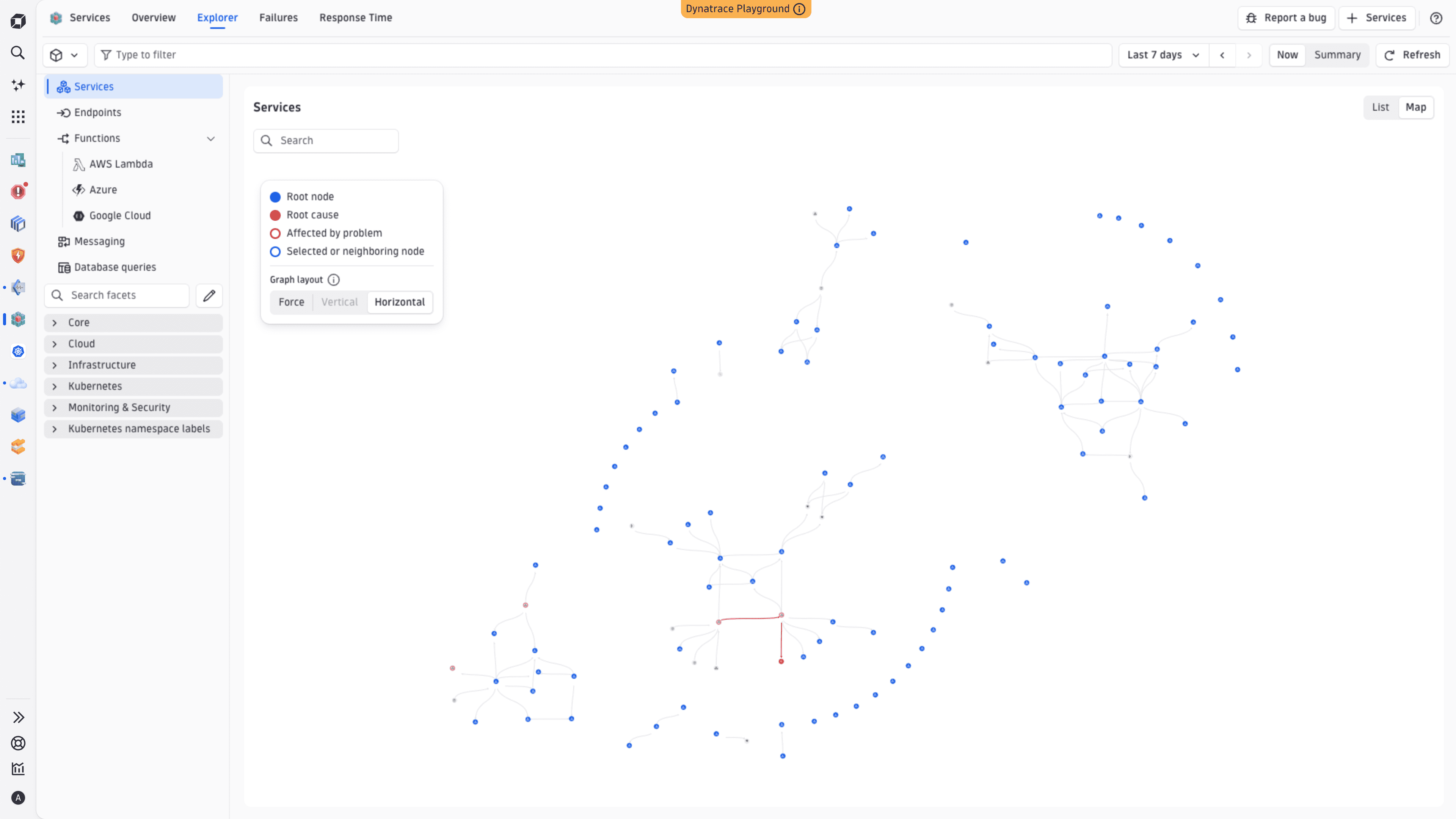
The Service Map provides an interactive, automatically discovered topology of your services. It shows you the full frontend-to-backend chain—from browser and mobile clients through every service hop to databases and queues—with live health and performance signals on every node.
For details, see Explore service topology with Service Map.
Advanced filtering and release analysis Early Access
Filter service views across releases and dozens of facets, including Kubernetes namespaces and deployment dimensions. Compare behavior across staging and production to identify configuration drift or isolate environment-specific issues.
You can filter your services by primary Grail fields, for example, using the k8s.cluster.name, k8s.namespace.name, aws.region, and azure.location fields. This way, you can find services in a specific Kubernetes cluster or namespace or display services in a particular cloud region or account.
Services also provides ready-made segments that join service entities with underlying metric data, enabling you to filter services by common dimensions, such as AWS region, Kubernetes namespace, or host group, without complex segment definitions or manual joins.
Endpoints Early Access
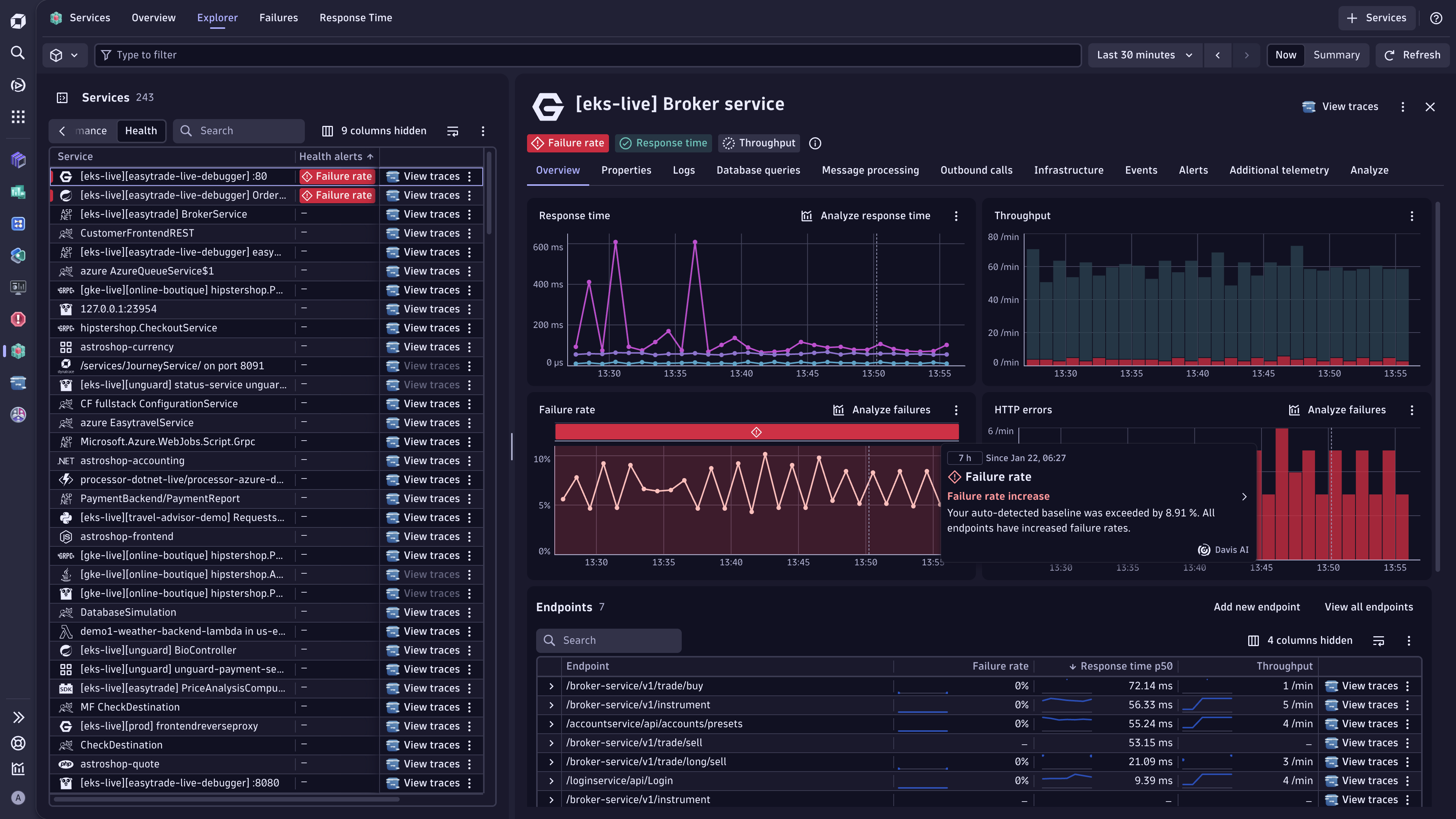
For each of your services, check every detected endpoint with its response time, throughput, and failure rate. In the Explorer (Early Access) view, select Endpoints to see the endpoint list across all your services. Endpoints are logical groupings of requests—for example, GET /orders/{id}—not individual URLs. This means you get stable, low-cardinality names you can use in dashboards, SLOs, and alerts.
To see endpoints for a particular service, select the required service, and then scroll down to the Endpoints section located on the Overview tab. Per-service endpoint metrics are available in both the default Explorer view and the new Explorer (Early Access) view; the dedicated cross-service Endpoints view is exclusive to the new Explorer (Early Access) view.
To see the individual URL paths behind an endpoint, select the endpoint and select View all URLs to open  Distributed Tracing with the raw paths visible. This is useful for understanding traffic patterns and deciding whether you need request naming rules to create more specific endpoint groupings.
For SDv1 services, endpoint metrics require the Enhanced endpoints feature to be activated. For SDv2 services, endpoints are always available.
Messaging
In the Explorer view in Services, select Messaging. From there, you can:
- Track message publish rates, receive rates, and processing throughput across your service topology.
- Identify bottlenecks in asynchronous workflows that traditional request-response monitoring misses.
- Visualize processing failure rates to pinpoint services struggling with message consumption or transformation logic.
- Maintain visibility into batch jobs, event processors, and queue-based integrations operating outside critical user-facing paths.
For additional details, see Monitor service message processing.
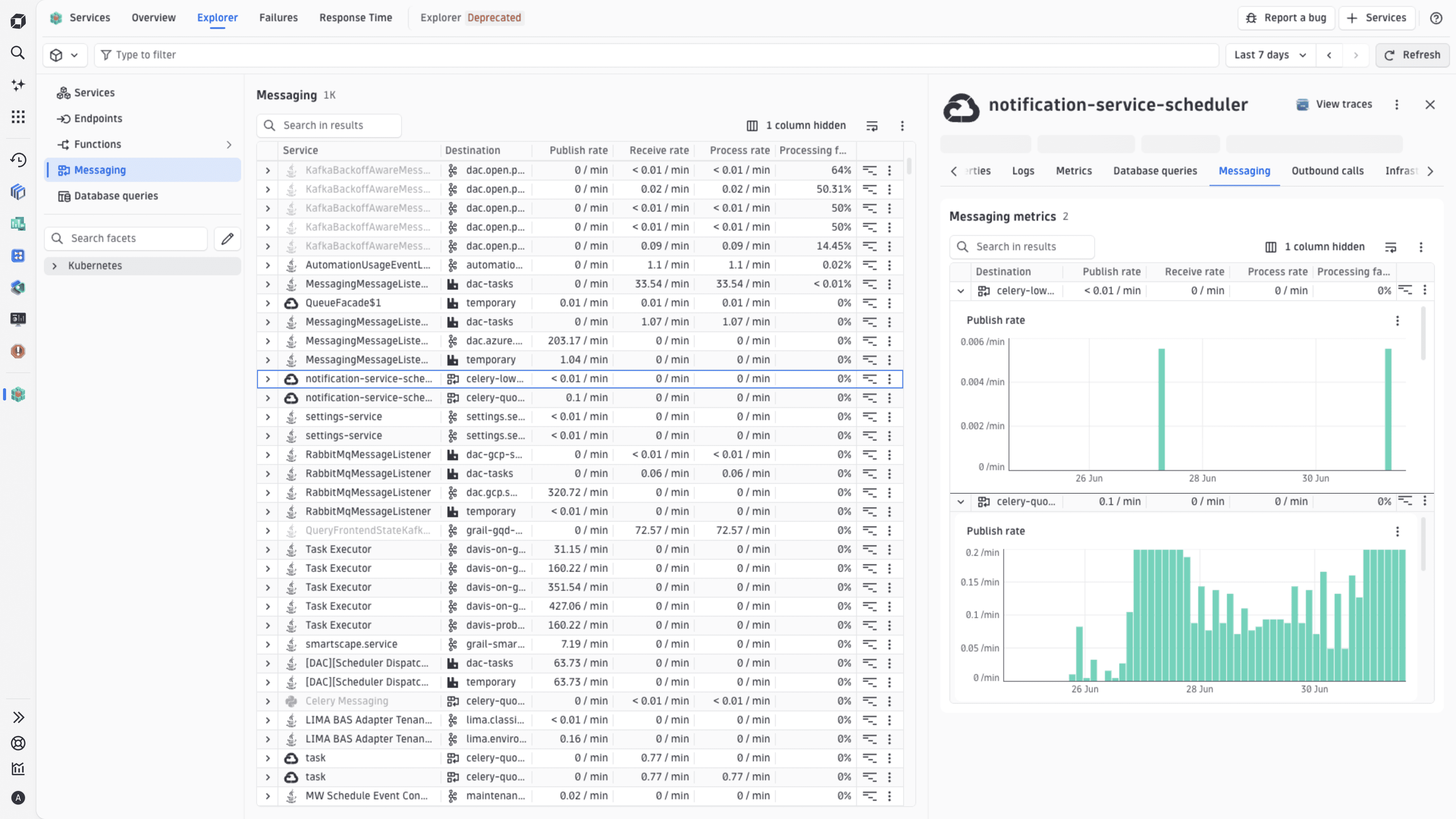
Sometimes, temporary queues are created with numerous unique identifiers in their names, generating thousands of distinct queue names that make aggregations unusable. For instructions on how to normalize queue names in the Messaging view, refer to Reduce cardinality of temporary queue names.
Database queries
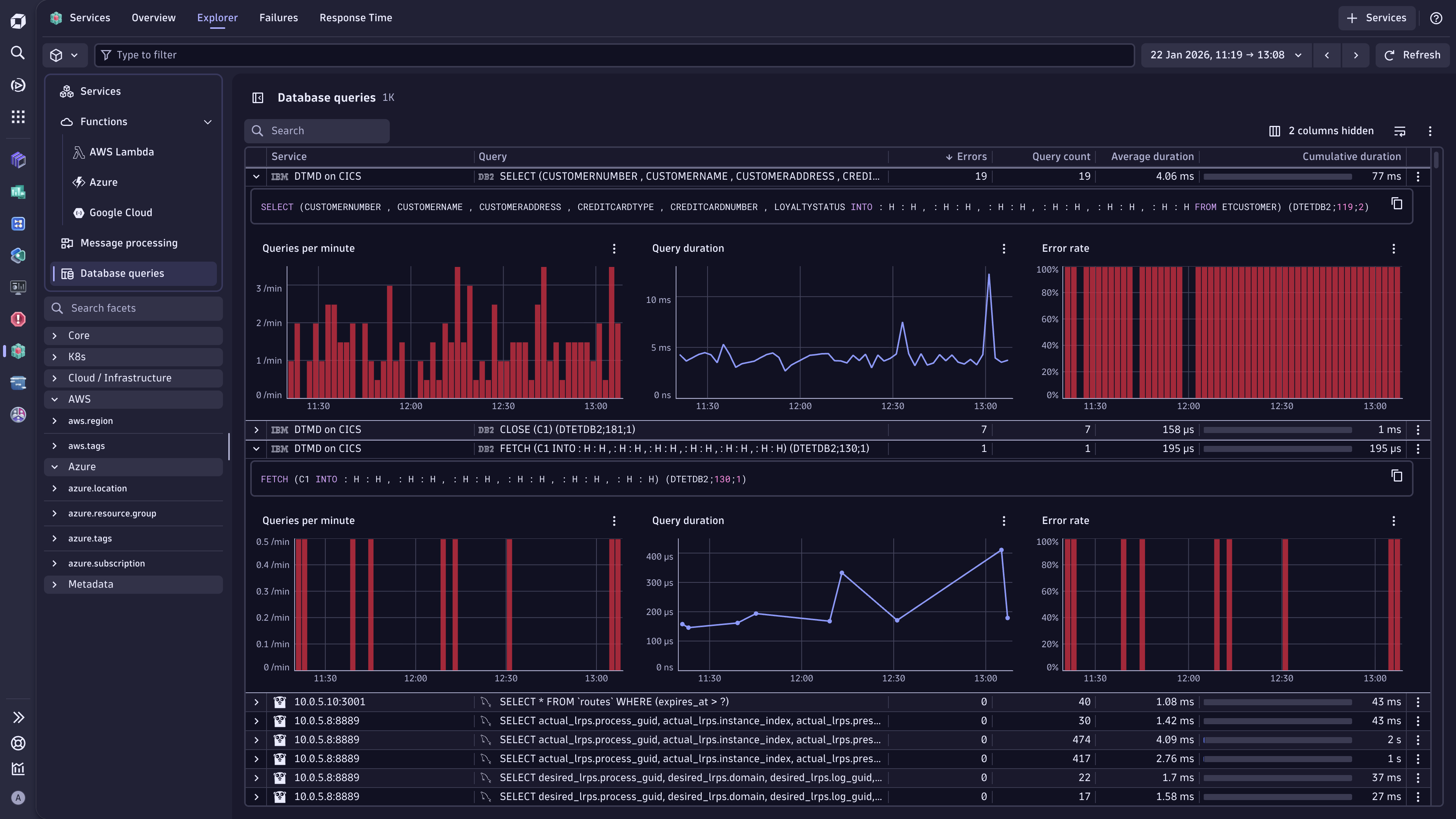
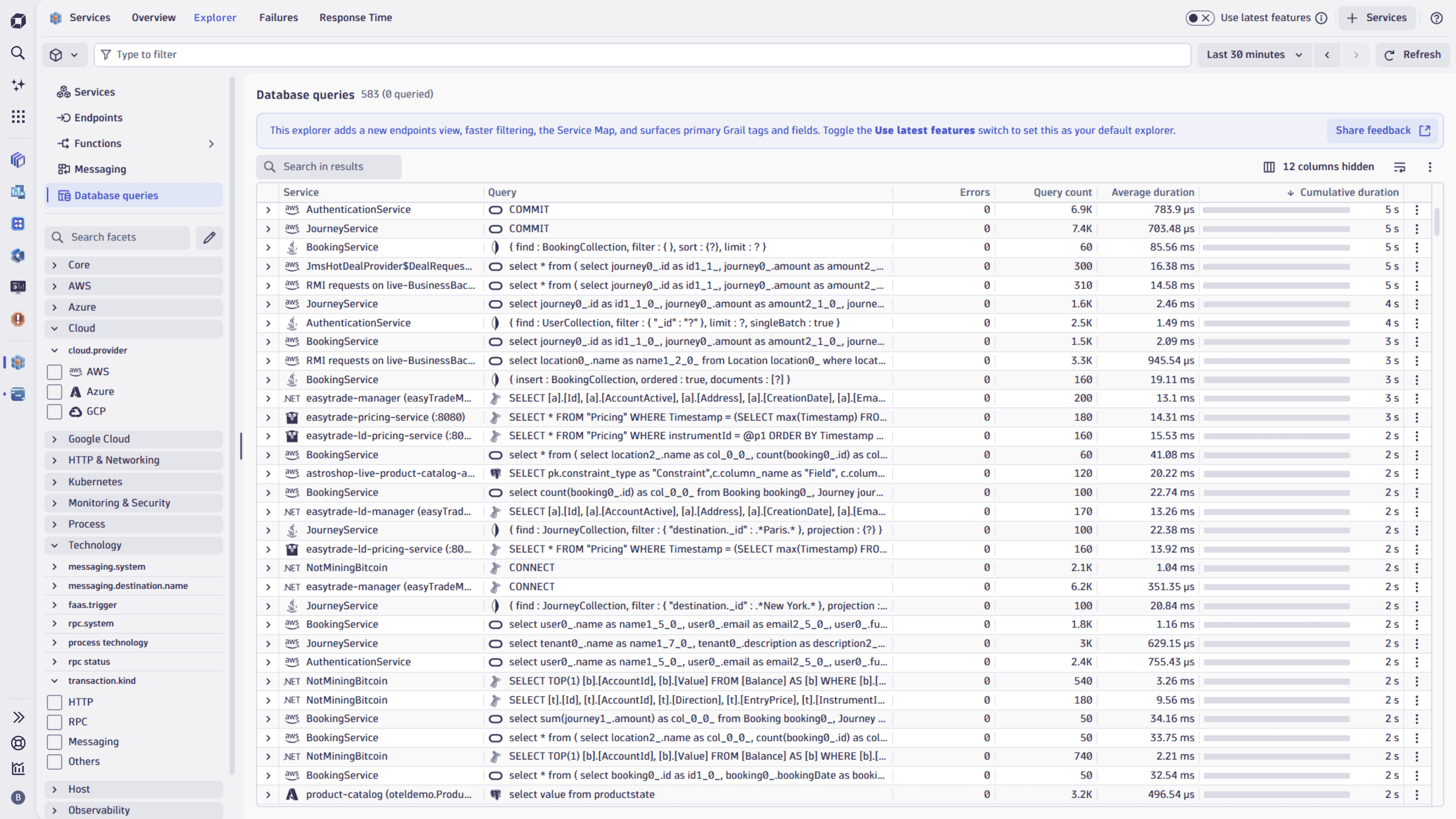
The Database queries view in Services gives you detailed visibility into database queries executed by your services, including slow queries, errors, and high-frequency statements that impact performance.
You can access the Database queries view in two different ways:
- Select Database queries on the left side of Services to see all queries executed across your services.
- Select the required service, and go to the Database queries tab to view the queries made by this particular service.
To further analyze a query of a monitored database by its execution plan in  Databases
-
Find the required entry in the Database queries view.
-
In the last cell of that entry, select (Actions menu) >
View in Databases.You're redirected to the Database instances view of the selected database in
Databases, where you can analyze the query in detail and find optimization recommendations. For more details, see Databases.
Understand the query list
The Database queries view displays metrics about your most resource-intensive queries, sorted by cumulative duration.
The following information is available for each database query:
- Query: Full SQL or database operation.
- System: Database type, for example, PostgreSQL or Redis.
- Errors: Failed execution count.
- Query count: Total executions in the timeframe.
- Average duration: Average execution time per query.
- Cumulative duration: Total time your service spent on this query.
Select (Expand row) on the left of the query to display its time-series charts. These three time-series charts visualize the performance trends:
- Queries per minute: Shows execution frequency patterns and spikes.
- Query duration: Tracks average response time changes over time.
- Error rate: Displays query failure percentage.
Find performance bottlenecks
Sort the database query list by one of the following parameters:
- Cumulative duration to immediately see which queries are consuming the most total time in your service.
- Average duration to find your slowest queries.
- Query count to identify high-frequency operations that might benefit from caching or indexing.
Remember that a query executing thousands of times with a modest duration can impact performance just as much as a slow query with fewer executions. By seeing both frequency and duration together, you can prioritize optimization efforts where they'll have the greatest impact.
Discover upstream callers with Backtrace
To identify which services and entry points drive a specific query, select (Action menu) > View backtrace in a query row. For a cross-service view of all callers across the environment, select (Action menu) > View backtrace on the query text cell.
For details, see Identify upstream callers with Backtrace.
Outbound calls
Services captures and analyzes outbound calls made by your services, and then presents the most frequently called and slowest external dependencies ranked by request rate and duration.
In the Explorer view in Services, select a service, and then go to the Outbound calls tab. The Outbound calls view displays request rate, error rate, average duration, and cumulative duration for each outbound call. Discover which external calls consume the most resources and where performance bottlenecks exist in your service dependencies. By integrating outbound call observability with service-level metrics, you can eliminate blind spots and quickly determine if issues originate within your service or downstream.
To identify which services and entry points drive a specific outbound call, select (Action menu) > View backtrace in a call row. For a cross-service view of all callers across the environment, select (Action menu) > View backtrace on the URL cell. For details, see Identify upstream callers with Backtrace.
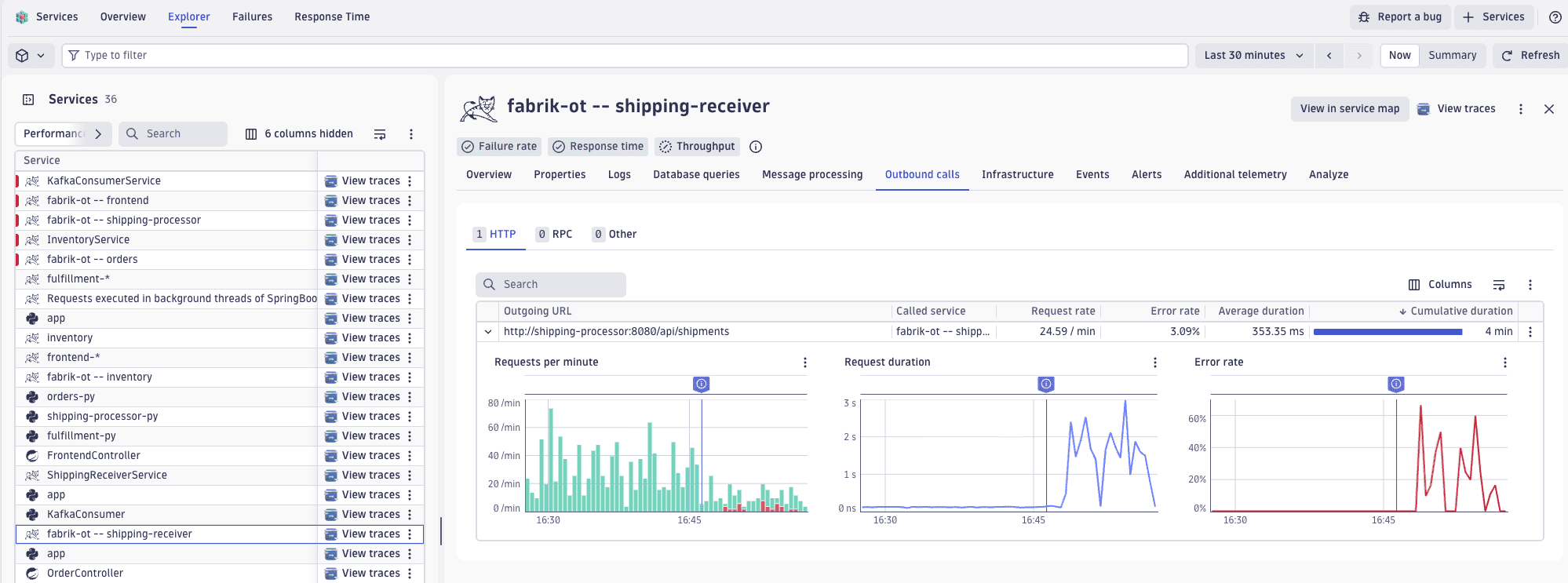
URLs with variables in the path name might result in unusable data aggregations. For guidance on reducing cardinality in outbound calls, refer to Limit cardinality of external calls.
External providers Coming soon
The External providers section in Services shows the external APIs your services call. Recognized providers, such as Stripe, Twilio, Google APIs, and many more, appear automatically. For each provider, you can see throughput, response time, and failure rate aggregated across all services that call it.
Calls to APIs that aren't yet matched to a recognized provider appear in the Outbound calls list instead. When required, you can define your own custom providers in  Settings so those calls are tracked the same way as recognized ones.
The External providers section will be available soon.
Failure analysis and time-based comparisons
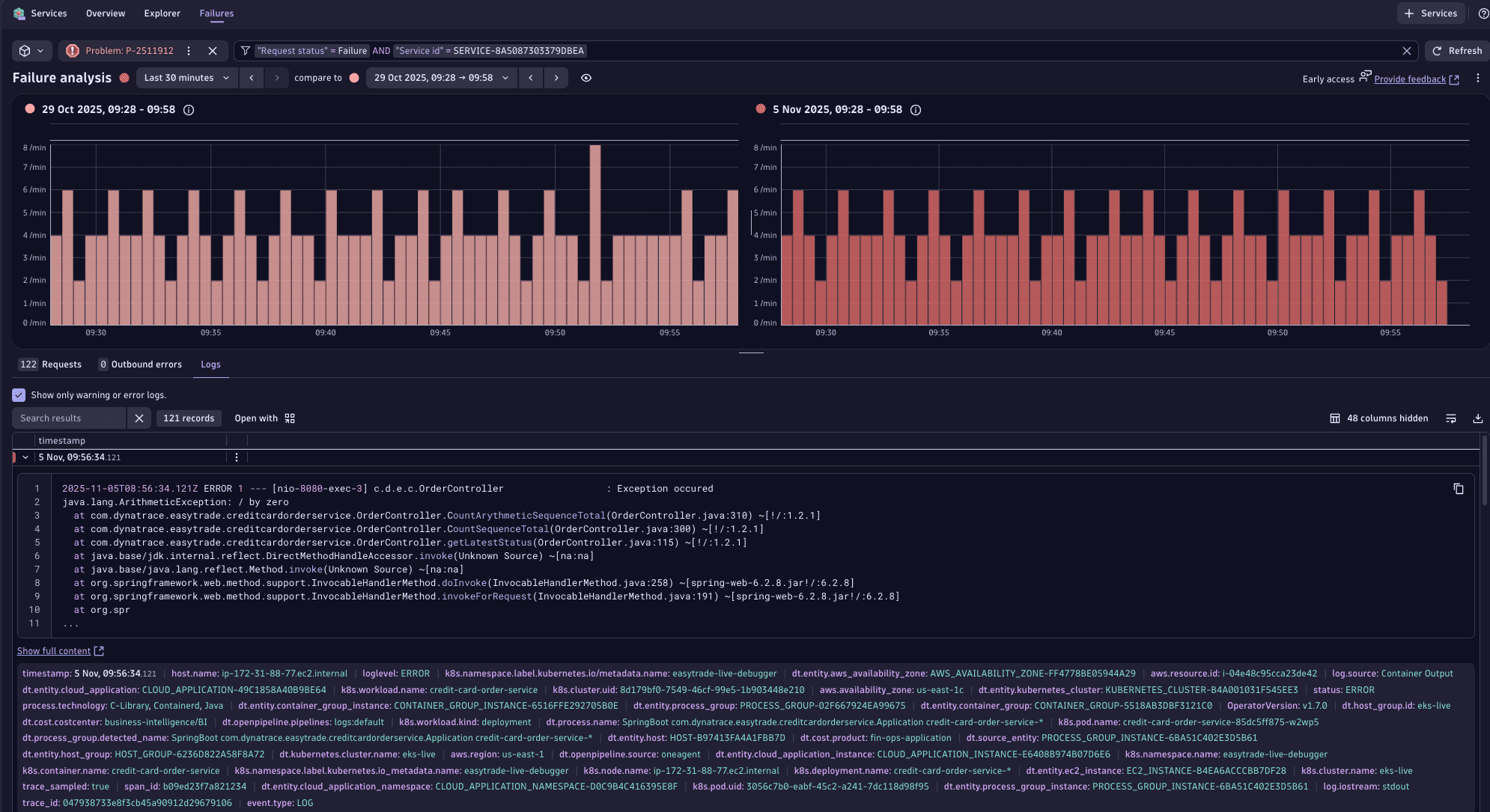
Go to the Failures tab to overlay current failure patterns against baseline periods and immediately identify regressions. The visualization distinguishes between different failure types and severities, helping teams prioritize based on user impact.
For details, see Failure Analysis.

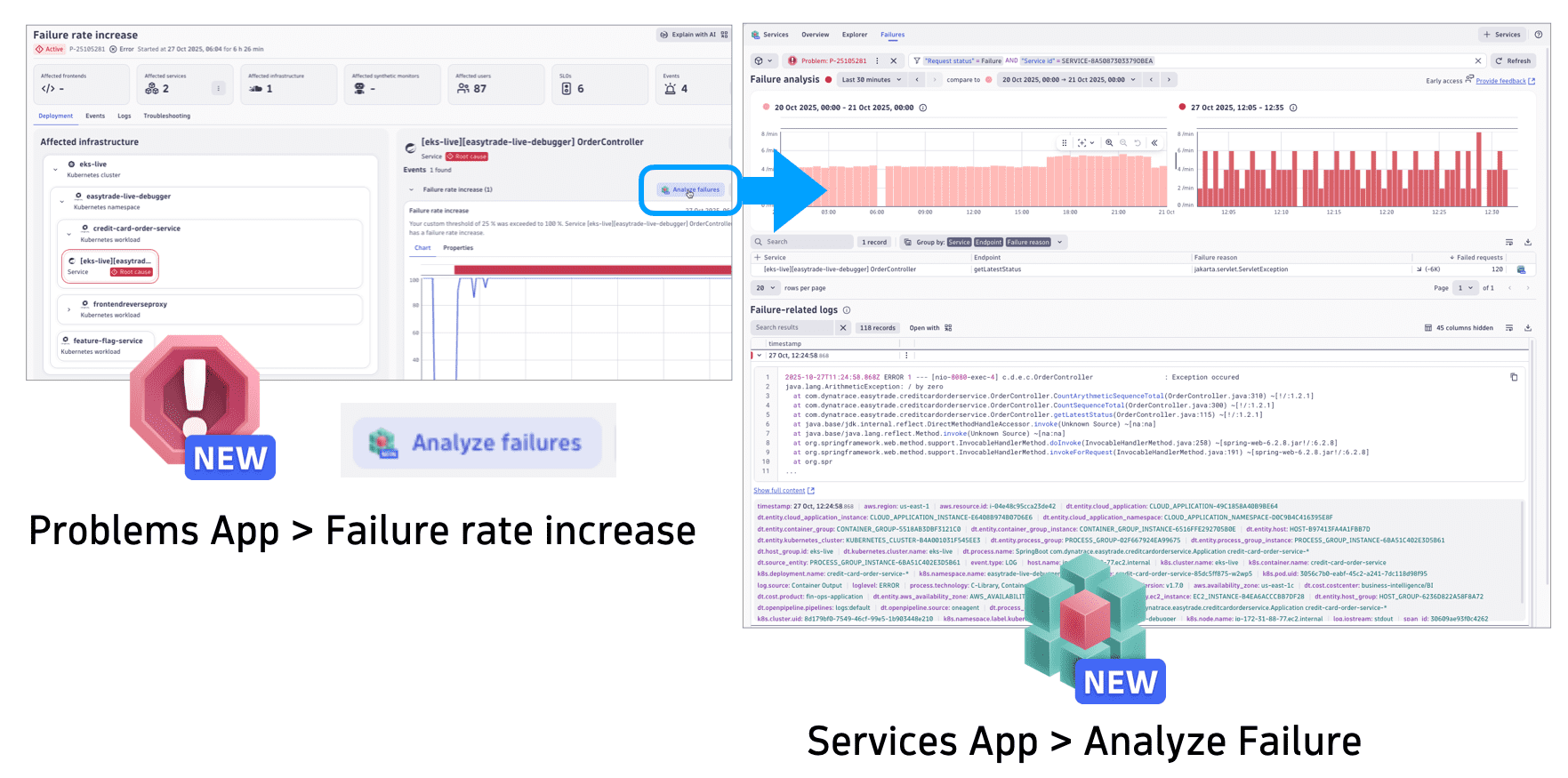
 Problems maps the entire impact chain from an initial failure through dependent services, infrastructure, and affected users.
Navigating from Problems to Services Failure Analysis takes a single click, allowing for seamless investigation from high-level problem detection to granular service-specific error details, including timeframe comparisons and logs.
Response time analysis and comparison
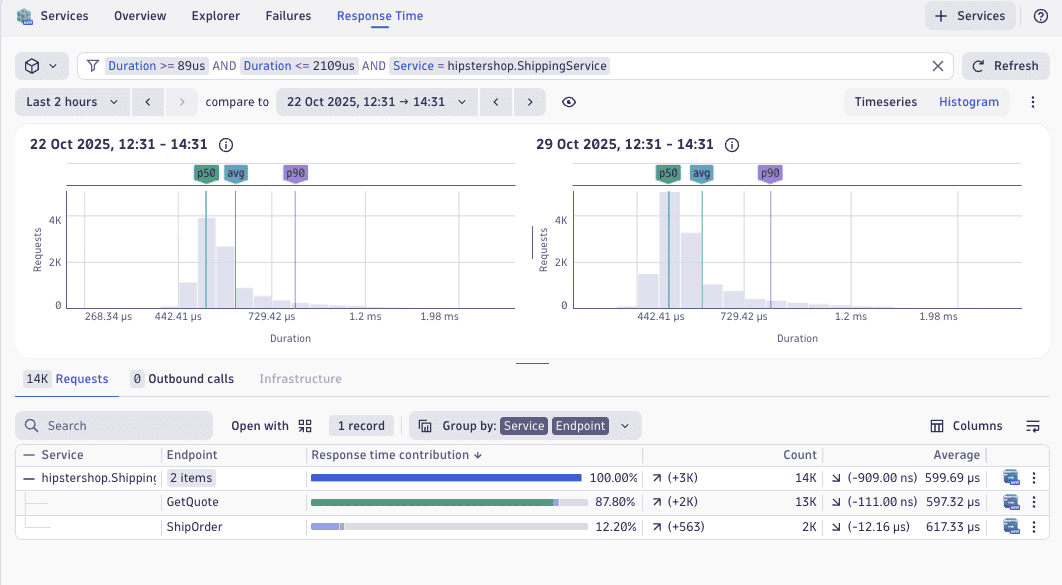
Go to the Response Time tab to track response time and understand typical behavior versus worst-case scenarios. Analyze performance trends across different periods to identify exactly when a degradation began and what was the reason for it. Correlate latency changes with deployment events or traffic pattern shifts to quickly pinpoint the cause of performance regressions.
For details, see Response time analysis.
Concepts
Service-related concepts, including distributed traces and spans, are central concepts in Dynatrace observability. Understanding these concepts enables effective monitoring and analysis of distributed systems. See Service-related concepts.
Tutorials


 Services