Get started with Data Explorer
- Tutorial
- 6-min read
In this tutorial, you build a metric visualization in Data Explorer and pin it to a dashboard, and you learn how to define, run, and save a query.
You have two options here:
- Start with a template: Begin with a predefined query
- Start from scratch: Create a query without a template
Start with a template
Data Explorer opens with a Start with a template section. Use this section to begin working with Data Explorer.
To start again, select another app, then reopen Data Explorer to display the Start with a template section.
To get started with a template, complete the following steps.
-
Go to Data Explorer.
-
In the Start with a template section, select a template.
When you select a template, Dynatrace automatically fills in the query definition, configures the visualization settings, and runs the query.
-
Hover over visualization elements to see tooltips.
-
Select visualization elements to access drilldown actions.
-
Experiment with the query definition. After you make a change, select Run query to see what happens.
-
Experiment with the Settings panel on the right. Tweak some settings and see what happens.
-
Optional Dashboards: When you come up with something you like, select Pin to dashboard to add the query to a dashboard. Select the list, enter text to filter it, and then select the dashboard from the filtered list.
- If you don't have a dashboard, select Create new dashboard when the Where do you want to pin to? message appears.
- You can pin multiple versions of your work to your dashboard so you can see them side by side.
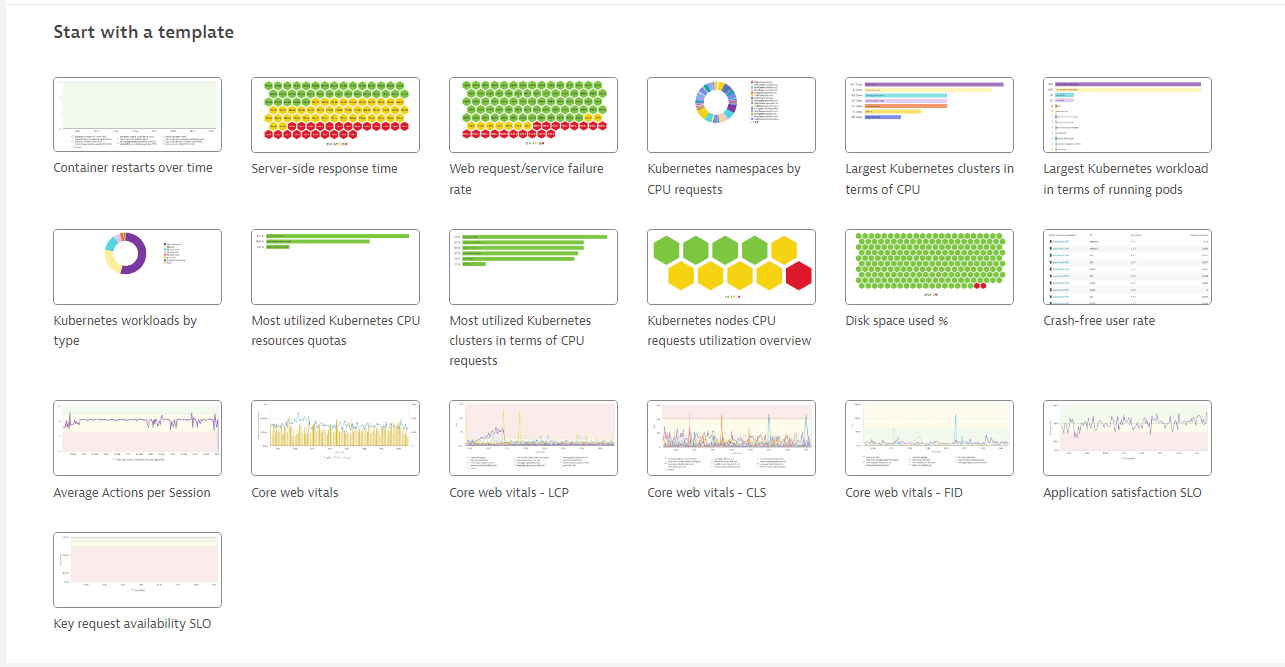
The Start with a template section lets you begin a query from a predefined template.
If you're ready to start exploring a little more, try starting from scratch.
Start from scratch
Use this procedure to get hands-on experience with Data Explorer.
In this walkthrough, you'll:
- Create a simple metric visualization from scratch
- Use the visualization directly in Data Explorer
- Pin the visualization to a dashboard as a tile
Create a visualization from scratch
-
Go to Data Explorer.
-
On the Build tab, add a metric to your query.
- Select a metric such as
CPU usage %(builtin:host.cpu.usage).
When you browse the list of metrics:
-
Enter a metric name into the box to find matching metrics. When multiple matches appear, select the metric in the Host category to add it to your query.
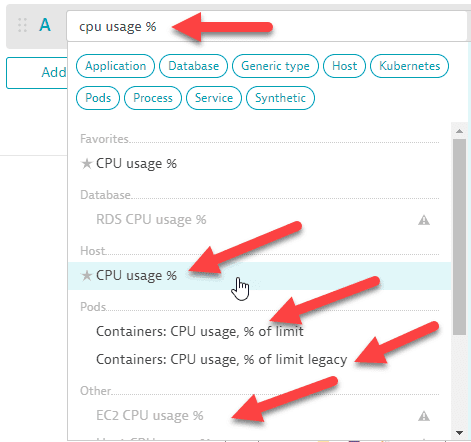 Data Explorer: metric selector: enter and select
Enter a metric name and select the matching metric from the metric selector.
-
Find metrics that you favorited in Metrics browser at the top of the metric-selector list.
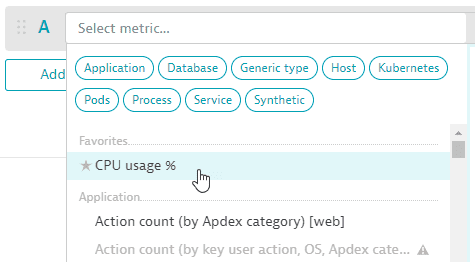 Data Explorer: metric selector: favorites
Favorited metrics appear at the top of the metric-selector list.
-
Select a metric category to focus the list of metrics.
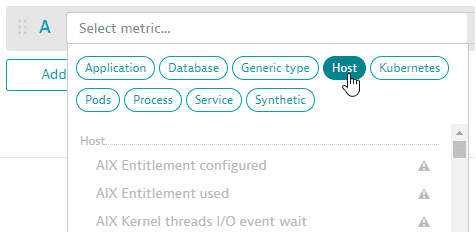 Data Explorer: metric selector: categories
Select a metric category to focus the list of available metrics.
-
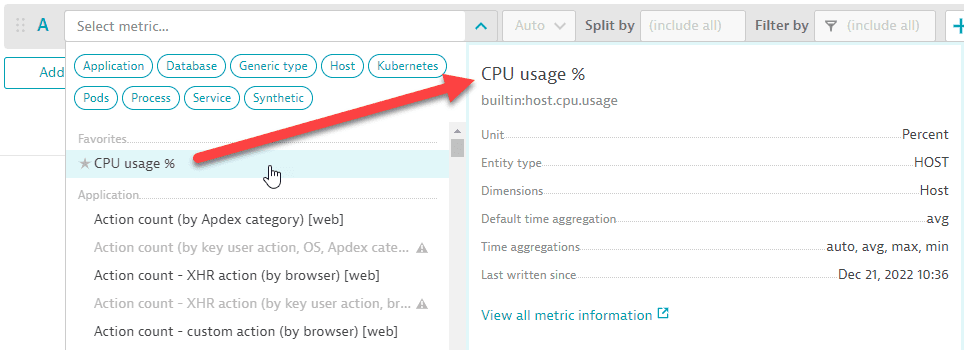
When you hover over any metric in the list, a side panel displays details about that metric.
 Data Explorer: metric selector: metric details
The metric-details panel shows information about the selected metric.
To see more information about that metric, select View all metric information. Selecting View all metric information opens Metrics browser in a new tab, where you can view details about the selected metric without losing your work in Data Explorer.
-
Choose an aggregation (for example,
Average,Minimum, orMaximum) -
Select Split by dimensions. For example, select host for
CPU usage %to view CPU usage per host. -
Select Filter by criteria as needed. Leave the criteria empty in this example.
For details on building a query, see Query components and concepts and Examples.
- Select a metric such as
-
Optional To review or edit the code for your query, turn on Advanced mode, which is the advanced query editor.
-
Add and delete metrics as needed.
-
A query can have up to 10 rows.
-
To add a new empty row, select Add metric and then repeat the previous step to define that row.
-
To reorder metrics, select and drag the metric to a new position in the list of metrics.
 Drag metric to reorder list
Drag a metric to change its position in the query.
Metrics render from top to bottom, with the last metric on top. Rerun the query to view the reordered metrics.
-
To make a copy of a metric that you have already added to the query, select > Duplicate and then edit the copy as needed.
 More menu for a metric, showing Duplicate and Delete actions
Use the More menu to duplicate or delete a metric.
-
To enable or disable a metric, select the eye button .
 Data Explorer: enable or disable a metric
Select the eye button to enable or disable a metric.
-
To delete a metric, select > Delete.
-
-
Optional To add or remove metric transformations for a row, select the transformations (+) button and then select or clear checkboxes as needed.
 Transformations button for a metric row
Select the transformations button to add or remove transformations for a metric row.
-
Select Run query to take a first look at the visualization. The Run query button displays the status of the displayed results:
 Data Explorer: Run query button: last run time
The Run query button shows the time when the displayed results last ran.
 Data Explorer: Run query button: unapplied changes
The Run query button indicates when the query has unapplied changes.
-
Use the Settings panel to configure your visualization.
- Each settings change updates the visualization.
- For an overview of visualization types, see Visualization settings.
After you finish the visualization, use it within Data Explorer or pin it to a dashboard for future use.
Use the visualization in Data Explorer
Visualization elements are active. For example:
- To see details in tooltips, hover over visualization elements.
- To drill down from a problematic (red) element, select it.
- To hide or show a visualization element, select the corresponding label in the visualization legend.
When you're done using your visualization (for now, anyway), you need to decide whether to discard it or save it.
- To discard your visualization and its query, navigate away from Data Explorer.
- To save your visualization and query for future use, you need to pin the visualization to a dashboard. See below.
Pin the visualization to a dashboard
To save the visualization as a dashboard tile, select Pin to dashboard.
To return to Data Explorer with the visualization open, open the tile menu and select Configure tile in Data Explorer. Two buttons then appear in the Results section.
- Save changes to dashboard saves the visualization to the same tile and dashboard you used to open Data Explorer. If you have made any changes, they will update the tile on your dashboard.
- Pin to dashboard saves the visualization as a tile on a different dashboard. You might want to pin the same visualization (perhaps with filtering differences) to various dashboards.
For instructions, go to Pin a tile to a dashboard.
What's next
To write queries directly in the metric selector syntax, see Write queries in advanced mode.