Write queries in advanced mode
- How-to guide
- 10-min read
To write Metrics API v2 queries in Data Explorer, turn on Advanced mode and follow the steps below.
In Advanced mode, you can:
- Inspect and edit the query you created through the Dynatrace web UI selections (with Advanced mode off).
- Use metric selectors to apply transformations that aren't otherwise available, such as timeframe shifts.
- Use metric expressions to create simple arithmetic operations with multiple different metric values. For example,
metric A+metric B. - Work with entity selectors to apply more advanced filters to your metrics. For example, to filter a Kubernetes node metric for a certain Kubernetes cluster.
 Turn on advanced mode
You can start building a simple query through the web UI and then turn on Advanced mode to see the underlying query.
For example, if you start with this query with Advanced mode off:

you will see this when you turn Advanced mode on:

The underlying query code is displayed in the form in which it's passed to the Metrics API v2:
builtin:host.cpu.usage:splitBy("dt.entity.host"):avg:auto:sort(value(avg,descending)):limit(20)
 Turn off advanced mode
For simple queries where you need one of the following transformations, you can turn advanced mode off again:
- Split by dimensions of the metric (when you haven't added any additional dimensions via the entity selector in advanced mode)
- Filter connected via an OR relationship
- Sort
- Limit
For a detailed description of the individual transformations, see metric selector.
Turning advanced mode off is possible only if the transformations you edited in advanced mode were added when advanced mode was off.
For example, if you initially applied a sort transformation with advanced mode off, you can change the sort order from ascending to descending with advanced mode on and then switch advanced mode back off. After you add a new transformation, such as a timeshift or metric expression, you can't switch advanced mode back off and continue working.
 Edit the query
The main functions of the query editor are the same whether Advanced mode is turned on or off:
-
To add a metric, select Add metric to add a row (another metric) to the query.
-
To duplicate a metric, select More (…) > Duplicate in a row to duplicate that row (metric).
-
To delete a metric, select More (…) > Delete in a row to delete that row (metric).
-
To reorder metrics, select and drag the metric to a new position in the list of metrics, then rerun the query to see your changes.
 Drag metric to reorder list
The order in which metrics are listed in your query affects the following:
- Order in which elements of a drawing are rendered: a query's metrics are rendered in order from top to bottom, so the last one is rendered on top of the others
- Order of columns in a table visualization
- Order in which settings are displayed in the Settings panel
- To try the query, select Run query. The text next to the Run query button displays the status of the most recent run.
The main difference is in how you edit the query and the number of possibilities available:
- With Advanced mode turned off, you build your query from menu selections, but your query options are limited.
- With Advanced mode turned on, the query options are much greater, but you need to know how to edit a query
Add a metric
The easiest way to select metrics for a query is to start with Advanced mode turned off.
-
Place the pointer in a row and enter a metric name. Matching metrics are listed. For example, enter
cpu usage, then selectbuiltin:host.cpu.usagefrom the list.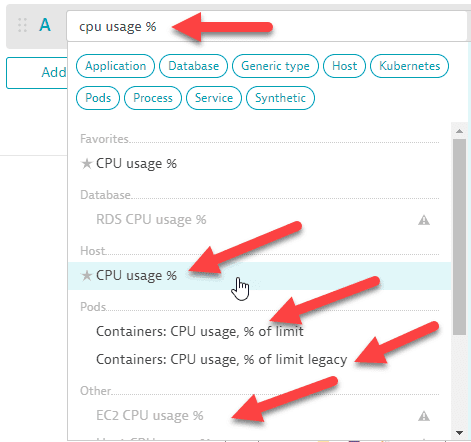 Data Explorer: metric selector: type and select
 -
You can select commonly applied aggregations, dimensions, and transformations:
- Split by: select one of the listed dimensions for the selected metric
- Aggregate: select
Average,Count,Maximum,Minimum,Sum,Median,Percentile 10th,Percentile 75th, orPercentile 90th.
The selected aggregation is applied after the Split by. For example, if you select
Percentile 10thand split byHostfor a gauge metric such asbuiltin:host.cpu.idle, the percentile is calculated on the values after splitting by host.- Sort by: select ascending or descending
- Filter by: select dimensions and filter attributes
- Limit: select a limit value
-
Turn Advanced mode on.
-
Edit the results as needed.
- Copy and paste from one row into another
- Add, duplicate, and delete rows as needed
To add a metric in Advanced mode
-
Place the pointer in a row and enter a metric key. Matching metrics are listed. For example, enter
host.cpu, then selectbuiltin:host.cpu.usagefrom the list. Data Explorer: Advanced mode: select metric
 -
You need to add all transformations manually.
Edit a metric
In the edit box:
- Enter a colon (
:) to list what you can add at that pointer position, then select an item from the list. - Select
Shift+Enterto force a new line. This can improve readability and doesn't affect query evaluation. - Select a metric or number, then select
(to wrap the selection in parentheses.
- For an overview of metrics, see Metrics.
- To review a list of built-in metrics, see Built-in metrics.
- To learn about ingesting custom metrics into Dynatrace, see Ingest metrics.
- Use Metrics browser to:
- Check metric details
- Open the selected metric in Data Explorer
Operands
An operand is a metric or a number.
- Wrap each operand in parentheses
(). You can also use parentheses to enforce precedence. - All metrics with more than one data point in a metric expression must have the same resolution.
- You can use any metric as an operand, including metrics modified by any transformation chain, and you can apply transformations to the result of the expression.
For full details on writing metric queries, see:
Expressions
Metric expressions enable you to apply simple arithmetic operations on operands (metrics or numbers).
For example, this expression calculates the ratio (as a percentage) of two metrics:
((metric1)/(metric2))*(100)
The expression contains these basic components:
- Operand: a metric or number
- Parentheses:
() - Arithmetic operators:
+,-,*,/ - Negation:
-()
Arithmetic operations use the data points of tuples (unique combinations of metric—dimension—dimension value) of metrics. Identical tuples of each metric are paired and then their data points are aligned. For details, see metric expression tuples.
Delta transformation example
Learn how to:
- Assemble a metric in advanced mode
- Use delta
This example shows how to transform a gauge metric into a delta count metric.
-
With Advanced mode turned on, assemble this gauge metric:
builtin:cloud.kubernetes.pod.containerRestarts:splitBy()Make the following selections in the editor:
Select metric: Enter part of the metric key until the metric appears, then select it.
 Data Explorer: Example: Delta: 1
Select splitBy: Enter a colon (
:) followed by a partial search string for the item you want to add, such assplitBy, then select it from the list. Data Explorer: Example: Delta: 2
Intermediate state:
 Data Explorer: Example: Delta: 3
builtin:cloud.kubernetes.pod.containerRestarts:splitBy() -
Change the gauge metric to a delta count metric.
Select avg: Enter a colon (
:) followed by a partial search string foravg, then select it from the list. Data Explorer: Example: Delta: 4
Select delta: Enter a colon (
:) followed by a partial search string fordelta, then select it from the list. Data Explorer: Example: Delta: 5
Final state:
 Data Explorer: Example: Delta: 6
builtin:cloud.kubernetes.pod.containerRestarts:splitBy():avg:delta -
Run the query.
Calculate an error rate
Learn how to:
- Combine two rows into one with a metric expression
- Do a simple calculation
This example displays the error rate for a conversion page. Start with these metrics:
- Action count (
builtin:apps.web.action.count.load.browser) - Error count (
builtin:apps.web.action.countOfErrors)
Simple counts don't tell the whole story. To report the conversion page error rate, calculate a third metric from the action and error counts. The query for the third metric will divide the error count by the action count and filter for the page name.
You can create this query mostly through menu selections.
-
With Advanced mode turned off, select the metrics, aggregations, and filters.
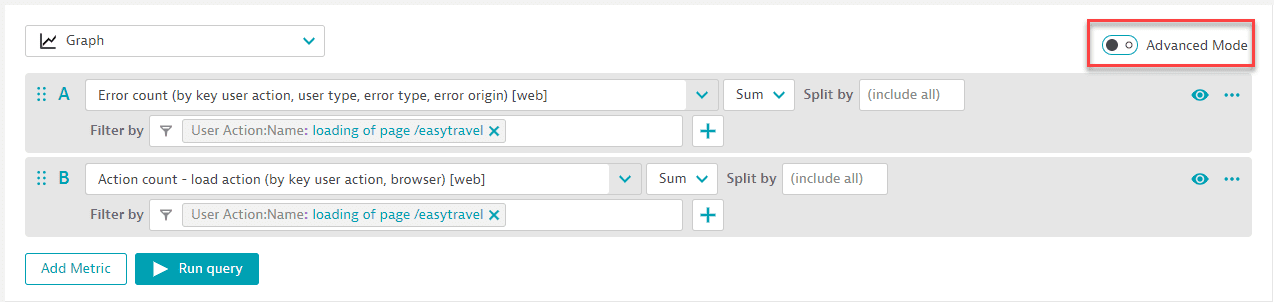 Example: Calculate an error rate: advanced mode off
 -
With Advanced mode turned on, view the query code.
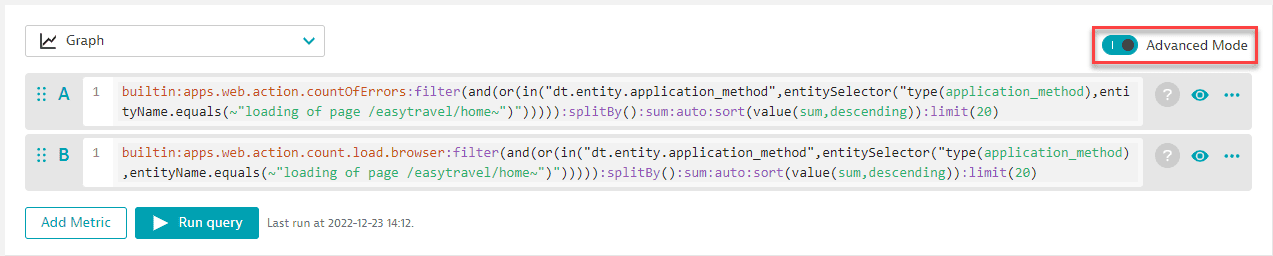 Example: Calculate an error rate: advanced mode on: metrics separate
 -
Copy and paste the contents of edit box B into edit box A, combining the two queries with added parentheses and a division sign, and then delete B.
If A is the first operand:
builtin:apps.web.action.countOfErrors:filter(and(or(in("dt.entity.application_method",entitySelector("type(application_method),entityName.equals(~"loading of page /easytravel/home~")"))))):splitBy():sum:auto:sort(value(sum,descending)):limit(20)
and B is the second operand:
builtin:apps.web.action.count.load.browser:filter(and(or(in("dt.entity.application_method",entitySelector("type(application_method),entityName.equals(~"loading of page /easytravel/home~")"))))):splitBy():sum:auto:sort(value(sum,descending)):limit(20)
Divide (A)/(B):
((builtin:apps.web.action.countOfErrors:filter(and(or(in("dt.entity.application_method",entitySelector("type(application_method),entityName.equals(~"loading of page /easytravel/home~")"))))):splitBy():sum:auto:sort(value(sum,descending)):limit(20))/(builtin:apps.web.action.count.load.browser:filter(and(or(in("dt.entity.application_method",entitySelector("type(application_method),entityName.equals(~"loading of page /easytravel/home~")"))))):splitBy():sum:auto:sort(value(sum,descending)):limit(20))
-
The result should be something like this:
 Example: Calculate an error rate: advanced mode on: metrics combined to calculate
 -
Run the query.
Now you can add thresholds and pin the query to a dashboard.
Compare a metric to a previous timeframe
Learn how to add context to line charts and other visualizations so you can identify normal values.
A line or single value can be difficult to interpret without context, especially for new users. Compare values over time to determine whether a spike or value is anomalous.
This example duplicates a metric and applies the :timeshift transformation to add context to your line charts.
Start with builtin:apps.web.largestContentfulPaint.load.browser, a built-in Core web vital metric that gives you the largest contentful paint measurements for all load actions for all your web applications.
You can create this query mostly through menu selections.
- With Advanced mode turned off, select the metric, splits, aggregations, and filters.
- Duplicate the metric by selecting More (…) > Duplicate for that row.
- Turn on Advanced mode to view the query code.
- Add timeshift(-1w) at the end of the second (B) query.
- Run the query.
The final query code for A and B should look something like this (depending on your selections in step 1):
A without timeshift:
builtin:apps.web.largestContentfulPaint.load.browser:splitBy():percentile(75):auto:sort(value(percentile(75),descending)):limit(10)
B with a timeshift applied:
builtin:apps.web.largestContentfulPaint.load.browser:timeshift(-1w):splitBy():percentile(75):auto:sort(value(percentile(75),descending)):limit(10)
Filter a metric by a related entity
Learn how to use the entity selector and relationships to filter a metric by the values of a related entity.
In this example, you:
- Start with metric
builtin:cloud.kubernetes.node.cores - Apply an
infilter for the Kubernetes nodes likedt.entity.kubernetes_node - Use the entity selector to check all Kubernetes nodes that run within a given Kubernetes cluster
The entity selector has these components:
type(KUBERNETES_NODE)defines the type of entity to select.toRelationships.IS_KUBERNETES_CLUSTER_OF_NODE(defines the relationship between the Kubernetes node on the left and the Kubernetes cluster on the right. It identifies Kubernetes clusters associated with the selected Kubernetes node.type(KUBERNETES_CLUSTER),entityId(KUBERNETES_CLUSTER-A943C5CF0A41A684))")))identifies the Kubernetes cluster on the right side of the relationship by entity ID.
The final query looks like this:
(builtin:cloud.kubernetes.node.cores:avg):filter(in("dt.entity.kubernetes_node",entitySelector("type(KUBERNETES_NODE),toRelationships.IS_KUBERNETES_CLUSTER_OF_NODE(type(KUBERNETES_CLUSTER),entityId(KUBERNETES_CLUSTER-A943C5CF0A41A684))")))
Analyze an explicit histogram
Learn how to analyze an explicit histogram metric in the Data Explorer using the histogram transformation and how to extract percentiles from it.
In this example, you:
- Start with metric
_cws.otlp.metrics.generic.histogram1.histogram. Note the.histogramsuffix. - Apply an equals filter for the Kubernetes cluster like
dt.kubernetes.cluster.id. - Use the
histogramtransformation to expose the buckets of the histogram metric as dimensions.
The final query looks like this:
_cws.otlp.metrics.generic.histogram1.histogram:filter(eq("dt.kubernetes.cluster.id", "KUBERNETES_CLUSTER-1")):histogram
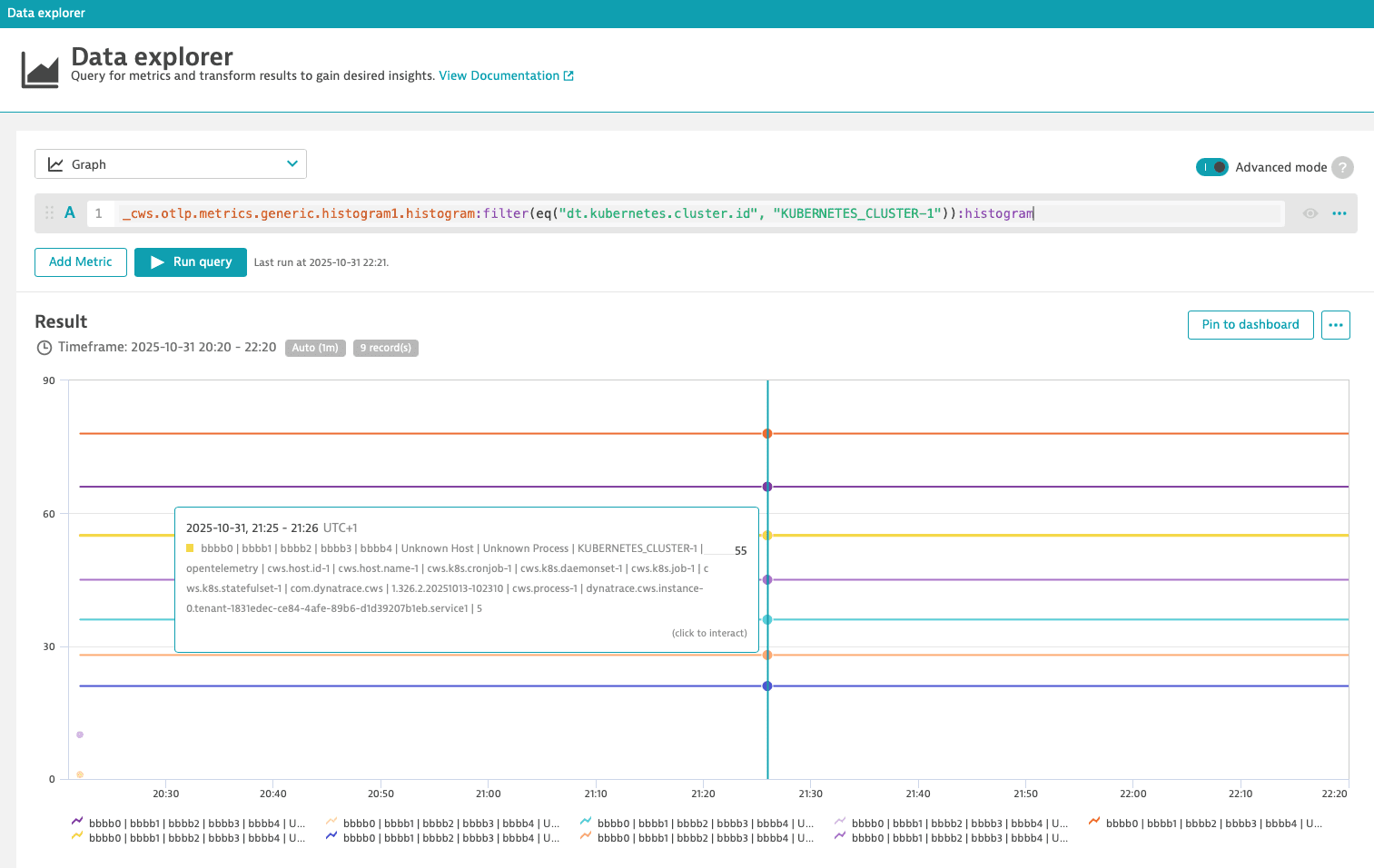
The value of the 'le' dimension denotes the upper boundary (less than or equal to) of each bucket. In this example, the upper boundary of bucket 55 is 5.
The histogram transformation returns cumulative bucket counts, which only increase from one bucket to the next. To get the count of a single bucket, subtract the cumulative count at the next-lower boundary from the cumulative count at its own boundary.
In a graph, the histogram transformation draws one series per le value, and the +Inf series is the total count, so a graph of the transformation is hard to read.
- Only 12 buckets per histogram datapoint are stored.
- Negative bucket boundaries aren't supported.
Percentiles
You can use the percentile transformation to extract a percentile from a histogram metric. For example, you can extract the median using percentile(50).
The final query looks like this:
_cws.otlp.metrics.generic.histogram1.histogram:filter(eq("dt.kubernetes.cluster.id", "KUBERNETES_CLUSTER-1")):percentile(50)
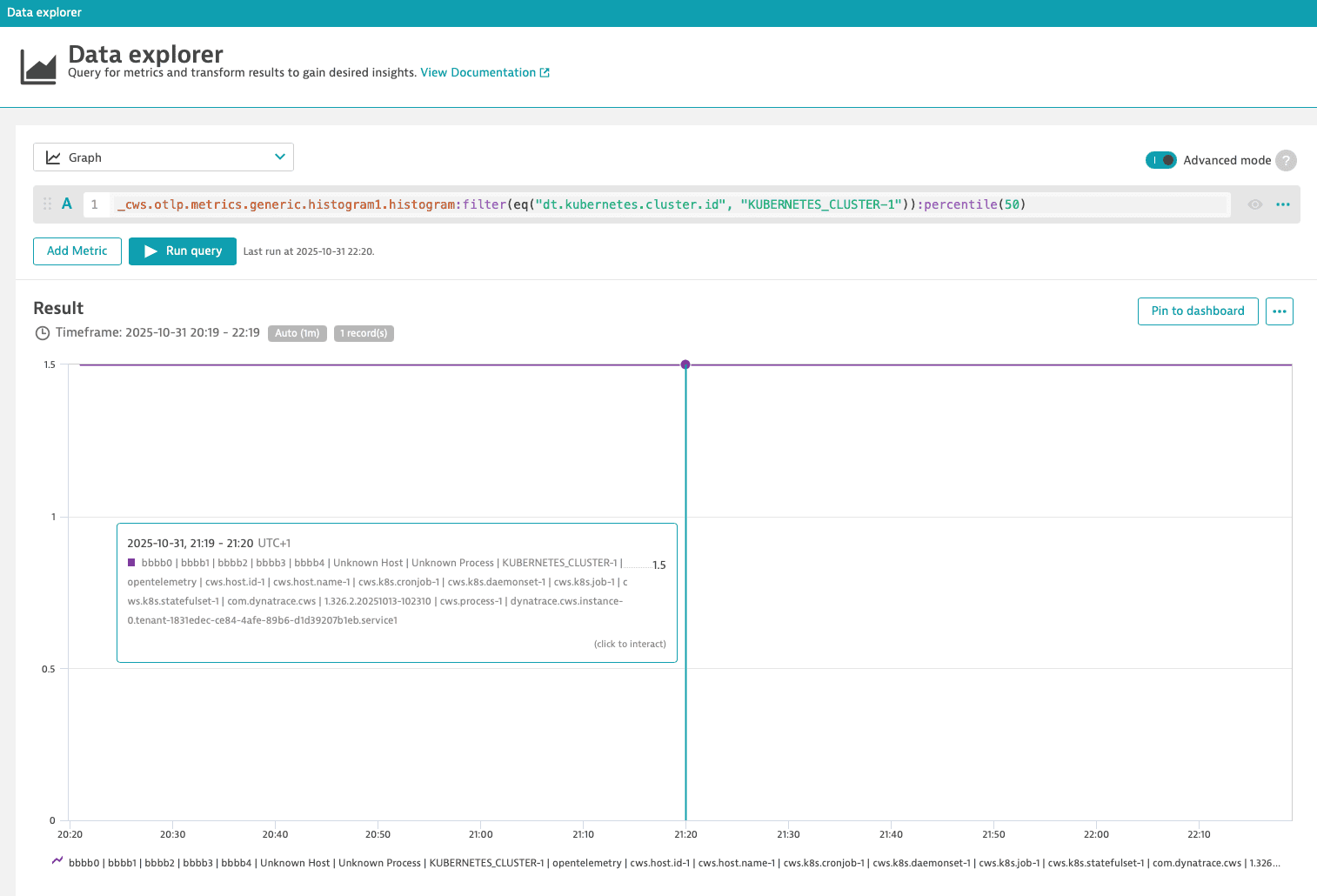
To see the distribution per bucket directly, select the Histogram visualization, which does this subtraction for you.