Enrich threat observables with Security Enrichment
- Latest Dynatrace
- How-to guide
Enrich observables with threat‑intelligence data in a unified experience in Dynatrace.
Get started
Overview
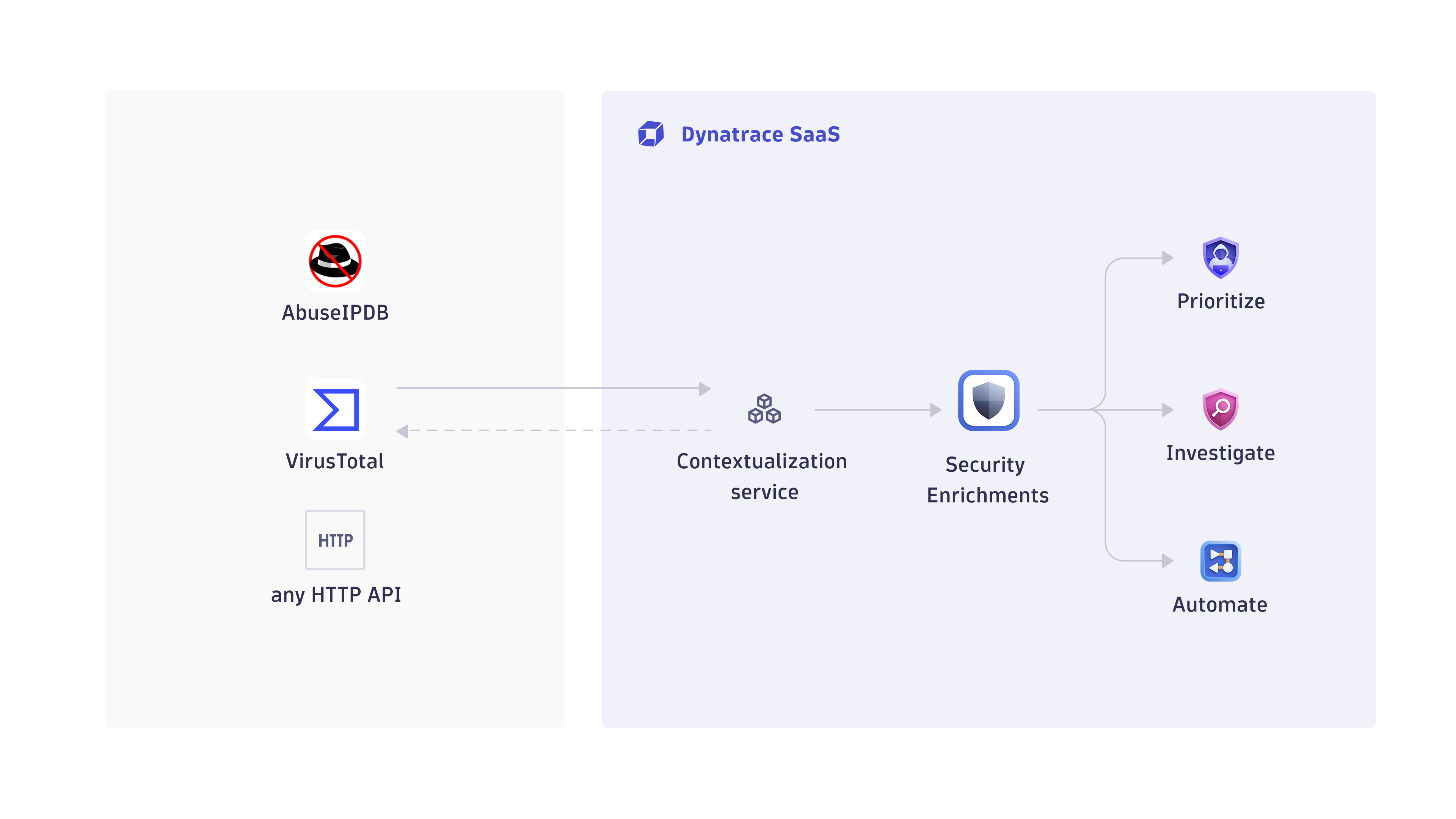
 Security Enrichment gives you a unified, flexible way to enrich supported observables (currently IP addresses, with more observable types to follow) with intelligence from any source. You can integrate commercial, open‑source, or proprietary threat‑intelligence services to add reputation, geolocation, and other contextual data directly into your Dynatrace security workflows.
It provides a single interface to:
-
Configure HTTP‑based enrichment connections
-
Define vendor‑specific or custom options
-
Normalize responses using DQL for consistent context
-
Share connections across teams with controlled access
-
Use enrichment results across
 Investigations,
  Threats & Exploits, and
  Workflows
For an easy onboarding, Security Enrichment provides preset blueprints for AbuseIPDB and VirusTotal. Each blueprint includes the correct endpoints, request format, and response mapping, so you only need to provide your API key from the corresponding provider. You can also create custom enrichment connections to integrate any HTTP‑based API—internal or external—into your security analysis.
Use cases
Once you configure Security Enrichment, you can enrich observables such as IP addresses with data from any supported or custom threat‑intelligence source.
Key use cases include:
-
Enhance detection findings in
Threats & Exploits with external reputation data -
Threat‑informed security investigations Coming soon
Requirements
Vendor requirements
Register with your chosen threat‑intelligence provider (for example, AbuseIPDB, VirusTotal, or any custom API) and obtain an API key if required.
Dynatrace requirements
To use Security Enrichment, you need the following Dynatrace platform permissions.
Create and configure connections
-
settings:objects:write -
settings:objects:admin -
settings:schemas:read
Read existing connection configurations
-
settings:objects:read -
settings:schemas:read
Test connections and run enrichments
-
app-engine:functions:run -
security-intelligence:enrichments:run
View user and group information
-
iam:users:read -
iam:groups:read
Store and retrieve app state
-
state:user-app-states:read -
state:user-app-states:write
For the complete list of permissions required, go to Hub, select Security Enrichment, and display Technical information.
Activation and setup
Follow the steps below to connect to a threat‑intelligence source, normalize its data, and validate the integration.
1. Create a connection
-
In Dynatrace, open Hub.
-
Look for and select Security Enrichment.
-
Select Set up. This opens the
Security Enrichment management view, where you can create and manage connections. Select New connection. -
Select an enrichment source. You have two options:
- Preset vendor (AbuseIPDB or VirusTotal): Provides a quick setup using prefilled, validated templates for these vendors.
- Custom source: Lets you integrate any HTTP‑based threat‑intelligence API.
-
Configure the connection settings:
-
External requests:
Security Enrichment needs to make outbound calls to your enrichment provider. External requests define which external domains your Dynatrace environment can connect to. Allowlist the domain used by your enrichment provider to enable outbound calls. Select Manage external requests and ensure the outbound domain used by your enrichment connection is allowlisted. Select New host pattern to add a domain. -
Connection name: The display name shown to users.
-
Observable type: The type of observable to enrich. Currently supported: IPv4 and IPv6 addresses.
-
HTTP method: The HTTP method (GET, POST, PUT) used to call the external API.
-
Endpoint URL: The URL to which the enrichment request is sent. Supports variables such as
{{observable.value}}.If you change the endpoint URL when editing a connection, you must re‑enter the authentication secret. The stored secret is tied to the original endpoint.
-
Authentication: Enable or disable authentication for the request. If enabled, enter the credentials in Authentication secret.
You can reference the authentication secret using the exact placeholder
{{authentication.secret}}in headers, query parameters, and payload fields. -
Headers: Key-value pairs added to the HTTP request headers.
-
Query parameters: Key-value pairs appended as query parameters.
-
Payload (body): Key-value pairs included in the request body (for example, for POST requests).
-
Advanced configuration: Configure vendor-specific options provided by the external API (for example, AbuseIPDB’s
maxAgeInDaysorverbose). These parameters are validated during execution and allow you to fine‑tune how requests are sent to the vendor.
-
-
Optional Select Share access to share the connection with other users, groups, or the environment.
You can also share the connection later, after completing the setup. For details, see Next steps.
-
Select Complete to save your connection.
2. Normalize enrichment results with custom mapping
Optional
Custom mapping lets you transform the raw JSON returned by an external API into the format Dynatrace uses for enrichment. When a request completes, Dynatrace stores the provider’s raw response as the integrationResponse. Your mapping then converts that data into a mappedResponse, which Dynatrace uses to display normalized, consistent enrichment results across all threat‑intelligence sources. You can view the mapped output in the enrichment report shown in other Dynatrace apps.
-
Go to Settings > Security Enrichment and select Custom mapping from the context menu .
-
In Fetch or paste sample response, load a sample of the JSON returned by the external API.
- You can fetch a live sample using an observable value or paste an example manually.
- The sample is used only for mapping and testing—it does not affect live enrichment.
-
In Define custom mapping, specify how fields from the raw JSON should be transformed into Dynatrace’s unified enrichment schema.
- Use DQL expressions to extract, rename, convert, or enrich fields.
- You can reference values from the sample response (for example,
data[countryCode]) and build normalized fields such as reputation levels, timestamps, or vendor metadata.
-
In Test mapped response, review the final output produced by your mapping.
- This preview shows how Dynatrace will interpret the provider’s response during enrichment.
- Adjust your mapping until the output matches the expected fields and structure.
-
Save your mapping to apply it to all future enrichments executed through this connection.
Example: From raw response to normalized fields
The following example illustrates how a raw provider response becomes a normalized mappedResponse:
{"data": {"ipAddress": "192.0.2.12","isPublic": true,"ipVersion": 4,"isWhitelisted": false,"abuseConfidenceScore": 0,"countryCode": "AT","usageType": "Commercial","isp": "Wien Energie GmbH","domain": "wienenergie.at","hostnames": [],"isTor": false,"totalReports": 0,"numDistinctUsers": 0,"lastReportedAt": null}}
You can map these fields to normalized enrichment fields using DQL:
fields`geo.country.iso_code` = data[countryCode],`reputation.level` = if(isNull(data[abuseConfidenceScore]),null,else: if(data[isWhitelisted],"Benign",else: if(data[abuseConfidenceScore] == 0,"Unreported",else: if(data[abuseConfidenceScore] < 50,"Inconclusive",else: if(data[abuseConfidenceScore] < 80,"Suspicious",else: "Malicious"))))),`last_reported` = parse(data[lastReportedAt], "ISO8601:result"),`product.vendor` = "AbuseIPDB",`report.reference` = concat("https://www.abuseipdb.com/check/", data[ipAddress])
This produces the following mappedResponse, which Dynatrace uses for normalized display:
{"geo.country.iso_code": "AT","reputation.level": "Unreported","last_reported": null,"product.vendor": "AbuseIPDB","report.reference": "https://www.abuseipdb.com/check/192.0.2.12"}
3. Test your configuration
Optional
Use Test connection to verify that your enrichment connection is configured correctly and that Dynatrace can successfully call the external API.
-
Go to Settings > Security Enrichment and select Test connection from the context menu .
-
Enter a sample IP address and select Test connection. Dynatrace sends a real request using your connection settings and displays the raw response returned by the external API so you can verify connectivity, authentication, and request formatting.
This helps you confirm:
- Outbound connectivity
- Authentication validity
- Correct endpoint and parameters
Dynatrace automatically caches enrichment results to avoid repeated calls to the external API. This reduces latency, lowers vendor quota consumption, and prevents unnecessary outbound requests. Cache entries are invalidated whenever connection‑relevant settings change.
Next steps
After creating the connection, you can manage it in Dynatrace under Settings > Security Enrichment using the context menu. Depending on your permissions, you may see both your own connections and those shared by others, even if they don’t appear in your consumption points. If you have admin permissions, an admin banner is displayed, and you can view and edit all connections, including those not shared with you. From there, you can:
-
Edit the connection configuration
-
Update or refine custom mapping
-
Share access with users, groups, or environments
-
Test the connection
-
Delete the connection
Share connections
Sharing controls who can see, use, or modify a connection in Security Enrichment and in other Dynatrace apps.
- Users must own the connection or have it shared with them to use it for enrichment operations.
- Users with view‑only access can see the connection but cannot modify it.
- Users without share access cannot see the connection in other Dynatrace apps.
For details on sharing and permissions, see Access control for Connectors.
View enrichment results
Enrichment results appear across Investigations, Threats & Exploits, and Workflows, where you can run on‑demand enrichment to fetch live threat‑intelligence data for any observable. Dynatrace sends a request using your configured connection and displays the normalized result, giving you up‑to‑date context during triage, detection analysis, or workflow automation.
You can run on‑demand enrichment wherever observables appear in Dynatrace:
-
Threats & Exploits: Open a finding, go to the Actor section in the details pane, and select Enrich IP.
-
Investigations: Enrich IP addresses manually or automatically from your investigation results. For detailed instructions, see Enrich IP addresses.
-
Workflows: Add the Security Enrichment action to your workflow, select your configured connection, provide the required parameters, and run the workflow to retrieve enrichment data as part of your automation.
Licensing and costs
For billing information, see Events powered by Grail.
FAQ
How do I migrate from the previous AbuseIPDB or VirusTotal integrations to Security Enrichment?
- Create a new connection in Security Enrichment and make sure to select AbuseIPDB or VirusTotal from the preset vendor list. Enter your existing API key, adjust any optional parameters, and save the connection.
- Replace any existing AbuseIPDB or VirusTotal workflow actions with the Enrich observable action provided by Security Enrichment.
After creating the connection and updating your workflows, you can use the new connection for all enrichment operations; the previous integrations are no longer used but don’t need to be deleted.
Why does my test connection fail?
A test connection usually fails for one of these reasons:
- The external API host is not allowlisted in External requests.
- The endpoint URL, HTTP method, headers, query parameters, or payload do not match what the provider expects.
- The authentication secret is missing, expired, or placed in the wrong header or parameter.
- The observable value is invalid for the selected connection. For example, the connection currently expects an IP address.
- The provider returned an error, such as
401 Unauthorized,403 Forbidden, rate limiting, or an invalid request response.
To troubleshoot:
- Verify that the provider domain is allowlisted.
- Recheck the endpoint URL and request configuration against the vendor's API documentation.
- Confirm that the authentication secret is valid and referenced correctly, for example in headers or query parameters.
- Test with a known-good sample IP address.
- If you recently changed the endpoint URL, re-enter the authentication secret before testing again.
Why don't other users see my connection?
Connections are not automatically visible to everyone.
Other users can only see and use a connection if one of these is true:
- You shared the connection directly with them.
- You shared it with a group they belong to.
- You granted access to anyone in the environment.
If a connection is not shared, it remains visible only to its owner. Also, access level matters:
- Users without access won't see the connection at all.
- Users with view-only access can see it, but can't modify it.
- Users need the connection to be owned by them or shared with them to use it for enrichment.
If someone can't find your connection, open Share access and confirm that the user or group has the intended permission. For details about sharing and permission levels, see Share connections.
Why do I need to allowlist external requests?
Dynatrace needs to reach your threat‑intelligence provider to fetch enrichment data, so the provider’s domain must be allowlisted.
Why does the geolocation in enrichment results differ from Dynatrace geolocation?
Geolocation fields returned by enrichment providers (such as geo.country.iso_code, geo.country.name, and city or coordinate information when available) come directly from the external threat‑intelligence service. These values may differ from the geolocation used in Dynatrace features such as Real User Monitoring (RUM) or platform‑level geolocation.
Differences can occur because each provider uses its own geolocation database, update cycle, and mapping rules.
Why does the raw response differ from the normalized result?
The raw response is returned directly by the external API. The normalized result reflects the custom mapping you defined in Custom mapping.