Apply primary Grail tags across an example AWS estate
- Latest Dynatrace
- Tutorial
- 8-min read
Kubernetes labels and AWS resource tags already describe your estate, but they stay on the entity and don't propagate to every signal. Primary Grail tags carry that metadata onto all telemetry and Smartscape nodes, so permissions and segments can run off one schema.
This example applies it across an AWS estate with ingest enrichment rules and OpenPipeline.
Who is this for?
SREs and application owners who manage Kubernetes and AWS workloads in Dynatrace.
What will you learn?
In this tutorial, you'll apply a single primary Grail tag schema to every signal type across an AWS estate. You'll learn how to:
- Scope ingest enrichment rules per cluster, host group, and AWS account
- Map Kubernetes labels and AWS tags to primary Grail tags
- Tag Lambda, RUM, and Synthetic, which ingest enrichment rules don't reach
- Build a team segment that includes
SERVICEnodes - Verify the tags with DQL
Set up primary Grail tag schema end to end
The example uses Astroshop, a publicly available demo microservices shop, extended with an AWS backend:
- An EKS cluster running Astroshop under Dynatrace Operator in Application Observability and Kubernetes Platform Monitoring mode
- An EC2 instance (
astroshop-invoice-processor) running a batch job with OneAgent - An RDS Postgres instance (
astroshop-catalog-db) behind the product catalog - A Lambda function (
astroshop-order-notification) monitored with OneAgent - The AWS connection monitoring the account: cloud metrics, cloud logs, and cloud entities
- A RUM application for the storefront, and a Synthetic browser monitor on checkout
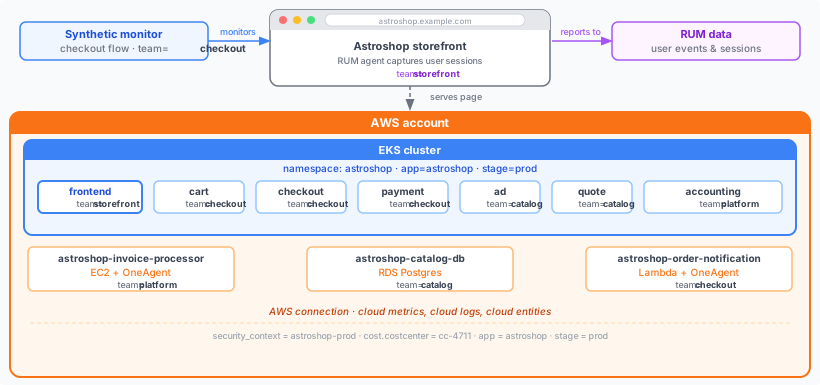
The tag schema
| Tag | Value | Source |
|---|---|---|
|
| Namespace label, uniform for the whole application |
|
| Namespace label, uniform per environment |
| Varies by service | Workload label and AWS resource tag |
|
| Fixed value |
|
| Fixed value |
Configure each tag at the broadest level where everything underneath shares one value.
Every Astroshop service runs in the same namespace and has the same app and stage, so a single namespace label covers them all.
team has a different value per service, so one label on the namespace can't express it. Set it on each workload instead.
Primary Grail tag keys are stored with a primary_tags. prefix.
When you create a rule, select Primary tag as the Target and enter the bare key name, for example, team. Dynatrace adds the prefix, so the tag is stored as primary_tags.team.
dt.security_context and dt.cost.costcenter are primary Grail fields and keep their own names. For these, select Security context or Cost center as the Target.
1. Plan the rules
All enrichment rules live in  Settings > Collect and capture > Ingest enrichment configuration.
Choose the rule type
The Rule type determines where the rule reads its value and which component evaluates the rule and enriches the data:
| Rule type | Evaluated by | Enriches |
|---|---|---|
Kubernetes label and annotation rules | Dynatrace Operator and ActiveGate. The Operator passes the values to the OneAgent code modules automatically. | Telemetry from the workloads in the cluster |
Host/Process property | OneAgent and its code modules | Data that OneAgent collects |
AWS, Azure, and Google Cloud tag rules | The cloud connection | Only data that arrives through that connection |
For example, a Kubernetes namespace label rule with source app and target Primary tag app reads the app label from the namespace and writes it as primary_tags.app.
Cloud rules apply only to data that arrives through the cloud connection, so OneAgent on a cloud VM doesn't evaluate them. To tag the OneAgent data of that VM as well, add a Host/Process property rule for the same tag, as Tag OneAgent data on EC2 does for the EC2 instance.
For all rule types and form fields, see Configure ingest enrichment rules.
Choose the scope
Set each rule at the scope of the estate it describes rather than environment-wide:
| Step | Scope |
|---|---|
The Kubernetes cluster running Astroshop | |
The host group containing | |
The AWS account |
When rules at several scopes target the same field, the narrower-scope rule takes precedence.
You can still add a broader environment-wide default, and no rule applies to an estate it doesn't describe.
To open the rules for a scope, go to the entity page (for example, the Kubernetes cluster or the host group), open Settings, and search for Ingest Enrichment Config. Alternatively, go to Settings > Collect and capture > Ingest enrichment configuration and select Go to scope to pick the scope. For details, see Scope hierarchy.
To automate the setup via the Settings API, use the Ingest enrichment configuration schema. The scope takes the form KUBERNETES_CLUSTER-<id> for a Kubernetes cluster, HOST_GROUP-<id> for a host group, and AWS_ACCOUNT-aws.account.id:<account-id> for an AWS account.
The two fixed values have no source to read, so they use the Custom value rule type with the literal text as Source. A rule only applies in the scope where you add it, so Tag Kubernetes telemetry on EKS, Tag OneAgent data on EC2, and Tag AWS cloud metrics, logs, and entities each include this pair alongside their other rules. Each copy covers the Kubernetes, host, and cloud data in its own scope. For more about these fields, see Configure security context and Configure cost allocation.
2. Tag Kubernetes telemetry on EKS
Enable metadata enrichment in your DynaKube before label rules take effect:
spec:metadataEnrichment:enabled: true
The astroshop namespace carries app=astroshop and stage=prod, and each deployment carries a team label.
Two rule types map them.
Add these rules at the scope of the Kubernetes cluster, together with the two fixed-value rules from Plan the rules:
In Settings > Collect and capture > Ingest enrichment configuration, select the cluster scope and add a rule for each row:
| Rule type | Source | Target | Resulting field |
|---|---|---|---|
Kubernetes namespace label |
| Primary tag |
|
Kubernetes namespace label |
| Primary tag |
|
Kubernetes workload label |
| Primary tag |
|
Custom value | Literal text | Security context |
|
Custom value | Literal text | Cost center |
|
The two Custom value rules write the fixed text astroshop-prod and cc-4711 to all signals in this scope. The rules don't read any field.
Workload and pod rule types require Dynatrace Operator version 1.11+ ActiveGate version 1.347+.
Values resolved from Kubernetes metadata are applied when a pod starts, so restart the pods after changing a label.
For details, see Enrich Kubernetes telemetry with primary Grail fields and tags.
3. Tag OneAgent data on EC2
The EC2 instance astroshop-invoice-processor already carries the AWS resource tags team, app, and stage.
OneAgent reads them through the instance metadata service and exposes them as host properties named aws.tags.<key>.
Access to instance tags in instance metadata is off by default in AWS, so enable it on the instance first. For details, see View tags for your EC2 instances using instance metadata.
Map the properties with Host/Process property rules at the scope of the host group the instance belongs to, again with the two fixed-value rules alongside:
In Settings > Collect and capture > Ingest enrichment configuration, select the host group scope and add a rule for each row:
| Rule type | Source | Target | Resulting field |
|---|---|---|---|
Host/Process property |
| Primary tag |
|
Host/Process property |
| Primary tag |
|
Host/Process property |
| Primary tag |
|
Custom value | Literal text | Security context |
|
Custom value | Literal text | Cost center |
|
The two Custom value rules write the fixed text astroshop-prod and cc-4711 to all signals in this scope. The rules don't read any field.
These rules cover everything OneAgent produces for the instance.
The AWS_EC2_INSTANCE node is created by the cloud connection and is tagged in Tag AWS cloud metrics, logs, and entities.
Azure VMs follow the same pattern. You can use azure.tags.<key> as source for your OneAgent data.
For details, see Enrich OneAgent telemetry with primary Grail fields and tags, AWS, Azure, and Google Cloud.
4. Tag AWS cloud metrics, logs, and entities
The connection produces cloud metrics, cloud logs, and cloud entities for all three AWS resources. Tagging that data takes two settings.
First, create an AWS tag rule per key, which adds the resource tag to the data as aws.tags.<key>.
Add these rules at the scope of the AWS account, with the fixed-value pair alongside:
In Settings > Collect and capture > Ingest enrichment configuration, select the AWS account scope and add a rule for each row:
| Rule type | Source | Target | Resulting field |
|---|---|---|---|
AWS tag |
| Cloud tag |
|
AWS tag |
| Cloud tag |
|
AWS tag |
| Cloud tag |
|
Custom value | Literal text | Security context |
|
Custom value | Literal text | Cost center |
|
The two Custom value rules write the fixed text astroshop-prod and cc-4711 to all signals in this scope. The rules don't read any field.
Second, create an OpenPipeline primary Grail tag rule to promote aws.tags.team to primary_tags.team.
- Go to Settings > Process and contextualize > OpenPipeline > Primary Grail tags and select New rule.
- In Primary Grail tag field name, enter
team. - Set the matching condition to
isNull(primary_tags.team). - Add two source fields, because telemetry records and Smartscape nodes name the field differently:
aws.tags.teamfor telemetry`tags:aws`[team]for Smartscape nodes
- Select Save and close.
Repeat for app and stage.
Keep isNull(primary_tags.team) as the matching condition.
The default condition is true, which overwrites values other sources already set, including the Operator's team tag on pods and the Lambda function's DT_TAGS value.
Primary tag isn't yet available as a Target for AWS tag rules, which is why this step needs the OpenPipeline rule. When it becomes available, you no longer need the OpenPipeline rule.
Azure and Google Cloud follow the same two-step pattern with Azure tag and GCP label rules, reading azure.tags.<key> and gcp.labels.<key>.
For details, see Enrich AWS telemetry with primary Grail fields and tags, Azure, and Google Cloud.
5. Tag Lambda telemetry
A Lambda function doesn't load the ingest enrichment configuration, so its tags come from the DT_TAGS environment variable that you set in the function configuration:
environment {variables = {DT_TAGS = "primary_tags.team=checkout primary_tags.app=astroshop primary_tags.stage=prod"}}
Keys are space-separated and keep the primary_tags. prefix.
The variable enriches the spans, metrics, and logs that OneAgent emits from the function with the primary Grail tags.
The AWS_LAMBDA_FUNCTION Smartscape node is tagged in Tag AWS cloud metrics, logs, and entities, where the isNull() condition keeps the OpenPipeline rule from overwriting DT_TAGS.
For details, see Enrich OneAgent telemetry with primary Grail fields and tags.
6. Tag RUM data
RUM data arrives through the rumagent ingest source, which ingest enrichment rules don't reach.
Use an OpenPipeline DQL processor instead.
Apply the same processor in each of these six configuration scopes: Settings > Process and contextualize > OpenPipeline > Smartscape events, User events, Events, Davis events, Business events, and Timeseries.
In each scope:
-
Open the pipeline and add a DQL processor.
-
Set the matching condition to
frontend.name == "Astroshop" and isNull(primary_tags.team). -
Add the following DQL:
fieldsAdd primary_tags.team = "storefront",primary_tags.app = "astroshop",primary_tags.stage = "prod",dt.security_context = "astroshop-prod",dt.cost.costcenter = "cc-4711" -
Select Save.
For User sessions, repeat the same steps with a different matching condition, because frontend.name is an array in that scope:
arrayContains(frontend.name, "Astroshop") and isNull(primary_tags.team)
The fieldsAdd DQL is identical.
All five fields are set in each scope, because the fixed-value rules from Plan the rules don't apply to RUM.
For details, see Enrich RUM telemetry with primary Grail fields and tags.
7. Tag Synthetic monitors
The enrichment rules from the earlier steps don't reach Synthetic, so a monitor uses only the tags you set on it.
Go to  Synthetic, select the monitor, select Edit, and fill in the Primary Grail tags section, or set the
 primaryGrailTags field via the Synthetic API:
primary_tags.team = checkoutprimary_tags.app = astroshopprimary_tags.stage = proddt.security_context = astroshop-prod
For details, see Primary Grail tags for Synthetic.
What's tagged where
| Configuration | Telemetry | Smartscape nodes |
|---|---|---|
Namespace label ( | Spans, logs, service metrics, process metrics, Kubernetes metrics | Namespace, deployment, pod, container, process |
Workload label ( | Spans, logs, service metrics, process metrics, Kubernetes metrics | Deployment, pod, container, process |
Custom value rules (fixed values, one pair per scope) | All of the above, plus cloud metrics and cloud logs | Kubernetes nodes, |
Host/Process property on EC2 | Spans, logs, service metrics, process metrics |
|
AWS tag + OpenPipeline | Cloud metrics, Lambda, and RDS cloud logs |
|
| Spans, metrics, logs | None, the function node comes from the AWS tag row |
RUM OpenPipeline processor | User events, user sessions |
|
Synthetic per monitor | Monitor events, Synthetic metrics | Monitor node |
A tag set at a narrower level isn't inherited by broader levels: a workload label never tags the namespace node.
SERVICE nodes don't carry primary Grail tags.
The tags are on the spans and service metrics a service produces, and on the process, container, pod, and host it runs on.
To include services in a team segment, see Build a segment for a team.
Build a segment for a team
A segment that filters on primary_tags.team matches all data the team owns, but not its services.
SERVICE nodes don't carry primary Grail tags, so the segment needs a second include that selects the team's services by ID.
Don't use segment variables to look up entity IDs.
The exception is services, because SERVICE nodes don't carry primary Grail tags and the segment needs the lookup to include them.
-
Create a segment and add a variable with the following query. Service metrics carry both the primary Grail tag and the service ID, so they link a team to its services.
metrics| filter isNotNull(primary_tags.team) and primary_tags.team != ""| fields primary_tags.team, dt.smartscape.service| summarize by: primary_tags.team, dt.smartscape.service = collectDistinct(dt.smartscape.service)| sort lower(primary_tags.team)The first column becomes the primary variable
$primary_tags.team, the team you select when you apply the segment. The second column becomes the secondary variable$dt.smartscape.service, the list of that team's services. For details, see Primary and secondary variables. -
Add a Data (all types) include with the condition
primary_tags.team = $primary_tags.team. -
Add an Entities include with the condition
type = SERVICE AND id in ($dt.smartscape.service).
When you apply the segment and select checkout, it matches the data of cart, checkout, and payment, plus their SERVICE nodes.
For more about include types, see Includes.
Optional: Check the tags on your data
To confirm the enrichment is applied, run these queries in  Notebooks. Each one shows the tags on a different signal type.
Spans from the Astroshop namespace, showing which workload owns each trace:
fetch spans| filter k8s.namespace.name == "astroshop"| filter primary_tags.app == "astroshop"| fields k8s.workload.name, primary_tags.team, primary_tags.app, primary_tags.stage| limit 20
Service request rate grouped by team, to verify that service metrics carry the tag:
timeseries request_count = sum(dt.service.request.count),filter: primary_tags.app == "astroshop",by: { primary_tags.team, dt.smartscape.service }
EC2 CPU utilization from the AWS connection, grouped by team to confirm cloud metrics are tagged:
timeseries cpu = avg(cloud.aws.ec2.CPUUtilization.By.InstanceId),filter: primary_tags.app == "astroshop",by: { primary_tags.team }
AWS Smartscape nodes, showing primary tags on the cloud entities created by the AWS connection and OpenPipeline pre-processing:
smartscapeNodes "AWS*"| filter primary_tags.app == "astroshop"| fieldsKeep name, type, primary_tags.team, primary_tags.app, primary_tags.stage
User sessions filtered to the Astroshop storefront, confirming the RUM OpenPipeline processor applied:
fetch user.sessions| filter primary_tags.app == "astroshop" and matchesValue(primary_tags.team, "storefront")| fields primary_tags.team, primary_tags.app| limit 20
Synthetic availability events for the Astroshop checkout monitor:
fetch dt.synthetic.browser.availability| filter primary_tags.app == "astroshop" and matchesValue(primary_tags.team, "checkout")| fields primary_tags.team, primary_tags.app| limit 20
HOST Smartscape node for the EC2 instance. dt.security_context can hold several values and is returned as a list on Smartscape nodes, so filter it with matchesValue rather than ==:
smartscapeNodes "HOST"| filter matchesValue(dt.security_context, "astroshop-prod")| fieldsKeep name, dt.security_context
Congratulations!
You applied one primary Grail tag schema across an AWS estate. Along the way, you:
- Scoped ingest enrichment rules per cluster, host group, and AWS account
- Mapped Kubernetes labels and AWS tags to primary Grail tags
- Tagged Lambda, RUM, and Synthetic data that ingest enrichment rules don't reach
- Built a team segment that includes
SERVICEnodes - Verified the tags with DQL
To apply the same approach to your own estate, start with Primary Grail tags and Configure ingest enrichment rules.
Related topics
- Organize your data with primary Grail fields and tags
- Primary Grail fields and tags
- Configure ingest enrichment rules
- Set primary Grail tag rules in OpenPipeline
- Enrich AWS telemetry with primary Grail fields and tags
- Enrich Kubernetes telemetry with primary Grail fields and tags
- Enrich OneAgent telemetry with primary Grail fields and tags
- Enrich RUM telemetry with primary Grail fields and tags
- Primary Grail tags for Synthetic
- Segments