Query and filter logs
- Latest Dynatrace
- How-to guide
- 4-min read
In  Logs, you can build queries, use filters, search for particular log lines, and more.
Build a query in Logs
Query logs by specifying a segment and filter statement with keys and values with your search terms, comparators, and logical operators.
-
Segment: A common filter for observability data across apps on the Dynatrace platform.
-
Key: The field or attribute you want to filter on.
-
Value: The specific value that you're looking for.
-
Logical operator: Connects multiple filter statements.
By default, all filter statements are
ANDconnected. -
Comparator: Determines the type of comparison.

Filter with facets to add keys and and values to your filter automatically.
Use the date picker to apply the correct timeframe for your query.
Select Run query to execute the query.
After your query has returned records in the result table, you can search for keywords in this data. Use the Search in results field to filter the table using your keyword. This filtering does not execute a new query but only shows the already returned and loaded results in your browser.
Use  Segments
Apply a segment filter to your query whenever possible.
-
Segments let you filter on logs and other observability data with a consistent filter.
-
Segments are convenient to limit your queries to only specific Grail buckets, which reduces the amount of data that you need to scan to get the relevant results.
For additional details, see Segment logs by bucket and the best practices for logs.
-
Segments let you save and reuse commonly used filters, which are applicable in
Logs and across other Dynatrace apps.
Explore recent filters and pin filters
Logs saves your recently used filters so that you can re-apply them with just a click. You can also persist filters by pinning them.
Select the filter field and check the Recently used filters section. The section displays filters you have recently applied, with the most recent on top. As you type a new filter statement, this list is reduced to match similar statements from your recently used filters.
Select (Pin filter) to pin any filter that you've created. When the filter field is empty, select it and scroll down to the Pinned filters section to view your previously pinned filters. Unpin a filter by selecting (Pin filter) again.
Search for a phrase in logs
If you need to find logs that contain a specific phrase, you have multiple options, which range from broadest to more narrow filtering.
Search from all fields
Use * instead of a keyname and ~ as the comparator to search for your phrase from all the fields of the log record that match your filters.
For example, the * ~ "failed to charge card" filter matches logs that contain this phrase in any field.
This is equivalent to using the search DQL command.
Search from content
Typically, original log payload is preserved in the content field of the log record. Restrict your search to this field to increase query performance.
For example, the content ~ "failed to charge card" filter matches logs that contain this phrase in the content field.
This is equivalent to using the matchesPhrase DQL string function.
Wildcard in value
You can also specify just a part of the value with a wildcard by using * in your search term.
For example, the content = "*card*" filter matches logs that contain the card phrase in the content field.
This is equivalent to using the matchesValue DQL string function.
For the full reference, see Filter field.
Filter on a field with multiple values
By default, all filter statements are connected with the AND logical operator. For example, status = ERROR status = WARN returns no results, as one a log record cannot have two statuses.
To query by a field with different values, use the in operator. For example, status in (ERROR, WARN) returns logs that have either the ERROR or WARN status. Alternatively, you can use OR to combine multiple filter statements.
Filter on JSON-structured log fields
When your logs have fields with JSON-structured data, you can filter on nested JSON attributes. You can:
- Enter a filter statement manually in the filter field.
- Leverage the drill-down menu in the JSON mode when you view a particular log record.
Enter a filter statement manually
To filter your logs on nested JSON attributes, enter the required filter statement directly in the filter field.
-
To address attributes inside the JSON-structured field, use the following syntax:
fieldname$.attributename = valueFor example, to filter on the
loyalty_levelnested attribute from thecontentfield, use the following filter statement:
content$.loyalty_level = "silver". -
If the attribute name itself follows a dot notation, use the square bracket syntax:
fieldname$["attribute.name"] = value.For example, to filter on the
process.technologynested attribute from thecontentfield, use the following filter statement:
content$["process.technology"] = "nodejs"
Use the drill-down menu in the JSON mode
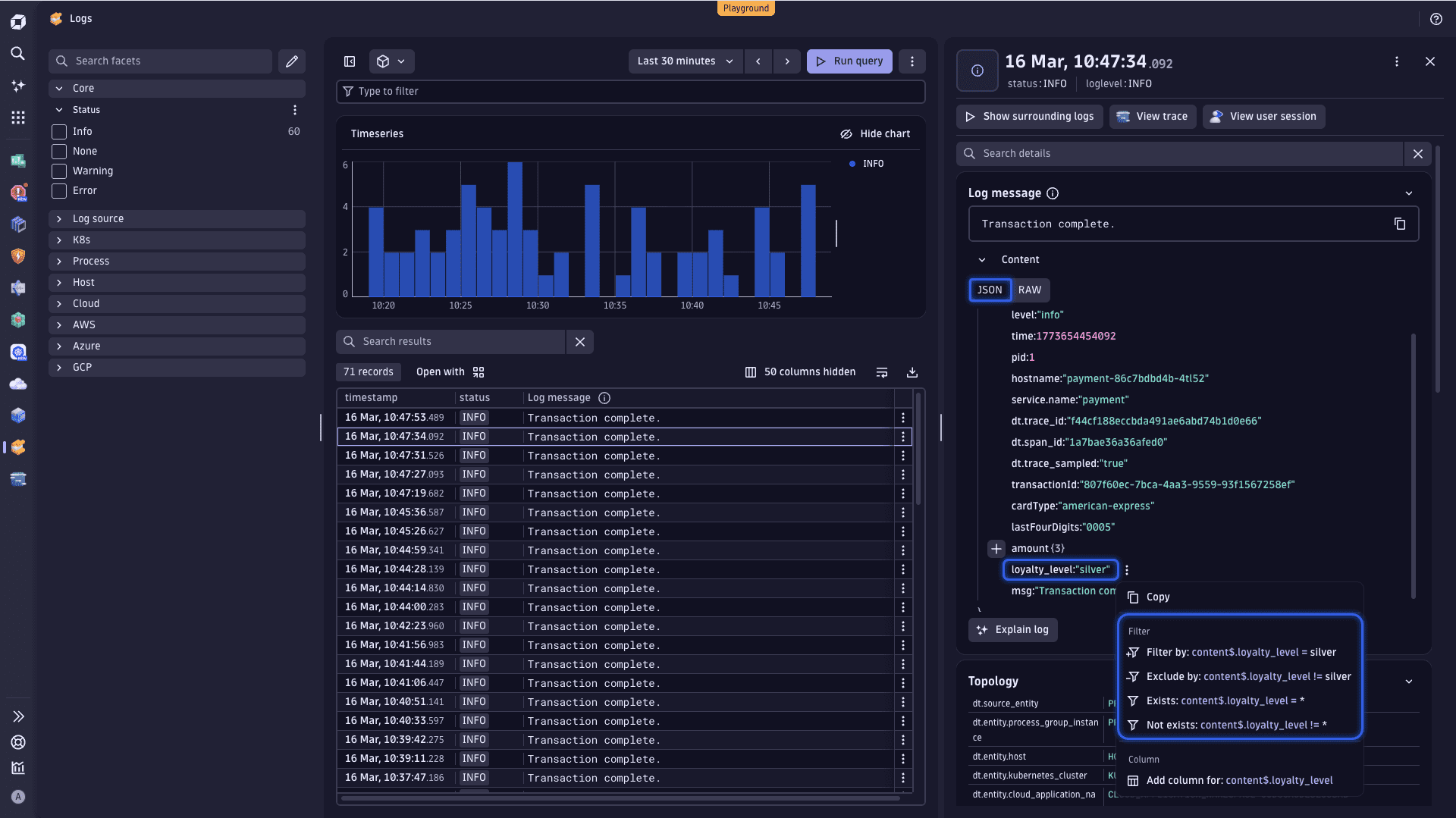
You can also filter your logs on nested JSON attributes by selecting the required nested attributes in the log record details pane when in the JSON mode.
When viewing a JSON-structured log record in the log record details pane, you can toggle the view between the JSON and Raw modes. The JSON mode provides drill-down menus for all the nested attributes of the log record, which allows you to filter or exclude data using the required nested attribute value, or search for data where that nested attribute value exists or does not exist.
- In Logs, select the required log record. The log record details pane opens on the right.
- In the log record details pane, expand Content, and select JSON.
- Use (Toggle section) to navigate to the required nested JSON attribute.
- Select the nested JSON attribute, and choose the required filter option.
The corresponding filter statement is automatically added to the filter field, which you can then refine further.
Leverage automatic suggestions for log filters
Logs provides autocomplete suggestions for keys, comparators, and values.
- Select the filter field to get a list of suggestions for most common or relevant fields for filtering.
- After choosing a field, you get a list of suggestions for comparators.
- After choosing a comparator, you get a list of suggestions for values for this field. This is not supported for the
contentfield.
Value suggestions come from your log data, queried in the background at no query cost. The app returns up to 100 distinct values per field, so not all values may appear in the list. Suggestions reflect data from the selected timeframe (up to the last 24 hours). Active filters don't affect which values appear.
If an expected value doesn't appear, enter it manually or create a segment with that field and value for quick reuse.
LogsLog Analytics