Convert a Managed Cluster to a rack-aware deployment using replication
- How-to guide
- 4-min read
To convert a Managed Cluster to a rack-aware deployment using the replication method, follow the steps below.
If you're combining this conversion with Premium High Availability, see Combine Premium High Availability with rack awareness: converting DC-1 first is the usual order, but not a requirement.
The replication method is useful for small Dynatrace Managed Clusters. If your current metric storage (Cassandra database) per node is more than 1 TB, use the rack-aware conversion using restore method instead. You can use existing nodes to progressively (one after another) reinstall them with the rack-aware parameter. Optionally, install a new node on additional hardware with the rack-aware parameter, then remove one existing node.
The advantage of this approach is that it doesn't affect Managed Cluster availability. To maintain Managed Cluster availability, Dynatrace Managed uses its native replication methods to preserve data. Removing and adding a node to the Managed Cluster takes time. The duration depends on the size of your metric storage and the speed of your disk or network. Some Managed Cluster operations can take one or two days. Dynatrace Managed will prevent all other cluster operations during that time (adding and removing nodes, upgrading, and backup). If you choose to perform reinstallation on the existing host, wait 72 hours before reattaching that host to the Managed Cluster.

 Prepare for the conversion
-
Prepare the Managed Cluster for adding nodes in different racks.
On each existing node, edit
/etc/dynatrace.confand adjust the following settings:CASSANDRA_NODE_RACK = rack1CASSANDRA_NODE_RACK_DC = datacenter1ELASTICSEARCH_NODE_RACK = rack1Run
sudo /opt/dynatrace-managed/installer/reconfigure.shto apply configuration changes for the Cluster node.Run sequentiallyRun the
reconfigure.shscript sequentially, because it triggers process restarts and there's a risk of Cassandra database downtime if it's run on multiple nodes in parallel. -
Prepare new nodes.
Make sure the disk partition allocated for Cassandra storage on the new node is sufficient to contain the entire Cassandra database (with margin for compaction and new data). The disk size should be at least double the combined Cassandra storage of all existing nodes. Keep Cassandra data on a separate volume to avoid disk space issues caused by other data types.
-
Verify that rack settings map correctly to physical racks and data centers. Ideally, there should be an equal number of nodes in each rack at the end of the whole conversion.
 Extend the Managed Cluster into new racks
During the initial deployment, Dynatrace Managed groups all nodes in a single default rack in a default data center. Even if your deployment isn't rack-aware, all nodes already are in datacenter1 rack1. To avoid adding a new node to the default rack, don't use the rack1 as a --rack-name parameter value for the new rack.
If you convert the Managed Cluster in the same data center, use the default datacenter1 parameter value.
Follow these steps to extend the Managed Cluster into new racks.
If the node has difficulties maintaining the data load, you can temporarily stop the Dynatrace Managed server process on that node and free more CPU cycles for Cassandra.
-
Add the new node with rack parameters to the Managed Cluster.
Use the Add a Managed Cluster node procedure and append the
--rack-nameand--rack-dcparameters to the installation command. For example:/bin/sh dynatrace-managed-installer.sh --seed-auth abcdefjhij1234567890 --rack-name rack2 --rack-dc datacenter1This command applies to a single Managed Cluster only. On a Premium High Availability cluster, use the command in Combine Premium High Availability with rack awareness instead, or the node joins with no data center assigned.
Wait until the node fully joins the Managed Cluster. Depending on your database size, Cassandra bootstrapping can take several days.
-
Add another node to the same rack, with the same rack parameters.
For the second node, Cassandra bootstrapping should be quicker.
-
Continue adding new nodes to
rack2. Once you have enough nodes inrack2(one third of the target Managed Cluster size), begin adding new nodes with rack parameters torack3minding the disk space requirements. -
Once you have enough nodes in
rack3, remove only therack1nodes whose capacity has moved torack2andrack3and are no longer needed.rack1stays populated with however many nodes the target topology still requires.
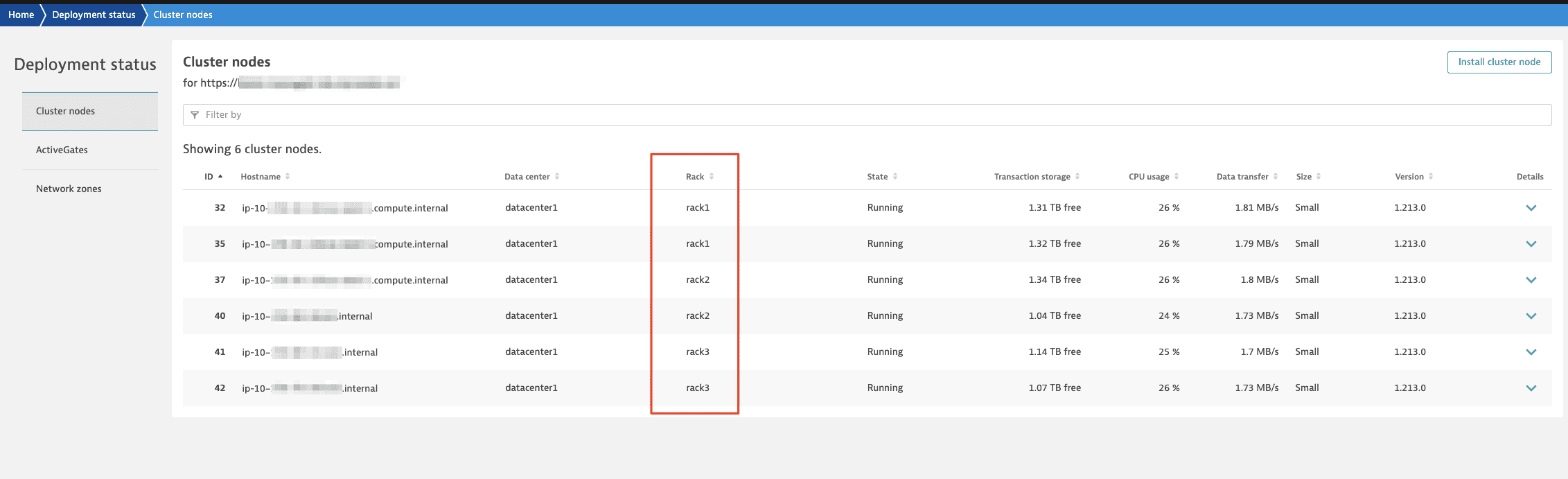
 Verify the conversion
When the conversion is complete, you see racks in the Deployment status page in Cluster Management Console: