Integrate OneAgent on Azure App Service for Linux and containers
- How-to guide
- 11-min read
Linux only
App Service on Linux supports two scenarios.
-
Bring your own code
In the code scenario, App Service provides a base container that is maintained by the platform.
This container targets:
- A development framework, such as .NET Core, PHP, or Node.js.
- A version of that framework, such as .NET Core 3.0 or .NET Core 3.1.
Follow the procedure on the Built-in image tab.
-
Bring your own container
In the container scenario, App Service provides a host where a custom container provided by the customer can execute.
For details on the differences between the two scenarios, see Things you should know: Web Apps on Linux.
To monitor App Services on Linux, integrate OneAgent with your containerized application environment.
Follow the procedure on the Bootstrapper sidecar tab (recommended) or the Custom image tab. The Bootstrapper sidecar method is recommended because it doesn't require modifications to your application image.
Integrate Dynatrace using the bootstrapper sidecar
Recommended OneAgent 1.333+
The dynatrace/dynatrace-codemodules public image runs as a sidecar container alongside your web app. It copies OneAgent to persistent shared storage at /home/dynatrace/oneagent, and LD_PRELOAD loads it into your application on restart. This approach doesn't require modifications to your application image.
Prerequisites
- A Linux Web App configured with Operating System: Linux and Publish: Container
- Persistent shared storage enabled—set
WEBSITES_ENABLE_APP_SERVICE_STORAGEtotrue. The bootstrapper writes OneAgent to/home/dynatrace/oneagent; without this storage mounted, OneAgent won't persist across restarts.
1. Azure portal: Configure environment variables
In the Azure portal, go to your web app > Settings > Environment variables and add the following:
| Variable | Description |
|---|---|
| Your Dynatrace connection endpoint address. |
| Your tenant environment ID. |
| PaaS token for your Dynatrace environment. |
|
|
2. Azure portal: Add the bootstrapper sidecar container
-
In the Azure portal, go to your web app > Deployment > Deployment Center.
-
Select Add > Custom container and configure the following:
Setting Value Image source
Other container registries
Image type
Public
Registry server URL
index.docker.ioImage and Tag
dynatrace/dynatrace-codemodules:<version>(for example,
dynatrace/dynatrace-codemodules:1.327.64.20260122-030637)Startup command
serverless --keep-alive --target /home/dynatrace/ -
Select Save.
Recommended Deploy only specific technologies
By default, the bootstrapper deploys all available CodeModule technologies. To reduce container startup time, deploy only the technology your application uses by appending the --technology flag to the startup command.
For example, to deploy only the Go CodeModule:
serverless --keep-alive --target /home/dynatrace/ --technology=go
3. Azure portal: Verify deployment and restart
- In Deployment Center, select View logs on the bootstrapper container. Wait for the log entry
"msg":"OneAgent has been successfully deployed", refreshing periodically as deployment may take several minutes. - Go to Overview and select Restart to restart the web app.
Known limitations
Persistent shared storage required — WEBSITES_ENABLE_APP_SERVICE_STORAGE must be set to true so the bootstrapper can write OneAgent to /home/dynatrace/oneagent. If it's set to false, the bootstrapper skips deployment entirely.
No automatic cleanup of older versions — After upgrading, older OneAgent versions remain on shared storage. You need to clean them up manually.


Additional configuration
Use additional environment variables to configure OneAgent for troubleshooting or advanced networking. You can either set them via your App Service Application settings or, when using a custom container image, configure them within your application image Dockerfile.
Networking variables Optional
| Parameter | Description |
|---|---|
| Specifies to use a network zone. For more information, see network zones. |
| When using a proxy, use this environment variable to pass proxy credentials. For more information, see Set up OneAgent on containers for application-only monitoring. |
Additional metadata for process grouping and service detection Optional
When listing multiple tags, you need to put them in double quotes, for example: DT_TAGS="Tag1=Value1 Tag2=Value2".
| Parameter | Description |
|---|---|
| Multiple containers are sometimes detected as a single instance (localhost), leading to various problems in, for example, service detection or availability alerts. Use this environment variable to define a unique name for your container instance. For details, see Service Detection v1 |
| Some technologies don't provide unique application names. In such cases, use this environment variable to provide a unique name. For more information, see Web server naming issues. |
| Applies custom tags to your process group. |
| Applies custom metadata to your process group. |
| If the process group detection rules won't work for your use case, use this environment variable to group all processes with the same value. |
| If the process group detection rules won't work for your use case, use this environment variable to separate process group instances. |
Validating variables Optional
| Parameter | Description |
|---|---|
| Set this variable with |
| Use this environment variable to define the console log level. Valid options are: |
.NET-specific variables
This section contains variables only relevant for .NET environments.
| Parameter | Description |
|---|---|
| .NET-specific variable to configure OneAgent monitoring of .NET Framework and .NET Core applications. OneAgent .NET monitoring is active by default ( |
Update OneAgent
- In the Azure portal, go to your web app > Deployment > Deployment Center.
- Select the bootstrapper container.
- Update the tag in the Image and Tag field to the new OneAgent version and select Apply.
- Verify deployment and restart the web app as described in Step 3 of the Bootstrapper sidecar tab on the Install section.
Uninstall OneAgent
To uninstall OneAgent
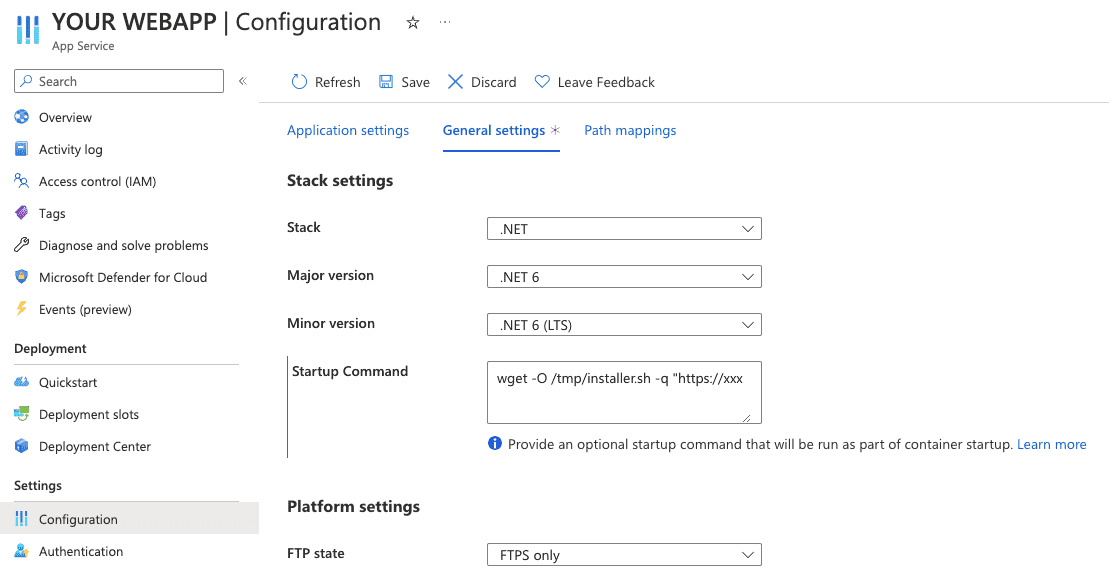
- In the Azure portal, go to your web application > Configuration > General settings.
- Remove your startup command (leave Startup Command empty).
- Select Save.
Potential conflict with Application Insights
OneAgent may conflict with Azure Application Insights agents already instrumenting the application. If you don't see any monitoring data coming in, check if you have turned on Application Insights and re-try with Application Insights turned off.