Organize dashboards
- How-to guide
- 4-min read
To keep the Dashboards list manageable and find the dashboards you need, follow the steps below. Every step is optional, so perform only the ones you need.

Filter the Dashboards table

Favorite dashboards

Tag dashboards

Hide dashboards

Clean up little-used dashboards
Filter the Dashboards table
Depending on how many users you have and how many dashboards they create, the Dashboards page can list a long table of dashboards. Filter the table to show only the dashboards you need.
-
Go to Dashboards.
-
Set one or more filters using either method:
- In the collapsible pane to the left of the table, select a value for a filter such as Ownership or Favorite. Your selection adds the equivalent filter to the filter bar above the table and applies it.
- In the filter bar above the table, select a filter, and then enter or select the filter value. Use this method for filter values that you need to enter.
For example, to list only your own dashboards, select
Mineunder Ownership in the left pane, or selectOwnership: Mineon the Filter by line.You can apply the following filters:
- Name: Enter any part of the dashboard name.
- Ownership: Filters by ownership of the dashboard.
Mine: All dashboards that you've created.Shared with me: All dashboards created by other users who have granted you read or edit permissions to their dashboards.
- Favorite: Lists only your favorite dashboards.
- Owner: Filters by the name or user ID of the owner.
- Tag: Filters by dashboard tag.
- Hidden: Set to
Yesto display your hidden dashboards. - Preset: Lists only preset dashboards.
If you set more than one filter, the table shows only the dashboards that match all filters.
To filter the content of a dashboard rather than the list of dashboards, see Add dynamic filters to a dashboard.
Favorite dashboards
By default, the Dashboards table sorts by the Favorite column, so your favorite dashboards appear at the top, followed by the other dashboards you have permission to display.
-
Favorite or unfavorite dashboards using either method:
-
To favorite or unfavorite the dashboard you're viewing, select the star in the upper-right corner of the dashboard. The star toggles favoriting on and off.
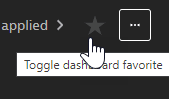 Favoriting the current dashboard
 -
To favorite or unfavorite several dashboards, go to Dashboards and select the star in the Favorite column for each dashboard.
-
-
To list only your favorite dashboards, go to Dashboards and select
Yesunder Favorite in the left pane, or selectFavorite: Yeson the Filter by line.
Tag dashboards
Use tags to organize your dashboards into groups.
-
Display the dashboard.
-
Select Edit.
If you don't see an Edit option, you don't have permission to edit that dashboard.
-
Under the name of the dashboard, select Add tag. Enter the tag, select it in the list, and then select Add.
Repeat this step to add more tags to the dashboard.
-
Select Done to save your changes. You can now filter the Dashboards table by Tag.
Hide dashboards
-
To hide a dashboard, go to Dashboards and select More (…) > Hide for the dashboard you want to hide.
-
To unhide a dashboard:
- Go to Dashboards.
- Filter the table by
Hidden: Yesto display your hidden dashboards. - Select More (…) > Unhide for the dashboard you want to unhide.
Clean up little-used dashboards
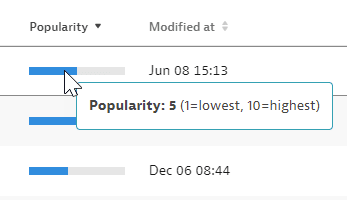
The Popularity column of the Dashboards table shows which dashboards users viewed most over the last 30 days. Each dashboard gets a popularity score between 1 (least popular) and 10 (most popular).
-
Go to Dashboards and sort the table by the Popularity column.
The table lists all dashboards you're permitted to view or edit. Popular dashboards are ones you might want to use, and underused dashboards are candidates for cleanup.
-
To delete an underused dashboard, select More (…) > Delete for that dashboard, and then confirm the deletion.
If you don't see a Delete option, you don't have permission to delete that dashboard.
What's next
- To set a default management zone for a dashboard, see How dashboards scope and refresh data.
- To filter a dashboard by a generic tag, see Add dynamic filters to a dashboard.
- To give other users access to a dashboard, see Share a dashboard.