Zscaler Private Access (ZPA) extension
- Latest Dynatrace
- Extension
- Published Oct 09, 2026
Monitor Zscaler Private Access by streaming LSS logs into Dynatrace to extract user access, App Connector, Browser Access, and infrastructure metrics.
Get started
Overview
Zscaler Private Access forwards its Log Streaming Service (LSS) log types as newline-delimited JSON over raw TCP to a customer-operated log shipper, which delivers them to Dynatrace over HTTPS. Each log type carries a sourcetype field, written by the log stream template, that the extension uses to select a dedicated parser. Once parsed, the extension:
- Parses ZPA LSS JSON logs: A log OpenPipeline pipeline recognizes each supported log type by its
sourcetypevalue and extracts the relevant fields. - Extracts metrics: Counter and value metrics (all under the
zpa.*namespace) are produced from the parsed logs for access activity, authentication, connector health, Browser Access transactions, and customer-hosted infrastructure. - Builds a live Smartscape topology: A metrics OpenPipeline pipeline discovers ZPA users, application segments, App Connectors, and their groups, together with the relationships between them (see Smartscape on Grail).
- Visualizes the data: Dashboards for private application access, user authentication, App Connector health, Private Service Edge health, Private Cloud Controller readiness, and Browser Access, plus unified analysis screens (entity detail and inventory) for each discovered ZPA entity.
- Detects problems: Pre-built alert templates raise Dynatrace Problems on the affected ZPA entity.
The extension bundles no data source, so there is nothing to install on an ActiveGate. Data arrives by log ingestion through the shipper, and the extension transforms it into metrics, entities, and problems.
The supported log types are:
| Log type | Sourcetype | Carries |
|---|---|---|
App Connector Metrics |
| Per-connector CPU, memory, disk, port and file descriptor usage, and connection counts to Service Edges |
App Connector Status |
| Connector enrollment, authentication, connection and disconnection events, with host and interface counters |
User Activity |
| One record per brokered user-to-application connection, with the timing breakdown and byte counts |
User Status |
| User authentication and enrollment state changes, posture results, and per-session byte totals |
Browser Access |
| HTTP-level transactions for clientless Browser Access, with status codes and per-phase timings |
Private Service Edge Metrics |
| CPU, memory, disk and port usage for customer-hosted Private Service Edges |
Private Service Edge Status |
| Private Service Edge authentication, connection lifecycle, and interface counters |
Private Cloud Controller Metrics |
| CPU, memory, disk and port usage for Private Cloud Controllers |
Private Cloud Controller Status |
| Private Cloud Controller authentication, connection lifecycle, and interface counters |
Use cases
- Private application access visibility: See which application segments users actually reach, how much traffic each carries, and which App Connector brokered it, instead of inferring access from network telemetry.
- Access latency troubleshooting: Split the connection setup a user waits through into its policy processing, connector-to-Service-Edge, and server setup phases. You can then tell whether the delay is in policy evaluation, the connector, or the application backend.
- App Connector fleet health: Detect a connector that is saturating CPU or memory, running out of disk or file descriptors, or dropping interface packets, before the sessions it brokers start failing.
- Access failure diagnosis: Separate applications that are unreachable because their server is down from applications that are unreachable because no healthy App Connector was available to broker them.
- Authentication and session auditing: Track who authenticated to Private Access, from which identity provider, client type, and country, when sessions dropped, and how much data each user moved.
- Clientless Browser Access monitoring: Gain HTTP-level visibility for contractor and third-party access, where no Zscaler Client Connector is installed, including status code mix and per-phase transaction latency.
- Business continuity readiness: Confirm that customer-hosted Private Service Edges and Private Cloud Controllers are healthy and have headroom, before a disruption forces traffic onto them.
- Topology-driven investigation: Follow access across a live map of users, application segments, and App Connectors instead of scrolling through raw logs.
Requirements
- Minimum required Dynatrace version: Dynatrace version 1.345.
- OpenPipeline Settings 2.0 enabled on the environment.
- Access to a ZPA Admin Portal with permission to manage the Log Streaming Service (Configuration & Control > Private Infrastructure > Log Streaming Service > Log Receivers).
- At least one App Connector Group deployed and connected. LSS sources its stream through App Connectors, so a Log Receiver with no App Connector Group attached produces no output.
- A host inside your environment on which you deploy and operate a log shipper. See Deploy the log shipper for why one is required.
- Network reachability on both sides of that host, which you arrange in your own network: the ZPA Log Streaming Service must be able to reach the log shipper's TCP listener, and the log shipper must be able to reach your Dynatrace environment over HTTPS. Where address translation sits in the inbound path, the address LSS is given is not the shipper's own. For details, see Configure the ZPA LSS Log Receivers.
- Where TLS is enabled on a Log Receiver, the matching certificate, trust store, and verification settings configured on the shipper.
- Your Dynatrace environment ID and a Dynatrace API token with the Ingest logs (
logs.ingest) scope, used by the shipper to push logs to Dynatrace.
Compatibility information
This extension works with the Zscaler Log Streaming Service and delivers complete, out-of-the-box observability for the following ZPA log types:
For these log types, everything is ready to use from the moment the extension is activated and the logs arrive. Logs are parsed automatically, and the extension populates metrics, dashboards, alerts, unified analysis screens, and Smartscape topology.
The Log Receivers you configure in your ZPA tenant determine which log types reach Dynatrace, not the extension, so you always stay in control of what you send. The extension never restricts this: if you stream additional ZPA log types, their logs are ingested into Dynatrace alongside the rest, ready to explore, query, and retain. The packaged features (metrics, dashboards, screens, alerts, and Smartscape topology) are purpose-built for the log types listed above. For any additional log type, the ingested log data serves as a foundation on which you can build your own metrics, dashboards, alerts, and analytics tailored to your specific use cases.
Note the following constraints:
- LSS has no HTTP output mode: It writes newline-delimited JSON to a TCP host and port, and can't authenticate to or post at a REST endpoint, so a log shipper between ZPA and Dynatrace is required rather than optional.
- One Log Receiver carries one log type to one host and port: Configure one receiver per log type you want.
- The custom log stream templates replace the ZPA defaults: The default template carries no field identifying which log type a record belongs to, so the extension couldn't route it to the right parser.
- The shipper must forward records unmodified: OpenPipeline performs all parsing, field extraction, and metric extraction, so a shipper that reformats, enriches, truncates, reorders, or drops any part of a record breaks it.
- Browser Access isn't represented in the Smartscape topology: Its records carry no identifier shared with any other log type, so no entity can be correlated from them. Its metrics are still charted on the Browser Access dashboard and queryable with DQL.
- Private Service Edges and Private Cloud Controllers form standalone topology branches: No LSS record carries one of their identifiers alongside a user, application, or connector identifier, so no edge joins them to the access path.
Activation and setup
Activation has five parts: activate the extension from Dynatrace Hub, configure the two OpenPipeline dynamic routes, deploy the log shipper, configure the ZPA LSS Log Receivers, and verify the setup. The prerequisites are listed under Requirements.
1. Activate the extension
Activate the Zscaler Private Access extension in the Hub app (see Deploy an extension from Dynatrace Hub). Upon activation, the extension deploys all its assets, including OpenPipeline sources and pipelines, metric definitions, the topology model, unified analysis screens, dashboards, and alert templates. However, you must configure the OpenPipeline routing. Everything that ships with the extension is listed on the extension's Content page.
2. Configure the OpenPipeline dynamic routes
OpenPipeline Dynamic Routes send incoming data to the extension's pipelines based on a matching DQL condition. Two routes are required—one for the ZPA log stream and one for the metrics that power the Smartscape topology.
Logs dynamic route: Routes the ZPA LSS records to the log pipeline:
- Open Settings > OpenPipeline > Logs > Dynamic Routing.
- Choose Add Dynamic Route.
- Set the matching condition to
matchesPhrase(content, "zscalerlss")and the Pipeline to Zscaler ZPA LSS Logs Pipeline, then save.
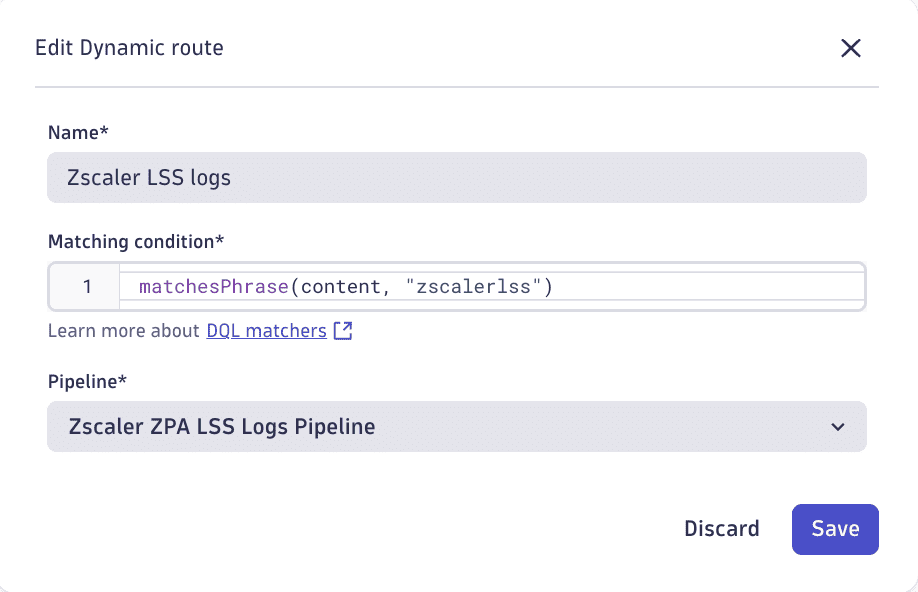
The condition matches the record body rather than a sourcetype field, because at routing time the LSS JSON hasn't been parsed yet and the fields inside it aren't addressable. The pipeline distinguishes the individual log types after parsing, by their sourcetype value.
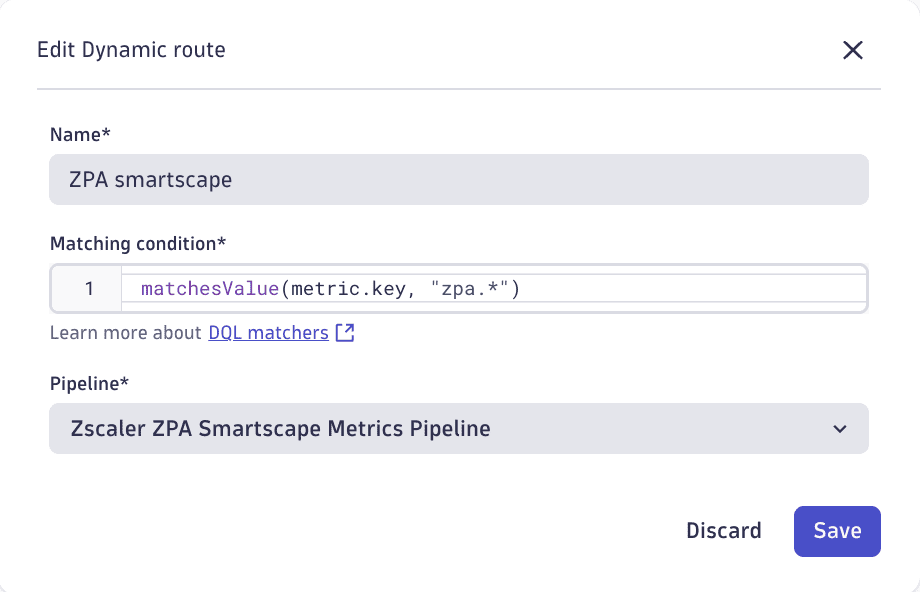
Metrics dynamic route: Routes the zpa.* metrics into the Smartscape metrics pipeline so the topology is discovered (see also Smartscape on Grail):
- Open Settings > OpenPipeline > Metrics > Dynamic Routing.
- Choose Add Dynamic Route.
- Set the matching condition to
matchesValue(metric.key, "zpa.*")and the Pipeline to Zscaler ZPA Smartscape Metrics Pipeline, then save.
3. Deploy the log shipper
ZPA LSS transmits log data only to a TCP host and port, so it can't deliver to Dynatrace unaided. A log shipper accepts the raw TCP stream on one side and uses the Dynatrace HTTPS ingest protocol on the other. You deploy and configure it, and any shipper capable of a TCP input and an HTTP output can fill the role. Two options are documented below, and either is sufficient.
Every log type can share the same shipper endpoint, because each record carries its own sourcetype value. No per-log-type filter or tagging is needed in the shipper. In both options, the record reaches Grail unparsed, as the complete LSS JSON string in the content field, and OpenPipeline performs all parsing and metric extraction. The choice is therefore an operational one, based on what you already run.
The endpoint depends on which shipper you deploy. Both use an API token with the logs.ingest scope:
| Shipper | Dynatrace endpoint | Authentication |
|---|---|---|
Fluent Bit |
|
|
BindPlane |
|
|
Fluent Bit
Fluent Bit is a lightweight open-source log processor. It terminates the LSS TCP stream with a TCP input plugin and posts the records to the Dynatrace Log Ingestion API v2 with an HTTP output plugin. It's available for Linux, macOS, Windows, and BSD, and can also run as a container or on Kubernetes. Any of these is acceptable.
- Install Fluent Bit on the host chosen to run the shipper, using the package and method for that platform. See Getting started with Fluent Bit.
- Confirm the host can receive the log stream from the ZPA Log Streaming Service on the chosen TCP port, and can reach your Dynatrace environment over HTTPS.
- Configure a TCP input listening on that port. This is the port the shipper binds locally, which isn't necessarily the port the Log Receivers target—see Configure the ZPA LSS Log Receivers.
- Configure an HTTP output forwarding to the Dynatrace log ingest endpoint, supplying your environment address and API token.
- Start or restart the Fluent Bit service and confirm it's running and listening on the configured port.
The following configuration is a functional baseline. It uses a plain TCP listener and deliberately performs no parsing, so that OpenPipeline carries out all field extraction:
[INPUT]Name tcpListen <provide your listener IP here>Port <provide your TCP port here>Format noneSeparator \nChunk_Size 256Buffer_Size 1024[OUTPUT]Name httpMatch *Host <your-environment-id>.live.dynatrace.comPort 443URI /api/v2/logs/ingestHeader Authorization Api-Token <provide your token here>Header Content-Type application/json; charset=utf-8allow_duplicated_headers falseFormat jsonjson_date_key timestampjson_date_format iso8601tls Ontls.verify On
Where your environment enables TLS on the Log Receiver, or requires proxy settings, custom certificates, or adjusted buffering or retry limits, extend this configuration accordingly. See the Fluent Bit TCP input plugin and Fluent Bit Dynatrace output plugin documentation.
BindPlane
BindPlane is an OpenTelemetry collector distribution owned by Dynatrace. It receives the LSS TCP stream through a TCP Logs source and delivers the records through a Dynatrace destination, which suits an estate that already standardizes on OpenTelemetry. The collector installs on Linux, macOS, and Windows with a single-line script, and is also supported on Kubernetes and OpenShift.
The workflow is to build a configuration first, then deploy a collector, then assign the collector to that configuration:
- Sign in to the BindPlane console, open the Configurations page, and select Create Configuration. See Build your first configuration.
- On the Details step, provide a name and select the Agent Type and Platform matching the host that will run the collector, then continue.
- On the Add Sources step, select Add Source, search for TCP Logs, select it, configure it as in the table below, and save the source.
- On the Add Destination step, select Add Destination, search for Dynatrace, select it, supply your Dynatrace environment details and API token, and save the configuration.
- Open the Agents page, select Install Agent, choose the Agent Type and Platform, optionally select the configuration created above so that it's assigned during installation, then copy the generated install command and run it on the target host. See Install your first collector.
- Wait for the collector to appear in the Agents table and confirm it reports a connected status. If you didn't select the configuration during installation, assign the collector to it and roll the change out.
TCP Logs source settings:
| Field | Value |
|---|---|
Short Description | A label identifying the source, for example, |
Listen Address | The address the collector listens on |
Listen Port | The port the collector binds locally, which isn't necessarily the port the Log Receivers target |
Log Type | An arbitrary label written to the |
Parse Format |
|
Multiline Parsing |
|
Enable TLS (Advanced) | Enable only if TLS is enabled on the ZPA Log Receiver, and supply the corresponding certificates |
Encoding, Max Log Size (Advanced) | Leave at defaults unless your environment requires otherwise |
Parse Format and Multiline Parsing are both deliberately set to none. The records must reach Dynatrace exactly as emitted by LSS, so that OpenPipeline, rather than the collector, performs all parsing. See the BindPlane TCP source and BindPlane Dynatrace destination documentation.
4. Configure the ZPA LSS Log Receivers
In your ZPA Admin Portal, configure one Log Receiver per log type.
Navigation: ZPA Admin Portal > Configuration & Control > Private Infrastructure > Log Streaming Service > Log Receivers > Add
All receivers are configured identically except for the Log Type selection and its matching Log Stream Content template. The shared settings are:
| Parameter | Value |
|---|---|
Name | A name of your choosing, for example, |
Description | Optional free-text description |
Domain or IP Address | The address at which the ZPA Log Streaming Service reaches the log shipper. See the note below on address translation. |
TCP Port | The port at which the ZPA Log Streaming Service reaches the log shipper. See the note below on address translation. |
TLS Encryption | Enabled or Disabled, matching how the shipper is configured |
Status | Enabled |
App Connector Groups | At least one group. A receiver with no group attached produces no output. |
Log Template | Custom, set automatically once a custom template is pasted |
The address a receiver targets isn't always the address the shipper listens on. The ZPA Log Streaming Service opens the connection to the log shipper, so Domain or IP Address and TCP Port must be the pair LSS can reach. Where the shipper sits behind NAT, a firewall, or a port forward, that's the published external pair, while the shipper stays bound to its local one. Read your own forwarding rule as two separate pairs: the shipper keeps listening on its internal address and port, and every Log Receiver targets the external address and port that the forward publishes.
Two paths have to be open, and both are configured in your own network rather than by the extension or by Dynatrace:
- ZPA Log Streaming Service to the log shipper: Inbound TCP on the address and port above. The shipper's listener has to be reachable at that address from wherever LSS connects, which is what a port forward provides when it isn't otherwise reachable.
- Log shipper to Dynatrace: Outbound HTTPS to the ingest endpoint in Deploy the log shipper.
You can't test the inbound path from the ZPA side, because LSS connects from the Zscaler cloud and there is no host there to run a command on. Check what you can beforehand, then confirm at the shipper:
- Outbound, before enabling: From the shipper host, a request to the Dynatrace ingest endpoint that returns any HTTP status, rather than a connection error, proves that path.
- Inbound, before enabling: From a host outside your perimeter, run
nc -vz <address> <port>against the same address and port the receiver will target. A refusal is conclusive, because LSS won't get through either. Success is a good sign rather than proof, since your test host isn't LSS. - Inbound, after enabling: On the shipper host, confirm that a connection actually arrived and records are being read, from the shipper's own log or with
ss -tn | grep ':<port>'. This is the only definitive confirmation.
nc and ss are examples. Substitute whatever tool your host, operating system, and security policy actually permit. Route each check through your own change process rather than treating the commands above as a fixed procedure.
Neither ZPA nor Dynatrace reports anything when the inbound path is closed: the receiver still shows as enabled, and no records ever arrive.
Each receiver must use the exact Log Stream Content template below so that field names match the pipeline parsers. Paste each template into the Log Stream Content field as a single line, including the trailing \n, which allows the shipper to split the incoming TCP stream into discrete records. The templates use the LSS format specifiers %j (JSON-escaped string), %d (integer), %f (float), and %j(,){...} (comma-separated array), documented in Understanding the Log Stream Content Format.
App Connector Metrics Feed
| Parameter | Value |
|---|---|
Log Type | App Connector Metrics |
Sourcetype |
|
Log Stream Content
\{"sourcetype": "zscalerlss_app_connector_metrics", "LogTimestamp":%j{LogTimestamp:time},"Connector":%j{Connector},"CPUUtilization":%j{CPUUtilization},"SystemMemoryUtilization":%j{SystemMemoryUtilization},"ProcessMemoryUtilization":%j{ProcessMemoryUtilization},"AppCount":%j{AppCount},"ServiceCount":%j{ServiceCount},"TargetCount":%j{TargetCount},"AliveTargetCount":%j{AliveTargetCount},"ActiveConnectionsToPublicSE":%j{ActiveConnectionsToPublicSE},"DisconnectedConnectionsToPublicSE":%j{DisconnectedConnectionsToPublicSE},"ActiveConnectionsToPrivateSE":%j{ActiveConnectionsToPrivateSE},"DisconnectedConnectionsToPrivateSE":%j{DisconnectedConnectionsToPrivateSE},"TransmittedBytesToPublicSE":%j{TransmittedBytesToPublicSE},"ReceivedBytesFromPublicSE":%j{ReceivedBytesFromPublicSE},"TransmittedBytesToPrivateSE":%j{TransmittedBytesToPrivateSE},"ReceivedBytesFromPrivateSE":%j{ReceivedBytesFromPrivateSE},"AppConnectionsCreated":%j{AppConnectionsCreated},"AppConnectionsCleared":%j{AppConnectionsCleared},"AppConnectionsActive":%j{AppConnectionsActive},"UsedTCPPortsIPv4":%j{UsedTCPPortsIPv4},"UsedUDPPortsIPv4":%j{UsedUDPPortsIPv4},"UsedTCPPortsIPv6":%j{UsedTCPPortsIPv6},"UsedUDPPortsIPv6":%j{UsedUDPPortsIPv6},"AvailablePorts":%j{AvailablePorts},"SystemMaximumFileDescriptors":%j{SystemMaximumFileDescriptors},"SystemUsedFileDescriptors":%j{SystemUsedFileDescriptors},"ProcessMaximumFileDescriptors":%j{ProcessMaximumFileDescriptors},"ProcessUsedFileDescriptors":%j{ProcessUsedFileDescriptors},"AvailableDiskBytes":%j{AvailableDiskBytes},"MicroTenantID": %j{MicroTenantID}\}\n
App Connector Status Feed
| Parameter | Value |
|---|---|
Log Type | App Connector Status |
Sourcetype |
|
Log Stream Content
\{"sourcetype": "zscalerlss_app_connector_status", "LogTimestamp": %j{LogTimestamp:time},"Customer": %j{Customer},"SessionID": %j{SessionID},"SessionType": %j{SessionType},"SessionStatus": %j{SessionStatus},"Version": %j{Version},"Platform": %j{Platform},"ZEN": %j{ZEN},"Connector": %j{Connector},"ConnectorGroup": %j{ConnectorGroup},"PrivateIP": %j{PrivateIP},"PublicIP": %j{PublicIP},"Latitude": %f{Latitude},"Longitude": %f{Longitude},"CountryCode": %j{CountryCode},"TimestampAuthentication": %j{TimestampAuthentication:iso8601},"TimestampUnAuthentication": %j{TimestampUnAuthentication:iso8601},"CPUUtilization": %d{CPUUtilization},"MemUtilization": %d{MemUtilization},"ServiceCount": %d{ServiceCount},"InterfaceDefRoute": %j{InterfaceDefRoute},"DefRouteGW": %j{DefRouteGW},"PrimaryDNSResolver": %j{PrimaryDNSResolver},"HostStartTime": %j{HostStartTime},"ConnectorStartTime": %j{ConnectorStartTime},"NumOfInterfaces": %d{NumOfInterfaces},"BytesRxInterface": %d{BytesRxInterface},"PacketsRxInterface": %d{PacketsRxInterface},"ErrorsRxInterface": %d{ErrorsRxInterface},"DiscardsRxInterface": %d{DiscardsRxInterface},"BytesTxInterface": %d{BytesTxInterface},"PacketsTxInterface": %d{PacketsTxInterface},"ErrorsTxInterface": %d{ErrorsTxInterface},"DiscardsTxInterface": %d{DiscardsTxInterface},"TotalBytesRx": %d{TotalBytesRx},"TotalBytesTx": %d{TotalBytesTx},"MicroTenantID": %j{MicroTenantID}\}\n
User Activity Feed
| Parameter | Value |
|---|---|
Log Type | User Activity |
Sourcetype |
|
Log Stream Content
\{"sourcetype": "zscalerlss_user_activity", "LogTimestamp": %j{LogTimestamp:time},"Customer": %j{Customer},"SessionID": %j{SessionID},"ConnectionID": %j{ConnectionID},"ConnectionSetupTime": %j{ConnectionSetupTime},"ConnectorZENSetupTime": %j{ConnectorZENSetupTime},"InternalReason": %j{InternalReason},"ConnectionStatus": %j{ConnectionStatus},"IPProtocol": %d{IPProtocol},"DoubleEncryption": %d{DoubleEncryption},"Username": %j{Username},"ServicePort": %d{ServicePort},"ClientPublicIP": %j{ClientPublicIP},"ClientPrivateIP": %j{ClientPrivateIP},"ClientLatitude": %f{ClientLatitude},"ClientLongitude": %f{ClientLongitude},"ClientCountryCode": %j{ClientCountryCode},"ClientZEN": %j{ClientZEN},"Policy": %j{Policy},"Connector": %j{Connector},"ConnectorZEN": %j{ConnectorZEN},"ConnectorIP": %j{ConnectorIP},"ConnectorPort": %d{ConnectorPort},"Host": %j{Host},"Application": %j{Application},"AppGroup": %j{AppGroup},"Server": %j{Server},"ServerIP": %j{ServerIP},"ServerPort": %d{ServerPort},"PolicyProcessingTime": %d{PolicyProcessingTime},"ServerSetupTime": %d{ServerSetupTime},"TimestampConnectionStart": %j{TimestampConnectionStart:iso8601},"TimestampConnectionEnd": %j{TimestampConnectionEnd:iso8601},"TimestampCATx": %j{TimestampCATx:iso8601},"TimestampCARx": %j{TimestampCARx:iso8601},"TimestampAppLearnStart": %j{TimestampAppLearnStart:iso8601},"TimestampZENFirstRxClient": %j{TimestampZENFirstRxClient:iso8601},"TimestampZENFirstTxClient": %j{TimestampZENFirstTxClient:iso8601},"TimestampZENLastRxClient": %j{TimestampZENLastRxClient:iso8601},"TimestampZENLastTxClient": %j{TimestampZENLastTxClient:iso8601},"TimestampConnectorZENSetupComplete": %j{TimestampConnectorZENSetupComplete:iso8601},"TimestampZENFirstRxConnector": %j{TimestampZENFirstRxConnector:iso8601},"TimestampZENFirstTxConnector": %j{TimestampZENFirstTxConnector:iso8601},"TimestampZENLastRxConnector": %j{TimestampZENLastRxConnector:iso8601},"TimestampZENLastTxConnector": %j{TimestampZENLastTxConnector:iso8601},"ZENTotalBytesRxClient": %d{ZENTotalBytesRxClient},"ZENBytesRxClient": %d{ZENBytesRxClient},"ZENTotalBytesTxClient": %d{ZENTotalBytesTxClient},"ZENBytesTxClient": %d{ZENBytesTxClient},"ZENTotalBytesRxConnector": %d{ZENTotalBytesRxConnector},"ZENBytesRxConnector": %d{ZENBytesRxConnector},"ZENTotalBytesTxConnector": %d{ZENTotalBytesTxConnector},"ZENBytesTxConnector": %d{ZENBytesTxConnector},"Idp": %j{Idp},"ClientToClient": %j{c2c},"ClientCity": %j{ClientCity},"MicroTenantID": %j{MicroTenantID},"AppMicroTenantID": %j{AppMicroTenantID},"Platform": %j{Platform},"Hostname": %j{Hostname}\}\n
User Status Feed
| Parameter | Value |
|---|---|
Log Type | User Status |
Sourcetype |
|
Log Stream Content
\{"sourcetype": "zscalerlss_user_status", "LogTimestamp": %j{LogTimestamp:time},"Customer": %j{Customer},"Username": %j{Username},"SessionID": %j{SessionID},"SessionStatus": %j{SessionStatus},"Version": %j{Version},"ZEN": %j{ZEN},"CertificateCN": %j{CertificateCN},"PrivateIP": %j{PrivateIP},"PublicIP": %j{PublicIP},"Latitude": %f{Latitude},"Longitude": %f{Longitude},"CountryCode": %j{CountryCode},"TimestampAuthentication": %j{TimestampAuthentication:iso8601},"TimestampUnAuthentication": %j{TimestampUnAuthentication:iso8601},"TotalBytesRx": %d{TotalBytesRx},"TotalBytesTx": %d{TotalBytesTx},"Idp": %j{Idp},"Hostname": %j{Hostname},"Platform": %j{Platform},"ClientType": %j{ClientType},"TrustedNetworks": [%j(,){TrustedNetworks}],"TrustedNetworksNames": [%j(,){TrustedNetworksNames}],"PosturesHit": [%j(,){PosturesHit}],"PosturesMiss": [%j(,){PosturesMiss}],"ZENLatitude": %f{ZENLatitude},"ZENLongitude": %f{ZENLongitude},"ZENCountryCode": %j{ZENCountryCode},"FQDNRegistered": %j{fqdn_registered},"FQDNRegisteredError": %j{fqdn_register_error},"City": %j{City},"MicroTenantID": %j{MicroTenantID},"CloseReason": %j{CloseReason}\}\n
Browser Access Feed
| Parameter | Value |
|---|---|
Log Type | Browser Access |
Sourcetype |
|
Log Stream Content
\{"sourcetype": "zscalerlss_browser_access", "LogTimestamp":%j{LogTimestamp:time},"ConnectionID":%j{ConnectionID},"Exporter":%j{Exporter},"TimestampRequestReceiveStart":%j{TimestampRequestReceiveStart:iso8601},"TimestampRequestReceiveHeaderFinish":%j{TimestampRequestReceiveHeaderFinish:iso8601},"TimestampRequestReceiveFinish":%j{TimestampRequestReceiveFinish:iso8601},"TimestampRequestTransmitStart":%j{TimestampRequestTransmitStart:iso8601},"TimestampRequestTransmitFinish":%j{TimestampRequestTransmitFinish:iso8601},"TimestampResponseReceiveStart":%j{TimestampResponseReceiveStart:iso8601},"TimestampResponseReceiveFinish":%j{TimestampResponseReceiveFinish:iso8601},"TimestampResponseTransmitStart":%j{TimestampResponseTransmitStart:iso8601},"TimestampResponseTransmitFinish":%j{TimestampResponseTransmitFinish:iso8601},"TotalTimeRequestReceive":%d{TotalTimeRequestReceive},"TotalTimeRequestTransmit":%d{TotalTimeRequestTransmit},"TotalTimeResponseReceive":%d{TotalTimeResponseReceive},"TotalTimeResponseTransmit":%d{TotalTimeResponseTransmit},"TotalTimeConnectionSetup":%d{TotalTimeConnectionSetup},"TotalTimeServerResponse":%d{TotalTimeServerResponse},"Method":%j{Method},"Protocol":%j{Protocol},"Host":%j{Host},"URL":%j{URL},"UserAgent":%j{UserAgent},"XFF":%j{XFF},"NameID":%j{NameID},"StatusCode":%d{StatusCode},"RequestSize":%d{RequestSize},"ResponseSize":%d{ResponseSize},"ApplicationPort":%d{ApplicationPort},"ClientPublicIp":%j{ClientPublicIp},"ClientPublicPort":%d{ClientPublicPort},"ClientPrivateIp":%j{ClientPrivateIp},"Customer":%j{Customer},"ConnectionStatus":%j{ConnectionStatus},"ConnectionReason":%j{ConnectionReason},"Origin":%j{Origin},"CorsToken":%j{CorsToken}\}\n
Private Service Edge Metrics Feed
| Parameter | Value |
|---|---|
Log Type | Private Service Edge Metrics |
Sourcetype |
|
Log Stream Content
\{"sourcetype": "zscalerlss_private_service_edge_metrics", "LogTimestamp":%j{LogTimestamp:time},"PrivateSE":%j{PrivateSE},"CPUUtilization":%j{CPUUtilization},"SystemMemoryUtilization":%j{SystemMemoryUtilization},"ProcessMemoryUtilization":%j{ProcessMemoryUtilization},"UsedTCPPortsIPv4":%j{UsedTCPPortsIPv4},"UsedUDPPortsIPv4":%j{UsedUDPPortsIPv4},"UsedTCPPortsIPv6":%j{UsedTCPPortsIPv6},"UsedUDPPortsIPv6":%j{UsedUDPPortsIPv6},"AvailablePorts":%j{AvailablePorts},"SystemMaximumFileDescriptors":%j{SystemMaximumFileDescriptors},"SystemUsedFileDescriptors":%j{SystemUsedFileDescriptors},"ProcessMaximumFileDescriptors":%j{ProcessMaximumFileDescriptors},"ProcessUsedFileDescriptors":%j{ProcessUsedFileDescriptors},"AvailableDiskBytes":%j{AvailableDiskBytes},"MicroTenantID":%j{MicroTenantID}\}\n
Private Service Edge Status Feed
| Parameter | Value |
|---|---|
Log Type | Private Service Edge Status |
Sourcetype |
|
Log Stream Content
\{"sourcetype": "zscalerlss_private_service_edge_status", "LogTimestamp": %j{LogTimestamp:time},"Customer": %j{Customer},"SessionID": %j{SessionID},"SessionType": %j{SessionType},"SessionStatus": %j{SessionStatus},"Version": %j{Version},"PackageVersion": %j{PackageVersion},"Platform": %j{Platform},"ZEN": %j{ZEN},"ServiceEdge": %j{ServiceEdge},"ServiceEdgeGroup": %j{ServiceEdgeGroup},"PrivateIP": %j{PrivateIP},"PublicIP": %j{PublicIP},"Latitude": %f{Latitude},"Longitude": %f{Longitude},"CountryCode": %j{CountryCode},"TimestampAuthentication": %j{TimestampAuthentication:iso8601},"TimestampUnAuthentication": %j{TimestampUnAuthentication:iso8601},"CPUUtilization": %d{CPUUtilization},"MemUtilization": %d{MemUtilization},"InterfaceDefRoute": %j{InterfaceDefRoute},"DefRouteGW": %j{DefRouteGW},"PrimaryDNSResolver": %j{PrimaryDNSResolver},"HostUpTime": %j{HostUpTime},"ServiceEdgeStartTime": %j{ServiceEdgeStartTime},"NumOfInterfaces": %d{NumOfInterfaces},"BytesRxInterface": %d{BytesRxInterface},"PacketsRxInterface": %d{PacketsRxInterface},"ErrorsRxInterface": %d{ErrorsRxInterface},"DiscardsRxInterface": %d{DiscardsRxInterface},"BytesTxInterface": %d{BytesTxInterface},"PacketsTxInterface": %d{PacketsTxInterface},"ErrorsTxInterface": %d{ErrorsTxInterface},"DiscardsTxInterface": %d{DiscardsTxInterface},"TotalBytesRx": %d{TotalBytesRx},"TotalBytesTx": %d{TotalBytesTx},"MicroTenantID": %j{MicroTenantID}\}\n
Private Cloud Controller Metrics Feed
| Parameter | Value |
|---|---|
Log Type | Private Cloud Controller Metrics |
Sourcetype |
|
Log Stream Content
\{"sourcetype": "zscalerlss_private_cloud_controller_metrics","LogTimestamp":%j{LogTimestamp:time},"PrivateCloudController":%j{PrivateCloudController},"CPUUtilization":%d{CPUUtilization},"SystemMemoryUtilization":%j{SystemMemoryUtilization},"ProcessMemoryUtilization":%j{ProcessMemoryUtilization},"UsedTCPPortsIPv4":%j{UsedTCPPortsIPv4},"UsedUDPPortsIPv4":%j{UsedUDPPortsIPv4},"UsedTCPPortsIPv6":%j{UsedTCPPortsIPv6},"UsedUDPPortsIPv6":%j{UsedUDPPortsIPv6},"AvailablePorts":%j{AvailablePorts},"SystemMaximumFileDescriptors":%j{SystemMaximumFileDescriptors},"SystemUsedFileDescriptors":%j{SystemUsedFileDescriptors},"ProcessMaximumFileDescriptors":%j{ProcessMaximumFileDescriptors},"ProcessUsedFileDescriptors":%j{ProcessUsedFileDescriptors},"AvailableDiskBytes":%j{AvailableDiskBytes},"EventType": "private-cloud-controller-metrics"\}\n
Private Cloud Controller Status Feed
| Parameter | Value |
|---|---|
Log Type | Private Cloud Controller Status |
Sourcetype |
|
Log Stream Content
\{"sourcetype": "zscalerlss_private_cloud_controller_status","LogTimestamp": %j{LogTimestamp:time},"Customer": %j{Customer},"SessionID": %j{SessionID},"SessionType": %j{SessionType},"SessionStatus": %j{SessionStatus},"Version": %j{Version},"Platform": %j{Platform},"ZEN": %j{ZEN},"PrivateCloudController":%j{PrivateCloudController},"PrivateCloudControllerGroup":%j{PrivateCloudControllerGroup},"PrivateIP":%j{PrivateIP},"PublicIP":%j{PublicIP},"PackageVersion": %j{PackageVersion},"Latitude": %f{Latitude},"Longitude": %f{Longitude},"CountryCode": %j{CountryCode},"TimestampAuthentication": %j{TimestampAuthentication:iso8601},"TimestampUnAuthentication": %j{TimestampUnAuthentication:iso8601},"CPUUtilization": %d{CPUUtilization},"MemUtilization": %d{MemUtilization},"InterfaceDefRoute": %j{InterfaceDefRoute},"DefRouteGW": %j{DefRouteGW},"PrimaryDNSResolver": %j{PrimaryDNSResolver},"HostUpTime": %j{HostUpTime},"PrivateCloudControllerStartTime": %j{PrivateCloudControllerStartTime},"NumOfInterfaces": %d{NumOfInterfaces},"BytesRxInterface": %d{BytesRxInterface},"PacketsRxInterface": %d{PacketsRxInterface},"ErrorsRxInterface": %d{ErrorsRxInterface},"DiscardsRxInterface": %d{DiscardsRxInterface},"BytesTxInterface": %d{BytesTxInterface},"PacketsTxInterface": %d{PacketsTxInterface},"ErrorsTxInterface": %d{ErrorsTxInterface},"DiscardsTxInterface": %d{DiscardsTxInterface},"TotalBytesRx": %d{TotalBytesRx},"TotalBytesTx": %d{TotalBytesTx},"MicroTenantID": %j{MicroTenantID},"EventType": "private-cloud-controller-status"\}\n
5. Verify the setup
Start the log shipper and confirm it's listening on each configured TCP port before enabling the Log Receivers, so that the first records aren't dropped. Then:
-
In the ZPA Admin Portal, confirm each Log Receiver shows as enabled against the expected address, port, and log type, and that the address is the one the ZPA Log Streaming Service can reach rather than the shipper's own.
-
In the Logs app, confirm ZPA records are arriving and that each one carries the whole LSS JSON string in its
contentfield. A record whose JSON the shipper has wrapped, nested, split, or altered won't match the parsers. -
In Notebooks, run the following DQL query to confirm the
zpa.*metrics are being produced. Each returned row is azpa.*metric key that received data in the selected timeframe.metrics| filter startsWith(metric.key, "zpa.")| dedup metric.key -
In the Smartscape app, confirm the ZPA entities appear. Allow a few minutes after the first logs arrive.
-
Enable the alert templates you want from the extension's Content page. They ship disabled, and enabling one registers it with Dynatrace anomaly detection.
Details
The Zscaler Private Access extension collects metrics and topology for:
- ZPA User
- ZPA Application
- ZPA App Group
- ZPA App Connector
- ZPA App Connector Group
- ZPA Private Service Edge
- ZPA Private Service Edge Group
- ZPA Private Cloud Controller
- ZPA Private Cloud Controller Group
Metrics are extracted from the following Zscaler Private Access Log Streaming Service log types (configure each as a Log Receiver in your ZPA tenant):
- Zscaler Private Access App Connector Metrics Log
- Zscaler Private Access App Connector Status Log
- Zscaler Private Access User Activity Log
- Zscaler Private Access User Status Log
- Zscaler Private Access Browser Access Log
- Zscaler Private Access Private Service Edge Metrics Log
- Zscaler Private Access Private Service Edge Status Log
- Zscaler Private Access Private Cloud Controller Metrics Log
- Zscaler Private Access Private Cloud Controller Status Log
Browser Access metrics are extracted alongside the rest but carry no topology, as noted under Compatibility information.
The Zscaler Private Access extension is packaged with:
- Dashboards for private application access, user authentication and sessions, App Connector health, Private Service Edge health, Private Cloud Controller readiness, and Browser Access
- Unified analysis screens (entity detail and inventory) for each discovered ZPA entity
- Alert templates that serve as a starting point for data analysis
- Topology on the Smartscape on Grail
This extension does not include any feature sets. You control what data Zscaler Private Access sends to Dynatrace by choosing which Log Receivers to configure, and how much each one carries by the log stream template you apply to it.
Smartscape on Grail
The extension's metrics OpenPipeline pipeline extracts Smartscape nodes and edges directly from the zpa.* metrics as they arrive, so the map stays live as new logs are ingested.
The extension creates ZPA_USER, ZPA_APPLICATION, ZPA_APP_GROUP, ZPA_APP_CONNECTOR, ZPA_APP_CONNECTOR_GROUP, ZPA_PRIVATE_SERVICE_EDGE, ZPA_PRIVATE_SERVICE_EDGE_GROUP, ZPA_PRIVATE_CLOUD_CONTROLLER, and ZPA_PRIVATE_CLOUD_CONTROLLER_GROUP Smartscape nodes. It also adds a calls edge from each ZPA User and each ZPA App Connector to the ZPA Applications they reached, and an is_part_of static edge from each ZPA Application, ZPA App Connector, ZPA Private Service Edge, and ZPA Private Cloud Controller to its group.
Node and edge extraction only runs once the zpa.* metrics are routed into the extension's metrics pipeline—the metrics dynamic route configured in Configure the OpenPipeline dynamic routes. With that route in place and ZPA logs flowing, the entities and their relationships populate in the Smartscape app automatically. Allow a few minutes for entities to appear.
To explore the topology, open the Smartscape app, filter for the node type you want, for example, ZPA Application or ZPA App Connector, and select an entity to explore its connections.
Licensing and costs
There is no charge to use the extension. You are only charged for the data that the extension ingests.
The Zscaler Private Access extension processes logs ingested from the LSS log streams and extracts metrics from those logs. The extracted metrics consume Davis Data Units (DDUs) (Dynatrace classic license) or Metrics powered by Grail (DPS), according to your license model.
Dynatrace Platform Subscription
In the Dynatrace Platform Subscription, metric ingestion consumes Metrics powered by Grail according to the number of ingested metric data points.
The following formula provides approximate data points ingested per minute, assuming all LSS log types are streamed.
(( 10 unique app connector metrics * dimension combinations ) -- App Connector Metrics feed+ ( 7 unique app connector status metrics * dimension combinations ) -- App Connector Status feed+ ( 9 unique user activity metrics * dimension combinations ) -- User Activity feed+ ( 3 unique user status metrics * dimension combinations ) -- User Status feed+ ( 7 unique browser access metrics * dimension combinations ) -- Browser Access feed+ ( 5 unique service edge metrics * dimension combinations ) -- Private Service Edge Metrics feed+ ( 7 unique service edge status metrics * dimension combinations ) -- Private Service Edge Status feed+ ( 5 unique cloud controller metrics * dimension combinations ) -- Private Cloud Controller Metrics feed+ ( 7 unique cloud controller status metrics * dimension combinations ) -- Private Cloud Controller Status feed) * 60 minutes * 24 hours * 365 days data points per year
A "dimension combination" is a distinct set of values across a metric's dimensions. Omit any line for a log type you don't configure.
Dynatrace classic license
In the classic licensing model, metric ingestion consumes Davis Data Units (DDUs) at the rate of .001 DDUs per metric data point. Multiply the above formula for annual data points by .001 to estimate annual DDU usage.
The DDU cost above does not include the log records ingested by the LSS log streams, or any possible log events or custom events that are triggered by the extension. For more information, see DDUs for custom Davis events.
FAQ
Why are no ZPA logs arriving in Dynatrace at all?
Start with the address, because it's the most common cause and the quietest one: a Log Receiver's Domain or IP Address and TCP Port must be reachable from the ZPA Log Streaming Service, not from your workstation and not from the shipper itself. Where the shipper sits behind NAT or a port forward, that's the published external pair rather than the shipper's own listen address, and the forward must land on the port the shipper is actually bound to. For details, see Configure the ZPA LSS Log Receivers. Then work back along the rest of the path: the shipper is running and listening, the receiver is Enabled with at least one App Connector Group attached (one with no group produces no output), and the shipper's API token carries the logs.ingest scope. A shipper started after the receivers were enabled will have missed the records sent in between.
Why do logs arrive but no zpa.* metrics are produced?
The logs dynamic route is missing or its condition doesn't match. Confirm a route exists with the condition matchesPhrase(content, "zscalerlss") pointing at Zscaler ZPA LSS Logs Pipeline. For details, see Configure the OpenPipeline dynamic routes. If the route is correct, check the log stream template next: the parsers select on the sourcetype value and then read fields by their exact names, so a modified template leaves the logs ingested but unparsed.
Why do no ZPA entities appear in Smartscape?
Confirm both OpenPipeline dynamic routes exist: the logs route (matchesPhrase(content, "zscalerlss")) and the metrics route (matchesValue(metric.key, "zpa.*")). Entities are built from the extracted metrics, so without the metrics route no topology is discovered. Each entity type also needs its own source metric flowing, so check that the Log Receiver feeding it is streaming. For details, see Smartscape on Grail. Allow a few minutes after logs start flowing.
Do I have to use the exact log stream templates shown in the setup?
Yes. The templates in Configure the ZPA LSS Log Receivers must be applied as published, and the ZPA default template can't be used, because it carries no field identifying which log type a record belongs to. The pipeline matches each record on its sourcetype value and then reads fields out of the JSON by their exact names, so a changed sourcetype, a renamed field, or a missing one means the logs are still ingested but are not parsed. Without parsing, no metrics are extracted, and the dashboards, screens, alerts, and Smartscape topology that depend on them stay empty.
Why do I see no data in a dashboard or chart?
Empty charts usually mean the corresponding Log Receiver isn't configured. Each dashboard reads one family of log types, so the App Connector dashboard needs the App Connector Metrics and App Connector Status receivers, the Browser Access dashboard needs the Browser Access receiver, and so on. If you don't deploy Private Service Edges or Private Cloud Controllers at all, their dashboards stay empty permanently, which is expected rather than a fault.
Why do records from my log shipper appear unparsed in the Logs app?
That's correct at the ingest stage. Both documented shipper options deliberately perform no parsing, so each record reaches Grail as the complete LSS JSON string in the content field, and OpenPipeline does the parsing. If the record still appears unparsed after the pipeline has run, check that the shipper isn't reformatting, enriching, truncating, reordering, or dropping any part of it in transit, which breaks the parsers.
Why does Browser Access data never appear in Smartscape or on an entity screen?
This is deliberate. Browser Access records carry no identifier shared with any other ZPA log type, so no entity can be correlated from them and no node is created. The metrics are still extracted, charted on the Browser Access dashboard, and queryable with DQL.
Why are my alert templates not triggering?
Alert templates are disabled by default. Enable them from the extension's Content page. Enabling adds them to Anomaly Detection. Also check that the metric an alert depends on is actually being produced (the underlying Log Receiver must be configured), and adjust the default thresholds to your environment. Only the "Not Reporting" templates treat absent data as a condition to alert on. The rest don't, so a component you never deployed stays silent instead of raising a Problem against an entity that doesn't exist.
How do I limit costs?
In order of impact:
- Configure only the Log Receivers you need. Each log type you don't stream removes a whole line from the formula in Licensing and costs.
- Note that the User Activity feed has the highest volume, because it produces a record per brokered connection rather than on an interval.
- Trim each template to the fields the extension parses, which reduces log ingest volume without affecting metric extraction.