Navigate the Dynatrace platform
- Latest Dynatrace
- Reference
- 11-min read
Learn your way around the Dynatrace web UI.
Dock
The Dock is your starting point. It's the expandable/collapsable panel on the left of the Dynatrace display. This is your tool belt, which you can equip with links to applications that you need daily.
Use the Dock to:
- Quickly switch between your pinned or recently used apps.
- Go to the Launcher, global platform search, all apps in your environment, additional support resources, and your user preferences.
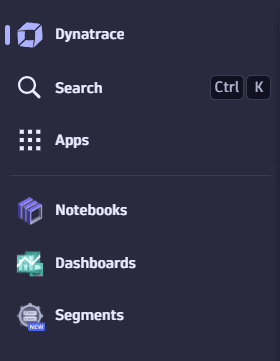
The upper part of the Dock includes:
- Dynatrace is your home.
- Search enables you to search the platform.
- Apps
- Pinned and active apps, depending on your configuration and activity. In this example, the
 Notebooks,
 Dashboards, and
 Segments apps are all listed.
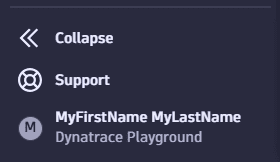
The lower part of the Dock includes:
- and to hide or display the Dock
- to access support links
- [your initials] [your name] to access user-specific links
Dynatrace
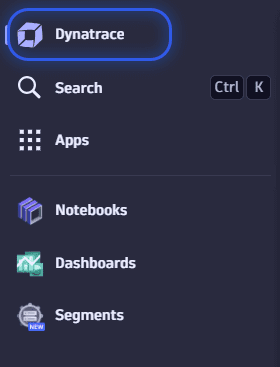
Select Dynatrace in the upper-left corner to go to your Dynatrace home page.
- The default Getting started with Dynatrace "launchpad" page gives you a quick overview of prominent features to start using the platform. It's focused on introducing you to key aspects of the platform and reducing your learning curve.
- You can create additional launchpads (custom home pages) with handpicked lists of apps, documents, links, and informational text. For more information, see Launcher.
Search
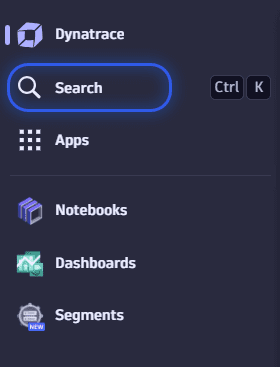
The Search option is always available in the Dock.
- If you collapse the Dock, you'll only see the icon.
- The keyboard shortcut for Search is CTRL+K or CMD+K.
Dynatrace platform search provides you with customizable options and features to help you filter search results. For details on advanced search features, see Platform search.
Apps
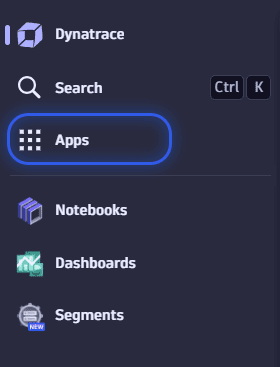
Select Apps to list and launch your installed apps. (If you collapse the Dock, you'll only see the icon.)
- Browse apps by category.
- Use the filter bar to search by app name
- Select
 Explore more to find more apps on Dynatrace Hub
Pinned and active apps
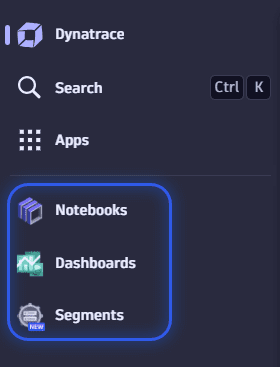
The middle section of the Dock lists default apps and any other apps that you have pinned to the Dock or have recently used. Pin your favorite apps here to customize the Dock for quick access.
To pin an app to the Dock
Collapse and Expand
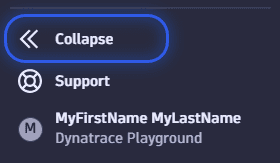
- Collapse hides the labels and displays only a narrow column of icons.
- This frees screen space for the display of your data.
- Icons might be all you need for frequently used apps and functions.
- Expand displays the full Dock again so you can read labels.
Support
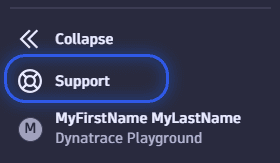
If you need some extra information, you can always select Support in the lower-left corner to display links one of the support and developer resources described below.
Support resources
- Documentation provides easy access to the documentation and will give you an overview of everything that’s new, app documentation, and anything else you need to know.
- Release notes links directly to the release notes.
- Community takes you straight to the Dynatrace Community, where you can ask us questions, give us feedback, and share your ideas. Learn from top Dynatrace users.
- University takes you to Dynatrace University, where you can build your skills and advance your career with on-demand learning, live training, and certifications from Dynatrace experts.
- Help & Support takes you to the Dynatrace Support hub.
Developer resources
- Dynatrace Developer takes you to Dynatrace Developer, a fantastic resource for tutorials, how-to guides, and technical references to get started with building apps.
- Dynatrace API takes you to an API browser. From there, select a API definition from the Select a definition list to find the Dynatrace API you need. If you're familiar with Swagger, you'll feel at home.
- Developer Forum takes you straight to the Dynatrace Developer forum in the Dynatrace Community, where you can share some knowledge, ask questions, find the best answers, connect with others, and explore the best practices for creating apps on the Dynatrace Platform.
User menu
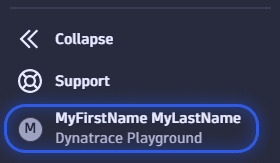
To open the user menu, select your name in the lower-left corner, at the bottom of the Dock.
- [your name] displays User settings, where you can change settings such as the display language, timezone, and light mode/dark mode.
- Environments lists links to your available environments.
- Appearance offers a quick switch to light, dark, or browser theme mode.
- Account Management opens Account Management in a new tab.
- Latest Dynatrace toggles the latest Dynatrace on and off.
- Sign out signs you out of Dynatrace.
Dynatrace Classic
If you use Dynatrace Classic, see Navigate Dynatrace for the Dynatrace menu and the user menu.