Instrument hybrid apps in RUM Classic
- Dynatrace Classic
- How-to guide
- 4-min read
- Published Aug 10, 2021
With Dynatrace, you can set up Real User Monitoring for various types of hybrid and cross-platform mobile applications.
You can instrument your mobile application using one of our plugins. However, if you are using a hybrid platform that doesn't support our plugins or your requirements disallow third-party plugins, follow the steps below to instrument your hybrid application.

Create a hybrid application in Dynatrace

Set up OneAgent and adjust its configuration

Insert the RUM JavaScript into your hybrid app's HTML files
For hybrid applications, the native app is monitored via OneAgent for Mobile, while the browser part is observed by the Dynatrace RUM JavaScript.
For hybrid apps, a user session is billed only once. See Digital Experience Monitoring (DEM units) for more details.
Also note that one "hybrid" session might be displayed as two separate sessions in Dynatrace: one as a web session and another as a mobile session.
Agent compatibility
OneAgent for Mobile and RUM JavaScript are compatible with each other unless at least one of them reaches End of Support (EoS). To check the support status of their versions, see Scheduled EoL for unsupported OneAgent versions.
If versions of both OneAgent for Mobile and RUM JavaScript are within their supported lifecycles, no additional compatibility validation is required. The optimal approach is to keep both of them updated to their latest versions. The only exception is when the Dynatrace documentation explicitly identifies a conflict between specific versions of OneAgent for Mobile and RUM JavaScript. In this case, refer to the documentation for guidance on how to resolve the conflict.
Feature-specific compatibility requirements
Some features require a minimum version of OneAgent for Mobile or RUM JavaScript to function properly. If you rely on a feature that has a version dependency, you must ensure both OneAgent for Mobile and RUM JavaScript meet those minimum requirements even if both are within their supported lifecycles.
Examples of known feature-specific version requirements:
- To use the iOS-only configuration feature with the Dynatrace Cordova plugin, RUM JavaScript version 1.327+ or higher is required. In addition to the minimum version, you must add the corresponding property to your
dynatrace.config.jsfile. See Cordova plugin documentation for required configuration details.
Create a hybrid application in Dynatrace
The first step is to create a hybrid application that consists of two parts:
- Mobile application gets the monitoring data from the native part of a hybrid app. User actions and crashes from the mobile app are reported to this application.
- Web application captures data from the browser part of a hybrid app. User actions from the web views are reported to this web application.
To create an application in Dynatrace
-
In Dynatrace, go to Mobile.
-
Select Create mobile app.
-
Enter a name for your application and select Create mobile app. The application settings page opens.
-
From the application settings, select Instrumentation wizard > Cordova.
-
Follow the steps described in the wizard. Do not forget to select Monitor the web view to create a web application.
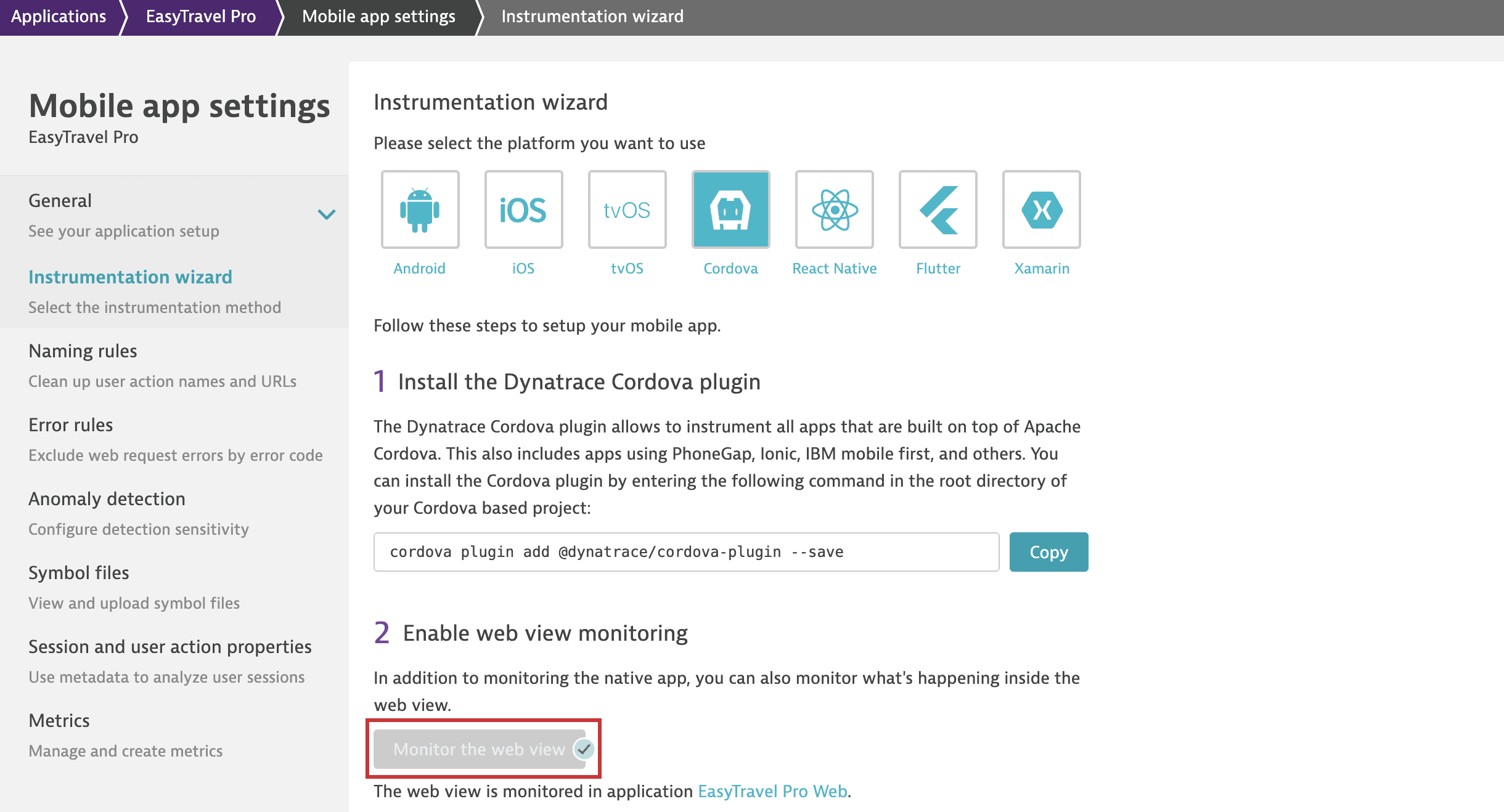 Monitor web view via Cordova wizard
If the app that you're instrumenting is not a Cordova app, skip the steps related to the Cordova plugin.
Set up OneAgent and adjust its configuration
Use OneAgent for Mobile to instrument the native part of your hybrid application. The mobile application that you've created in step 1 offers you instrumentation wizards for the native part of your application.
To auto-instrument your Android project, use the Dynatrace Android Gradle plugin.
After that, adjust the default configuration to allow OneAgent to pass cookies to the WebView and domains specified in your app's top-level build file.
Here is the example configuration for the easytravel.com domain:
dynatrace {configurations {sampleConfig {hybridWebView {enabled truedomains '.easytravel.com'}}}}
It is important to add the required domains to your top-level build file (Android) or Info.plist file (iOS) so that Dynatrace can identify mobile and web sessions within your app and merge these sessions into the same "hybrid" session.
Insert the RUM JavaScript into HTML sources
To capture user actions in the web-based part of your hybrid application, use the RUM JavaScript. You'll need to manually insert the JavaScript code or tag into your HTML sources. See Set up agentless monitoring in RUM Classic for more information. Note that the RUM JavaScript is available in several formats.
After you add the RUM JavaScript to the HTML files, user actions from your hybrid app's web views are reported to the web application that you've created in step 1.
If you've already instrumented the web-based part of your hybrid app, then you don't need to manually add the RUM JavaScript to the HTML sources of your app.
Related topics
- Instrument mobile apps with Dynatrace Cordova plugin in RUM Classic
- Instrument mobile apps with Dynatrace Flutter plugin in RUM Classic
- Instrument mobile apps with Dynatrace React Native plugin in RUM Classic
- Instrument mobile apps with Dynatrace Xamarin NuGet package in RUM Classic
- Instrument mobile apps with Dynatrace .NET MAUI NuGet package in RUM Classic
 Mobile