Dynatrace Assist
- Latest Dynatrace
- App
- 2-min read
Dynatrace Assist allows you to chat with Dynatrace Intelligence and ask questions about the data in your environment, as well as general questions to help you with onboarding to Dynatrace and understanding our core concepts.
Permissions
The following table describes the required permissions.
Recommended minimum permissions for using Dynatrace Assist in the agentic AI mode
To use Dynatrace Assist in the agentic AI mode, you need to have at least the following permissions:
ai:operator:executemcp-gateway:servers:readmcp-gateway:servers:invokedavis-copilot:conversations:execute
However, for the best experience of using Dynatrace Assist in the agentic AI mode, we recommend the following minimal set of permissions:
ai:operator:executemcp-gateway:servers:readmcp-gateway:servers:invokedocument:documents:writedocument:documents:readdocument:documents:deletedavis-copilot:conversations:executedavis-copilot:nl2dql:executedavis-copilot:dql2nl:executedavis-copilot:document-search:executehub:catalog:read
If you want to use the full extent of agentic Dynatrace Assist capabilities, you need additional permissions from the permissions table. For more information, see Dynatrace Assist agentic permissions.
Minimum permissions for using Dynatrace Assist in the generative AI mode
To use Dynatrace Assist in the generative AI mode, you only need the following permissions:
document:documents:writedocument:documents:readdocument:documents:deletedavis-copilot:conversations:executehub:catalog:read
Keep in mind that generative AI mode is limited to help and support questions only, and doesn't include tool access or data insights.
For more information, see Getting started with Dynatrace Intelligence agentic and generative AI.
Get started
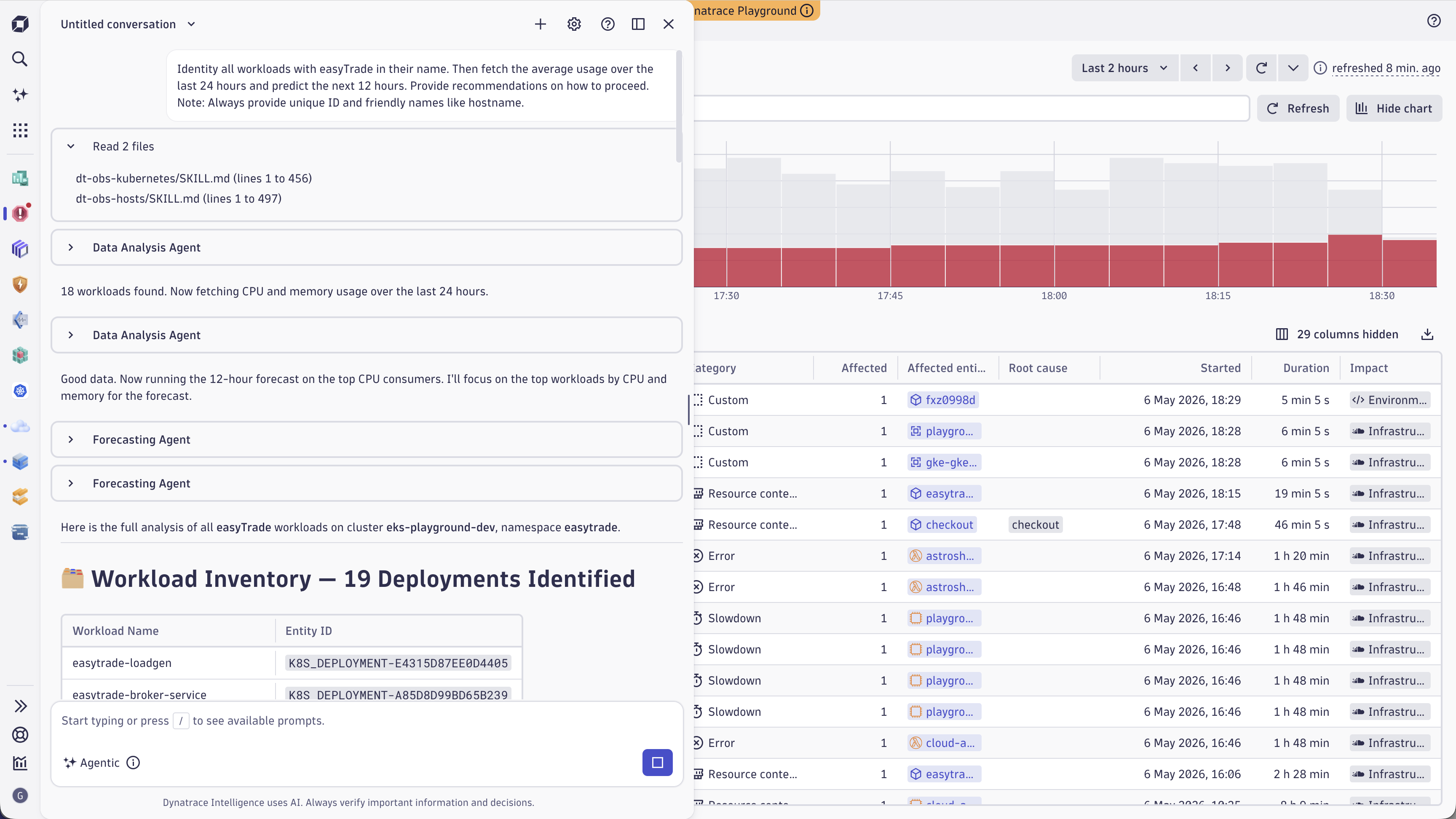
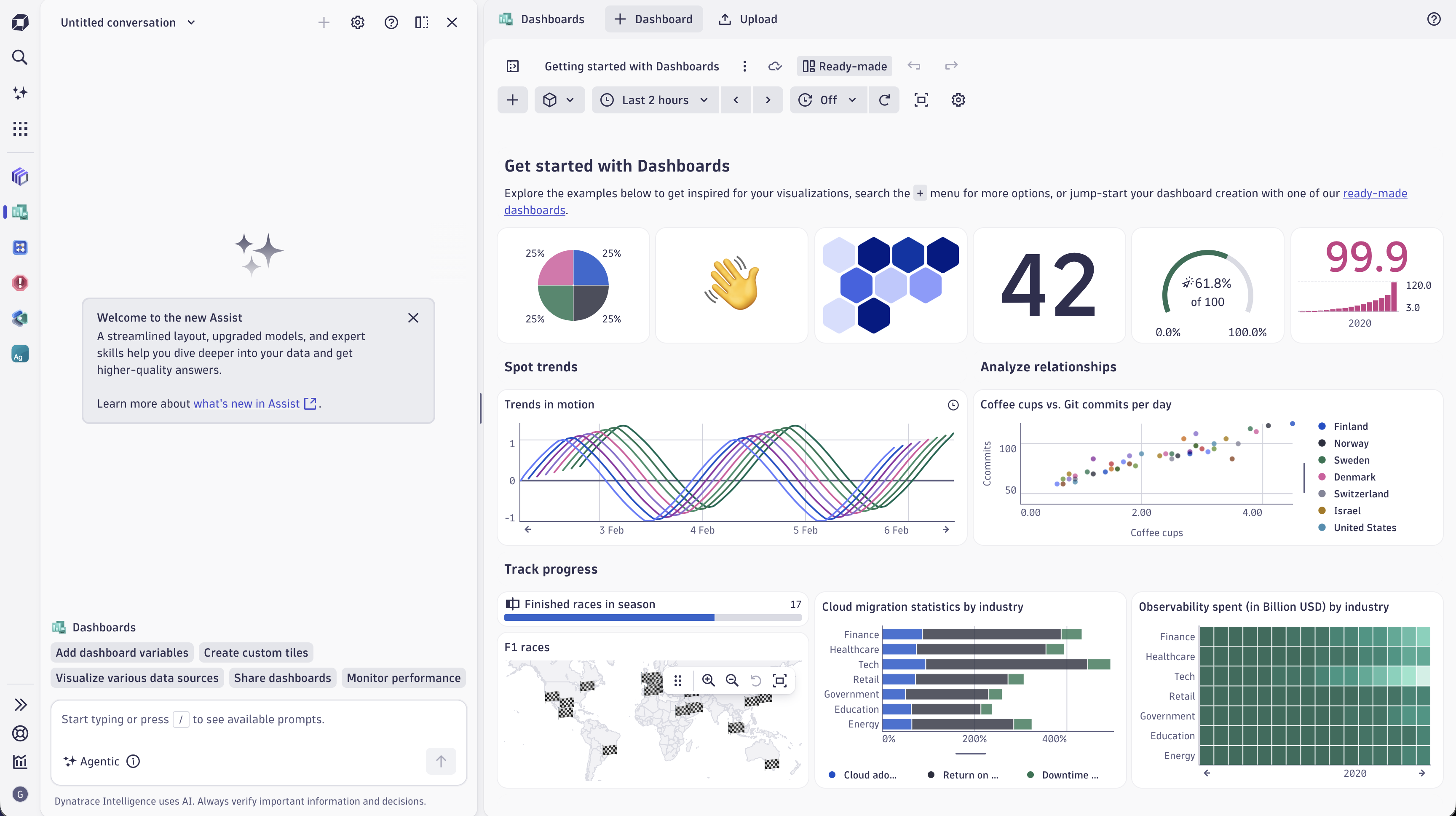
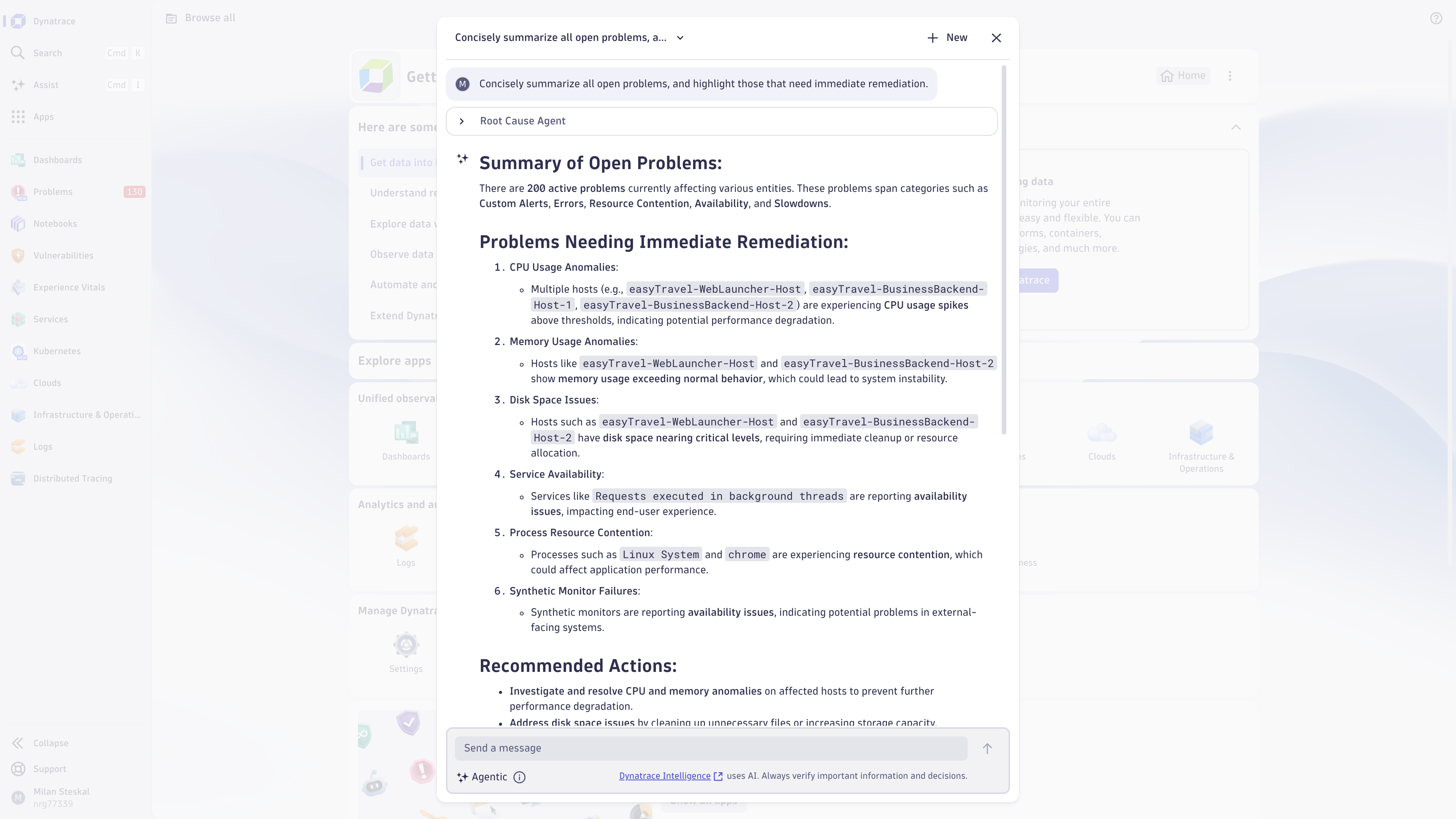
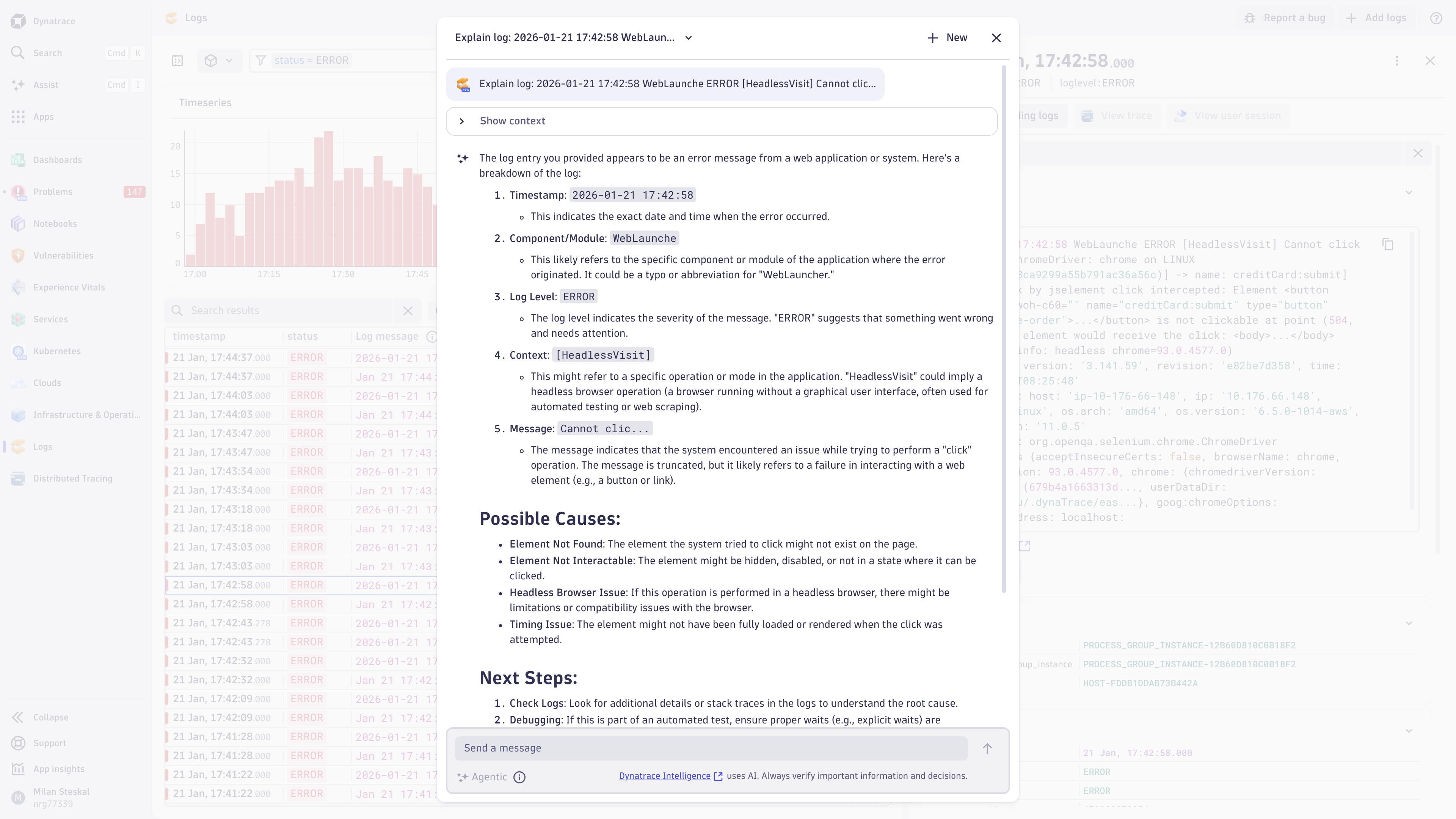
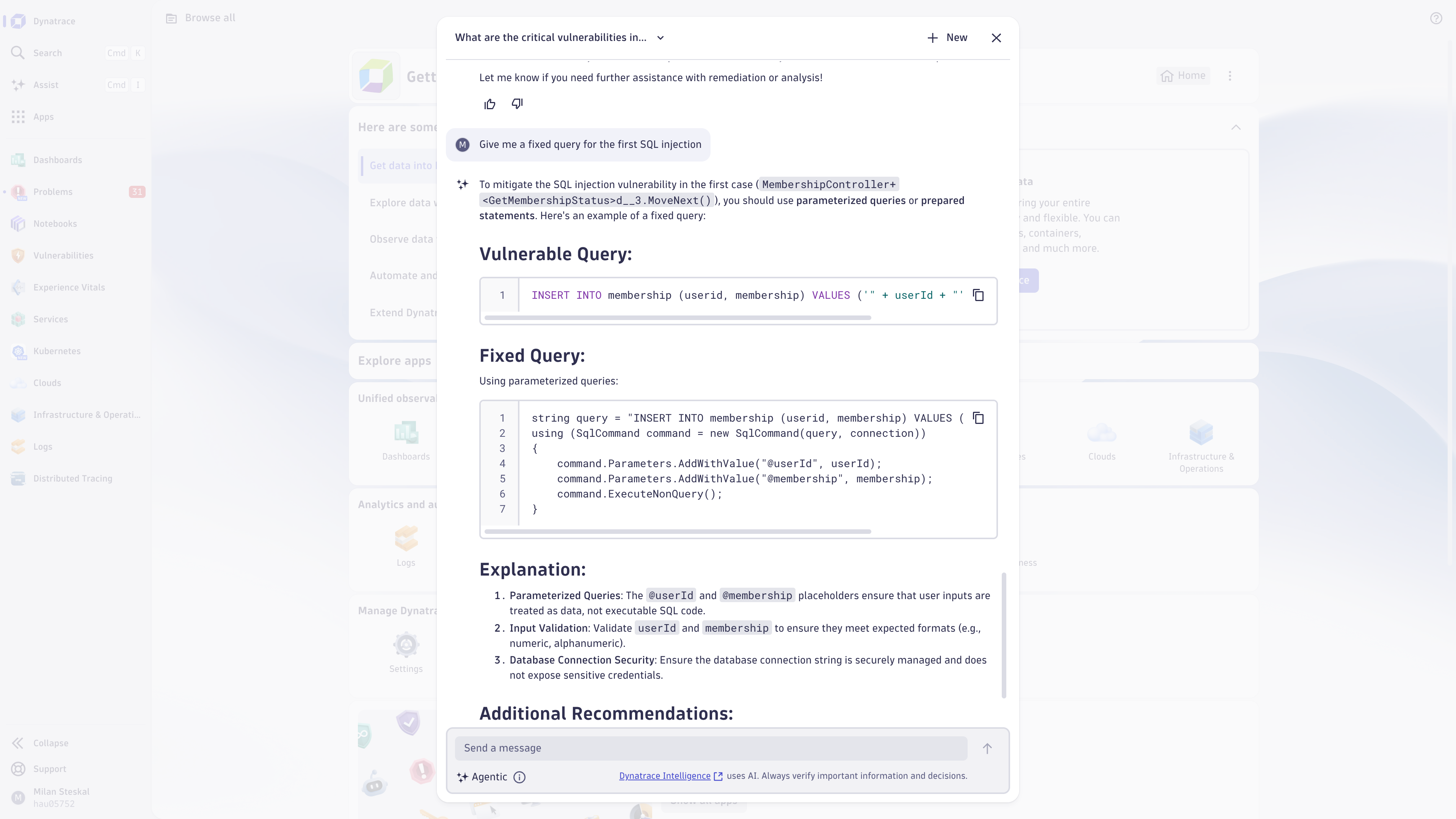
Use Dynatrace Assist conversational interface
After enabling Dynatrace Intelligence generative AI on your environment and setting the user permissions, you should see a new icon below the Search in the dock.
Starting with Dynatrace version 1.335+, Dynatrace generative AI is enabled by default for all new tenants. This means that the change is applicable to all tenants created from Dynatrace version 1.335 onwards. You can see and change the setting in  Settings > Dynatrace Intelligence > Generative and agentic AI > Enable generative AI if you'd like to opt out.
Keep in mind that:
- Tenants created before Dynatrace 1.335 are unaffected by this change.
- If you aren't using the Dynatrace default policies, you still need to provide your users with generative AI user permissions, so that they can use the functionality offered by Dynatrace generative AI.
- In Dynatrace, select Dynatrace Assist.
- A new window opens with the chat interface.
- Type your question. See examples for inspiration.
- Select Run and wait for the response to be generated.
- You can ask follow-up questions.
- Every response contains a list of sources that were retrieved to generate the answer. You can consult these sources for further information.
- Conversations are saved automatically. These can be renamed or deleted from the overview list of conversations.
- You can cancel the response generation, refine your prompt, and then re-send the question.
- You can use the chat interface on top of any application.
Answers are generated based on Dynatrace-related resources. If the model is unable to respond to your question, you'll see an error message:
- I'm sorry, but I can't respond to this request. Please try rephrasing it or adding additional context.
Use Dynatrace Assist agentic capabilities
With agentic AI enabled, you can ask Dynatrace Assist to analyze and provide insights on the data and security of your environment. For examples, see Ask about your environment.
Make sure to exclude the PII data, otherwise, Dynatrace Assist will block your requests. To learn more about PII masking and preventative request blocking, see Dynatrace AI data privacy and security.
To learn more about getting started with agentic Dynatrace Assist, see Enable agentic AI for Dynatrace Assist.
Dynatrace Assist agentic permissions
Aside from standard Dynatrace Assist permissions, you also need additional permissions for calling the agentic AI tools. For the list of tools and permissions they require, see MCP tools.
Dynatrace Assist response personalization
With agentic mode enabled, you can adjust the style, content, and language of the responses provided by Dynatrace Assist. By providing information such as your job title, experience with Dynatrace, and your response format preferences, you can tailor your experience and focus on relevant information, whether you're an experienced user or just a beginner getting familiar with Dynatrace. For more information, see Personalize Assist responses.
General context awareness for built-in and custom apps
In agentic mode, Dynatrace Assist can read and analyze the context of any built-in app currently opened alongside the chat window. When you prompt Dynatrace Assist to describe or analyze the data currently visible on your interface, it extracts the active app's on-screen content and processes it as a part of the context of your request.
- Dynatrace Assist general context awareness isn't supported in Classic apps,
 Live Debugger, and
  Sensitive Data Center.
 - General context app awareness is available only in agentic mode. If you have enabled only generative AI and have agentic AI disabled, you won't be able to use this feature.
If you have turned on Enable PII blocking and masking in Settings > Dynatrace Intelligence > Generative and agentic AI, and the app's on-screen content contains any PII, Dynatrace Assist masks the sensitive information and replaces it with fake values that are retained in the response. The same PII settings apply to both your prompts and the app content. To learn more about PII masking and blocking, see Dynatrace Intelligence agentic and generative AI data privacy and security.
You can use general context app awareness to ask Dynatrace Assist to perform read-only actions, such as describe, summarize, or analyze the content of the currently active app like  Dashboards or
  Notebooks.
Sources used for response generation
Dynatrace Assist uses different sources and approaches to generate responses for your prompts depending whether you use generative or agentic AI:
- Generative Dynatrace Assist references only official Dynatrace support resources to generate an accurate response to your prompt.
- Agentic Dynatrace Assist uses skills, reference files, and MCP tools to query and analyze data found in your Dynatrace environment. Depending on your prompt, Assist will also reference official Dynatrace support resources when needed.
Generative AI sources
Generative Dynatrace Assist enriches its answers based on the official Dynatrace sources, such as:
Agentic AI sources
With agentic AI enabled, Dynatrace Assist uses skills, reference files, and MCP tools to query and analyze data found in your Dynatrace environment. While the skills and reference files are consulted for each user prompt, you can set permissions for each tool and decide which ones are called.
Resources and knowledge base
Agentic Dynatrace Assist can use a curated knowledge base consisting of skills and reference files to guide the underlying model to follow Dynatrace best practices for complex use cases and advanced data analysis. The skills available for agentic Dynatrace Assist follow the same open format as Anthropic's Claude Agent Skills.
With the help of the knowledge base, Assist can conduct deeper analysis for:
- Advanced problem analysis, including root cause identification, impact assessment, and telemetry correlation.
- Hyperscaler observability, including AWS, Azure, and Kubernetes.
- Frontend observability, including Real User Monitoring (RUM), Web Vitals, user sessions, mobile crashes, page performance, and frontend errors.
- Distributed traces and spans, including service dependencies and request flow analysis.
- Log querying, filtering, pattern analysis, and error rate calculation.
Tools
Agentic Dynatrace Assist has access to MCP tools to read and analyze data from your Dynatrace environment. These tools allow Dynatrace Assist to query real-time telemetry, open problems, security findings, logs, and other environment data and provide more accurate, context-aware answers.
To see which tools Dynatrace Assist has access to, open the Dynatrace Assist chat window and select in the top right.
Give feedback
You can provide feedback using the built-in feedback mechanism.
- Select if Dynatrace Assist has generated a response that has met your expectations and interpreted your prompt correctly.
- Select if Dynatrace Assist has generated a response that has failed to meet your expectations or has incorrectly interpreted your prompt. Please provide additional context for us to understand how we can improve this functionality to meet your needs and expectations.
Your feedback isn't used to automatically train any models. It's reviewed only by the product team to monitor the response quality and improve the core product offering.
Concepts
Go through the following process to learn using Dynatrace Assist
- How-to guide
- Learn how to personalize content, style, and format of the responses provided by Dynatrace Assist, and tailor it based on your needs and experience.
- Reference
- Learn how to trigger predefined prompts in various Dynatrace applications.
- Reference
- Browse example prompts for Dynatrace Assist covering various Dynatrace apps and services and learn which kind of questions and requests work well.
Use cases
You can use agentic Dynatrace Assist to:
- Ask general questions about the Dynatrace product.
- Make use of the MCP tools and capabilities.
- Perform tasks without the need to open the app or drill-down to another app.
- Combine tools in one request to perform multiple tasks.
- Combine tools to perform tasks and get answers to general questions at the same time.
You can also give your MCP client access to Dynatrace knowledge and expertise with our open source skill, prompt, and instruction database, Dynatrace for AI.