Get started with Dynatrace Intelligence agentic and generative AI
- Latest Dynatrace
- How-to guide
- 3-min read
Dynatrace Intelligence agentic and generative AI is enabled on the account level by default, meaning that all your environments automatically have access to it. However, AI functionality must still be enabled on the environment level via the settings page, which offers you full control over how Dynatrace Intelligence agentic and generative AI is enabled and configured in your environment.
Enable Dynatrace Intelligence generative AI on your environment
Starting with Dynatrace version 1.335+, Dynatrace generative AI is enabled by default for all new tenants. This means that the change is applicable to all tenants created from Dynatrace version 1.335 onwards. You can see and change the setting in  Settings > Dynatrace Intelligence > Generative and agentic AI > Enable generative AI if you'd like to opt out.
Keep in mind that:
- Tenants created before Dynatrace 1.335 are unaffected by this change.
- If you aren't using the Dynatrace default policies, you still need to provide your users with generative AI user permissions, so that they can use the functionality offered by Dynatrace generative AI.
To enable Dynatrace Intelligence generative AI on your environment
- Go to Settings > Dynatrace Intelligence > Generative and agentic AI.
- Turn on Enable generative AI.
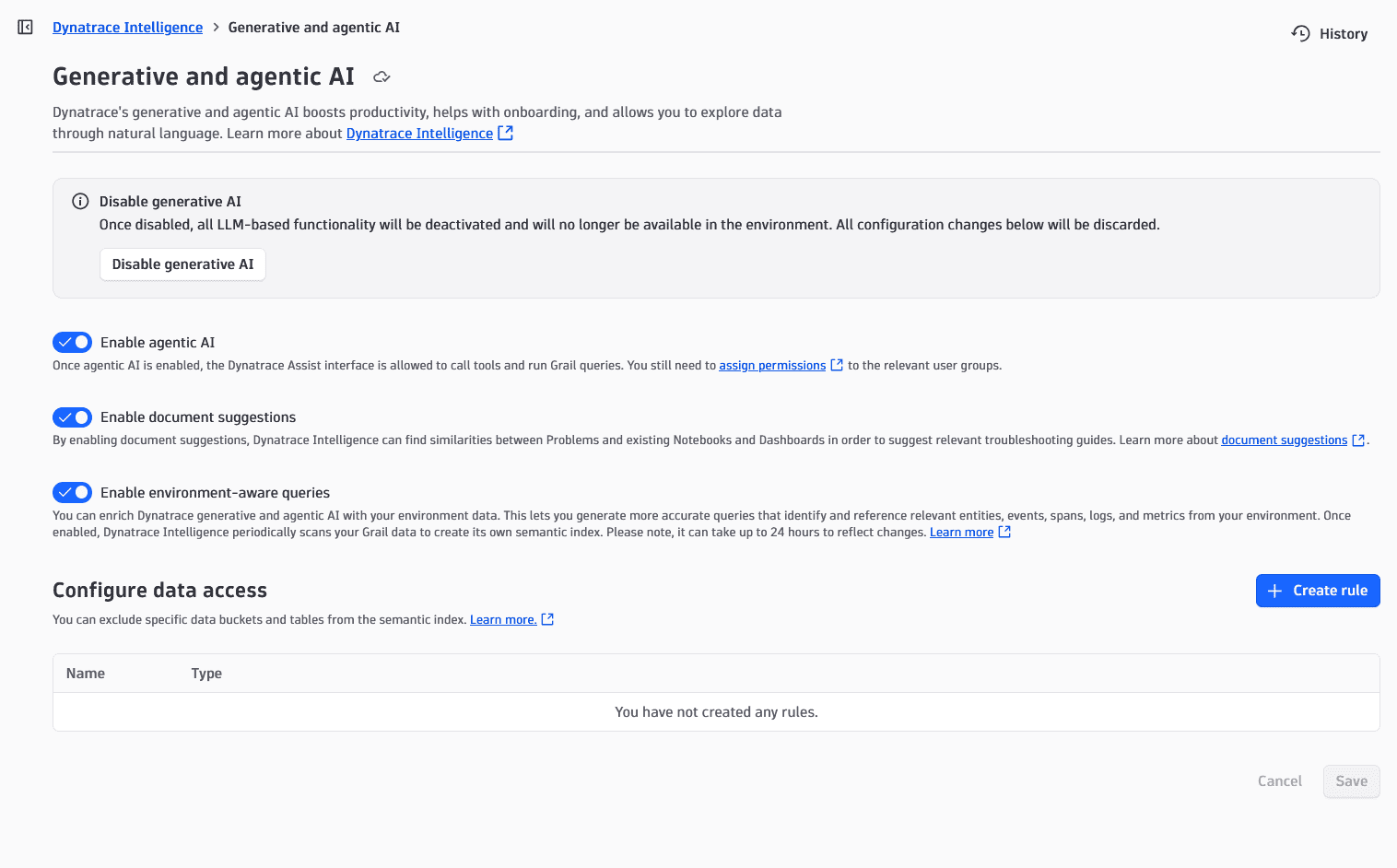
If you can't see the settings page, make sure you have Setting Reader and Setting Writer policies assigned. For more information, see read and write permission.
User permissions
After enabling Dynatrace Intelligence generative AI on the environment level, you'll still need to give access to the various generative AI skills to your users. To do so, you have to bind the group they belong to a policy with the following statement that allows access to generative AI:
- Natural language to DQL translation (
ALLOW davis-copilot:nl2dql:execute;) - DQL translation to natural language (
ALLOW davis-copilot:dql2nl:execute;) - Conversational recommender (
ALLOW davis-copilot:conversations:execute;)
For more information on managing your policies, see Manage IAM policies.
Enable Dynatrace Intelligence agentic AI on your environment
Dynatrace provides you with the ability to use the agentic AI and MCP tools and capabilities to access and analyze your environment data. You can later use the analyzed data to perform tasks such as listing problems or generating and executing DQL queries, in addition to answering general questions about Dynatrace.
Agentic AI shares some additional information, such as tool call results, with enterprise vendors hosting the LLMs that Dynatrace agentic and generative AI are based on. For more information about third parties, see Is my data used to train Dynatrace Intelligence generative AI?.
To use the Dynatrace Intelligence agentic AI, you need to
- Have sufficient permissions.
- Have agentic AI enabled for Dynatrace Intelligence. To enable agentic AI
-
Go to
Settings > Dynatrace Intelligence > Generative and agentic AI. -
Ensure that Enable generative AI is turned on.
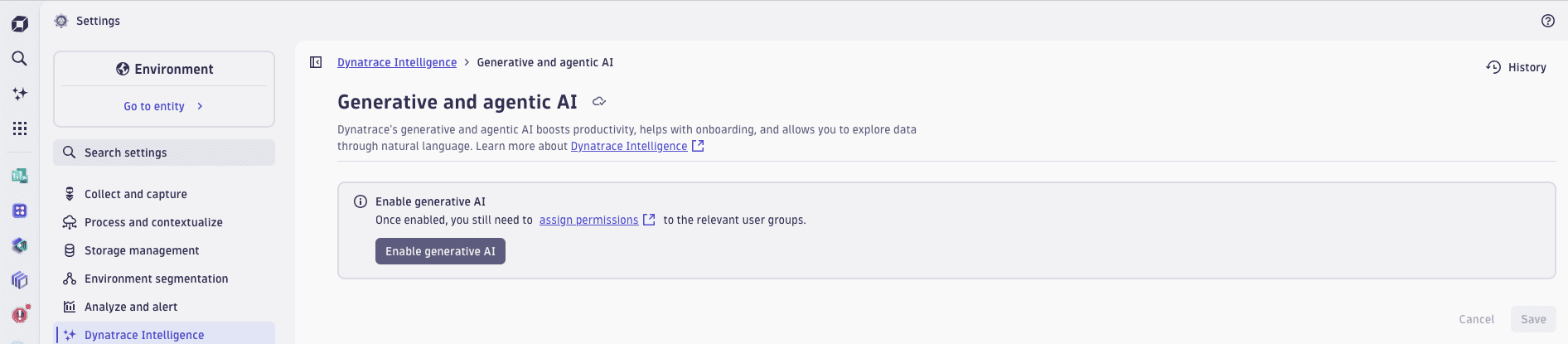 Verify that "Enable generative AI" is turned on
 -
Turn on Enable agentic AI.
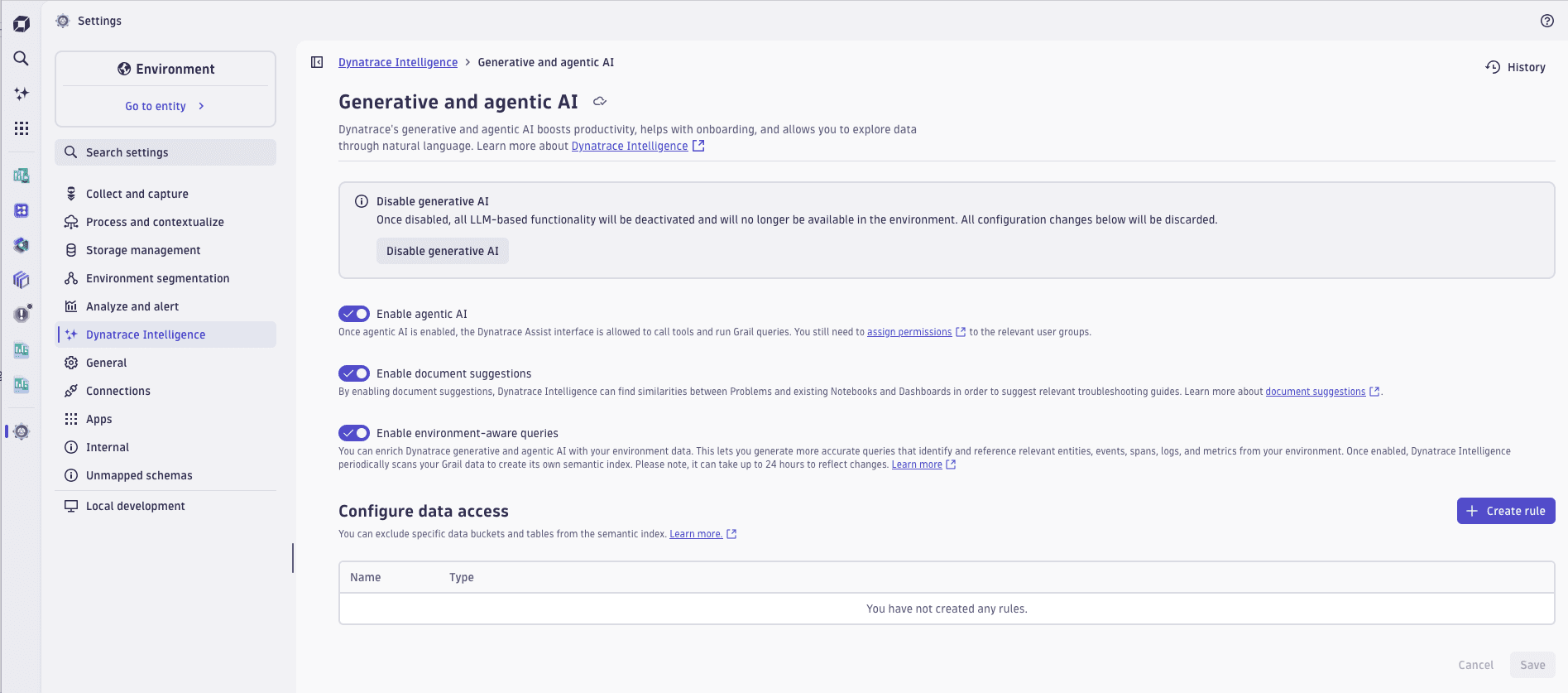 Turn on "Enable agentic AI"
-
Agentic AI might not be available for you if you don't meet the prerequisites mentioned above. Once you meet these prerequisites, both Dynatrace Assist and embedded conversation starters run in agentic AI mode bu default. Otherwise, generative AI mode is used.
Dynatrace Assist agentic permissions
You will also need additional permissions for calling the agentic AI tools. To get access to the full functionality of Dynatrace Intelligence agentic AI, including the tools, you'll need the following permissions:
For the list of individual tools and permissions they require, see MCP tools.
PII masking
Agentic Dynatrace Assist doesn't provide any PII masking. In order to protect your data, when Dynatrace Assist detects PII in the user prompt, the request is automatically blocked and the prompt isn't sent to the LLM for processing.
Calling multiple tools
Dynatrace Intelligence agentic AI can call and automatically execute up to 20 MCP tools per response. If your request requires calling more than 20 tools, you'll be asked to confirm your request before agentic AI proceeds with the investigation.
User-based data access
Dynatrace Intelligence agentic and generative AI respects user privileges and permissions. This means that
- It may provide different responses to different users based on their access rights.
- All agentic AI calls are done within the scope of your user permissions and the results won't include anything outside of it.
Enable document suggestion
Document suggestion is a Dynatrace Intelligence agentic and generative AI skill that allows it to recommend to you troubleshooting guides created in  Notebooks and
  Dashboards based on vector similarity. You can leverage Dynatrace Intelligence agentic and generative AI's document suggestion in
  Problems to quickly retrieve troubleshooting guides written by you or your team for similar problems and reduce mean time to repair (MTTR).
If you want Dynatrace Intelligence agentic and generative AI to suggest troubleshooting guides for similar or repeatedly occurring problem, you'll need to allow it to search through and index documents created in Notebooks and Dashboards and shared with all users in your environment. To ensure you have full control over the security of your data, this functionality is opt-in and is turned off by default.
In order for Dynatrace Intelligence agentic and generative AI to index and suggest your document, it has to be shared with all users in your environment. Dynatrace Intelligence agentic and generative AI won't index or suggest any private documents or documents shared only with specific users. To learn more about sharing documents, see Share documents.
To enable document suggestion
- Go to Settings > Dynatrace Intelligence > Generative and agentic AI.
- Turn on Enable document suggestions to allow Dynatrace Intelligence agentic and generative AI to ingest troubleshooting guides and suggest them to you.
By default, Dynatrace Intelligence agentic and generative AI indexes troubleshooting guides every 6 hours.
Semantic vector indexing
Dynatrace Intelligence agentic and generative AI uses semantic vector indexing to suggest relevant troubleshooting dashboards and notebooks shared within the environment. It continuously indexes the content of dashboards and notebooks recognized as troubleshooting guides. When a user accesses the troubleshooting view for a specific problem, generative AI compares the problem description to the indexed data using semantic similarity to suggest the most relevant guides.
This process relies on vector representations of both the problem description and the indexed dashboard or notebook content. The smaller the semantic distance between the problem description and a document, the higher its relevance score. This means it's more likely for a document to be suggested by Dynatrace Intelligence agentic and generative AI as a relevant troubleshooting guide.
Enable environment-aware queries
Environment-aware queries can enrich Dynatrace Intelligence agentic and generative AI with your environment's data. This lets you generate more accurate queries that identify and reference relevant entities, events, spans, logs, and metrics from your environment.
If you want Dynatrace Intelligence agentic and generative AI to be aware of the details and structures of your environment's data, you'll need to allow access to Grail. To ensure you have full control over the security of your data, this functionality is opt-in, and admin users can specify which data tables and buckets Dynatrace Intelligence agentic and generative AI is not allowed to access.
To enable environment-aware queries
- Go to Settings > Dynatrace Intelligence > Generative and agentic AI.
- Turn on Enable environment-aware queries.
It can take up to 24 hours for Dynatrace Intelligence agentic and generative AI to build or amend the semantic index after changes are made. If environment-aware queries are disabled and the semantic index already exists, Dynatrace Intelligence agentic and generative AI purges all environment-specific data within 24 hours, and returns to using publicly available sources for building DQL queries. The semantic index is stored only on your Dynatrace environment.
To learn more about semantic indexing and environment-aware queries, see Environment-aware queries.
Configure your data access
After enabling environment-aware queries, you'll be able to see the settings for configuring data that Dynatrace Intelligence agentic and generative AI isn't allowed to access.
To configure your data access
- Go to Configure data access.
- Select Create rule.
- Select the type of data you want to exclude from Dynatrace Intelligence access in the Type field.
- You can choose between the Table or the Bucket options.
- Type the name of the bucket or table in the Name field.
- Optional Select Add more to create a rule and add the next one.
- Select Create to create a new rule.