Assess coverage
- Latest Dynatrace
- How-to guide
The following options to assess coverage are available.
Review system coverage
On the Overview page, the System coverage donut chart helps you determine the percentage of monitored systems on which Security Posture Management is enabled.
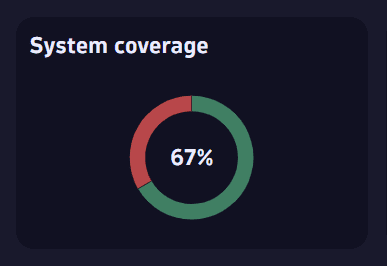
Enabling Security Posture Management on your systems allows you to view results in the app and take full advantage of its capabilities.
If you later on disable Security Posture Management on your system, you keep the access to previously created assessment results and you can query for compliance events from that system in  Investigations and
  Notebooks.
Improve system coverage
To improve Security Posture Management coverage on your systems
- On the Overview page, in the My systems table, search for systems labeled
Not enabled. - For each system you want to cover, select Enable SPM.
- On the Settings page that opens, turn on Enable Security Posture Management.
Review compliance status per environment
On the Overview page, the compliance standard cards help you determine your compliance status per environment for each supported compliance standard. You can view
- The percentage of passed rules
- The total number of rules and how many of them are passed, manual, and failed
- The number of rules by severity (critical, high, medium, and low)

Select a card to navigate to the Assessment results page and view results filtered by the respective standard.
Improve compliance coverage
Kubernetes Security Posture Management (KSPM)
You can improve compliance coverage for each environment by enabling the relevant standards.
-
Open the settings menu on the upper-right corner of
 Security Posture Management.
 -
On the Settings page that opens, enable the desired standards.
The CIS standard is enabled by default and can't be disabled.
Alternatively, you can enable standards directly from Settings.
- Go to Settings > Analyze and alert > Application Security > Security Posture Management.
- Enable the desired standards.
Any configuration changes take effect after the next compliance analysis.
Review compliance status per system
On the Overview page, the My systems table helps you review the results and compliance status for each of your monitored systems. You can view
- The total number of failed, manual, and passed rules
- The total number of failed rules based on severity
- The compliance status
- The time when the latest assessment was completed
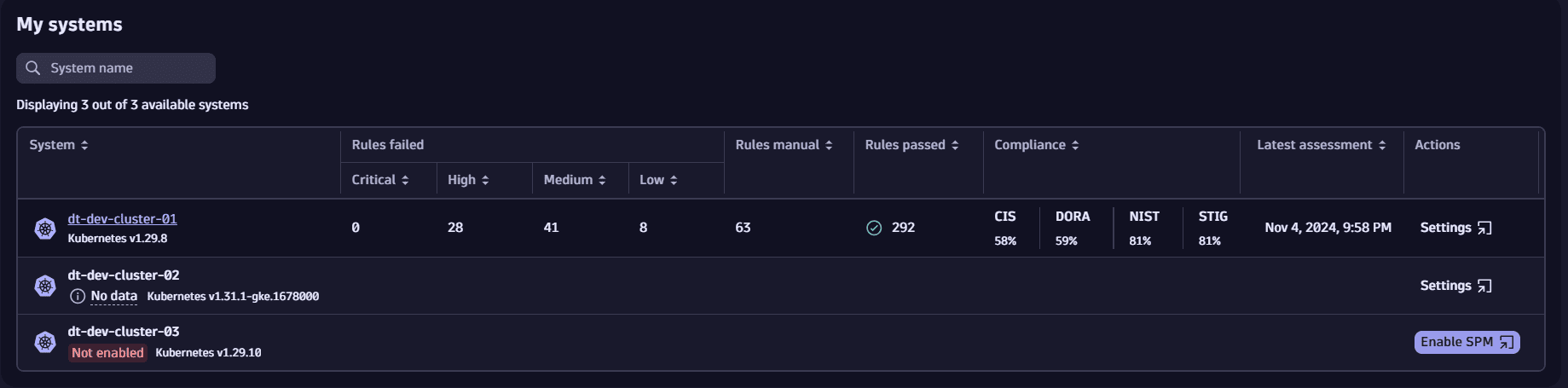
Select a system to navigate to the Assessment results page and view results filtered by that system. If a system has no results, navigation isn't possible.
FAQ
Why are there no results for my system?
See below for the potential reasons why, on the Overview page, in My systems table, there are no results displayed for a system.
- Security Posture Management isn't enabled on that system. In this case, the system is labeled
Not enabled. Select Enable SPM to navigate to the Settings page of that system and enable Security Posture Management.
- The initial assessment is still in progress. In this case, the system is labeled
No data. Please allow around one hour for the assessment to finish. For details of the assessment mechanism, see How it works.