Record a browser clickpath
- Latest Dynatrace
- How-to guide
Record a clickpath or add steps manually if you want to:
- Emulate a user's behavior.
- Monitor how your resources behave when the user takes specific steps—for example, when they open the home page in a browser, apply search criteria, perform search, and select an option from the search results.
You can record a clickpath only in the browser.
Install the Dynatrace Synthetic Recorder extension
If you still don't have the Dynatrace Synthetic Recorder Chrome extension installed, you will see the Install Dynatrace Synthetic Recorder button. Select it to install the extension.
Allow the extension in incognito
After installing the extension, allow it in incognito.
- Paste
chrome://extensions/into your Chrome address bar and select Enter. - On the Dynatrace Synthetic Recorder tile, select Details.
- Turn on Allow in incognito.
Record a browser clickpath
- Select Record clickpath at the bottom of the page to start recording.
- Follow the user journey step by step. For example, apply search criteria, perform search, and select an option from the search results.
- Close the browser window after you finish the user journey.
You can select Run clickpath to check how the monitor follows the user journey you have specified above.
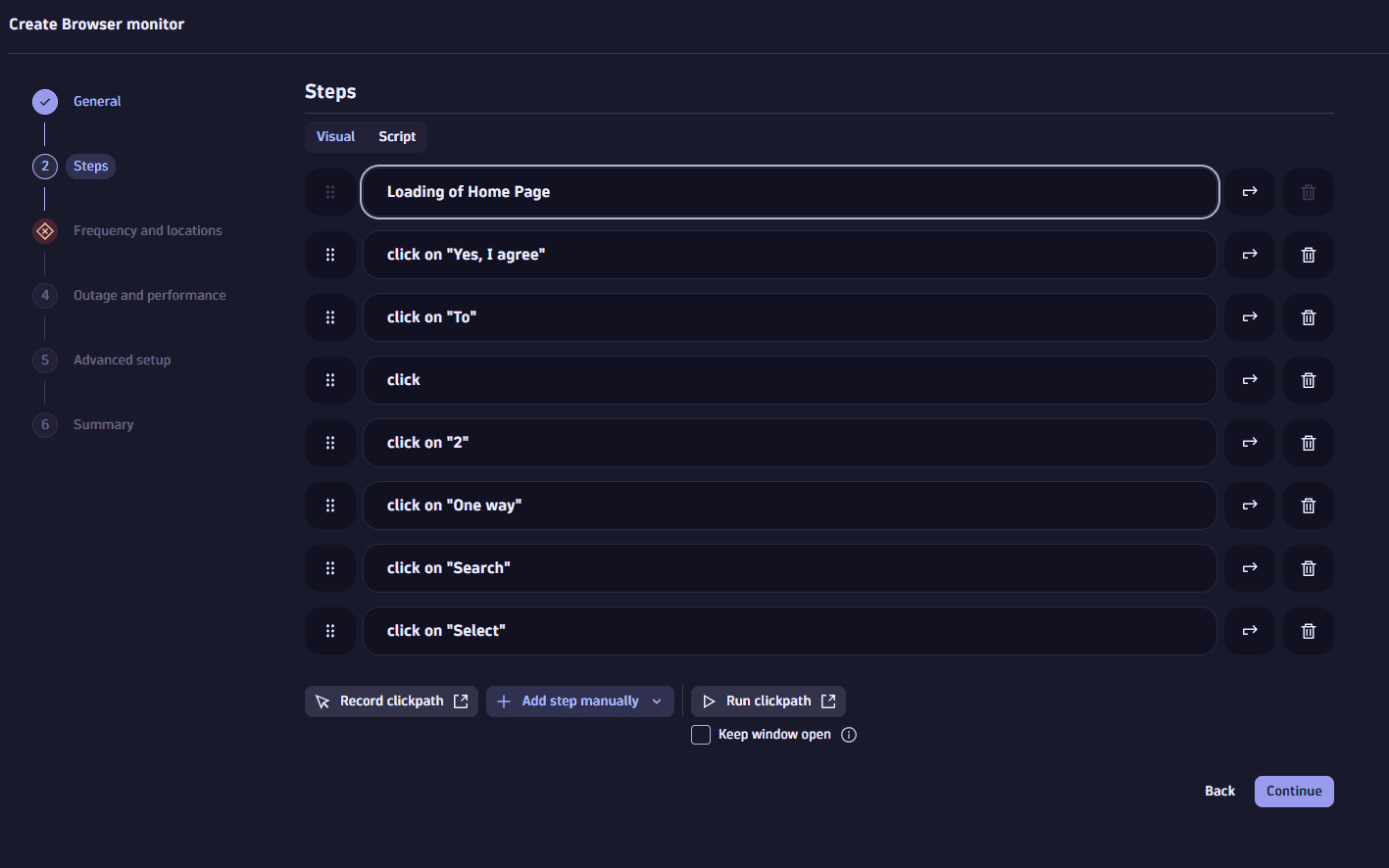
Add steps manually
You can add all or separate user journey steps manually.
- Select Add step manually.
- Choose the step type, for example, Click.
- In the panel on the right, configure at least the basic settings.
Edit steps
In the Steps list, select the step you want to edit. The step settings available for editing you can find in the panel on the right.
Basic settings
The basic settings include:
- The step name.
- URL (for the Navigate step type).
- Locator type and Locator (for the Click, Tap, Keystrokes, and Select option step types).
- Index (for the Select option step type).
- Name, Value, Domain, and optionally Path (for the Cookie step type).
- JavaScript snippet in the Code box (for the JavaScript step type).
For details about step types, see Types of clickpath steps.
Also, you can optionally instruct the monitor to look for a specific element in a different tab or frame when performing the step. Specify the tab/frame using the syntax like window[0].frame[3], where window[0] is the first tab opened and window[1] represents the second tab.
It can also be window[N].frames[X] where X is a number of the iframe that is displayed on the page in tab N.
Frames can also be chained, where window[N].frames[X].frames[Y] means that elements with given locators are within frame Y, which is within frame X on tab N.
Additional settings
Additionally, you can:
Delete steps, swap steps, re-record clickpath after a specific step
In the Steps list, you can delete and swap steps, and also re-record a clickpath after a specific step.
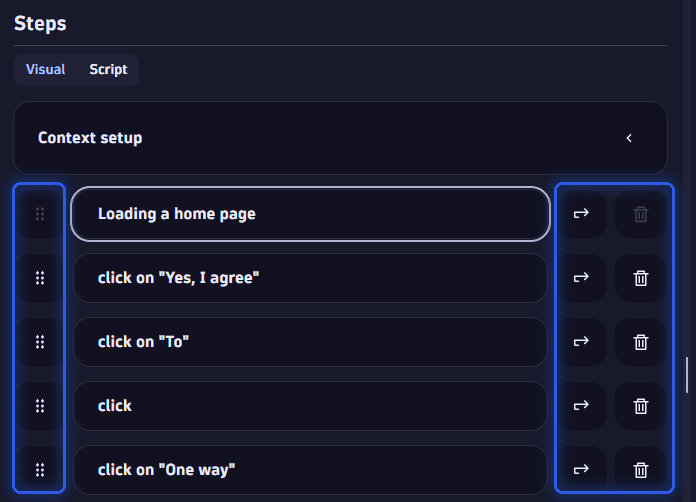
Delete and swap steps
To delete a step, select (Delete) next to the step.
To swap a step, select  next to the step you want to swap, and then drag the step up or down.
Re-record clickpath after a specific step
You may want to re-record a clickpath after a specific step instead of re-recording the entire clickpath.
- Select (Redo) next to the step after which you want to re-record the clickpath.
- Wait until the playback is complete in the browser.
- Follow the further user journey step by step.
- Close the browser window after you finish the user journey.