Configure waiting time between steps, content validation rules, and performance thresholds
- Latest Dynatrace
- How-to guide
When configuring steps, you can:
- Customize a waiting time between steps.
- Set up content validation rules and performance thresholds.
Amount of time to wait before the next step is triggered
While Dynatrace automatically selects an appropriate wait time for each step, you can customize this setting in the Condition to consider this step as done section to define how long Dynatrace should wait before the next step is executed.
- No condition
- Page loads completely—the monitor waits for the network activity to be completed after the page load is triggered. This is the default wait time (60 seconds) used when loading a new page.
- A specific amount of time has passed—specify the number of seconds that Dynatrace should wait between this step and the next.
- Any of the elements from the next step appears—when the next step is executed, the monitor waits for a specific HTML element to appear on the page. Specify:
- The CSS or DOM locator so the monitor recognizes the element for which it should wait.
- A timeout for locating the element.
- You can also specify:
- The text to validate against in the element.
- A different tab or frame where the monitor should locate the element. Use the syntax like
window[0].frame[3].window[0]is the first tab opened andwindow[1]represents the second tab. It can also bewindow[N].frames[X]whereXis a number of theiframethat is displayed on the page in tabN. Frames can also be chained, wherewindow[N].frames[X].frames[Y]means that elements with given locators are within frameY, which is within frameXon tabN.
- Network activity is complete—the monitor waits for all network activity to be complete following the step. This is the default wait time used for XHRs and interactions within single-page applications. This option is not available for the steps of the Navigate type.
- The next step begins—the monitor waits until one of the locators of the next step is found. This is the same as Any of the elements from the next step appears but automatically uses the locators of the next step.
Validate content
Content validation helps to verify that your browser monitor loads the expected page content or element. Validations are performed through validation rules: select Add content validation rule in the Validate content section to define a validation rule.
In browser clickpaths, you define validations for each step; for single-URL monitors, which contain a single step, you define validation for the monitor as a whole.
Validation is performed after following all redirects, even if the very first response delivers HTML content.
You can validate based on:
- Specific text on a webpage.
- Specific element which contains specific text.
- Text in the DOM or any resource.
If your validation searches for an element with text, you need to specify the CSS selectors or DOM locators to use during replay: Select Locator type, then select DOM or CSS, and provide the locator reference. When pasting the locator string, be sure to remove any > characters.
You can add and reorder as many locators as you like. Validation is performed in the order you define till a locator is matched.
You can opt to pass or fail your monitor/step based on your validation criteria. If pass criteria are not met (or fail criteria are met), the monitor/step fails and the execution is aborted.
You can add and reorder more than one validation to an step/monitor. Validation is performed in the order you define; if any of the rules fail, the monitor fails.
If your validation is based on visible text or text in DOM or any resource, you need to specify the text (not case sensitive) to validate. Enclose placeholder values in brackets, for example, {email}. If your validation is based on the presence of some specific element (element (with text)), you can additionally check if the element contains specific text within it. Switch to Validate Regex if you want to specify text as a regular expression.
Also, you can instruct the monitor to look for a specific element in a different tab or frame when performing the step. Select Look for the element in a different tab or frame and specify the tab/frame using the syntax like window[0].frame[3].
window[0] is the first tab opened and window[1] represents the second tab. It can also be window[N].frames[X] where X is a number of the iframe that is displayed on the page in tab N. Frames can also be chained, where window[N].frames[X].frames[Y] means that elements with given locators are within frame Y, which is within frame X on tab N.
Example 1 - Content validation based on visible text
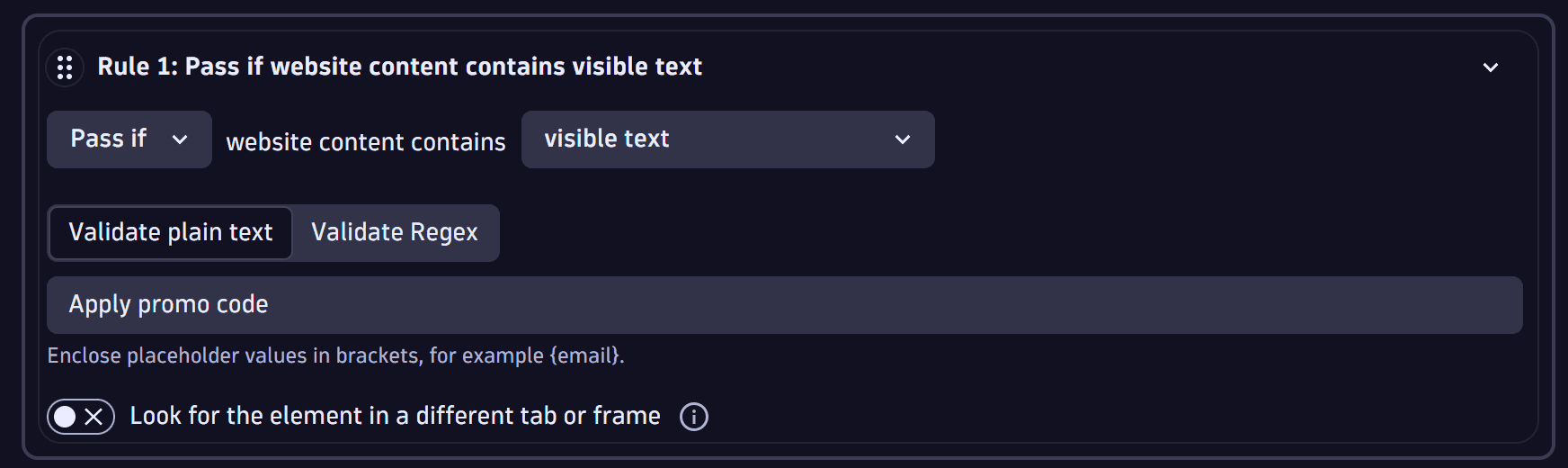
Select visible text and provide the text to look for (the string is not case sensitive). It can be either plain text or a regular expression. This text must be visible on the webpage. Determine whether the monitor should fail or pass based on the provided text. In the example below, the monitor is set to pass if the text specified in the Validate plain text field is found.
Example 2 - Content validation based on element with text
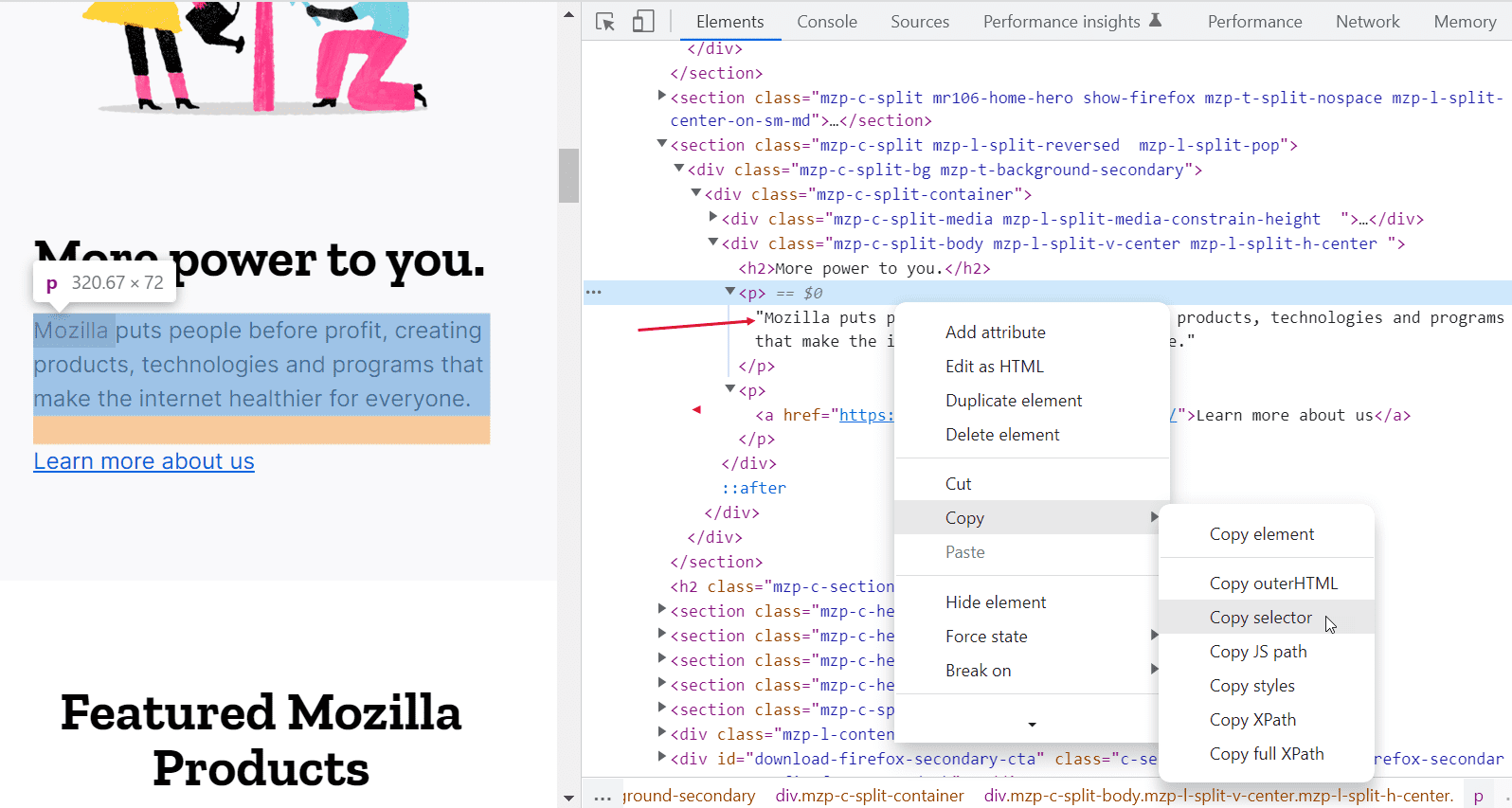
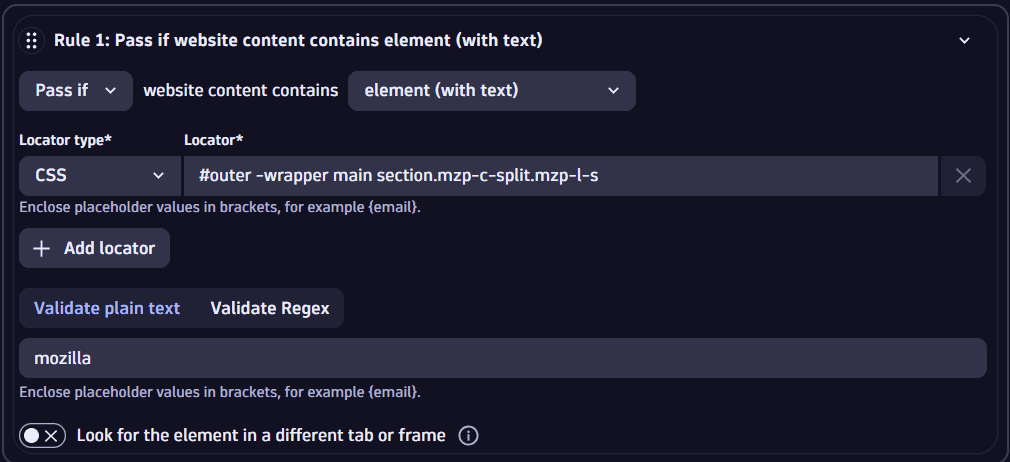
Select element (with text). Provide the text string to identify. It can be either plain text or a regular expression. It doesn't need to be visible on the webpage but must be part of the text between the opening and closing tags of an element. The string cannot contain attribute names or values. Additionally, you can provide the locator for the element.
The screenshots below show a specific element containing the text Mozilla in developer tools and the corresponding validation rule in a browser monitor.
Example 3 - Content validation based on DOM or resource text
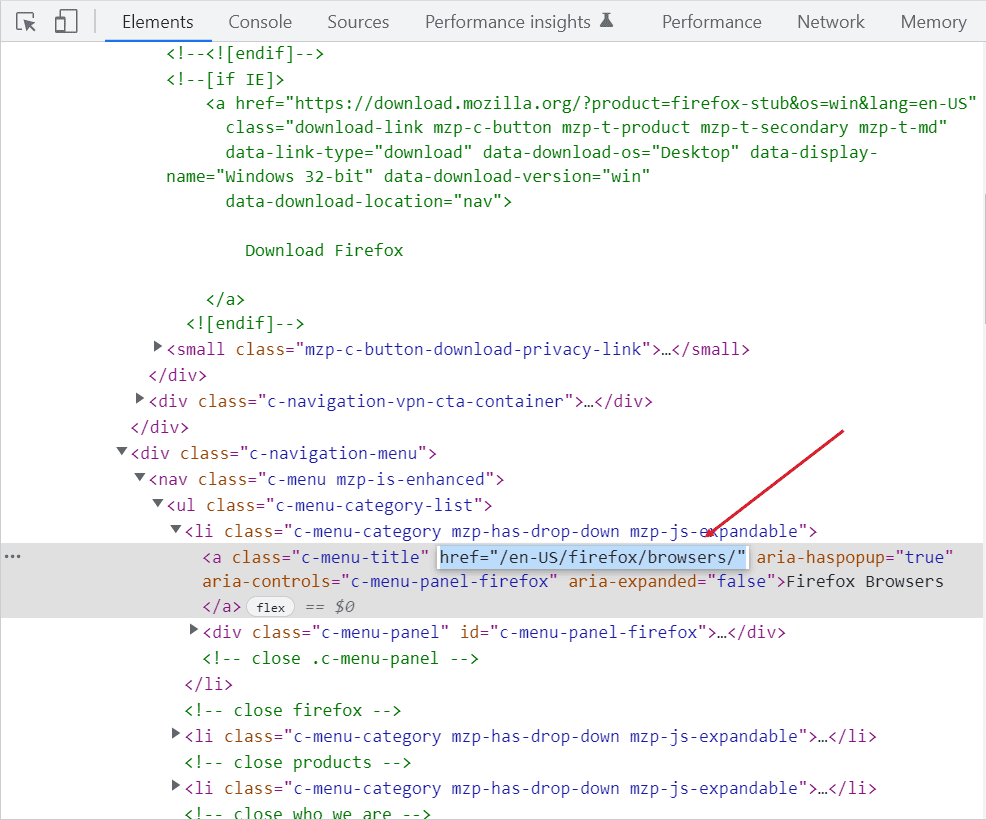
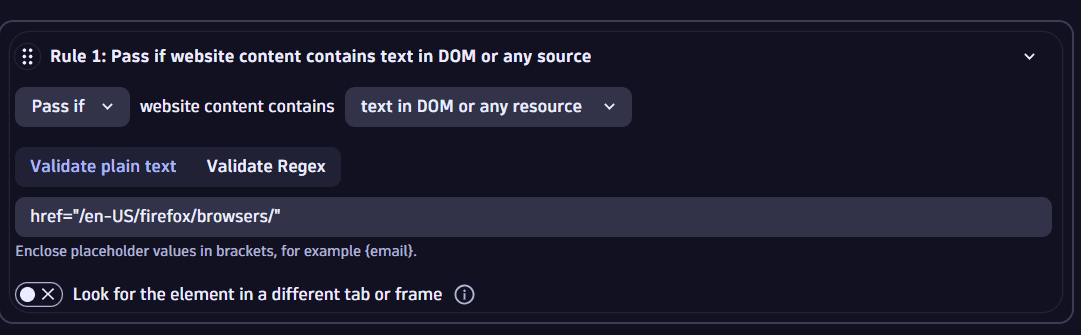
Select contains text in DOM or any resource to validate content based on any string in the DOM, including comments and attribute names and values.
The screenshots below show the attribute and value for a destination URL (href="/en-US/firefox/browsers/") selected in the DOM. The selected string is used as validation text for a browser monitor. It can be either plain text or a regular expression.
Performance thresholds
Toggle the Generate a problem and send an alert on performance threshold violations switch to set up the timeout threshold for this particular step.