Configure data privacy settings for mobile frontends
- Latest Dynatrace
- How-to guide
- Published Jan 12, 2026
For many companies, ensuring the privacy of their customers' personal data is an important component of the digital business success. Dynatrace provides numerous privacy enhancements that you can use to configure the data privacy settings of your apps. When you properly set up these settings, this helps to protect your customers' personal data and to ensure your organization's compliance with the General Data Protection Regulation (GDPR), data disclosure requirements of app stores, and other data protection laws and regulations.
While Dynatrace offers numerous data privacy settings configurable both on the environment-level settings and application levels, it's your responsibility to properly make these settings and take precautions that protect your customers' personal data.
User opt-in mode
With opt-in mode, each user of your application can set their data privacy preferences and decide whether they want or don't want to share their information. They can choose exactly what types of information they are willing to share. For example, one user might allow you only to report crashes, while the other might permit you also to capture performance and user data.
Possible flow for user opt-in mode
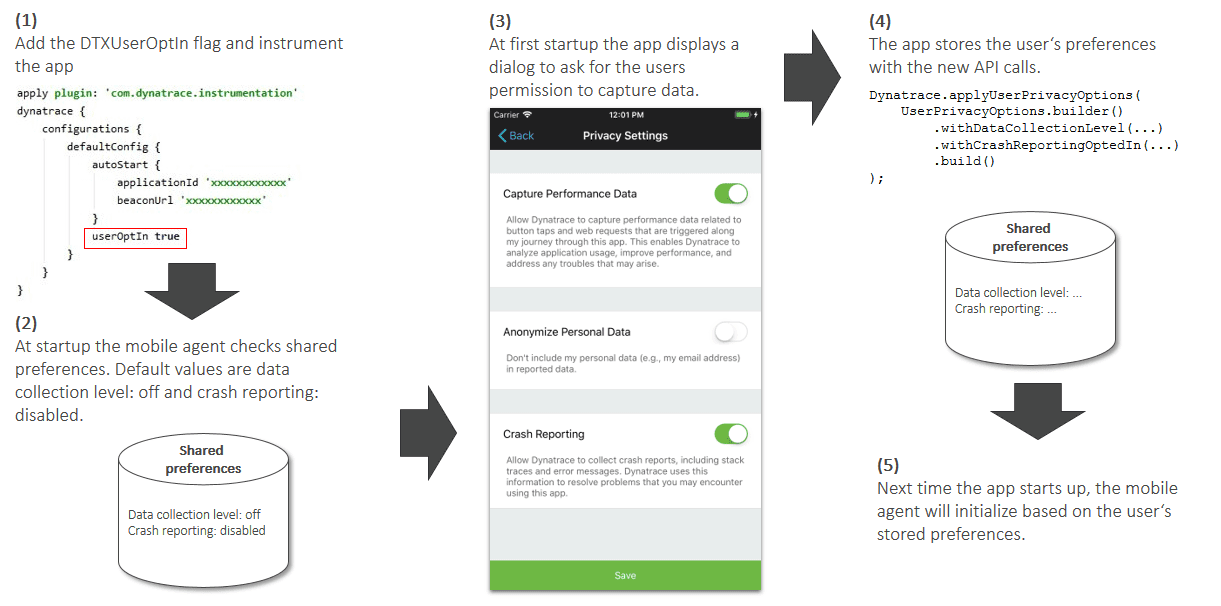
The following steps describe the standard workflow for setting up the user opt-in mode for your mobile applications.
-
You enable user opt-in mode via a special flag or key, copy the updated configuration from the instrumentation wizard, and rebuild your application.
-
At startup, OneAgent checks whether a user has already configured their data privacy preferences.
By default, the following default data privacy preferences are used for all users who haven't yet set their data privacy preferences:
- Data collection level:
Off(monitoring data is not sent to Dynatrace) - Crash reporting:
Off(crash reports are not sent to Dynatrace)
Thanks to that, upon the first launch of your app, no data is shared with Dynatrace.
- Data collection level:
-
If the user hasn't configured their data privacy preferences, you show a dialog (see example below) asking for the user's permission to capture the performance data (corresponds to the Performance data collection level), include their personal data in the information reported to Dynatrace (corresponds to the User behavior data collection level), and report crashes. Note that currently there is no difference between the Performance and User behavior data collection levels for events.
Don’t forget to create and show users the dialog with the data privacy settings. The users of your application will use this dialog to set their data privacy settings.
-
The user sets their data privacy preferences; you use the API calls to store the user's data privacy preferences.
-
Upon the next startup of your application, OneAgent applies the new data privacy preferences and reports only as much data as the particular user has agreed to share with Dynatrace.
Enable opt-in mode
To activate the opt-in mode for mobile applications
-
Go to
 Experience Vitals > Overview.
 -
Select Mobile to view all mobile frontends.
-
Select the frontend you want to configure.
-
On the Settings tab, select Data privacy.
-
Turn on Enable user opt-in mode.
-
Update your application's configuration file (
build.gradlefor Android,Info.plistfor iOS, anddynatrace.config.<extension>for cross-platform frameworks) by adding a special flag or key that enables opt-in mode.Check the instrumentation wizard for the updated configuration code snippet.
-
Rebuild your application so that the new configuration takes effect.
Check the sections below for detailed instructions on how to set up the mobile user opt-in mode for your applications.

Data collection levels
This table describes the available data collection levels and shows whether user identifiers, custom events, and errors are reported for a particular level. Note that changing the data collection level also has an impact on RUM Classic.
Errors in this context do not include crashes or ANRs, which are covered in the crash reporting section.
| Level | Description | User identifiers and custom events | Custom user actions and errors |
|---|---|---|---|
Off Data is not sent | No data is sent to Dynatrace. |
|
|
Performance Only performance, automatically captured data is sent | No personal data is sent; session identifiers are randomized on every launch. In RUM, this level captures the same data as User behavior, with identifiers remaining randomized. |
|
|
User behavior Performance data and user data is sent | Personal data is sent; OneAgent recognizes and reports users who revisit in the future. In RUM, this level captures the same data as Performance, with identifiers not being randomized. |
|
|


If you haven't configured user identifier and custom event reporting, the User behavior level works similarly to the Performance level.
User tracking
OneAgent for Mobile tags HTTP requests using the traceparent and tracestate headers.
For hybrid applications:
- Use the
dtAdkcookie to join a session from OneAgent for Mobile and a session from the RUM JavaScript so that these sessions appear as a single session. - Use the
dtAdkSettingscookie to sync settings between OneAgent for Mobile and the RUM JavaScript.
Data privacy questionnaire in app stores
To learn what data OneAgent captures and complete the data privacy questionnaire in Google Play Console or App Store Connect, see the following pages: