Summarize open problems with Workflows
- Latest Dynatrace
- Tutorial
- 4-min read
- Preview
With Dynatrace Intelligence (Preview), you can automate problem summarization and ask Dynatrace Intelligence generative AI to suggest remediation steps that can be sent to your email.
Target audience
This guide is written for:
- Operations engineers
- Pipeline engineers
- Systems engineers
- Site reliability engineers (SREs)
- Build automation engineers
Scenario
Let’s assume you want to automate analyzing new problems and get immediate suggestions for resolving the issue. To do this, you need to create a workflow that uses Dynatrace Intelligence generative AI to summarize all open problems and automatically suggest the best way to remediate them. When a new problem is opened, the workflow will automatically run, and the Dynatrace Intelligence generative AI response will be sent to your email.
Before you begin
Prerequisites
To use Dynatrace Intelligence (Preview), ensure that you have:
- Conversational recommender (
ALLOW davis-copilot:conversations:execute;) permission. - Installed Dynatrace Intelligence (Preview).
Steps
1. Configure a workflow trigger
- Go to
 Workflows.
 - Select Workflow to create a new workflow.
- From Event triggers, select a Problem trigger.
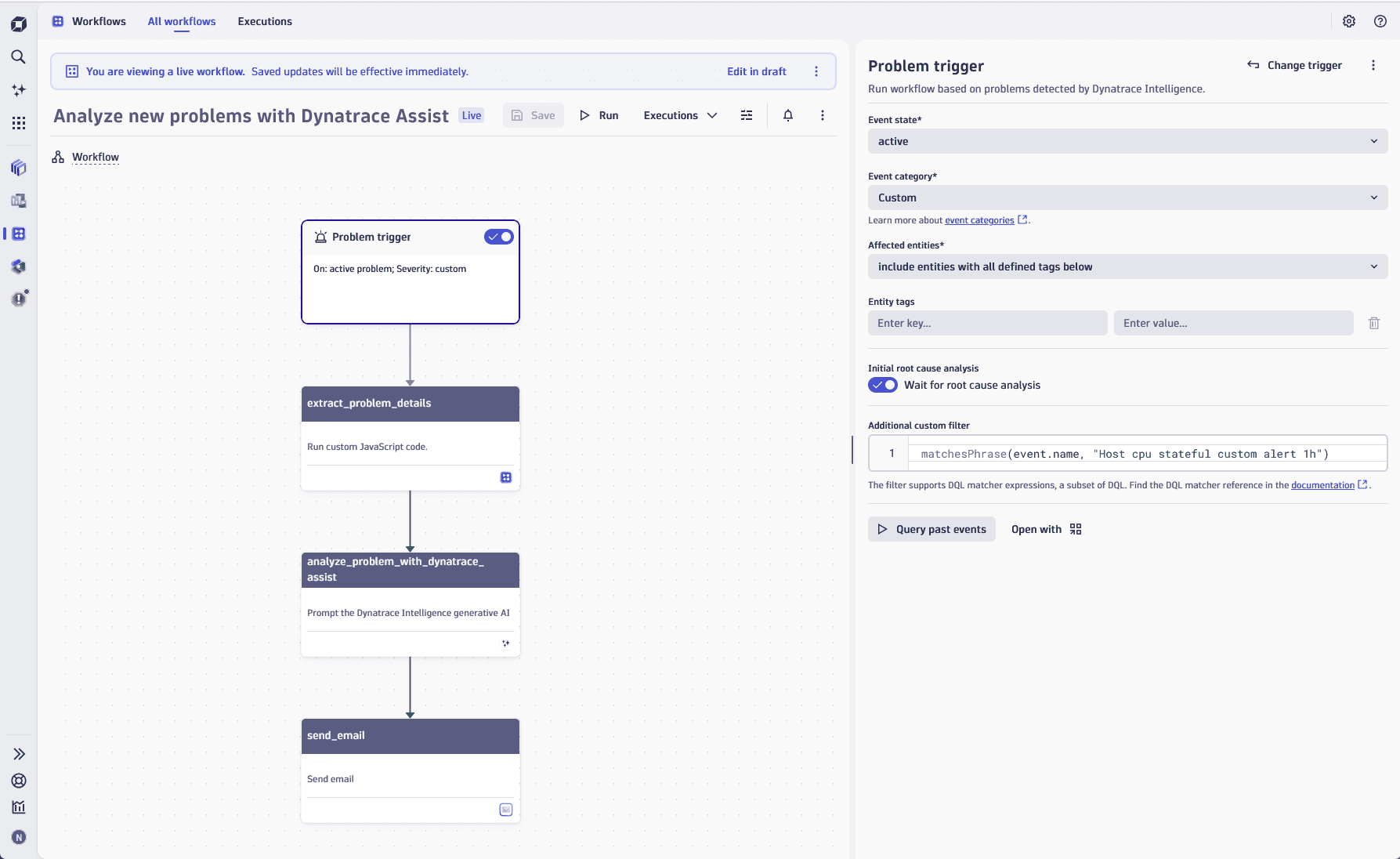
- Configure the fields:
- Set the Event state to
active. - Set the Event category to
Custom. - Set Affected entities to
include entities with all defined tags below. - Set Additional custom filter query to
matchesPhrase(event.name, "Host cpu stateful custom alert 1h")
This example demonstrates filtering for a specific problem. However, you can apply a filter to include all new problems as well.
- Set the Event state to
1. An example of setting a Problem trigger
2. Extract problem details
- Select Add task.
- In the search field, enter
Run JavaScript, or select Run JavaScript from the list of the Workflow actions. For more information about the JavaScript workflow action, see Run JavaScript action for Workflows. - Enter the workflow task name.
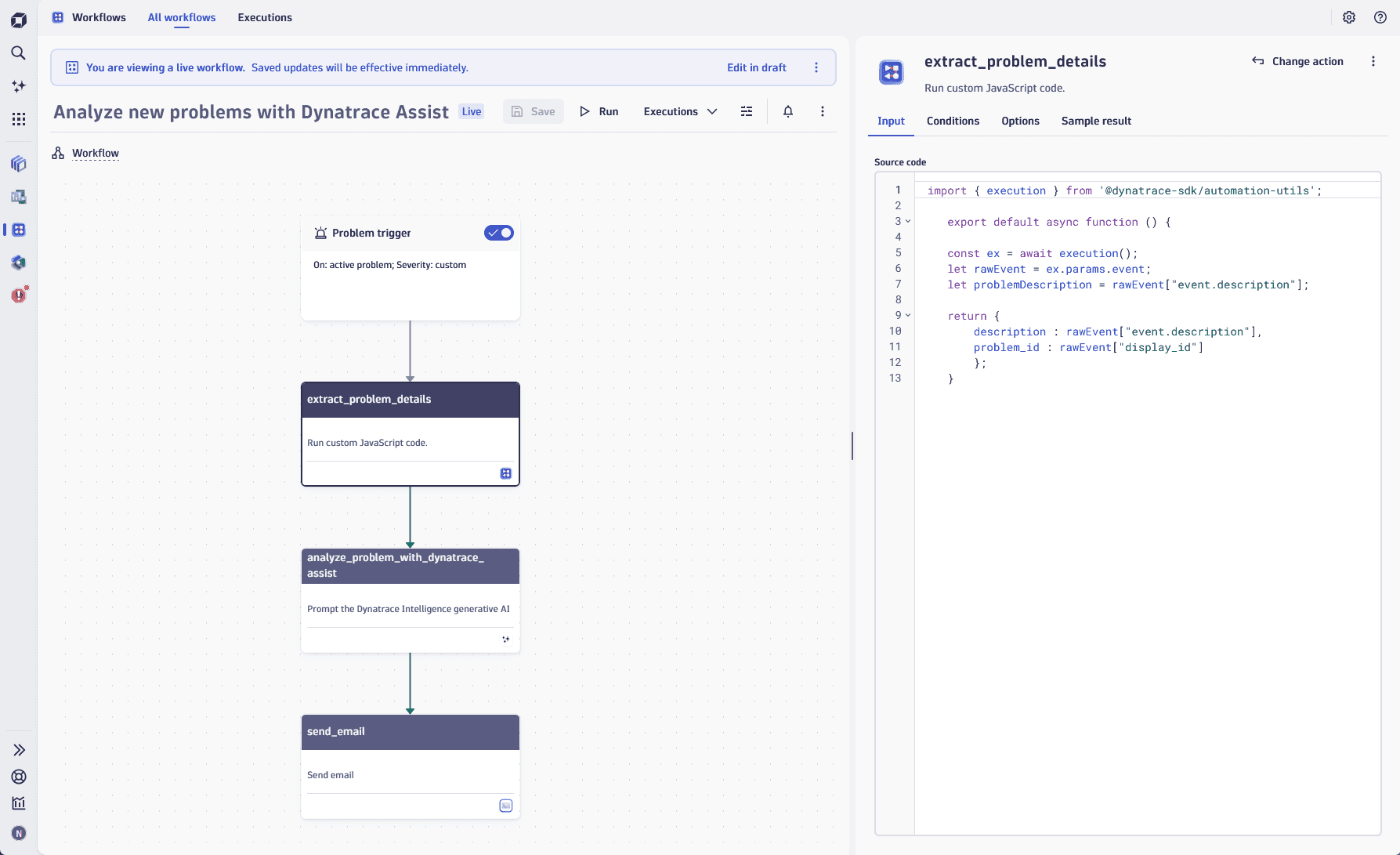
- In the Input tab, enter the following Source code:
import { execution } from '@dynatrace-sdk/automation-utils';export default async function () {const ex = await execution();let rawEvent = ex.params.event;let problemDescription = rawEvent["event.description"];return {description : rawEvent["event.description"],problem_id : rawEvent["display_id"]};}
1. An example of setting a JavaScript action
3. Ask Dynatrace Intelligence generative AI to summarize the problem and suggest remediation steps
- Select Add task.
- In the search field, enter
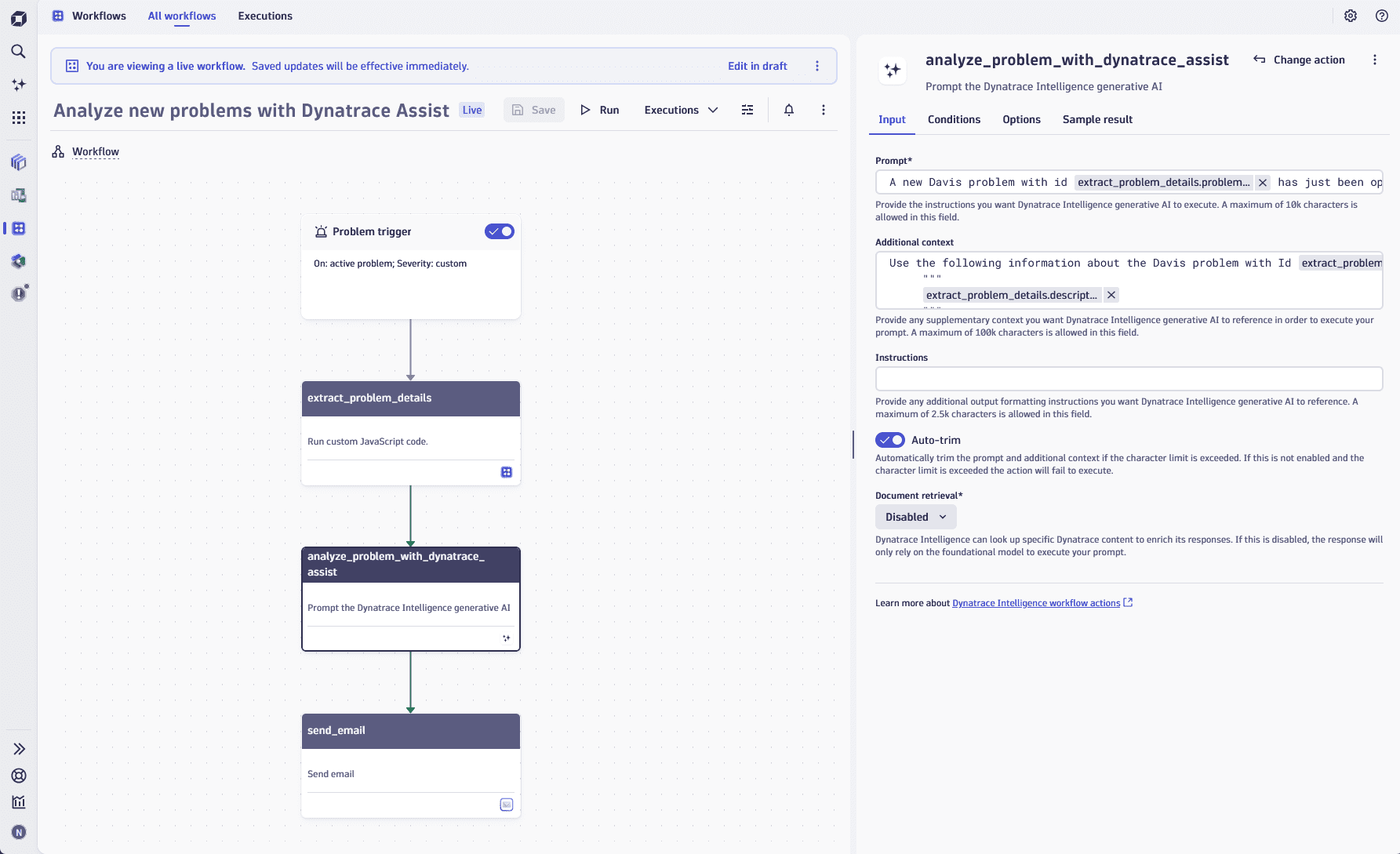
Dynatrace Intelligence, or select Define prompt from the list of the Workflow actions. - Configure Dynatrace Intelligence generative AI:
- In the Prompt field, enter the following prompt:
A new Davis problem with id {{result("extract_problem_details").problem_id}} has just been opened. Please provide a summary of what happened and actionable steps to remediate it. Provide output as plain text without any formatting or markdown
- In the Additional context field, enter the following:
Use the following information about the Davis problem with Id {{result("extract_problem_details")["problem_id"]}}:"""{{result("extract_problem_details")["description"]}}"""
- Enable Auto-trim.
- Set Document retrieval to
Disabled.
- In the Prompt field, enter the following prompt:
1. An example of preparing a Dynatrace Intelligence generative AI prompt
4. Send Dynatrace Intelligence generative AI results to your email
- Select Add task.
- In the search field, enter
Send email, or select Send email from the list of the Workflow actions. For more information about the Email workflow actions, see Email.
 - Enter the workflow task name.
- Configure the fields:
- In Configure email > Recipients, set the To field to your email address. If you want to add more than one email address, use
;to separate them. - In the Content, Subject field, enter the following text:
New Davis problem {{ result("extract_problem_details")["problem_id"] }} started
- Set the Message field to the following:
A Davis problem with ID {{ result("extract_problem_details")["problem_id"] }} has been opened.Dynatrace Intelligence generative AI has analyzed it and provided the following information:{{ result("analyze_problem_with_davis_copilot")["text"] }}
- In Configure email > Recipients, set the To field to your email address. If you want to add more than one email address, use
1. An example of an email configuration
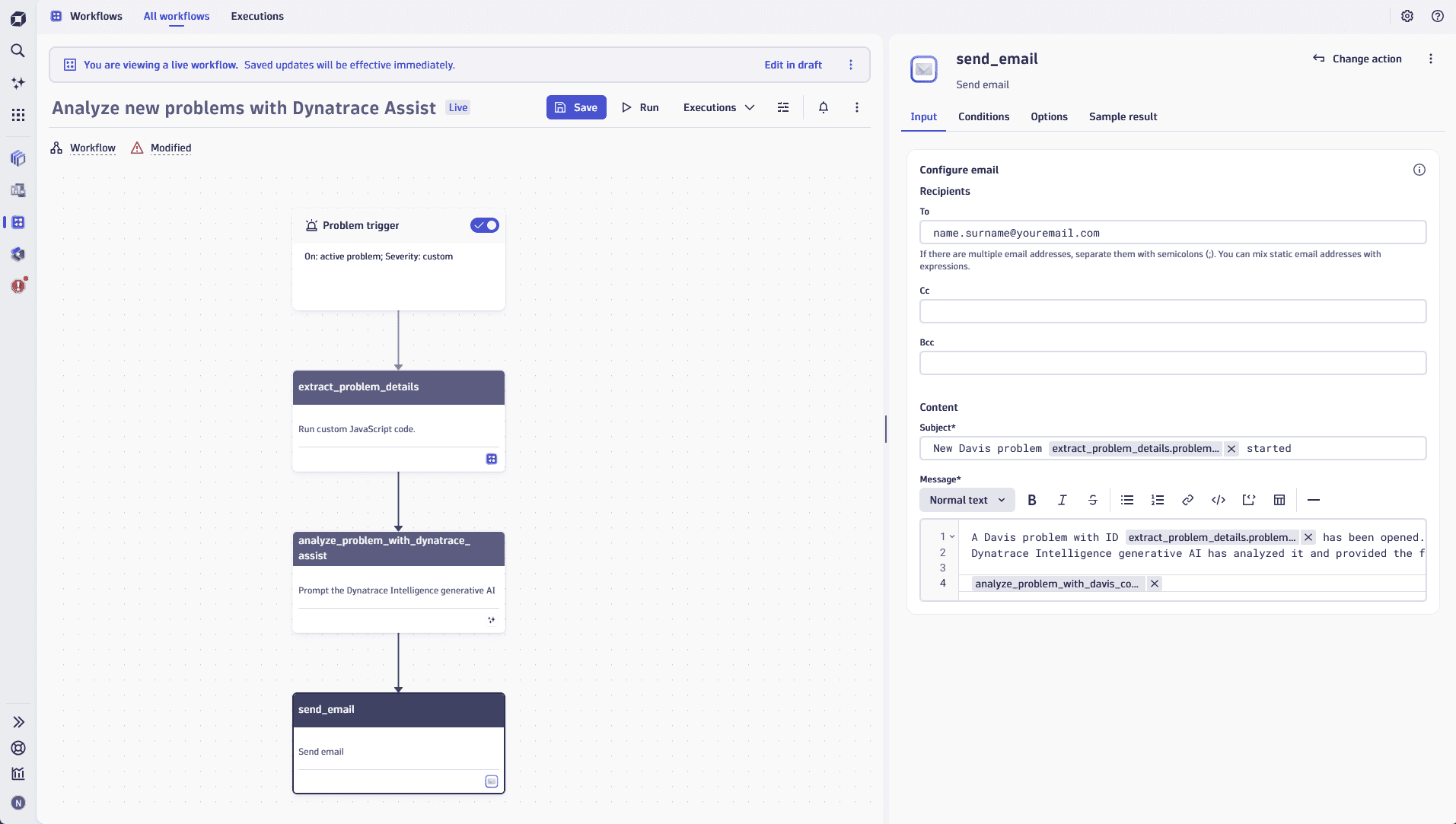
5. Finalize workflow configuration
- Select Save.
- Select Run to test the workflow.
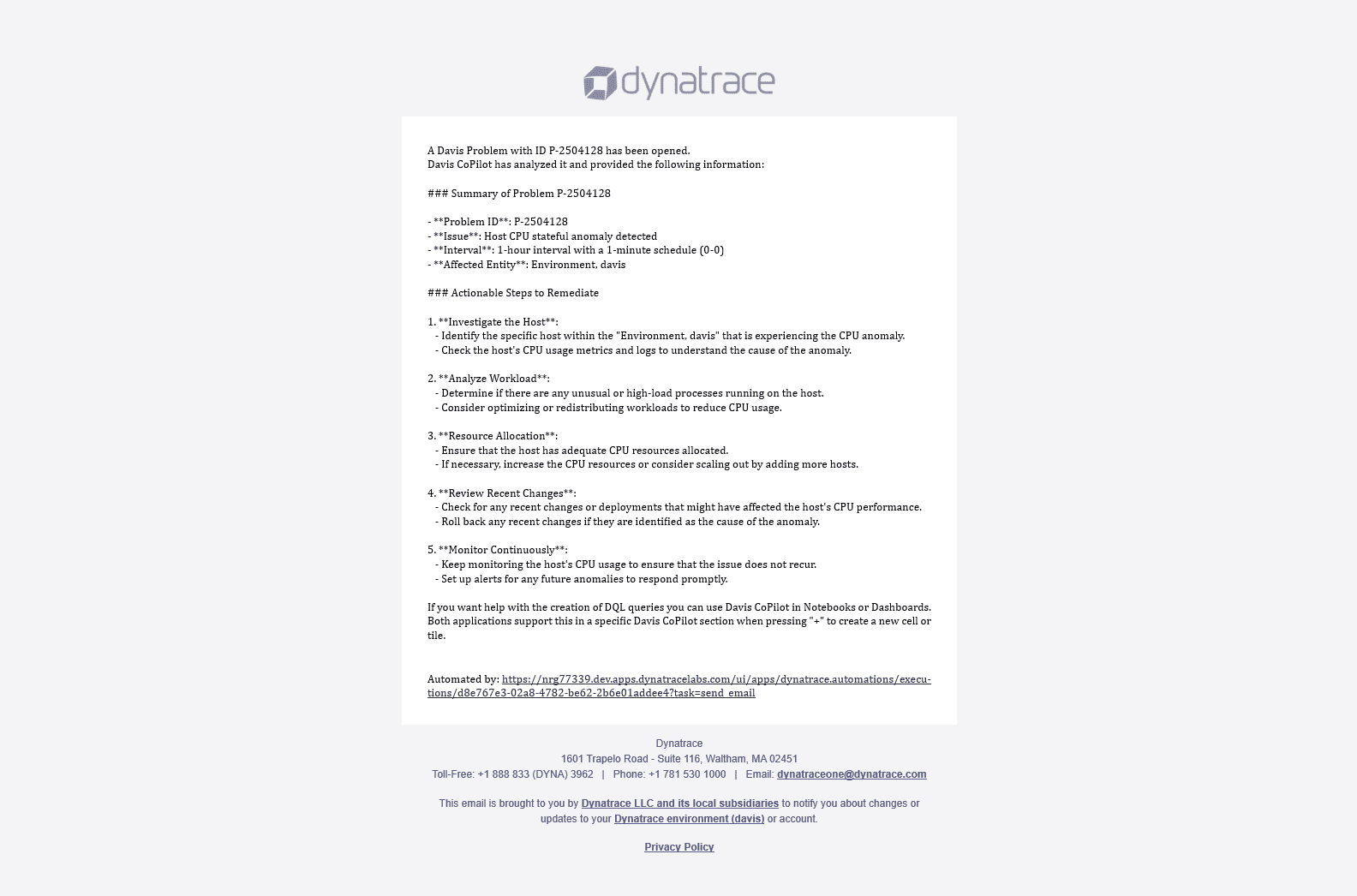
Once a new problem appears, you should receive an email from no-reply@dev.apps.dynatracelabs.com. You can see the example of the message content below: