Diagnostic archives for Dynatrace Managed installations
- How-to guide
- 7-min read
When you run Managed Cluster diagnostics, you have two analysis options:
- Analyze automatically: Dynatrace Managed gathers Managed Cluster diagnostics data and submits it automatically to Dynatrace so that Dynatrace product experts can use the data to analyze your support ticket.
- Collect and review locally: Dynatrace Managed gathers Managed Cluster diagnostics data, at which point you can analyze the data yourself and optionally attach it to a support ticket for review by Dynatrace product experts.
Analyze automatically
By default, Dynatrace collects diagnostics data for a Managed Cluster and immediately analyzes it.
If you prefer to collect and review the data before manually submitting it to Dynatrace for analysis, see Collect and review locally.
-
On the Dynatrace Managed Home page, open the menu (three dots) and select Run Cluster diagnostics.
 Cluster Management Console home page displaying Run Cluster diagnostics button.
-
On the Run Cluster diagnostics page, describe what isn’t working as expected from your point of view.
Example cluster diagnostics page
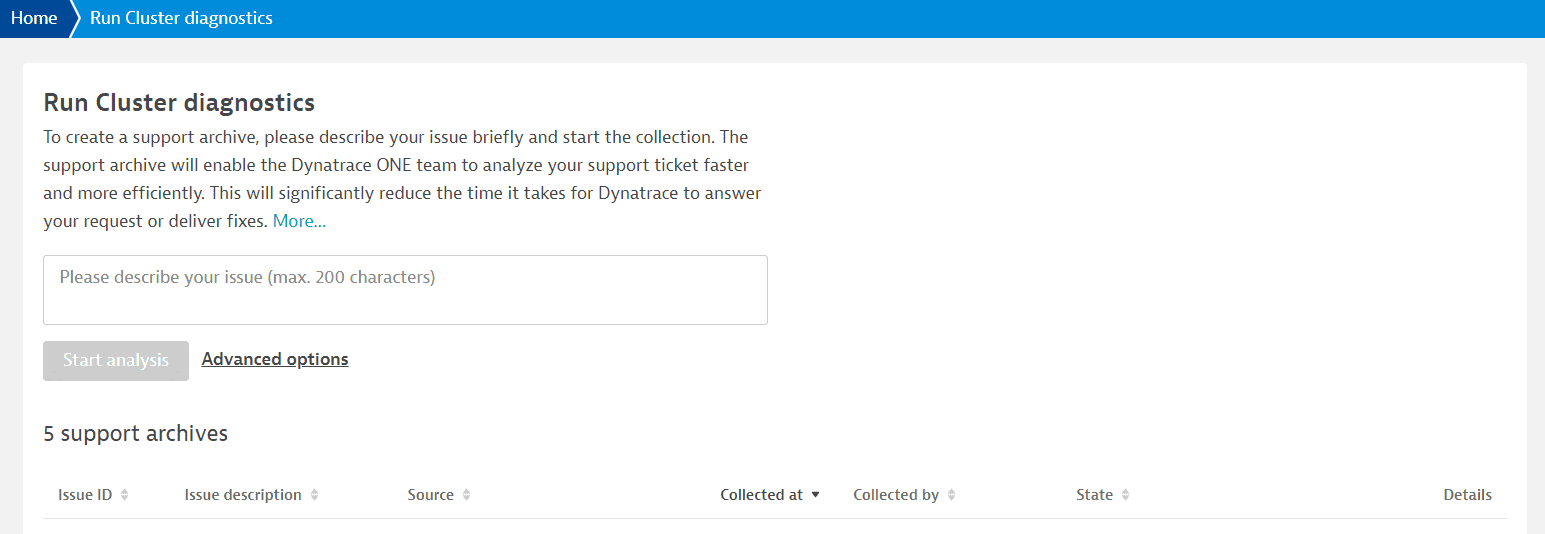 Cluster diagnostics page.
-
Optional By default, seven days of data is collected for analysis. If you need more data, select the Advanced options link, change the number of days, and select Apply.
-
Select Start analysis.
What happens next in automatic analysis
Dynatrace Managed does the following:
- Collects diagnostic data for the last seven days (if you didn't change the default) of the affected Cluster nodes and ActiveGates
- Stores the collected diagnostic data
- Uploads the diagnostic data to Mission Control regional storage for further analysis
The State column describes the current phase of the process.
State refreshes only on request. Select Refresh to check for a state change.
Collecting
Data collection is in progress. While collecting data, you can:
- Refresh the page to update the progress.
- Cancel diagnostic data collection.
Collected
Collection of diagnostic data is complete. After collecting data, you can:
- Analyze to submit the collected data to Dynatrace for analysis.
- Download the collected data locally for your inspection.
- Delete the issue, including the collected diagnostic data.
Sending in progress
Transfer of diagnostic data to Dynatrace for analysis is in progress. While sending data, you can:
- Refresh the page to update the progress.
- Download the collected diagnostic data.
- Delete the issue, including the collected diagnostic data.
Sent to Dynatrace cloud
Diagnostic data has been transferred to Dynatrace for analysis.
Analyzing
Analysis of the diagnostic data is in progress.
While analyzing data, you can:
- Refresh the page to update the progress.
- Download the collected diagnostic data.
- Delete the issue, including the collected diagnostic data.
Analyzed
The analysis is done. The number of associated alerts is shown in parentheses.
After an analysis, you can:
- Download the collected diagnostic data.
- Delete the issue, including the collected diagnostic data.
Delete in progress
Deletion of the diagnostic data is in progress. While deleting data, you can:
- Refresh the page to update the progress.
Deleted
The diagnostic data has been deleted. Dynatrace keeps only a small set of information about who, when, where, and why the diagnostic data was collected.
Canceled
The diagnostics process was canceled manually before it was finished.
Review the Dynatrace analysis
When the analysis is complete, Dynatrace sends the results back to your Managed Cluster. If a potential solution is identified, Dynatrace lists it in the Alerts section.
Collect and review locally
This procedure describes how to collect Cluster diagnostics data for your Managed Cluster locally. Use this option if you prefer to collect and review the data before manually submitting it to Dynatrace for analysis.
If you instead want to collect data and submit it to Dynatrace automatically for analysis, see Analyze automatically.
-
On the Dynatrace Managed Home page, open the menu (three dots) and select Run Cluster diagnostics.
Cluster Management Console home page displaying Run Cluster diagnostics button. -
On the Run Cluster diagnostics page, describe what isn’t working as expected from your point of view.
Example cluster diagnostics page
Cluster diagnostics page. -
Select the Advanced options link.
-
Select and store locally.
You can also change the number of days of data to collect. The default is seven days. You can select a period of one to seven days, or 14, 21, 28, 35, 42, 50, or 60 days. Each additional day increases the download size significantly.
-
Select Apply.
-
Select Start collection to collect diagnostic data and store it locally.
What happens next in local collection
Dynatrace now:
- Collects diagnostic data for the last seven days (if you didn't change the default) of the affected Cluster nodes and ActiveGates
- Stores the collected diagnostic data
The State column describes the current phase of the process.
State refreshes only on request. Select Refresh to check for a state change.
Collecting
Data collection is in progress. While collecting data, you can:
- Refresh the page to update the progress.
- Cancel diagnostic data collection.
Collected
Collection of diagnostic data is complete. After collecting data, you can:
- Analyze to submit the collected data to Dynatrace for analysis.
- Download the collected data locally for your inspection.
- Delete the issue, including the collected diagnostic data.
What to do with the collected data
Now that the data is collected, you can:
- Download the collected data.
- You can review the data. See Contents of diagnostic data for an overview of what's in the download.
- You can add the data to your support ticket.
- Analyze the data.
- Delete the issue, including the collected diagnostic data.
Cluster diagnostics overview
To get an overview of all Managed Cluster troubleshooting runs in your environment, follow these steps.
- On the Dynatrace Managed Home page, open the menu (three dots) and select Run Cluster diagnostics.
- The Run Cluster diagnostics page lists all diagnostics activity in your Managed Cluster.
- Expand any entry to see details.
- If the data hasn't been deleted (all diagnostic data is deleted automatically after 30 days), you can download it or delete it.
Contents of diagnostic data
All the collected diagnostic data is compressed into a SupportArchive<ID number> ZIP file that includes the following folders and files:
-
COLLECTOR(ActiveGates)
Contains a list of all ActiveGates for the Managed Cluster. Diagnostics data is located in a separate folder for each ActiveGate. The ActiveGate folders are named after the universally unique identifier of each ActiveGate. Each ActiveGate folder contains the following subfolders:Folder Description autoupdaterContains logs from the autoupdate process
configContains a snapshot of the ActiveGate configuration directory
debuguiContains a snapshot of the internal environment configuration related to the ActiveGate
installContains ActiveGate installation logs
logContains a snapshot of the ActiveGate log directory
-
SERVER(nodes)
Contains a list of all nodes in the Managed Cluster. Diagnostics data is located in a separate folder for each node. The node folders are named after the unique node number. Each node folder contains the following subfolders:Folder Description autoupdaterContains logs from the autoupdate process
configContains configuration files of Cluster node components
logContains log files including audit logs of a server process
managed-logsContains log files of other Cluster node components grouped in separate folders
nginx-error-logsContains error logs from the NGINX server
-
download details.txt(TXT)
Contains information and statistics about the diagnostic archive including file count and size for each folder.
Data privacy
To comply with regional data protection and privacy regulations, Dynatrace Managed does the following:
- Masks some personal data (for example, IBANs and URI credentials) automatically before storing it.
- Automatically deletes all diagnostic data 30 days after its collection. This applies to the data in your Dynatrace environment and on the Managed Cluster.
You can choose to delete collected diagnostic data earlier. To ensure transparency, Dynatrace keeps only a small set of information about who, when, where, and why the diagnostic data was collected.
For related details on Dynatrace data privacy, see:
Troubleshooting
Status: Collecting of the diagnostic data wasn’t possible within 20 minutes.
- If Dynatrace fails to collect diagnostic data within 20 minutes, it automatically tries again.
- If the retry fails as well, contact a Dynatrace product expert via live chat.
State appears to be frozen.
State refreshes only on request. Select Refresh to check for a state change.