Configure SSL certificate for Managed Cluster
- How-to guide
- 3-min read
By default, Dynatrace manages SSL for you—each Managed Cluster receives a dedicated subdomain of dynatrace-managed.com with a trusted SSL certificate. To use your own certificate instead, follow the steps below.
As of April 17, 2025, Chinese regulations require an ICP (Internet Content Provider) certification for all publicly accessible services using the dynatrace-managed.com domain. Since Dynatrace doesn't hold an ICP certificate due to the lack of a legal entity in China, the affected domains have been blocked by local network providers.
To maintain monitoring capabilities, Dynatrace recommends the following:
- Use internal DNS or IP addresses for Cluster ActiveGate endpoints.
- Avoid exposing the Dynatrace UI or endpoints to public Chinese networks.
 Review requirements
You need the SSL certificate and key files you received from your certificate authority (CA):
- Server certificate (
.ceror.cert) - Root and intermediate certificates (
.ceror.cert) - Private key (
.pem)
Encrypted private keys aren't supported. To decrypt an SSL private key, run:
openssl rsa -in encrypted.ssl.key -out decrypted.ssl.key
encrypted.ssl.key: your encrypted SSL private key file.decrypted.ssl.key: the output file for the decrypted key.
The command prompts you for the password and saves the decrypted key.
 Disable automatic certificate management
To disable automatic certificate management:
- Log in to the Cluster Management Console.
- Go to Settings > Preferences and disable Manage domain name and SSL certificates.
Without automatic certificate management, Dynatrace falls back to a self-signed certificate. Self-signed certificates aren't trusted by browsers by default—on first access you'll see a security warning. Accept the exception in your browser's security settings to proceed, then install your trusted certificate as described in the next step.
 Upload your certificate
-
Log in to the Cluster Management Console.
-
On the Home page, select the Managed Cluster node that needs the new certificate.
-
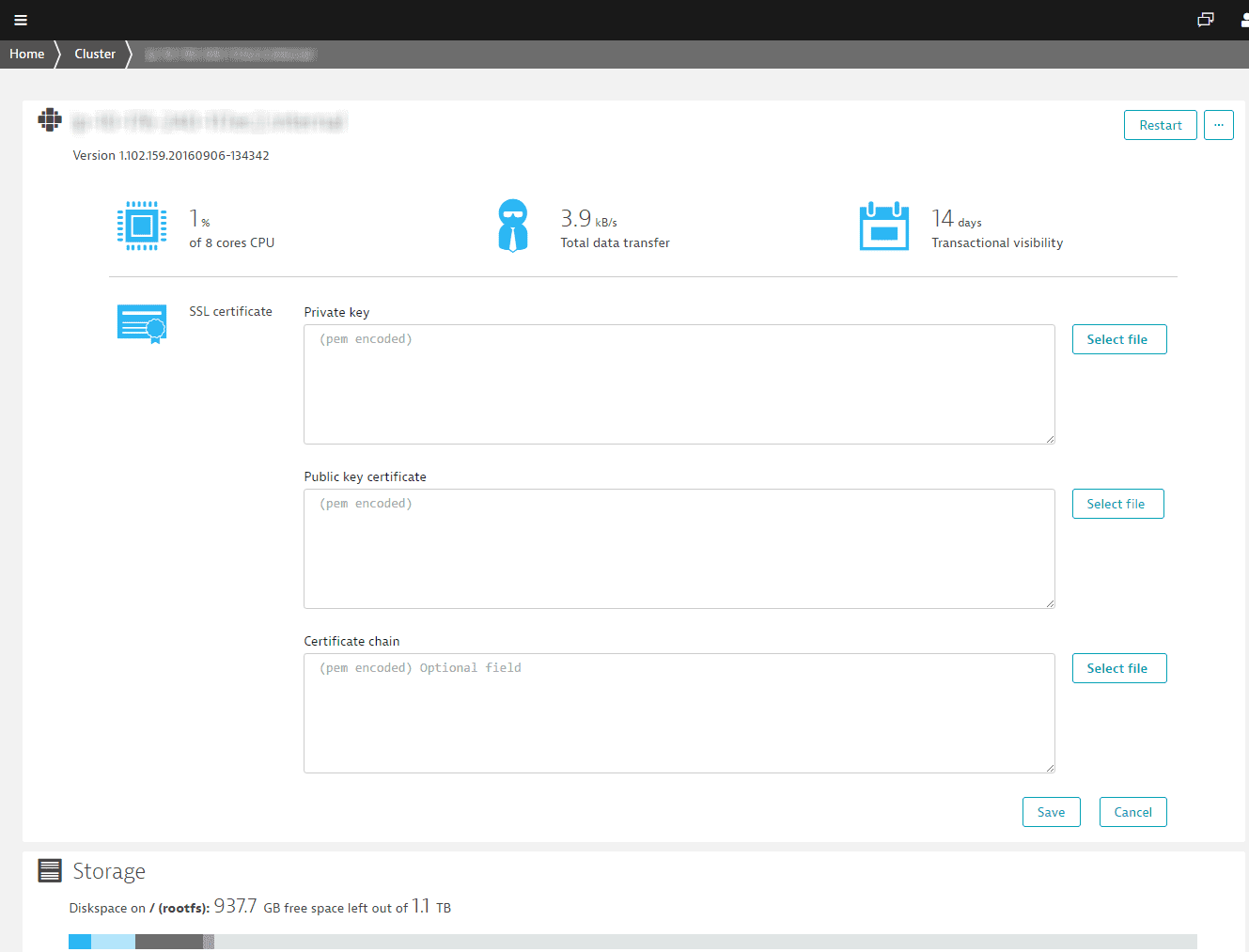
On the Node Details page, select Edit SSL certificate.
Sample SSL certificates edit page
 Onprem ssl certificates
 -
Paste or upload the key files you received from your CA.
- Private key: your private key.
- Public key certificate: your server certificate.
- Certificate chain: your root and intermediate certificates.
All keys and certificates must be in PEM format with full
BEGINandENDheaders.Key format:
-----BEGIN PRIVATE KEY-----(Private Key)-----END PRIVATE KEY-----Certificate format:
-----BEGIN CERTIFICATE-----(SSL Certificate)-----END CERTIFICATE----- -
Select Save to upload the certificates.
Your certificate is tied to a specific hostname. To avoid a name-mismatch error, make sure the common name (domain name) in the certificate matches the address shown in the browser's address bar.