Get started with network zones
- Tutorial
- 3-min read
Network zones are Dynatrace entities that represent your network structure. They help you to route the traffic efficiently, avoiding unnecessary traffic across data centers and network regions.
Without network zones
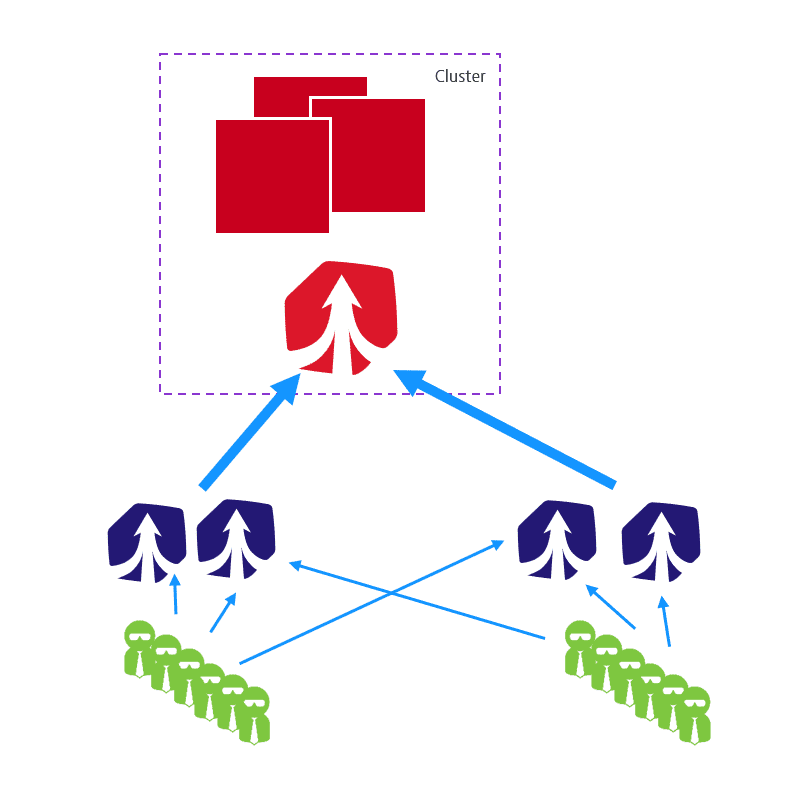
All of your OneAgents are able to reach all of your ActiveGates that are routing traffic to Dynatrace. If you decide to introduce a firewall that prevents some OneAgents to reach ActiveGates they've been using, it may produce unnecessary traffic.
Also, since every OneAgent can connect to any ActiveGate, it is possible that OneAgent is able to connect to an ActiveGate that is hosted in another region, so your traffic has to go around the world.
With network zones
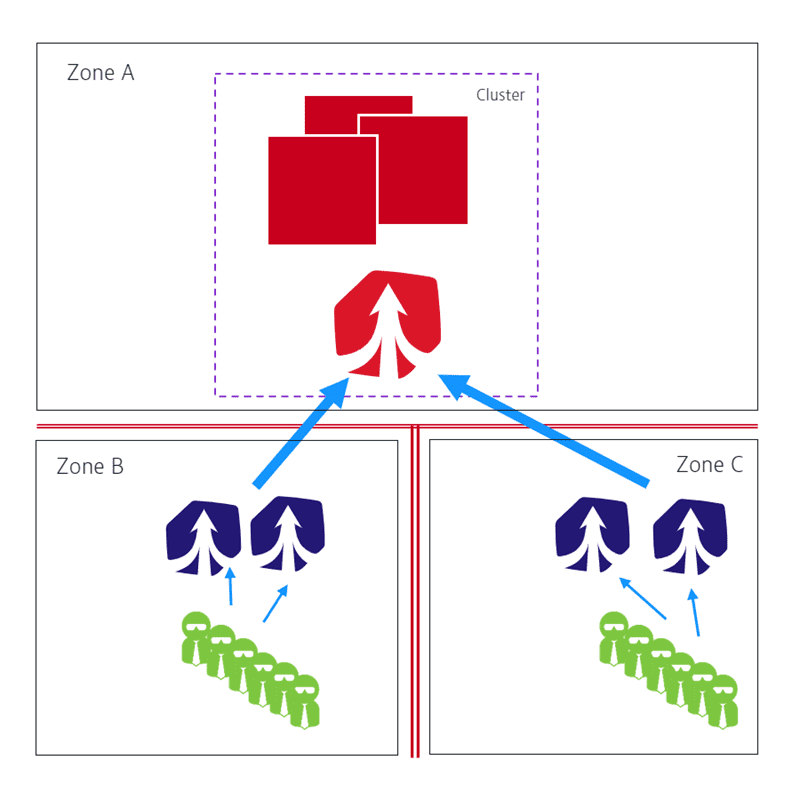
Network zones prevent inefficient connections by defining the ActiveGate that each OneAgent should use. You can still use ActiveGates in other zones as a backup option in case primary ActiveGates becomes unavailable for some reason.
Deploy network zones
Deployment of network zones depends on whether you're starting a new Dynatrace deployment (new installation scenario) or adding network zones to an existing deployment (migration scenario).
In either case, however, the overall steps are the same. Follow the steps from your scenario to start using network zones.
Migration
Start using network zones in an existing Dynatrace environment.
- How-to guide
New installation
Start using network zones with a fresh Dynatrace installation.
- How-to guide
Activate network zones
To activate network zones
- Go to Settings and select Preferences > Network zones.
- Turn on Enable network zones in this environment.
Alternatively you can use the PUT global configuration API call.
Network zone organization
Network zones are organized per Managed cluster.
You can get an overview of network zones in Cluster Management Console or via Cluster API.
Network zone naming
The name of a network zone is a string of alphanumeric characters. Additionally, you can use hyphens (-), and underscores (_). The length of the string is limited to 256 characters.
A dot (.) serves as a separator in the name of the network zone (see the Naming pattern section below). You can't use it for other purposes and the network zone must not start with a dot.
Network zone names are not case-sensitive. Dynatrace stores these names in lowercase.
There is a pre-created default network zone. OneAgents use it when no network zone is specified or the setting is reset. The name default is equal to an empty name.
Naming pattern
To make it easier for you to use network zones, we recommend the following naming pattern:
provider.region.availability-zone.datacenter.tier
Use your company name as the provider part if you're using your own infrastructure.
You can add additional fields to this pattern.
Alternative network zone
For each network zone, you can configure one or more alternative zones—network zones that OneAgents should use when no ActiveGate from the primary zone is available. Make sure that ActiveGates from an alternative network zone are reachable by OneAgents of the primary network zone.
To configure alternative network zones
- Go to Deployment Status and select Network zones.
- Select the network zone you want to configure and the select Edit in the upper-right corner of the page.
- Select the required network zones.
Alternatively, you can use the Settings API to configure the list of alternative zones.
Fallback mode
Fallback mode determines how the network handles traffic if no ActiveGates are available in this network zone and there are no alternative network zones.
Available fallback modes:
- Any ActiveGate (default): If no ActiveGate in the primary or alternative zones is available, traffic is routed to any available ActiveGate, including an ActiveGate in the default zone.
- Only default zone: If no ActiveGate in the primary or alternative zones is available, traffic is routed only to an available ActiveGate in the default zone. ActiveGates in other zones aren't considered.
- None: Traffic stays within the primary zone and its alternative zones. If no ActiveGate in those zones is available, OneAgents don't send data to another zone.
Configure fallback mode
-
Go to Deployment Status and select Network zones.
-
Choose the network zone for which you want to set the fallback mode.
Note that the default network zone is not configurable.
-
Select Edit.
-
In the Fallback mode section, select a fallback mode from the list.
-
Select Save changes.
Limitations
The maximum number of network zones per environment is 10,000 by default. If you need more, contact a Dynatrace product expert via live chat within your Dynatrace environment.