Table visualization
- Latest Dynatrace
- How-to guide
- 5-min read
Use the table visualization:
- When you want to get a first sample and impression of the data returned by your query or code. For example, show me the top recent 100 log lines for my application or host.
- When you want to go through many records at a time. Where data density and being able to compare records one by one is more important than seeing all fields that are contained in the result at the same time.
- When you need to further explore the data via interactions.
Example
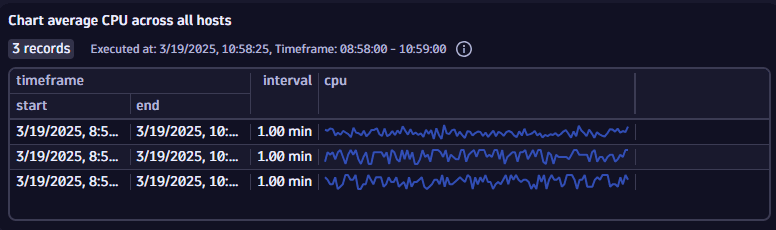
The table above is based on the following query.
timeseries cpu=avg(dt.host.cpu.usage), by:{dt.entity.host}| sort arrayAvg(cpu), direction:"descending"| limit 3
- The title is set to Chart average CPU across all hosts.
- The visualization type is set to Table.
- In the Columns section:
- Visibility and order: select Edit to configure visible columns and their order. In the example, the
dt.entity.hostcolumn is not selected (to hide the host names) and the other three columns (timeframe,interval, andcpu) are selected. - Custom column types: the
cpucolumn (a timeseries) is set to Sparkline.
- Visibility and order: select Edit to configure visible columns and their order. In the example, the
Table interactions
Table-specific
Left-click a column header to locally sort the results by that column.
- indicates unsorted
- indicates that the table is sorted ascending by that column
- indicates that the table is sorted descending by that column
Column-specific
Right-click a column header, or hover over the column header and select , to display a menu of column-specific commands. The available options might vary per column.
-
Move left moves the selected column one position to the left.
-
Move right moves the selected column one position to the right.
-
Hide column hides the selected column. To display a hidden column again, edit the table and, in the Columns section, edit the Visibility and order settings to configure visible columns and their order.
-
Enable line wrap and Disable line wrap specify whether to wrap text in the selected column.
-
Copy field name copies the field name of the selected column to the clipboard.
-
The Add command to query section of the menu lists related command that you can automatically add to your query, such as:
- Sort ascending adds a command to your query to
sort <fieldname> asc - Sort descending adds a command to your query to
sort <fieldname> desc
- Sort ascending adds a command to your query to
-
Summarize counts how often each of the distinct values in a certain column are present in the result (for example, counting how often each host ID is present).
-
Add entity names adds a lookup (result is added in a separate field called
dt.entity.<entity>.name) of the actual entity name associated to a given entity ID in a table column. -
Convert to histogram associates given numeric values to histogram bins and how often values fall into each bin.
Row-specific
-
Left-click anywhere in a row to select the entire row. With a row selected, you can then left-click and drag within a cell in that row to select exactly what you want to copy (Ctrl+C) from the cell.
-
Right-click a cell, or hover over the cell and select , and select View record details to display the selected row in a side panel.
Use View record details to browse the contents of the table, row by row.
- As you navigate rows in the table using your keyboard or mouse, the side panel updates automatically.
- Use the Search bar at the top of the record details panel to filter fields.
- The record details panel supports the same right-click interactions available from the table.
Cell-specific
Right-click a cell, or hover over the cell and select , to display a menu of cell-specific commands. The available options might vary per cell.
-
Copy value copies the value in the cell to your clipboard.
-
View in fullscreen applies only to strings. It displays the cell content in a fullscreen window.
- and navigate from record to record.
- copies the current value to the clipboard.
- closes the window and returns to the table.
-
A recommended app—for example,
 View Kubernetes workload—may be listed for quick access.
 -
Open with passes the whole record to the Open with dialog, not taking into account which field you selected. This results in a broader range of possible Open with options.
-
The Add command to query section of the cell menu lists commands that you can automatically add to your query, such as:
- to filter the query results by the selected cell and the corresponding operator (for example, Greater than the cell value).
- Add entity names adds a lookup (result is added in a separate field called
dt.entity.<entity>.name) of the actual entity name associated to a given entity ID.
Title
Use the title field at the top of the options panel (initially Untitled tile or Untitled section) to add a title to your dashboard tile or notebook section.
- You can use emojis such as 😃 and 🌍 and ❤️.
- You can use variables.
Example:
- Define variables called
StatusandEmojiin your dashboard. - Set the title to
Current $Emoji status is $Status. - Set
StatustoGood. - Set
Emojito🌍.
The title will be displayed as Current 🌍 status is Good.
Visualization
If you aren't sure that you chose the right visualization, use the visualization selector to try different visualizations.
To learn about options quickly and decide what works best for you, turn options on and off and see the effect immediately on your chart. For example, does it look best with a label or without? Turn that option on and off and see for yourself.
Columns
-
Visibility and order: select Edit to configure visible columns and their order.
When you download table data to a file (select > Download result > CSV), the download includes only the columns selected here.
This is useful when, for example, you want to download a CSV file, open it in a spreadsheet, and share the spreadsheet with others, but you want to exclude irrelevant or sensitive data from your download.
-
Line wrap: Specifies whether to wrap lines that extend beyond the column width.
- All: Applies line wrap to all table columns.
- Custom: Applies line wrap to selected table columns.
-
Monospaced font: Specifies whether to use a monospaced font.
- All: Applies monospaced font to all table columns.
- Custom: Applies monospaced font to selected table columns.
-
Custom column types: Specifies formatting for columns. Select Column type to add a row, and then select one or more columns and how you want to format the selected columns.
If a table result contains more than 50 columns, your result will only show the first 50 columns. If your result is larger than 50, you'll see a warning informing you of this. The warning will allow you to Modify visibility, where you can select which columns should be displayed and change the order of how they're displayed.
Cells
-
Density—determines how compact the table rows are displayed vertically.
- Condensed is the tightest display option, for when you need to maximize the number of rows displayed.
- Default is an average display option, with typical spacing between rows.
- Comfortable specifies maximum spacing between rows.
-
Show min/max for sparkline–whether to display the minimum and maximum values with the sparkline.
Colors
The color settings for a visualization are displayed in rows.
Each row associates a color scheme with a condition/value related to a selected field displayed in the visualization.
To adjust the settings for a row, there are two menus of settings that will be used in combination to determine which color is displayed:
- The first menu in a row displays the selected color or color palette. Open this menu to display three tabs of color options:
- Palettes: select a color palette to use for this row.
Palette exceptions for certain visualization types
- Heatmap and honeycomb: the palette only applies the first color (unless color rules match the data mapping values or Name is used), and the palette is not reflected in the legend.
- Categorical: the nth color in the palette is applied to the nth item in the series.
- Categorical for multiple subcategories: palettes are by bin but are not reflected in the legend.
- Table: palettes are not applicable to tables.
- Colors: select a color to apply uniformly when this rule matches.
- Custom: specify a precise hex color code (for example,
#134FC9) or use the color picker to select a color visually.
- Palettes: select a color palette to use for this row.
- The second menu in a row displays the condition under which this row's color will be displayed. Select the current setting to change the field, operator, and value as needed to evaluate the condition.
- The fields available for evaluation depend on the raw data.
- Name is a special property constructed via the Data mapping setting Names.
- Value is a special property constructed via the Data mapping setting Values (heatmap visualization only).
- The available operators change to suit the conditon being evaluated.
- The fields available for evaluation depend on the raw data.
Colors: additional actions
- To add a row, select and configure it as described above.
- To move a row up or down in the table, select and drag .
- opens a menu of further options:
-
Move up and Move down move the row up or down one row. These are alternatives to .
Remember that colors are applied in the order in which they are listed in the Colors section, from top to bottom, so changing the order may give you different results.
-
Duplicate creates a copy of the selected row.
-
Delete section removes the row. You can delete all color rules for table and single value visualizations; all other visualizations need at least one color rule.
-
Colors: Examples:
Table
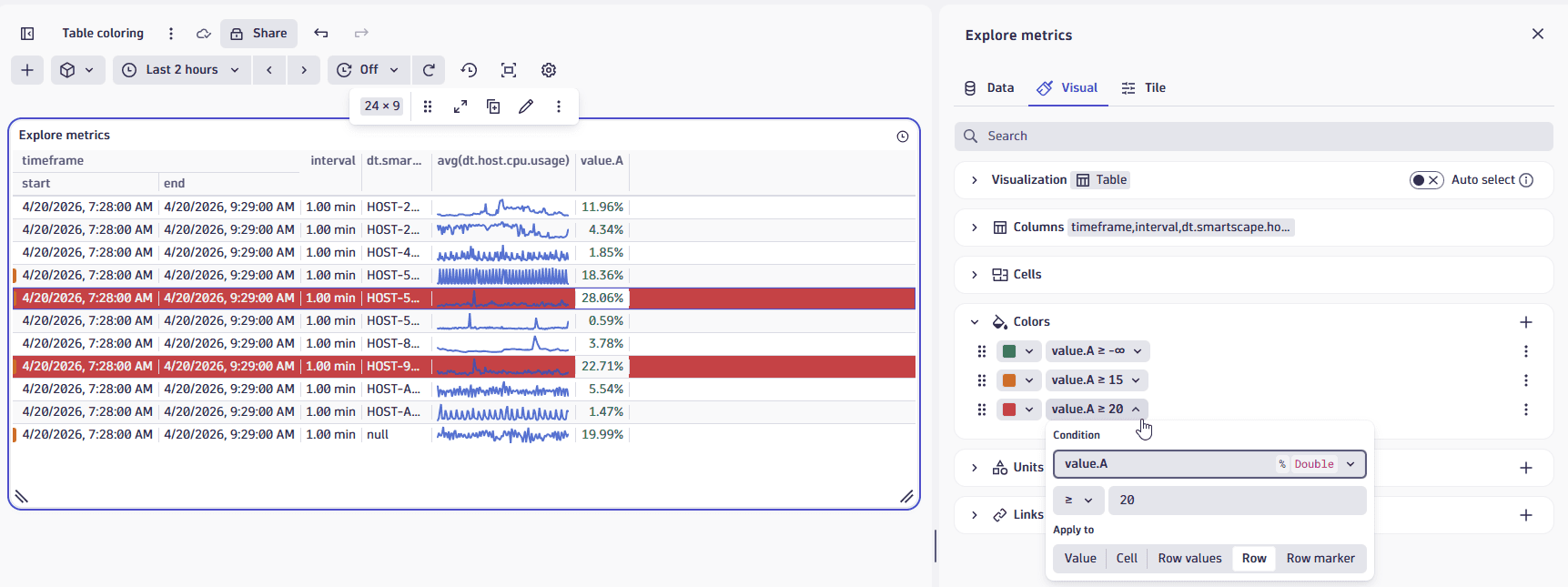
In this table visualization example, we have applied:
- Green to all
value.Avalues. - Yellow as a row marker (on the left) for
value.Avalues at or above 15. - Red to the entire row for
value.Avalues at or above 20.
Note that color settings can be visualization-specific. In this table example, we used Apply to to apply color in different table-specific ways:
- We selected Values to apply green to all
value.Avalues. - We selected Row marker to display a yellow row marker at the beginning of each row whose
value.Avalue is at or above 15. - We selected Row to make the entire row red if
value.Ais at or above 20.
Units and formats
To override the default units and formats in a dashboard or notebook visualization
-
Select to edit the visualization tile.
-
Select the Visual tab.
-
Expand Units and formats.
The Units and formats section lists all available unit settings for the document (dashboard or notebook). Some units may already be added automatically when querying metrics from their metadata.
Each row has two menus:
- The left menu displays unit settings.
- The right menu displays field mapped to that unit.
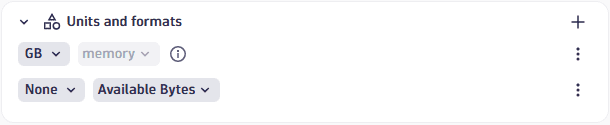 Example rows in "Units and formats" settings
 -
To edit unit settings, open the left menu and review/set the following settings:
-
Unit: The base unit in which the values were captured. It's
Noneif it was not included in the DQL result, or its automatically defined by the unit passed from the DQL result. This field doesn't lead to any conversion but modifies the suffix to correspond to the unit. -
Convert: You can turn on Convert for conversion. For example, if the DQL result defined your numeric value in the result as
Bytes, Convert now offers a suitable list of byte conversions such asKilobyteandMegabyte.Only linear and static conversions are supported. For example, you cannot convert
Degree Celsius(°C)intoDegree Fahrenheit(°F), or convertUsd(US$)intoEur(€).
The Format section determines how the unit is displayed:
- Decimals: displays the default number of decimals (degree of precision) to display. To see it in action, change the Decimals selection and observe the change in the visualization.
- Custom suffix: displays the suffix to display after the unit. To see it in action, turn on Custom suffix, enter a string, and observe the change in the visualization. When you don't find the unit you're looking for, you can use Custom suffix to display the desired unit.
- Abbreviate large numbers: displays large figures in abbreviated form. For example,
1053becomes1.1K. - Multiple units: displays more than one unit. Turn this on and select the number of units to display. For example,
90 secondsbecomes1m 30sif multiple units is enabled and 2 units are selected.
-
-
To choose a different field for a row, open the right menu in that row and select a field from the available fields.
Units and formats: Additional actions
- To add a row, select (Add) and configure it as described above.
- (Actions) opens a menu of further options:
- Duplicate creates a copy of the selected row.
- Delete removes the row.
- Reset resets the settings in the selected row to default/metadata values.
Units and formats: Examples
Chart average CPU across all hosts
This example uses a line chart, but the options apply to other visualizations.
-
In
 Dashboards, create a dashboard.
 -
Select and, in the Library section of the menu, select Chart average CPU across all hosts.
-
In the edit panel, select the Visual tab and select Line.
-
Expand Units and formats.
One row is already defined based on metadata from
avg(dt.host.cpu.usage). -
To override the unit settings for that field, open the left menu in that row to display the unit settings.
-
Define an override for the displayed metric. You can observe your changes in the Y-axis of the chart.
-
Unit displays
Percent, which is the default unit for the selected metric. -
Turn on Convert to try conversions settings. For example, change
AutotoOneto display the result as a fraction of 1. -
Decimals displays the default number of decimal points (degree of precision) to display. For example, enter
Pctand review the dashboard to seePctinstead of%displayed after the percentage value. -
Turn on Custom suffix to try different suffixes to display after the unit. For example, change the Decimals selection and review the dashboard to see the change in the number of decimal points in the percentage value.
-
To reset to defaults (discard override settings for the selected metric), open the (Actions) menu for that row and select Reset.
Links
Use the Links section to manage custom links from your dashboard or notebook.
Add a link
To add a link
- Open the Links section in the visualization tab of your selected visualization.
- Select to open Add link.
- Configure the link:
- Name: Enter a descriptive name such as "Go to Host" to display in the menu.
- Icon: Select an icon such as "Logs" to represent the link in the menu.
- URL: Use dynamic placeholders to insert data fields or variables. For example, select Insert placeholder and add the
:nameplaceholder to the your URL likehttps://myhost/host={{:name}} - Use the Preview section at the bottom to see how placeholders will be replaced with actual data and to test your link.
- Select Add link to save. The link will now appear in the visualization's tooltip menu.
Links: Additional actions
- To add a row, select and configure it as described in Add a link.
- To move a row up or down in the table, select and drag .
- opens a menu of further options:
- Edit displays link fields for editing as described in Add a link.
- Duplicate creates a copy of the selected row.
- Delete removes the row.
For details, Link from visualization via custom links
Query limits
Use the Query limits section to check and adjust the Grail query limits per notebook section or dashboard tile. These settings determine the maximum limits when fetching data. Exceeding any limit will generate a warning.
Dashboard tiles and notebook sections created in Dynatrace earlier than version 1.296 are not affected. Those existing tiles/sections will return the same results as before.
-
Read data limit (GB)
The limit in gigabytes for the amount of data that will be scanned during a read.
-
Record limit
The maximum number of result records that this query will return. Default: 1,000 records. To see more records, you need to increase the value of Record limit.
-
If your query has no
limit, such asfetch logsthe value of Record limit is applied. By default, you will see up to 1,000 records.
-
If your query also includes a
limit, such asfetch logs| limit 2000the lower of the two values (either
limitin your query, or Record limit in the web UI) is applied.In the example above, you would still see only 1,000 records unless you increased the value of Record limit.
-
-
Result size limit
The maximum number of result bytes that this query will return. For better performance with typical queries and smaller documents, the default is set to 1 MB.
-
Sampling (Logs and Spans only)
Results in the selection of a subset of Log or Span records.