Capture event and session properties for web frontends
- Latest Dynatrace
- How-to guide
Use event and session properties to enrich your RUM data with business or application context and tailor monitoring to your goals. You can collect them in the following ways:
- Capture properties through the Dynatrace UI—extract event properties via DOM elements, cookies, or JavaScript variables.
- Report properties via the JavaScript API—send any data available on the client-side as event or session properties.
- Preview Report config-less properties via the JavaScript API—send properties without any prior configuration or allowlist.
- Enrich properties in OpenPipeline—aggregate session properties from event properties or set the user identifier during ingest.
Capture event properties through the Dynatrace UI
You can collect event properties directly from a web page by defining capture rules. Each rule extracts a value through one or more ordered processing steps and attaches it to user events as an event property.
To capture an event property
-
Go to
 Experience Vitals > Overview.
 -
Select Web to view all web frontends.
-
Select the frontend you want to configure.
-
In the Settings tab, select Capture properties.
-
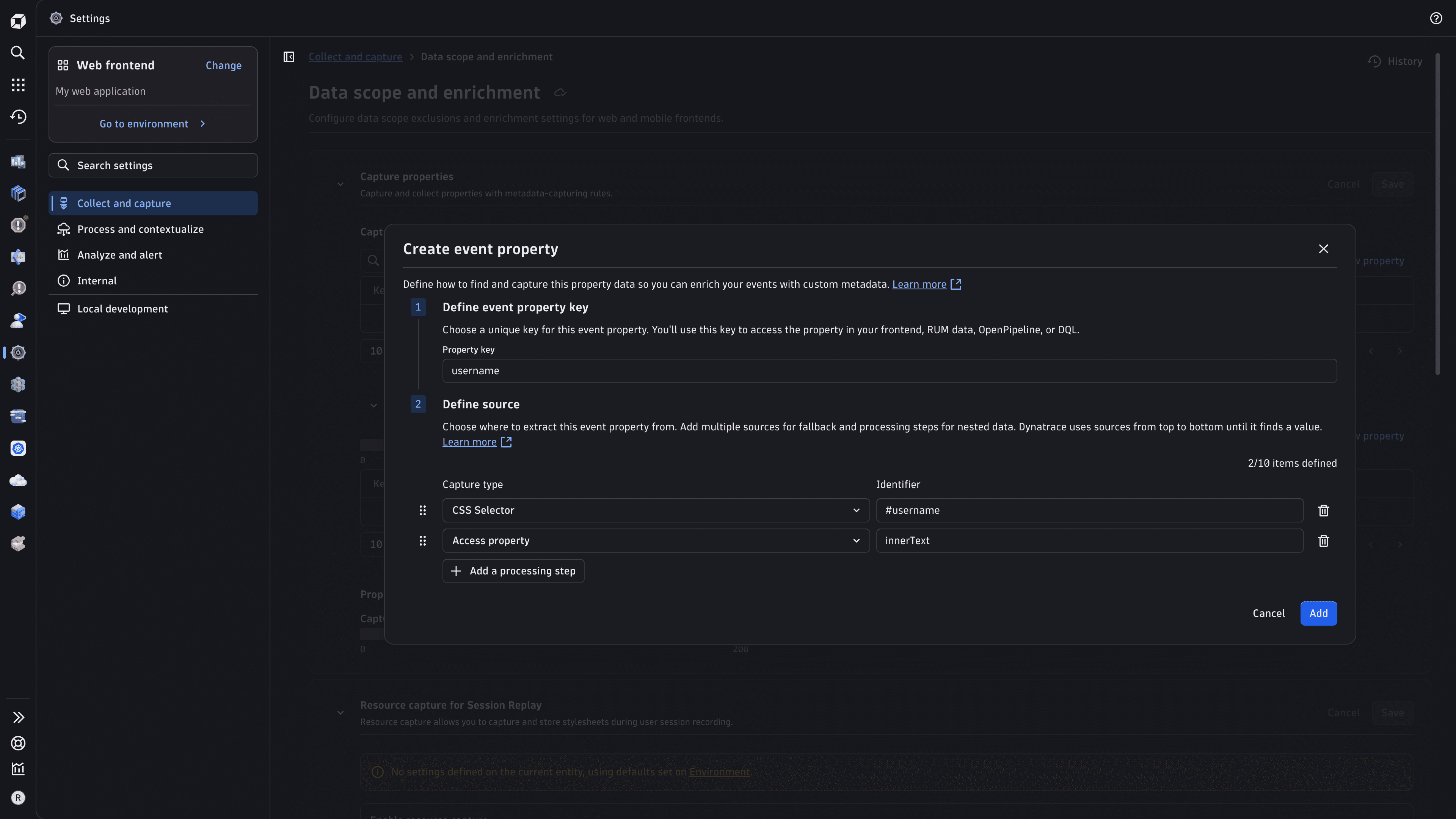
In the Captured event properties section, select New property.
-
In Define event property key, enter the property key (for example,
cart.total_value). The key is automatically prefixed withevent_properties., so the resulting field isevent_properties.cart.total_value. -
Under Define source, select Add a processing step and choose where the value should be extracted from. You can add multiple processing steps for nested data—the output of each step is passed as the input to the next.
-
Select Add to save the rule.
Capturing properties configured in the UI requires RUM JavaScript version 1.341+.
Processing steps
The following processing steps are available. Steps run in sequence, each passing its output to the next: Capture value steps read data from the page, and Transform value steps process the output of a previous step. The first step in a sequence starts without any input.
| Processing step | Group | Description | Example |
|---|---|---|---|
CSS selector | Capture value | Runs | Selector |
DOM attribute | Capture value | Reads the specified attribute from the HTML element passed in from the previous step. Must follow a CSS Selector step. | Attribute |
Cookie | Capture value | Reads the value of the named cookie. | Cookie |
Access property | Capture value | Reads a named property from the previous step's output, or from | Property |
Parse value as JSON | Transform value | Parses the input string as JSON and returns the resulting object. | Input |
For example, to capture a user name rendered in an element with the ID username, add CSS Selector with the selector #username, followed by Access property with the property innerText. To capture a value from a JSON object stored in localStorage, chain Access property (localStorage), Access property (the storage key), Parse value as JSON, and Access property (the property to read).
If a processing step reads the value attribute or property of a password input element—an element whose type attribute is password or whose autocomplete attribute contains current-password or new-password—the captured value is automatically masked and reported as <password> to prevent capturing credentials.
Report properties via the JavaScript API
You can also report event and session properties from your own code using the JavaScript API. To prevent unconfigured properties from being dropped during ingest, you must add each property to the allow list.
Allow API-reported properties
To allow a reported property
-
Go to
Experience Vitals > Overview. -
Select Web to view all web frontends.
-
Select the frontend you want to configure.
-
In the Settings tab, select Capture properties.
-
In the Allowed API-reported properties section, select New property.
-
Enter the property key.
-
If you want the property key validation to ignore case, turn on Property key validation should be case-insensitive.
Send event and session properties
After a property is allowed, you can start sending it via the JavaScript API.
Send event properties
When you report events via the JavaScript API using sendEvent or sendExceptionEvent, you can add event properties as parameters. To add event properties to any event—including those reported by the RUM JavaScript itself—use addEventModifier.
When sending or adding an event property, always include the event_properties. prefix.
Send session properties
Session properties are always sent as standalone events. To send a session property, use sendSessionPropertyEvent. To include additional session properties in that event, use addEventModifier.
When sending or adding a session property, always include the session_properties. prefix.
Aggregate session properties from event properties
Session properties can be derived from event properties and aggregated across a session using OpenPipeline. For each session property, you choose how the values reported during the session are aggregated:
- For any property type, you can keep the First or the Last reported value. Last is the default.
- For numeric properties, you can additionally use Min, Max, Avg, or Sum.
To aggregate a session property from event properties
-
Go to
 Settings > Process and contextualize > OpenPipeline > User events > Pipelines.
 -
Select an existing pipeline or create a new one. To create a new pipeline, select Pipeline and enter a name.
-
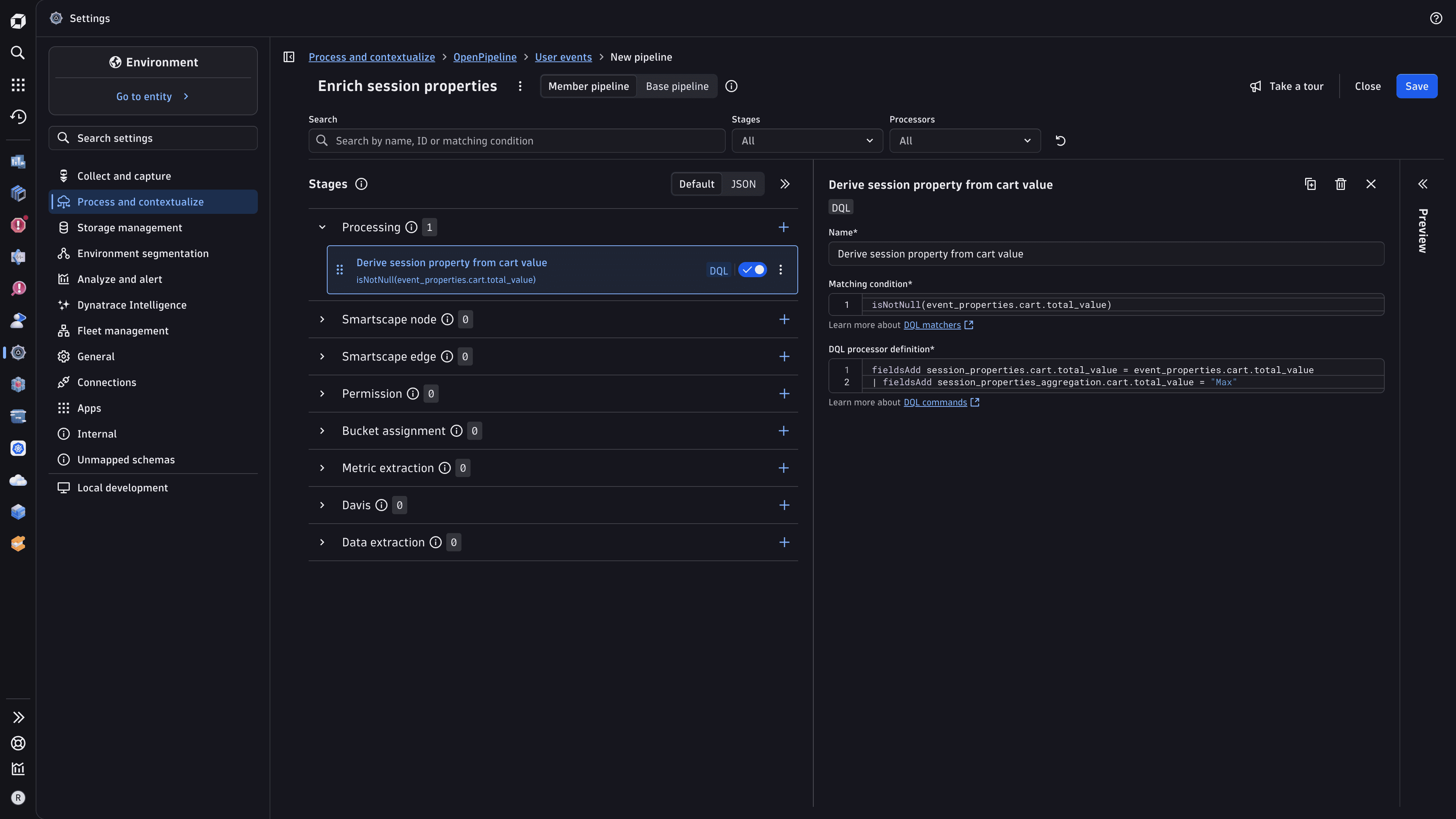
Go to Processing > Add (or if processors are already defined) > DQL and define the processor:
-
A descriptive name—for example,
Derive session property from cart value -
The matching condition—a filter for events that carry the event property, for example:
isNotNull(event_properties.cart.total_value) -
The DQL processor definition—two
fieldsAddstatements: the first writes the event property value into the session property namespace, and the second declares the aggregation method, for example:fieldsAdd session_properties.cart.total_value = event_properties.cart.total_value,session_properties_aggregation.cart.total_value = "Max"The aggregation value is a string. Valid values are
"First","Last","Min","Max","Avg", and"Sum"."Min","Max","Avg", and"Sum"apply only to numeric properties. You can omit the aggregationfieldsAddline to use the default ("Last").
-
Enrich the user identifier from event properties
You can populate the user identifier of a session from a captured or reported event property using OpenPipeline. This lets you set the user identifier from application data, as an alternative to calling the identifyUser API method.
To populate the user identifier from an event property
-
Go to
Settings > Process and contextualize > OpenPipeline > User events > Pipelines. -
Select an existing pipeline or create a new one. To create a new pipeline, select Pipeline and enter a name.
-
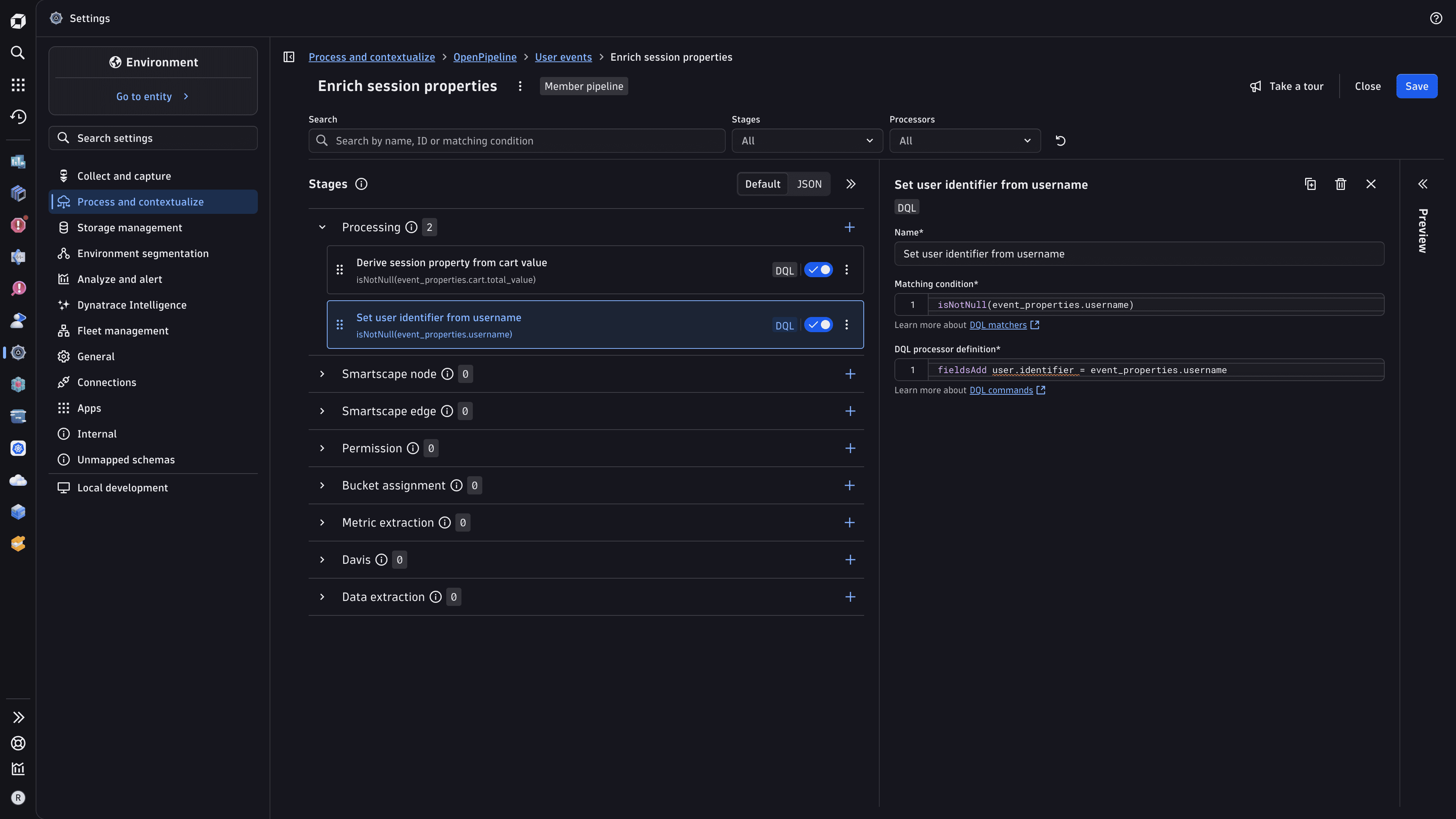
Go to Processing > Add (or if processors are already defined) > DQL and define the processor:
-
A descriptive name—for example,
Set user identifier from username -
The matching condition—a filter for events that carry the event property, for example:
isNotNull(event_properties.username) -
The DQL processor definition:
fieldsAdd user.identifier = event_properties.username
You might see a warning because
user.identifieris part of the predefinedbuiltin-sensitive-user-events-and-sessionsfieldset. You can still use it for enrichment. For details about access control for sensitive fields, see Field permissions. -
Report config-less properties
Config-less properties let you send any event or session property directly from your code, with no Dynatrace configuration required. Unlike API-reported properties, you don't need to add each key to an allowlist before sending it, but the per-event and per-session limits still apply. You can use property keys that change at runtime. Property keys are still validated for format (see Limits), but values are accepted without additional validation beyond character length.
Config-less properties are especially useful when the properties you need vary dynamically. For example, property keys can include a date-based segment or any other value that changes over time.
To send a config-less property, use the same API methods as for API-reported properties; see Send event and session properties. The event_properties. and session_properties. prefixes still apply.
To request access to the config-less RUM properties preview, go to Preview program.
Limits
The following limits apply to event and session properties:
- A field name can have a maximum length of 100 characters, including the
event_properties.orsession_properties.prefix. - A field name can contain only letters (
A–Z,a–z), numbers (0–9), underscores (_), and dots (.). - You can configure up to 100 captured event properties per frontend.
- You can allow up to 200 API-reported properties per frontend.
- You can send up to 50 properties per event.
- You can include up to 500 session properties per session.
- String values can have a maximum length of 1,000 characters.
- Config-less properties are not subject to per-frontend count limits, and the maximum character length is raised to 5,000 characters.