Reverse proxy or load balancer for ActiveGate
- Latest Dynatrace
- 1-min read
A reverse proxy or a load balancer can be placed on the path from an ActiveGate to the Dynatrace Cluster. This allows your ActiveGate to connect to any available node of the Cluster, spreading the load between the nodes.
To do this, you need to:
- Provide the address of the reverse proxy/load balancer.
- Ensure that ActiveGate will ignore any further target address information sent from the Dynatrace Cluster, and will thus connect only to the address you have specified.
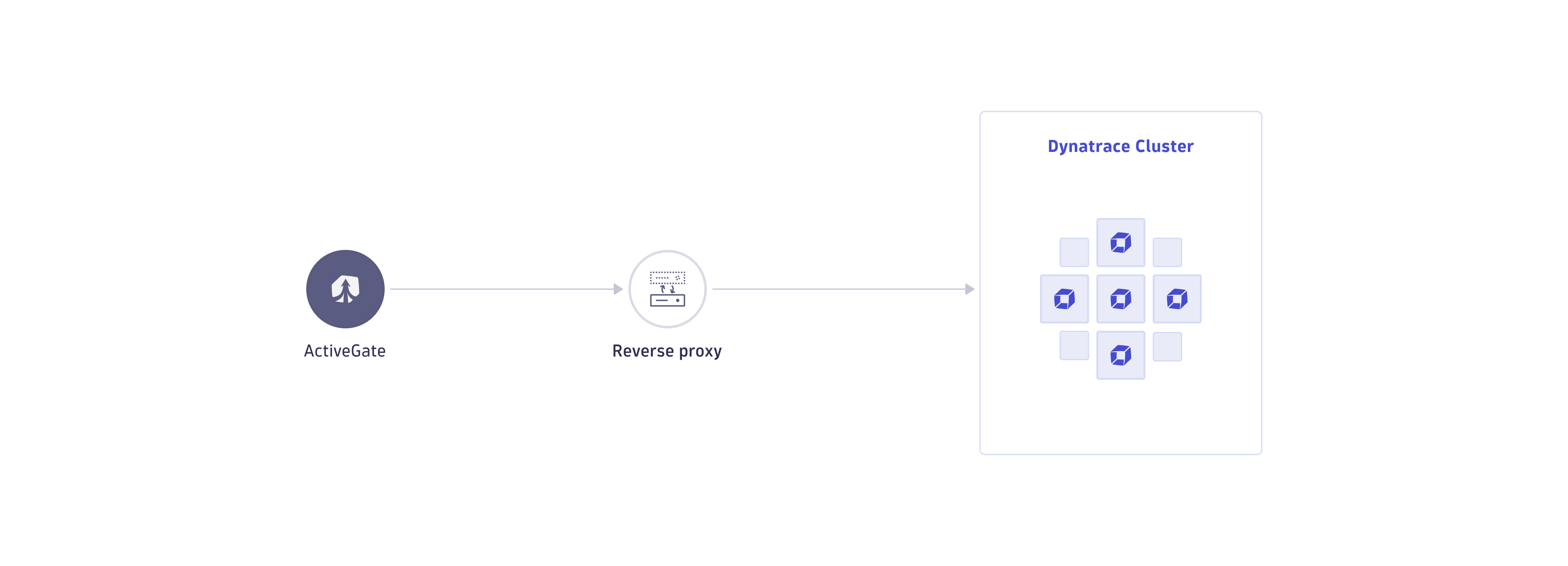
Option to configure during installation
This configuration—to use a reverse proxy or a load balancer—can also be applied during ActiveGate installation, by specifying installation parameters to the ActiveGate installer for Linux or Windows or it can be configured later, after ActiveGate installation, as shown in the following procedure.
A load balancer should not be placed between ActiveGate and OneAgent, as it can disrupt memory dump transmission and processing.
Configure after installation
ActiveGate version 1.333+
You can use agctl to configure a reverse proxy or load balancer for ActiveGate.
Set a single reverse proxy endpoint:
agctl outgoing-endpoint set https://my.reverse-proxy.com:443/communication
Set multiple reverse proxy endpoints:
agctl outgoing-endpoint set https://my.reverse-proxy-1.com:443/communication,https://my.reverse-proxy-2.com:443/communication
After configuring the reverse proxy with agctl, you need to restart ActiveGate for the changes to take effect.