Gain insights
- Latest Dynatrace
- How-to guide
Dynatrace SPM offers two ways to drill into details, depending on which view you're using:
- On the Assessment results page, select a rule to open a side window with aggregated rule context—rule details, assessed resources, configuration, and AI explanation.
- On the Findings tab, select an individual finding to open a detail panel with resource-level context—finding details, affected resource, topology, evidence, and AI explanation.
This context can help you understand and fix issues on your system.
Insights about the rule
On the Rule details tab, you can
-
View relevant details about the rule such as
- Rule version used for assessment
- Rule severity
- Compliance standard issuing the rule
-
Navigate to the original documentation resource for the full description of the rule
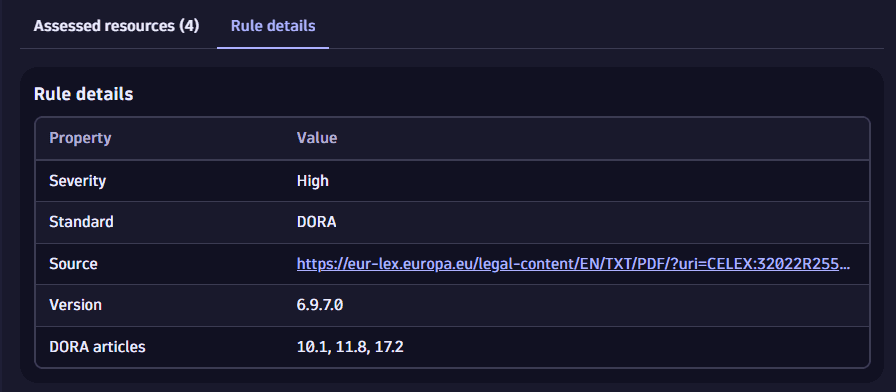 Insights about the rule
Insights about resources
On the Assessed resources tab, you can examine the resources that must comply to the rule. This can help you identify the resources affected by a compliance violation or by security relevant misconfiguration.
Assessed resources with Not relevant status are filtered out by default.
You can
-
View the system on which the rule applies together with all the system resources
-
Use the filter bar to filter for resources that
- Require your attention (
Failed) - Are compliant (
Passed) - Can't be automatically assessed (
Manual) - Don't meet a specific criteria for the rule assessment (
Not relevant)
- Require your attention (
-
Use the search bar to search for a specific resource (full or partial match)
-
Hover over the system chart bar to see the compliance status of the system resources
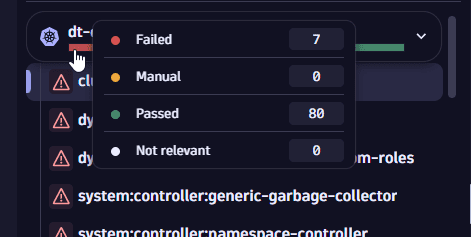 compliance node status
 -
Identify the resource type and last assessment date in Rule assessment > Resource
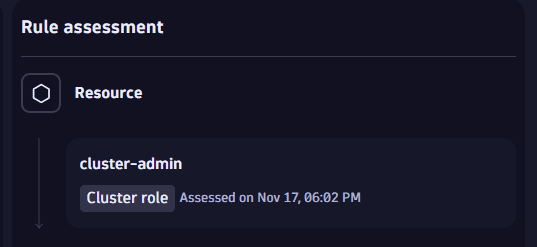 resource type
Insights about configuration
On the Assessed resources tab, go to Rule assessment > Relevant configuration properties for information about resource configuration.
This can help you identify the current misconfiguration for a selected resource that is contributing to a rule violation.
-
Example: A
Failedrule1.2.19 Ensure that the --audit-log-maxsize argument is set to 100 or as appropriatereports that a node on the control plane doesn't have--audit-log-maxsizeconfigured. This means that, in case security investigation would be needed, it's not guaranteed that there will be enough logs to carry out investigation due to this misconfiguration.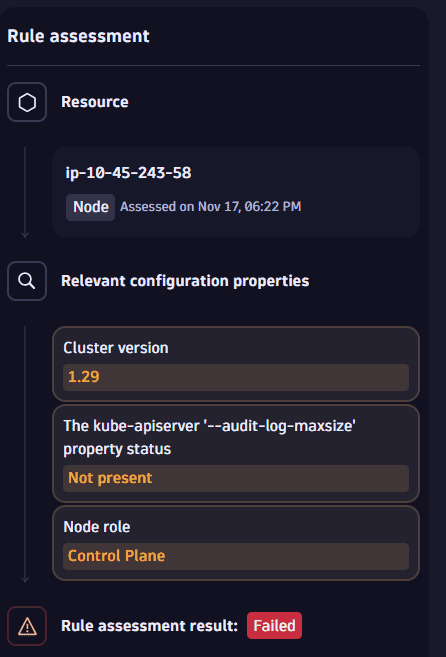 rule example 1
For Manual rules, where automatic assessment isn't possible, hints are provided about what information is needed to complete the assessment.
For details about manual rules, see Results.
-
Example: A
ManualruleThe Kubernetes kubelet staticPodPath must not enable static podsreports that Dynatrace can't check configuration because Kubernetes Node Configuration Collector is missing.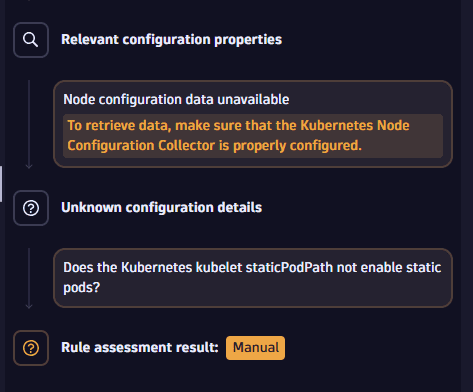 ncc missing example
Explain assessment
To use this generative AI feature, make sure:
- Dynatrace Intelligence generative AI is enabled for your environment. See Enable Dynatrace Intelligence generative AI.
- You have permission to use it. See User permissions.
Dynatrace Intelligence generative AI can provide contextual, plain-language explanations of rule assessments to accelerate understanding and remediation.
To access the functionality
- In
 Security Posture Management, on the Assessment results page, select a rule.
 - On the Assessed resources tab, select Explain assessment.
When selected, Dynatrace Intelligence generative AI analyzes the technical details of a rule assessment and generates a structured summary that may include:
- What the assessment means: Explains the compliance rule (for example, CIS Kubernetes Benchmark requirements) and its purpose in securing environments.
- Why it matters: Highlights severity levels and priority, and describes potential implications such as misconfigurations leading to unauthorized access, privilege escalation, or cluster compromise.
- How to remediate: Where applicable, recommends remediation steps such as updating file permissions, applying configuration fixes, restarting services, or enabling continuous monitoring across clusters and cloud accounts.
The structure and depth of generative AI's explanation may vary depending on the rule type and available context. While Dynatrace Intelligence generative AI aims to provide detailed insights, not all assessments will include every element listed above.
Dynatrace Intelligence generative AI explanations are tailored to the nature of each rule assessment, providing relevant, actionable insights that accelerate triage and support informed decision-making, even for users without deep security expertise.
Findings
Preview
On the Findings tab, selecting a finding opens a detail panel on the right. Unlike the Assessment results side window—which shows rule-level aggregates across all resources—this panel is scoped to a single resource assessed against a single rule.
Compliance finding details
The top of the panel shows
- The finding title (rule name)
- The result status (
Failed,Manual, orPassed) - The severity level
- The compliance standard and version the finding belongs to (for example,
CIS Elastic Kubernetes Service (EKS) - v1.8.0)
Affected resource
The Affected resource section shows the specific resource that was assessed:
- The resource type (for example,
Deployment) - The resource name
- Tags applied to the resource, such as Kubernetes labels
From this section, you can
- Select Show properties to view all properties of the affected resource.
- Select View topology to open Smartscape and explore where the affected resource sits in your environment topology.
Evidence
The Evidence section shows the configuration details that contributed to the finding, such as deployment type, Kubernetes version, and environment-variable configuration properties. This information identifies the exact misconfiguration that triggered the finding.
Explain finding
To use this generative AI feature, make sure that:
- Dynatrace Intelligence generative AI is enabled for your environment. For more information, see Enable Dynatrace Intelligence generative AI.
- You have sufficient permissions to use it. For more information, see User permissions.
Select Explain finding to get a plain-language explanation of the compliance finding from Dynatrace Intelligence generative AI.
The explanation can include
- What the compliance rule means and why it matters
- Why the resource was assessed with the given status
- Recommended remediation steps where applicable