Upgrade Assistant overview
- Latest Dynatrace
- App
- 4-min read
- Published Nov 12, 2026
With Upgrade Assistant, track the progress of your environment's upgrade from Dynatrace Classic to Latest Dynatrace. Upgrade Assistant lists the upgrade items that apply to your environment, shows which ones still need action, and links each item to the guidance for that area.
Prerequisites
Upgrade Assistant isn't installed by default. In Dynatrace, search for Upgrade Assistant. If it isn't installed yet, select Request install.
Upgrade Assistant requests its permissions on first launch. The following table describes the required permissions.
Get started
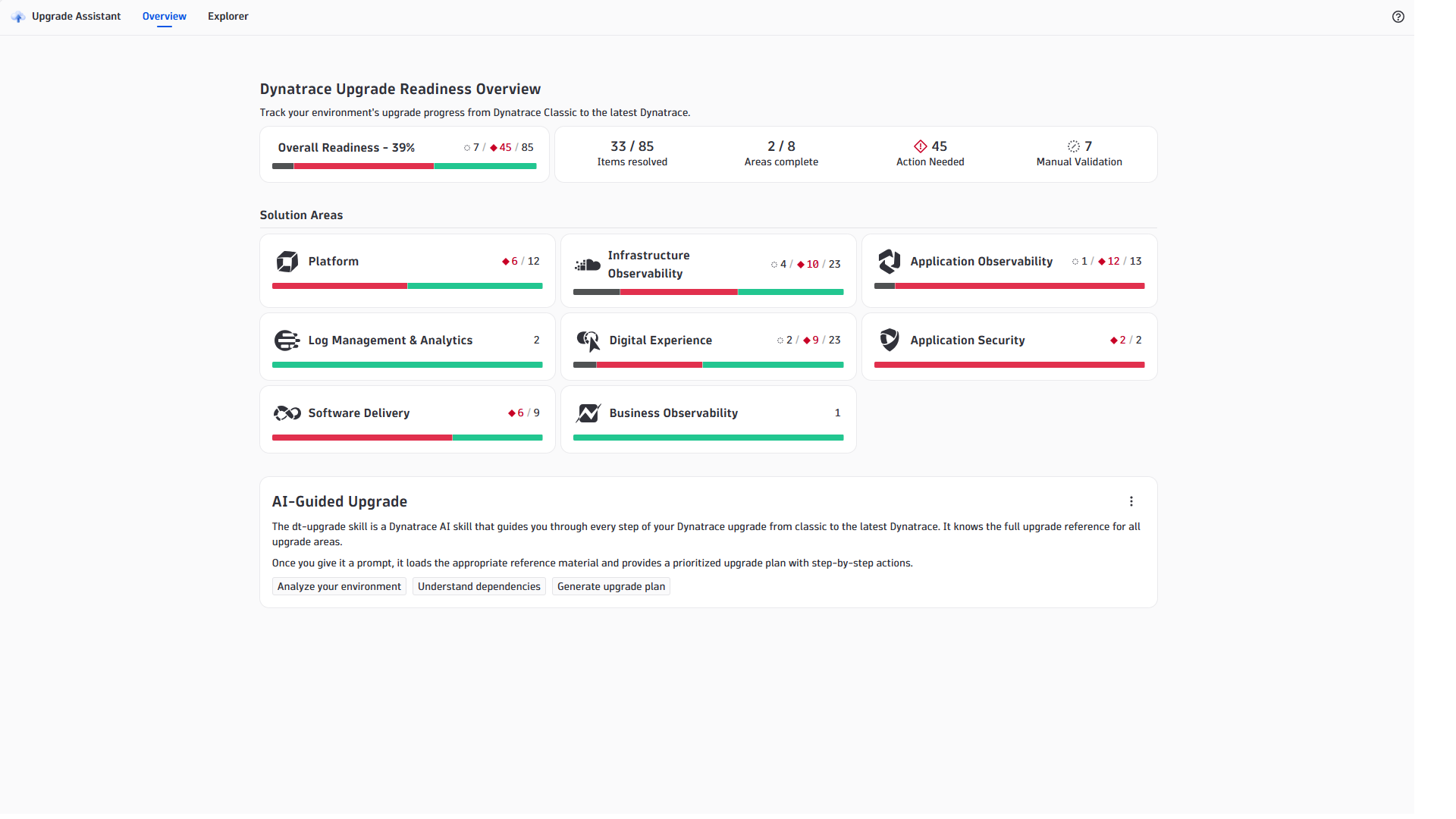
When you open Upgrade Assistant, it checks your environment and fills the Overview page with your readiness status. Start there: it shows, per solution area, which checks pass and which need action, so you can see where the work is before you change anything.
To assess your readiness and work through the upgrade items:
- Open Upgrade Assistant.
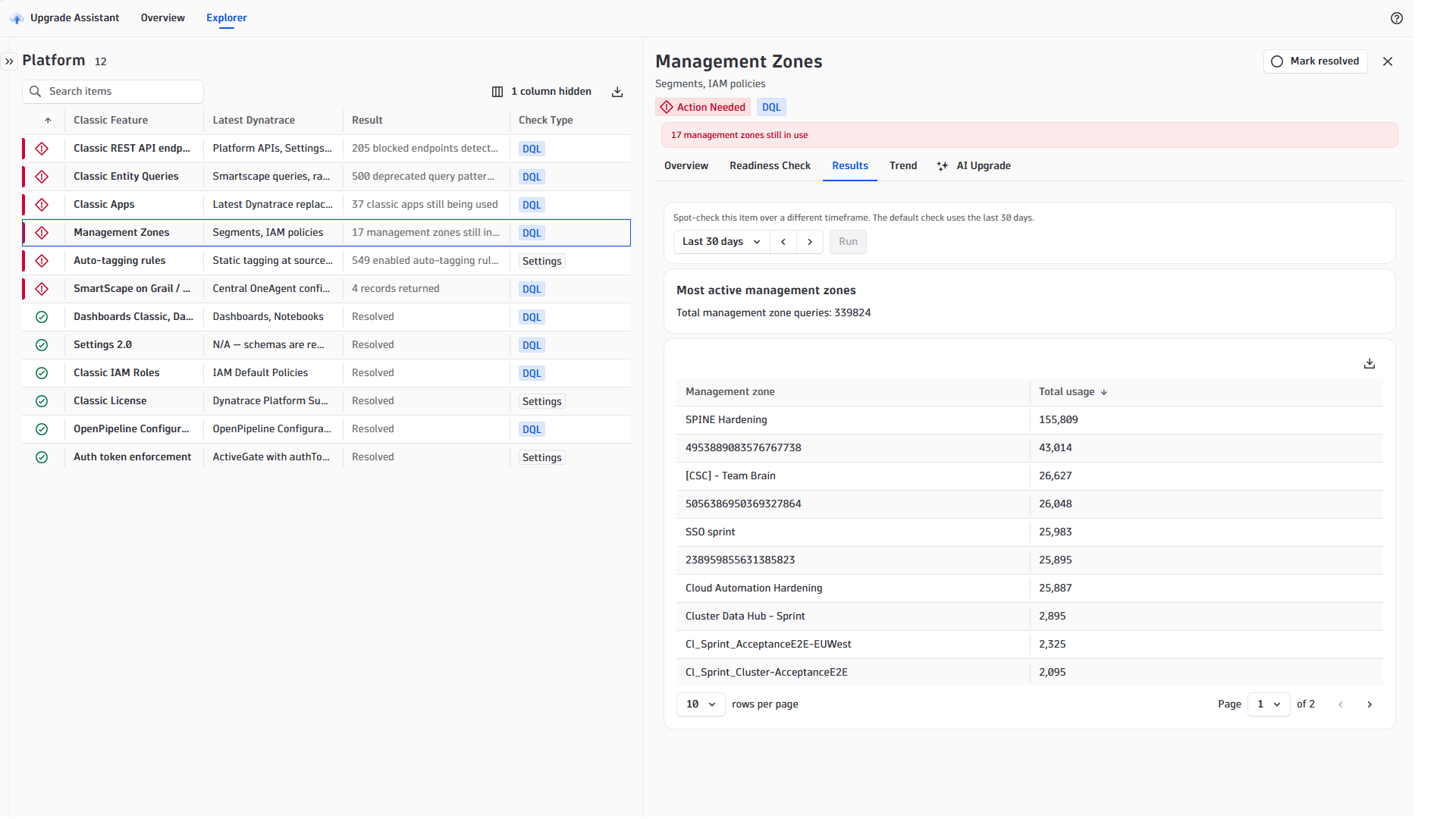
- On the Overview page, check your readiness status per solution area. Settings-based checks run automatically: green means the check passed successfully, and red means action is needed.
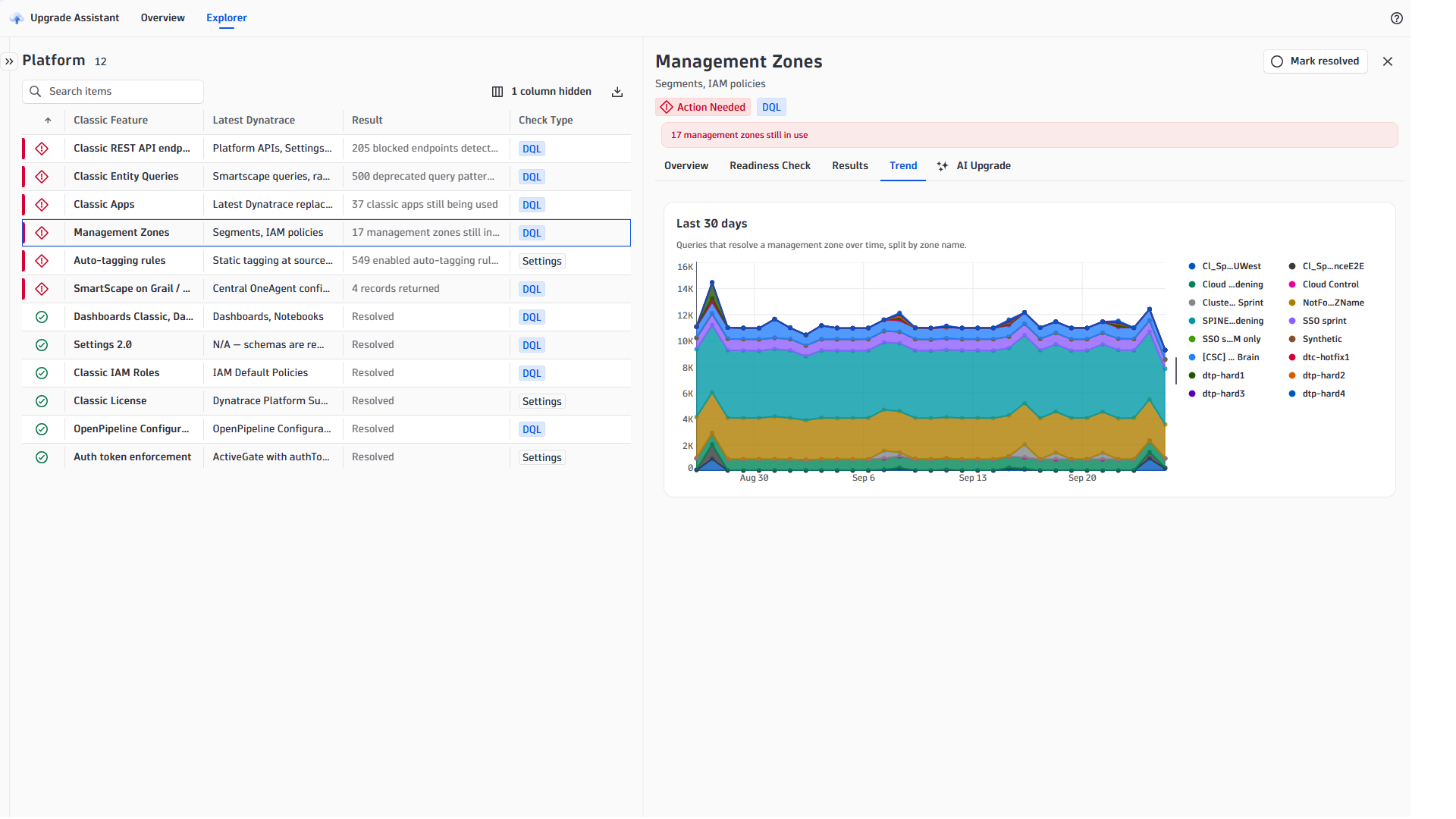
- Select a solution area to see all its upgrade items. Readiness checks run automatically; trend data is available for selected items, and the time range varies by item.
- Work through the items, starting with those marked as Action needed.
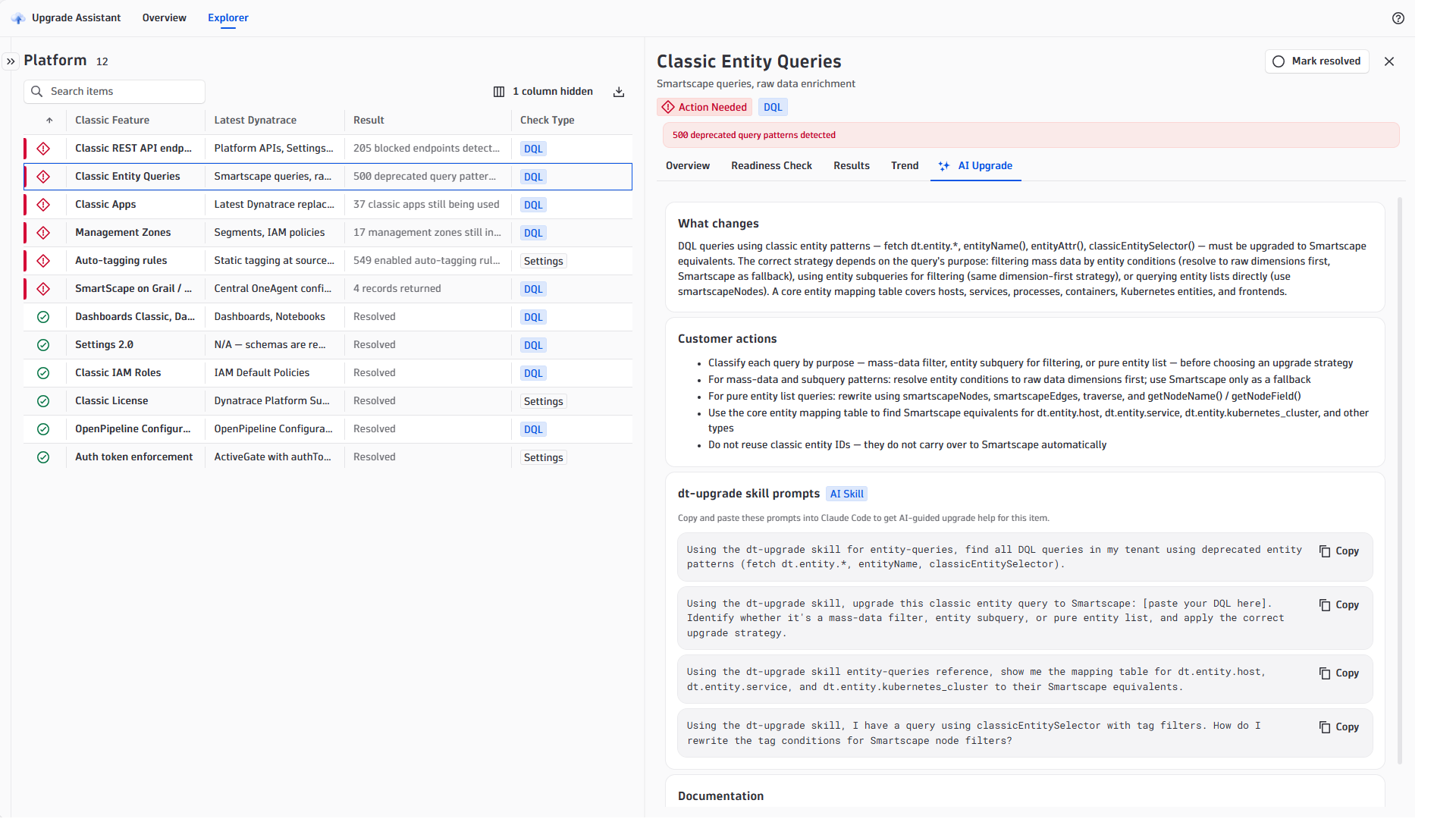
- Go to the item's AI Upgrade tab
- Copy the AI skill prompt and paste it into your coding agent to get detailed upgrade support, such as step-by-step guidance, concrete examples for reconfigurations, or a detailed assessment of the specific classic capability. For more information, see Upgrade to Latest Dynatrace with AI.
- Mark items as resolved once your team has completed the required actions. The Resolved state is saved per environment and is visible to all users of the app.
- In the Explorer tab, select to rerun the checks and update the resolved states. Return after each remediation sprint. Successful readiness results are cached in your browser session for up to 30 minutes, so reloading the app doesn't necessarily refresh all data from your live environment.
Explorer
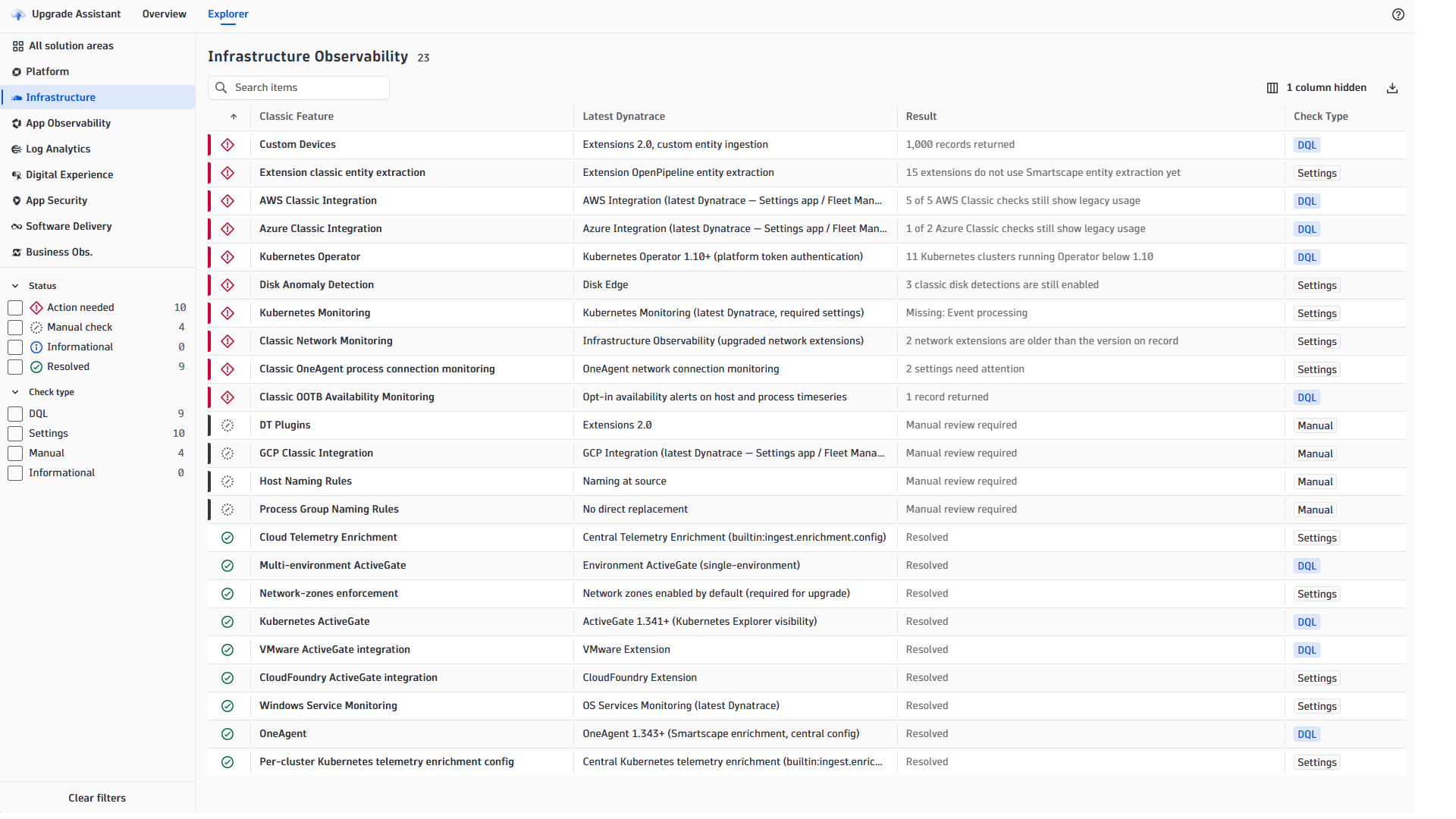
Select the Explorer to get a detailed breakdown of the status of each item, per solution area.
In All solution areas, select a solution area to show its upgrade items.
The solution areas are:
- Platform
- Infrastructure
- App Observability
- Log Analytics
- Digital Experience
- App Security
- Software delivery
- Business obs.
In Status, select the status of the upgrade items you want to see.
The filter options are:
- Action needed
- Manual checks
- Informational
- Resolved
You can also filter using the Check type.
The filter options are:
- DQL
- Settings
- Manual
- Informational
Detail view
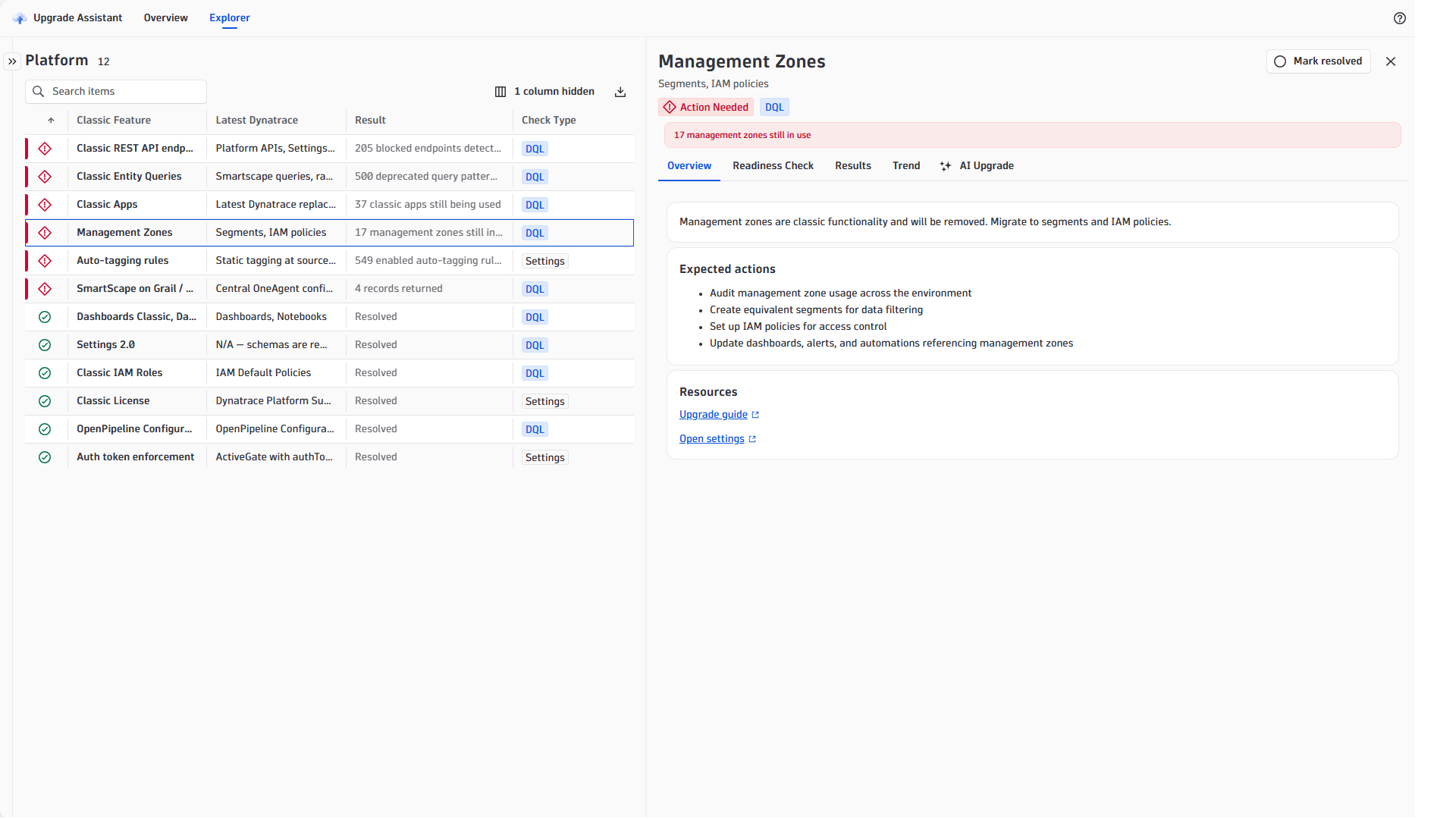
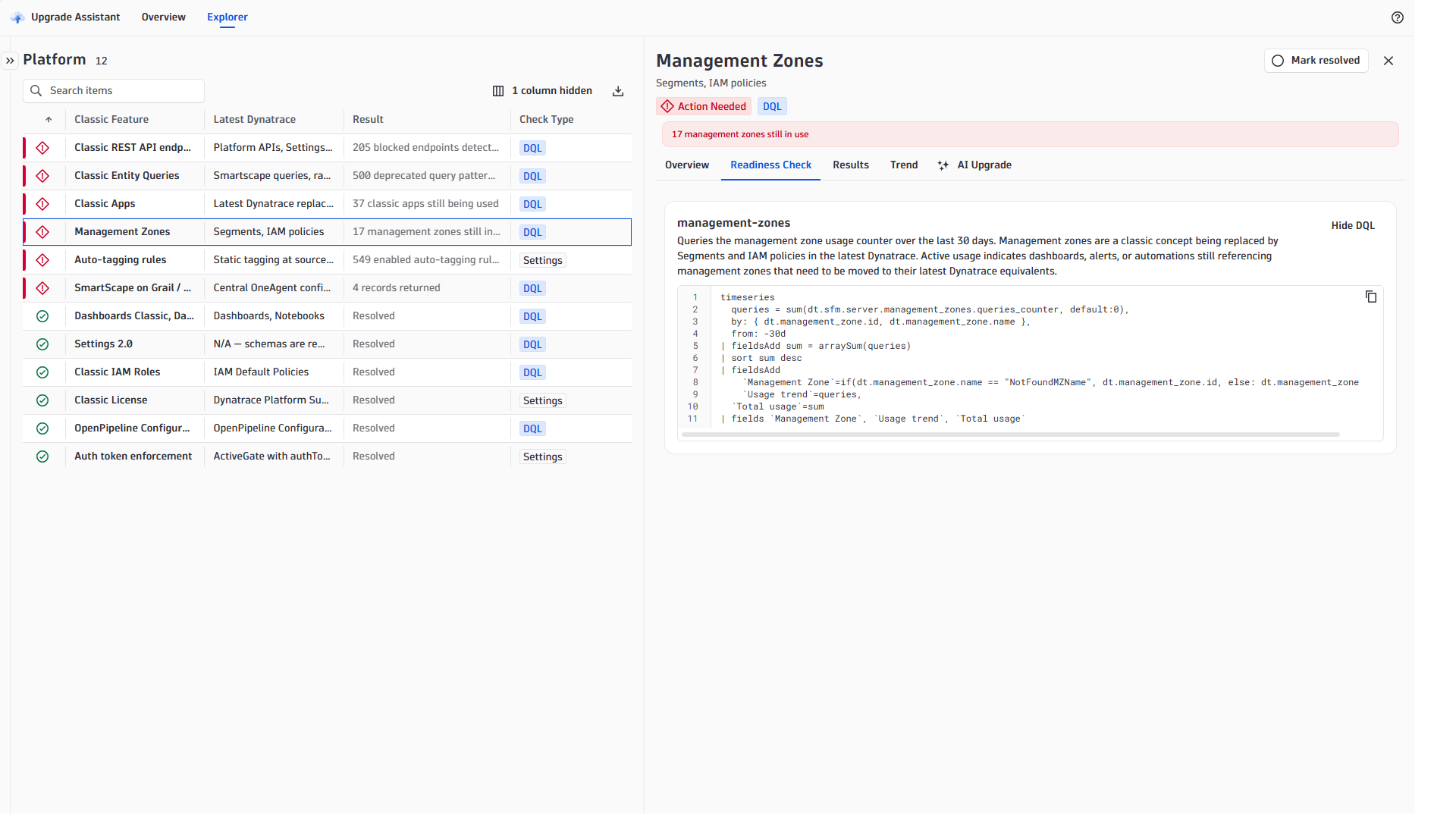
Select an item in the list to see its details. The detail view shows the actions you need to take, with links to the related upgrade guides and settings. It also shows the DQL queries that check the item's readiness, a numeric breakdown of the current status, and any usage trends available for the item.
AI Upgrade
Some items have an AI Upgrade tab that summarizes the steps the AI assistant plans and runs.
Copy the prompt from the selected item and paste it into your coding agent to get upgrade guidance. For more information, see Upgrade to Latest Dynatrace with AI.
Concepts
Use cases
Use Upgrade Assistant to:
-
Upgrade readiness assessment: Identify which Dynatrace Classic features your environment actively uses before committing to an upgrade date, using DQL-based checks and usage trends where available.
-
Cross-team coordination: Assign solution areas to the teams responsible and let each team work through its own area independently, with resolved state shared across all users in the environment.
-
Progress tracking: Mark items resolved as your team completes them and report readiness status to stakeholders with a live per-area view of what remains open.
-
Effort prioritization: Focus remediation where it matters most, using the usage trend data to see which classic features are still actively loaded and which have already dropped to zero.
-
AI-guided remediation: Copy the ready-made skill prompt from any item's AI Upgrade tab and paste it into your coding agent for step-by-step guided remediation in your environment.
-
Configuration validation: After you turn on a required setting, return to the app to confirm that the readiness check passes.
 Upgrade Assistant