Upgrade from Classic problem notifications to personal email notifications
- Latest Dynatrace
- Upgrade guide
- 2-min read
- Published Aug 31, 2026
This guide shows you how to replace the Dynatrace Classic process for email problem notifications, an alerting profile and problem notification pair that requires administrator rights, with direct, personal email subscription in  Problems, which any user can set up without administrator rights.
Why upgrade?
In Dynatrace Classic, you can't subscribe to receive email notifications for a detected problem without having administrator rights. A new entry for an alerting profile, as well as a dedicated email, Problem integration has to be created.
In Latest Dynatrace, a dedicated user flow lets you subscribe to newly reported problems directly within Problems using your email address.
The advantages of using email notifications via Problems are that:
-
It doesn't interfere with any other user in the same environment.
-
It doesn't require any admin permissions.
-
It doesn't add any additional license costs.
This user flow sends a predefined email template to your account email address.
The email text is in Markdown format and is also available under the problem Grail record field (event.description).
What will you do?
In this guide, you'll replace the Classic alerting profile and email notification pair with direct email subscription in the Problems.
How to upgrade to email notifications
List current notifications and alerts
Audit your existing alerting profile and problem notification pairs to decide what to delete, consolidate, and upgrade. Don't upgrade the notifications and alerts one-to-one.
Before creating anything, list your existing pairs and answer three questions:
- Which notifications are disabled, or enabled but have not fired recently? Delete them; don't upgrade them.
- Which notifications point at the same destination, the same Slack channel, the same webhook URL, the same ServiceNow instance? Collect those into one workflow.
- Which alerting profiles are attached to more than one notification? Each becomes one workflow with one action per destination.
You can read the classic configuration through the Settings API schemas builtin:problem.notifications, builtin:alerting.profile, and builtin:management-zones.
You now have a categorized inventory of your existing alerting profile and problem notification pairs: which to delete, which to consolidate into fewer workflows, and which to upgrade. Keep this list at hand for the following steps.
Turn on email notification
To turn on email notification for filters applied in Problems
- Go to Problems.
- From Default filter, in the Category section, select Error.
- Select the icon to save the selection.
- Select the icon.
- Select Turn on notifications.
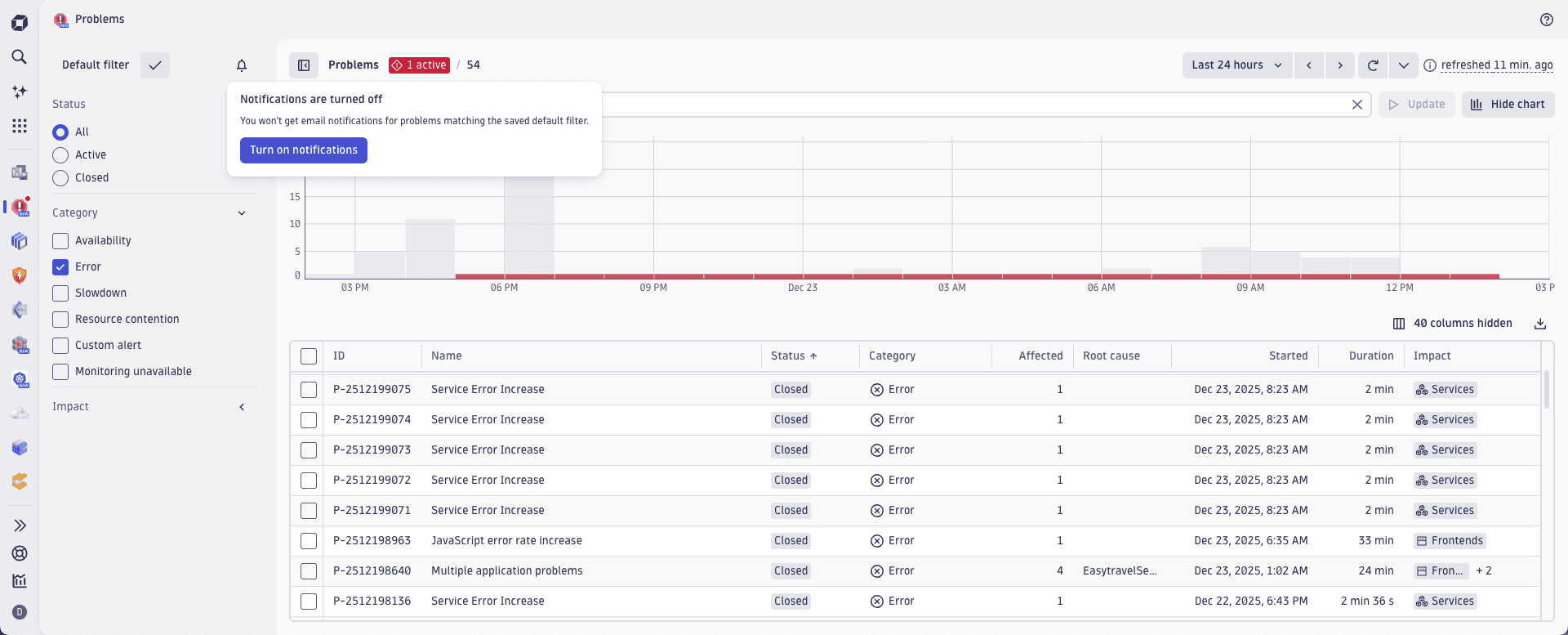
For more information, see the Problems Visually notify and automate step.
Optional To turn off email notifications, select > Turn off notifications.
You now have email notifications enabled for the selected filter. When a problem matching the filter is detected, Dynatrace sends a summary to your account email address. No admin rights or additional configuration are required.