Create a new AWS connection
- Latest Dynatrace
- How-to guide
- 1-min read
- Published Aug 19, 2025
- Preview
If this is the first time you are creating a connection, first see the onboarding instructions and its prerequisites.
If you have an existing classic connection and want to start the new cloud platform monitoring, delete the classic connection first and only then create a new cloud connection for the respective AWS Account.
To set up a new AWS connection
-
Go to
 Clouds.
 -
In the upper-right corner of the page, select Create connection > AWS New.
Note: If it's your first cloud connection, you can also select Create connection > AWS New on the Overview page.
-
Follow the steps outlined in New connection to start the onboarding process for a new AWS cloud connection.
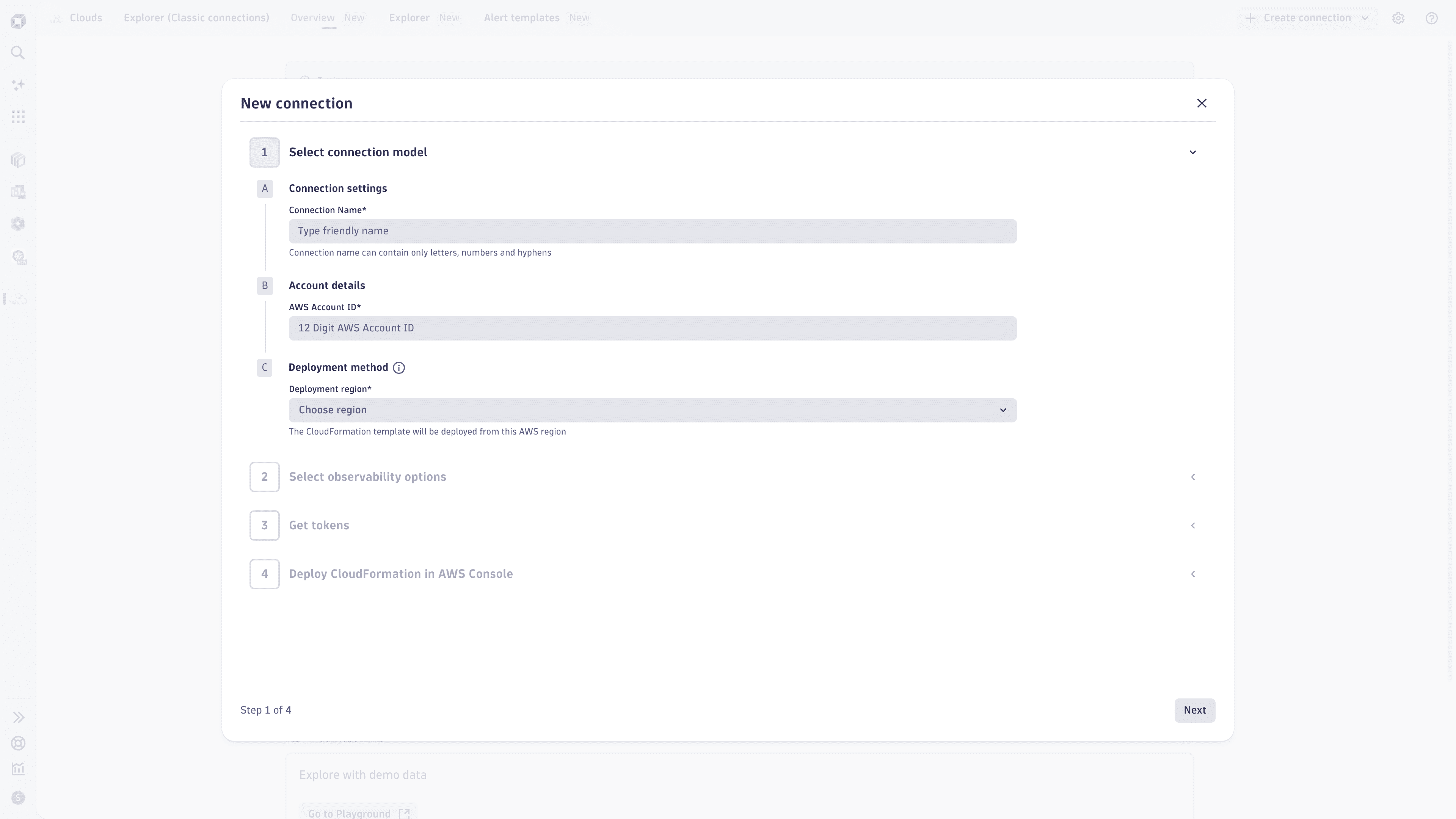 Clouds app | Create a new AWS connection
 -
After you’ve successfully deployed the CloudFormation stack within AWS, it takes up to 15 minutes to see your cloud inventory on the new Explorer New tab view within
Clouds. -
Optional Check the state and health of your cloud connection in
 Settings.
- Go to Settings > Collect and capture > Cloud and virtualization.
- Select AWS.
- Go to
-
Optional Set up and configure health alerts and warning signals in
Settings.-
Go to
Settings > Analyze and alert > Alerts > Cloud services. -
Select New Alerts.
-
Follow the steps in the wizard to create health alerts for your newly onboarded AWS Account.
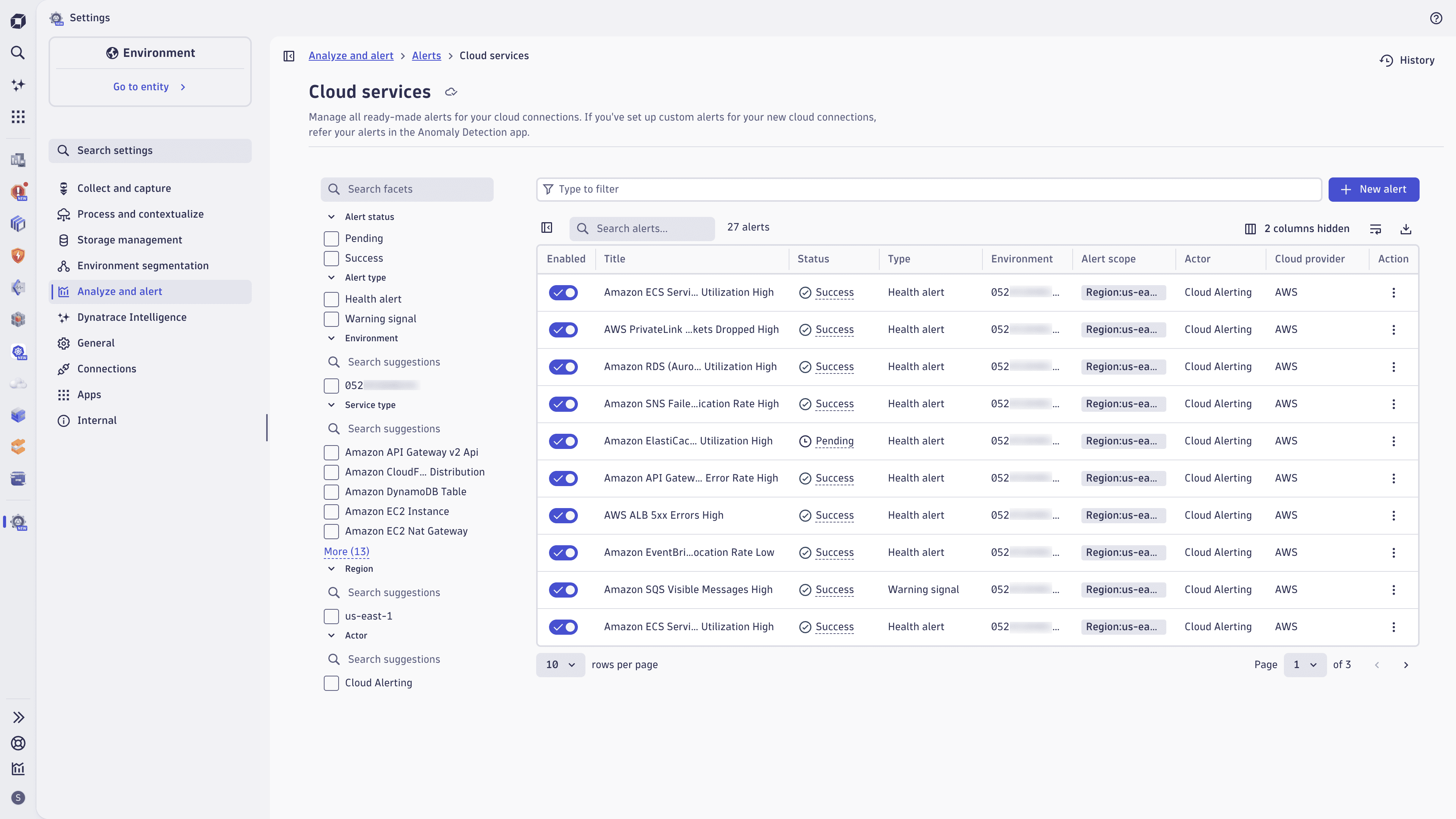
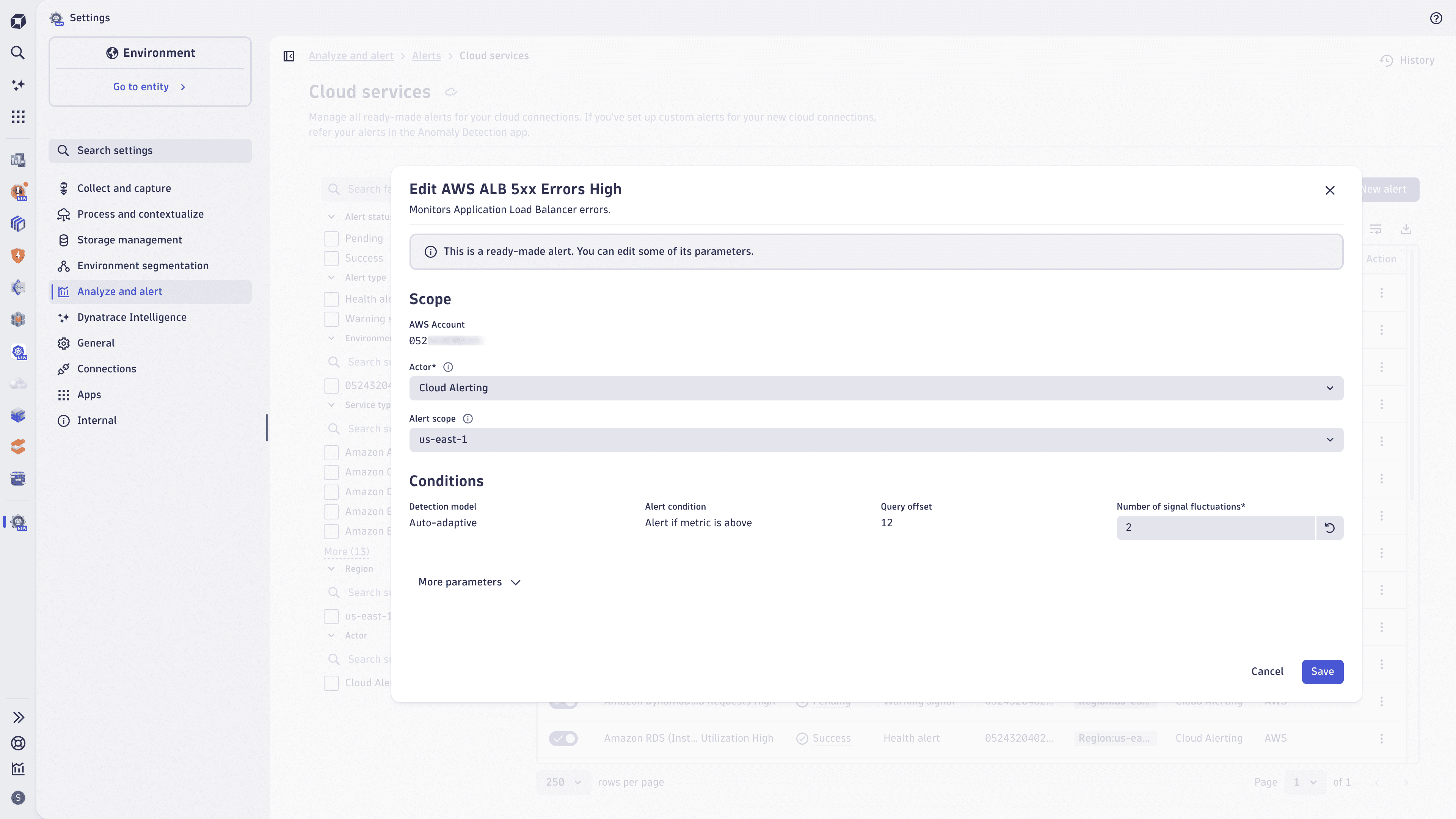 1 of 2Settings | Ready-made alerts
 -