Activate Session Replay for web frontends and configure cost and traffic control
- Latest Dynatrace
- How-to guide
- 3-min read
This page describes the prerequisites and the procedure for activating Session Replay.
Prerequisites
Ensure that your system meets the following requirements:
- OneAgent version 1.241+ on all monitored hosts in your environment
- Real User Monitoring enabled for your application
- An active Dynatrace Digital Experience Monitoring license
- Firewalls configured to allow application/octet-stream content coming from your application (some beacons sent by Session Replay are binary)
- The web UI URL has a trusted certificate
- Frontend Agents - Improved server node balancing turned on in Settings > Preferences > OneAgent features
Activate Session Replay and adjust number of recorded sessions
When Session Replay is activated, all user sessions analyzed with RUM are also recorded with Session Replay by default. Around 100 kB of data is generated for every minute of a session, and up to 1 MB or more is consumed by a fully recorded session. Because compression takes place on the client side, bandwidth consumption matches storage consumption—it's particularly advantageous for users on mobile devices with limited internet data or bandwidth.
Session volume depends on a variety of factors, including the application size, session duration, and user interactivity with the application. You can limit the number of sessions recorded with Session Replay to reduce the volume of generated data.
To activate Session Replay and adjust the number of recorded sessions
-
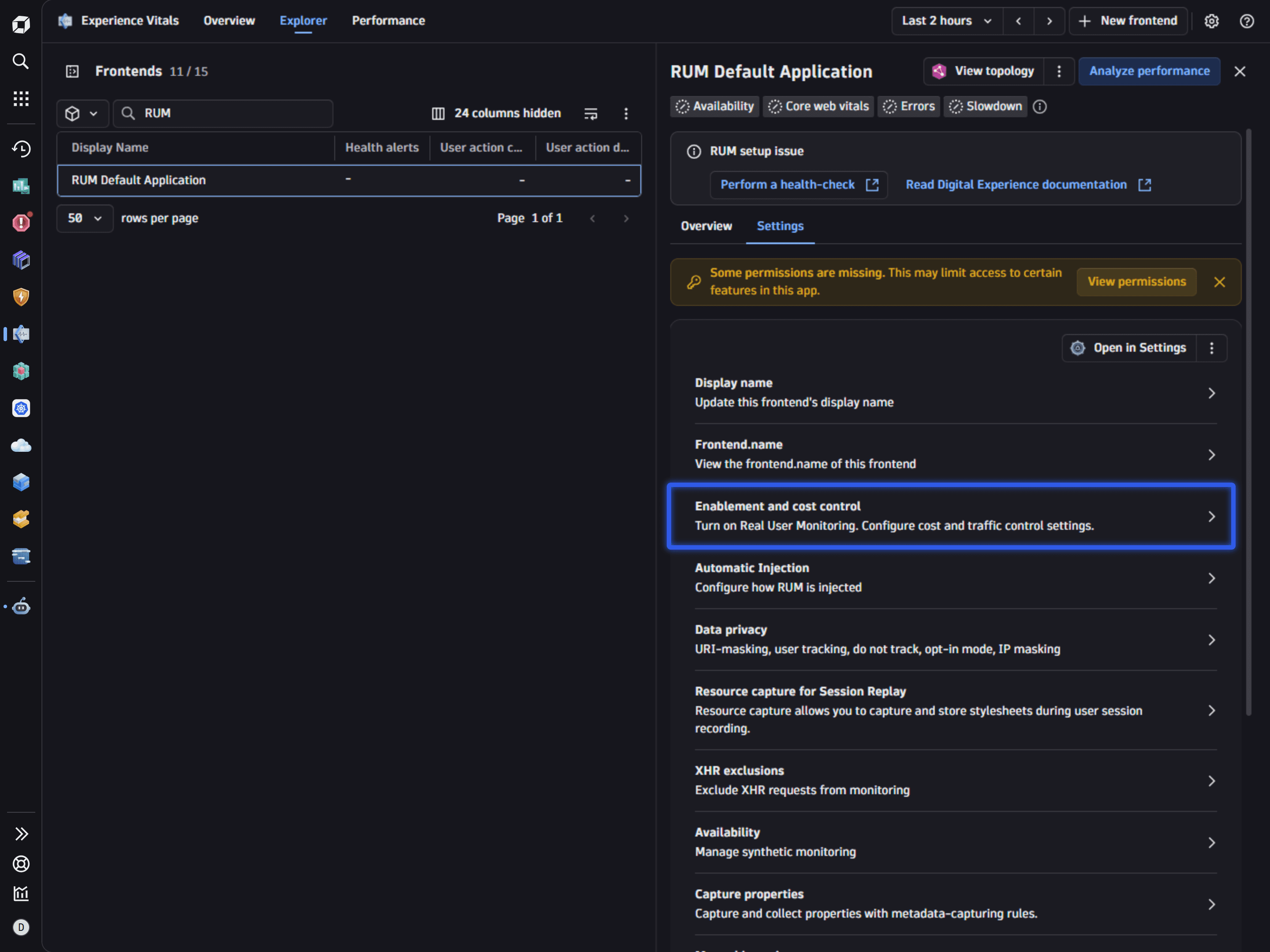
Go to
 Experience Vitals > Overview.
 -
Select Web to view all web frontends.
-
Select the frontend you want to configure.
-
Switch to the Settings tab.
-
In Enablement and cost control:
- Turn on Real User Monitoring Classic or both Real User Monitoring Classic and Real User Monitoring.
- Select Session Replay Classic or both Session Replay Classic and Session Replay, and then enter the new Capture rate of session replay value:
100percent to capture all sessions.- Lower than
100percent to capture randomly selected sessions.
- After you've activated Session Replay and adjusted the number of recorded sessions, it's time to configure Session Replay. Additionally, you can calculate the number of recorded sessions, which is described in the next section.
- No additional configuration is required to set up agentless monitoring.
Calculate number of recorded sessions
To determine the actual percentage of user sessions recorded with Session Replay, you should consider the cost and traffic control for RUM setting defined for your application, which is the overall percentage of user sessions to be analyzed with RUM.
Formula
Use the following formula to calculate the actual percentage of sessions recorded with Session Replay:
Actual percentage of sessions recorded with Session Replay = cost and traffic control for RUM × cost and traffic control for Session Replay.
Calculation example
| Parameter | Value |
|---|---|
Cost and traffic control for RUM | 50% |
Cost and traffic control for Session Replay | 20% |
Actual percentage of sessions recorded with Session Replay | 50% × 20% = 10% |
Total number of sessions | 2500 |
Number of sessions analyzed with RUM | 2500 × 50% = 1250 |
Number of sessions recorded with Session Replay | 2500 × 10% = 250 |
Sessions that span multiple applications
When you have several applications and a user switches from one application to another, Dynatrace creates only one user session, with all the user activity recorded in the context of that session. Such a session is attributed to all the applications that the user visited.
To determine whether a multi-application session should be recorded with Session Replay, Dynatrace uses the cost and traffic control configuration of the application that the user entered first.
For example, suppose that the cost and traffic for Session Replay is set to 1% for application A and 100% for application B. When the user first enters application A and then switches to application B, Dynatrace uses the 1% value to determine whether to record the session with Session Replay. This might result in a smaller or greater percentage of sessions recorded with Session Replay compared to the configured values of the cost and traffic control setting.
If a session spans an application for which Session Replay is deactivated, Session Replay data is missing for the part of the session recorded in that application.