Salesforce Insights extension
- Latest Dynatrace
- Extension
- 15-min read
Salesforce Insights enables Salesforce administrators and IT operation teams to monitor their Salesforce environment.
Get started
Learn how to set up Salesforce Insights and find out what kind of data it can capture.
Make sure to meet the following requirements to use the extension.
Salesforce account
The Salesforce extension can capture four types of Salesforce data. Select each configuration for more details.
-
The Event Streaming configuration allows you to monitor the usage of your Salesforce CRM account.
-
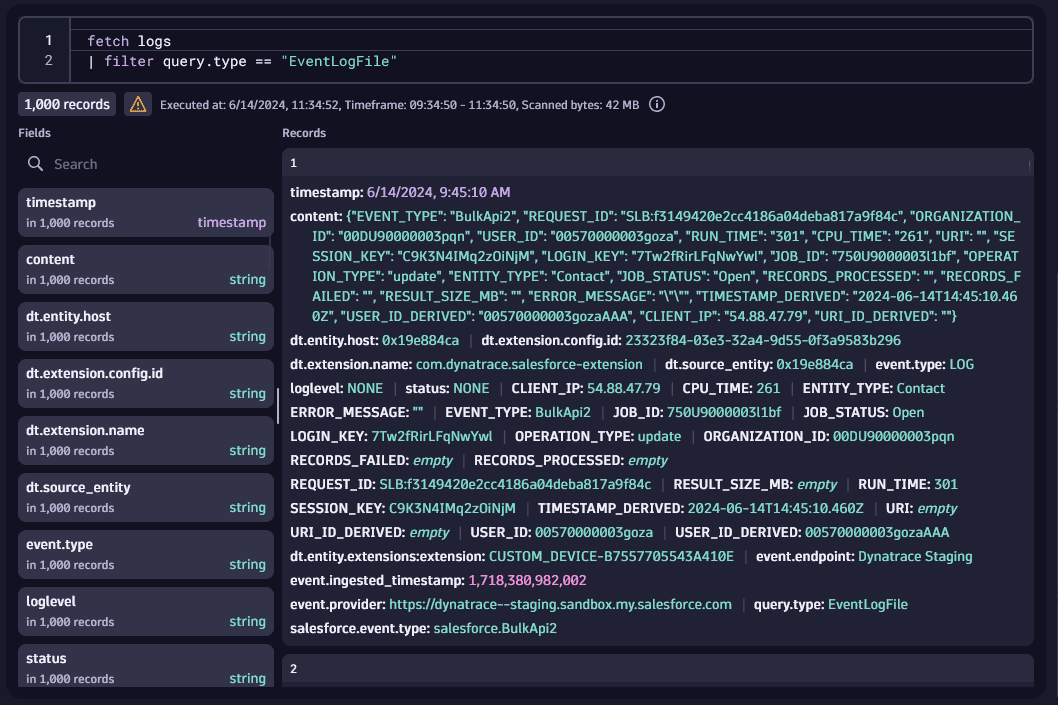
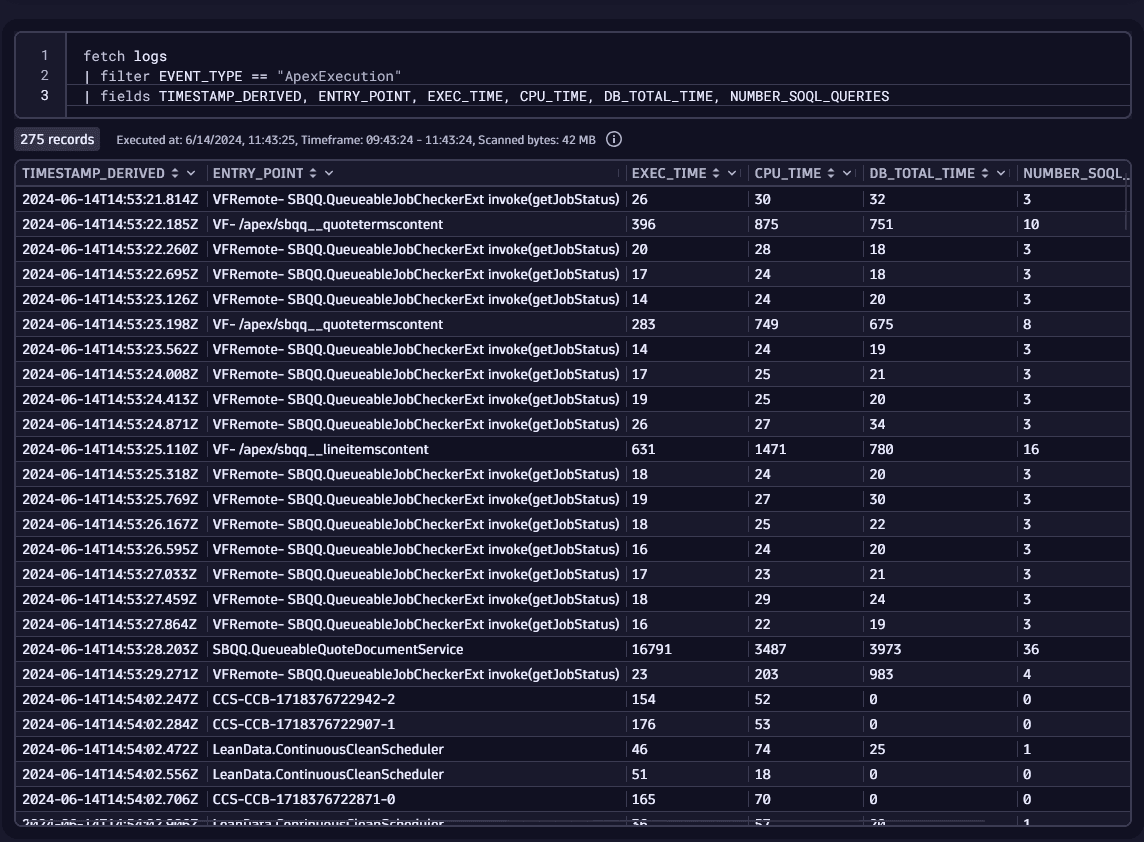
The EventLogFile configuration allows you to ingest log files from Salesforce into Dynatrace.
-
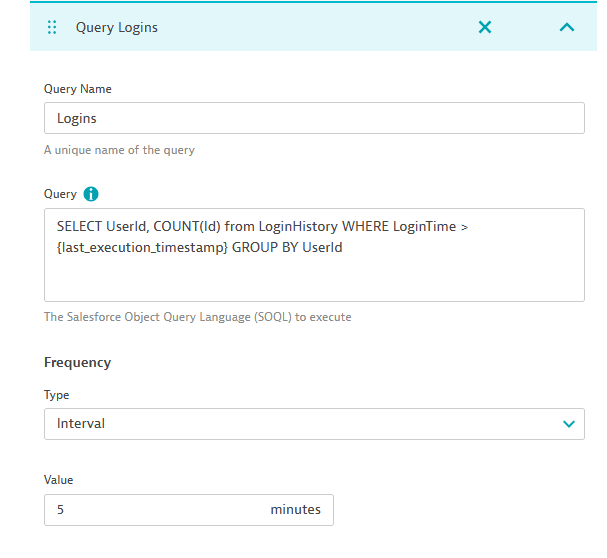
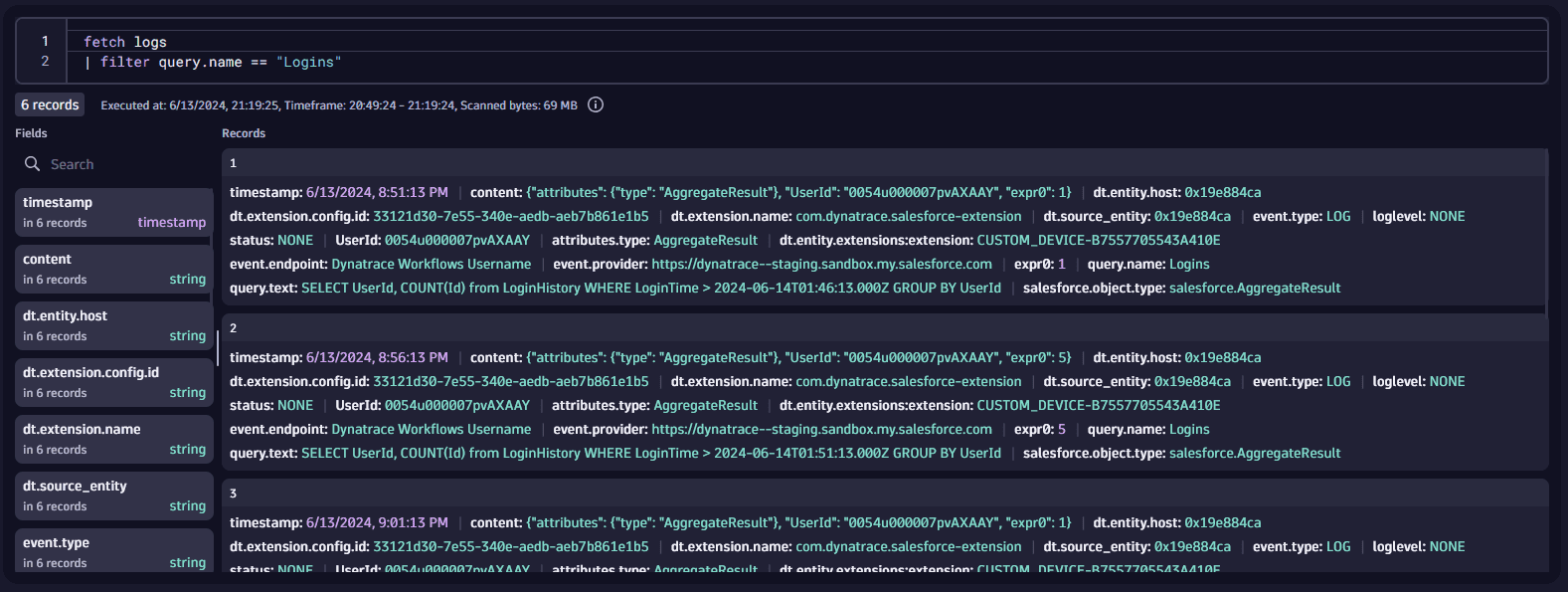
The API Queries configuration allows you to ingest Salesforce Object Query Language (SOQL) data into Dynatrace. The data is ingested into Dynatrace as log events or Business Events.
-
The Platform Events configuration allows you to subscribe to custom Salesforce Platform Events and ingest them as Business Events into Dynatrace.
Authentication
Choose one of the three authentication methods that best suits your needs.
Both OAuth methods use a Salesforce external client app. External client apps replace the legacy connected apps.
In this mode the extension uses the OAuth 2.0 Client Credentials Flow of an external client app.
Dynatrace will ask for
- The Consumer Key of the external client app.
- The Consumer Secret of the external client app.
Create the external client app
In Salesforce Lightning
- Under Setup > App Manager, select New External Client App.
- Enter a Name and set Distribution State to Local.
- Under API (Enable OAuth Settings), check Enable OAuth.
- If the Callback URL is not used, you can put in
https://localhost. - In Selected OAuth Scopes, add these scopes:
- Manage user data via APIs (API)
- Perform requests at any time (refresh_token, offline_access)
- Under the authentication flow settings, check Enable Client Credentials Flow.
- Leave all other settings as default and select Save.
Configure policies
- On the external client app page, under Policies, select Edit.
- Under App Policies > Profiles, add a profile that has the permissions listed in Approved users.
- Under OAuth Policies > Permitted Users, select Admin approved users are pre-authorized.
- Under OAuth Flows and External Client App Enhancements, enable Client Credentials Flow and set Run As to a username that belongs to the profile selected above.
- Select Save.
Approved users
Profiles need the following permissions for event streaming:
- General user permissions
View Real-Time Event Monitoring Data
- Administrative permissions
Customize ApplicationView All Data
To check the needed permissions documentation, see how to Enable Access to Real-Time Event Monitoring.
Get the client credentials
Under Setup > App Manager (External Client App Managers), select the external client app, then go to Settings > OAuth Settings to find the Consumer Key and Consumer Secret.
Activation and setup
To enable the Salesforce extension, you must have an Environment ActiveGate.
- Find the extension in Hub and activate it.
- Select Add monitoring configuration on the Configuration page.
- Select an ActiveGate group.
- One of these servers will need to access the salesforce API, which is publicly available.
- The login URLs are:
https://login.salesforce.comorhttps://test.salesforce.com - The Pub/Sub endpoints are:
api.pubsub.salesforce.com:7443orapi.deu.pubsub.salesforce.com:7443 - A proxy can be configured later if necessary.
The parameters for the monitoring configuration
| Parameter | Description |
|---|---|
Endpoint name | Choose a helpful name to identify the endpoint |
Login URL | Choose from Production or Sandbox |
Pub/Sub URL | Choose from Global Endpoint or Europe (Frankfurt) Endpoint |
Reporting Mode | Business Events, Logs, OpenKit (RUM) |
Custom Application ID | The Dynatrace Custom Application ID for the app you created before(only needed if a managed environment is used and OpenKit is used as reporting mode.) |
Authentication type | Choose from Client Credentials Flow, JWT Bearer Flow, or username and password. See Authentication. |
Events filtering | Choose which real-time events you'd like to send to Dynatrace, by default all are enabled |
Usernames Blocklist | Optional list of Usernames to ignore; use this to block automation/API users from reporting |
Proxy | Optional proxy; in case the ActiveGate cannot connect to the Salesforce URLs |
If you use OpenKit, we recommend starting with the Custom Application setup.
Details
Salesforce data ingest
Choose one of the four data ingest methods based on your monitoring needs.
Capture real-time events from Salesforce and send them as Business Events to Dynatrace.
RUM ingest should only be used on Managed Environments.
- Enable Real-time event Streaming.
- In Setup > Event Manager, enable Streaming Data for the events you want to capture.
- Obtain the credentials needed for the extension to connect to Salesforce.
Enable use cases such as:
- Track Session Hijack, Credential Stuffing and Anomaly Events
- Track important permission sets and changes
- What are the slowest Lightning or Classic pages response times?
- What files are being uploaded, downloaded, and by which user?
- What are the most used reports, who is running them, what queries are being used?
- What are the top API Queries being made?
- What browsers are users using?
- Where is Salesforce being accessed from?
- How many users are using the platform currently, what is the user experience?
The extension uses the Salesforce Pub/Sub API to list for Event Streaming Events. These events are captured and sent as Business events, or in case of OpenKit as User Actions, with all their respective properties sent as Action Properties.
For a detailed description of every event and their properties, see the Salesforce documentation.
Currently captured events
| Events | Description |
|---|---|
Track anomalies in how users make API calls. | |
Track user API queries in your organization. | |
Track when a user downloads the results of a Bulk API request. | |
Track when a Concurrent Long Running Apex error has occurred. | |
Track when a user successfully logs in to Salesforce during an identified credential stuffing attack. | |
Track file activity. For example, track when a user downloads or previews a file. | |
Track when a user creates, accesses, updates, or deletes a record in Salesforce Lightning. | |
Track when a user accesses data with list views. | |
Track when an admin logs into your organization as another user. | |
Track when a user logs in to your organization. | |
Track when a user logs out in the Salesforce UI. | |
Track when users are assigned the Modify All Data or View All Data permission through a permission set. | |
Track anomalies in how users run or export reports. | |
Track when a user accesses or exports data with reports. | |
Track when an unauthorized user gains ownership of a Salesforce user’s session with a stolen session identifier. | |
Track when a user creates, accesses, updates, or deletes a record in Salesforce Classic. |
The extension is limited to events that Salesforce produces as Real-Time Events.
Choose your reporting mode for Event Streaming data:
Business Events
For business events, all data is ingested using the business events API.
It can be queried using DQL:
fetch bizevents| filter event.type == "salesforce.ApiEventStream"
Visualization of a query result
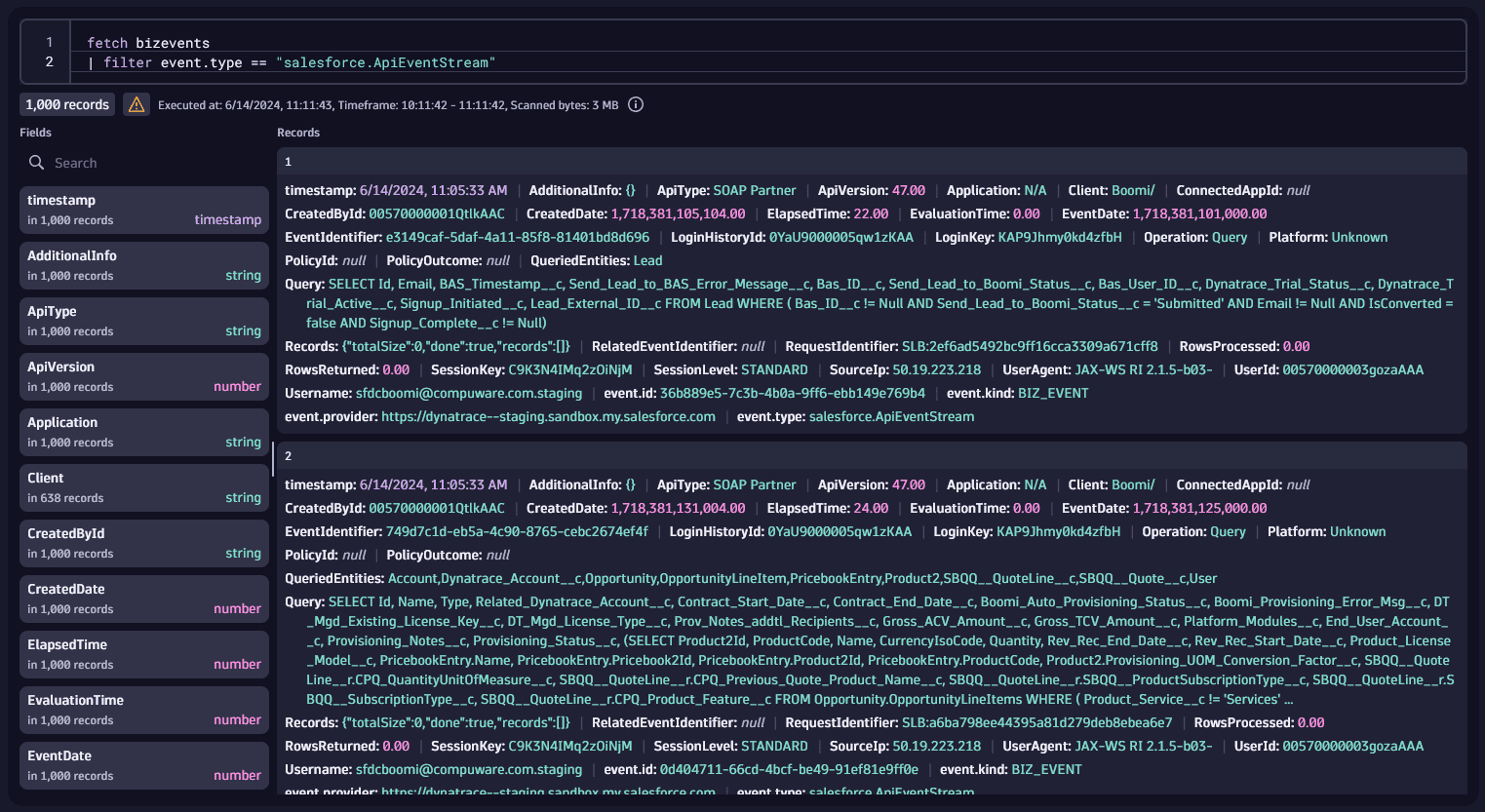
Each of the events of type salesforce.NameOfTheEvent will have all properties documented by Salesforce.
For instance, see the properties for an ApiEventStream.
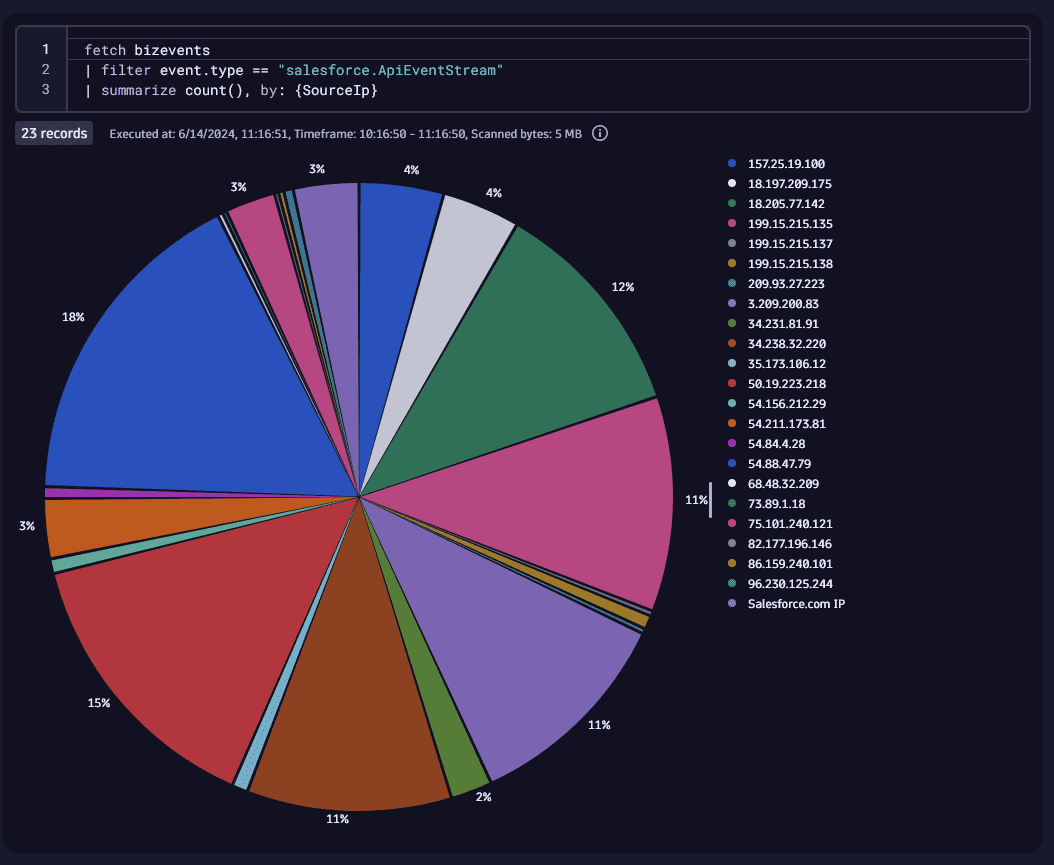
So we can create visualizations using all of these properties.
fetch bizevents| filter event.type == "salesforce.ApiEventStream"| summarize count(), by: {SourceIp}
Visualization of a query result
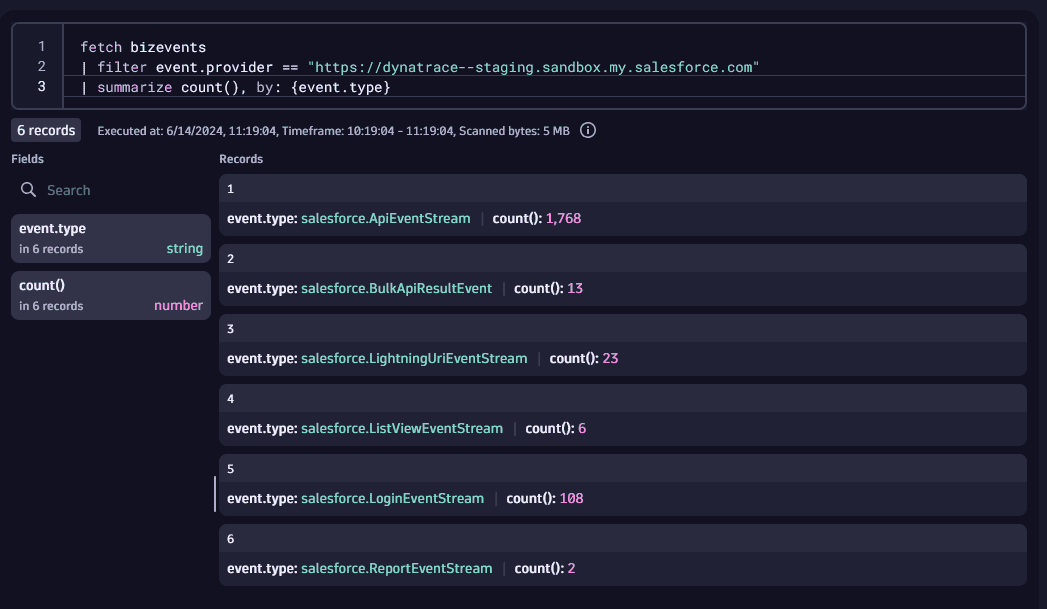
You can get a list of all event types with DQL:
fetch bizevents| filter event.provider == "https://dynatrace--staging.sandbox.my.salesforce.com"| summarize count(), by: {event.type}
Visualization of a query result
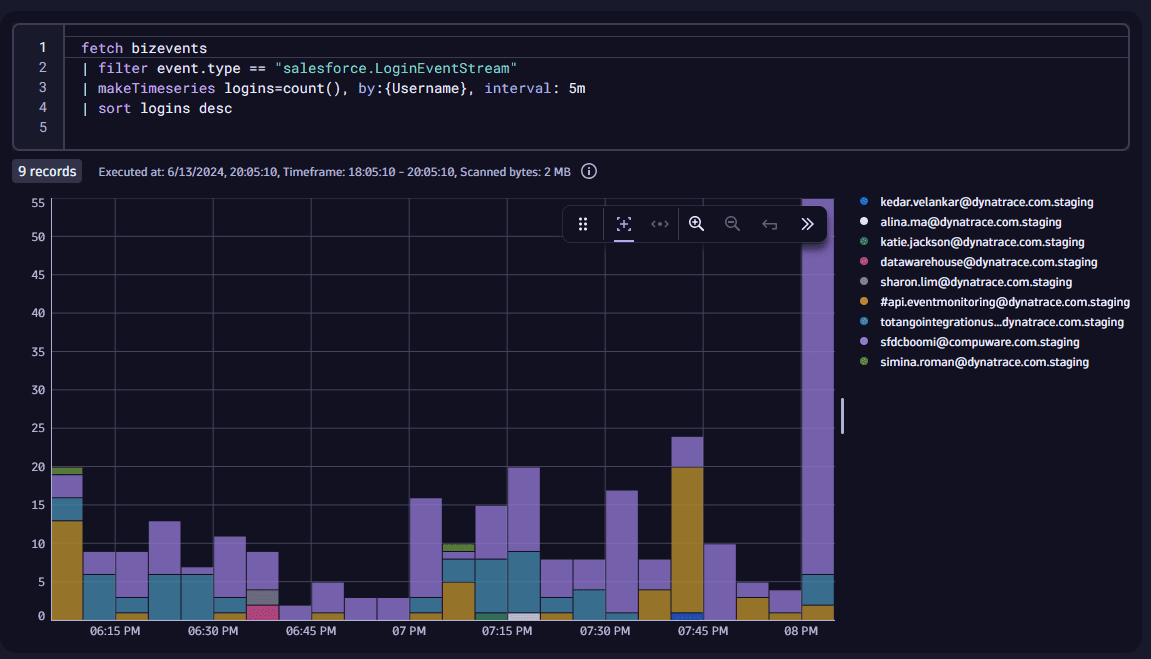
Example: Get logins by user overtime
fetch bizevents| filter event.type == "salesforce.LoginEventStream"| makeTimeseries logins=count(), by:{Username}, interval: 5m| sort logins desc
Visualization of a query result
OpenKit
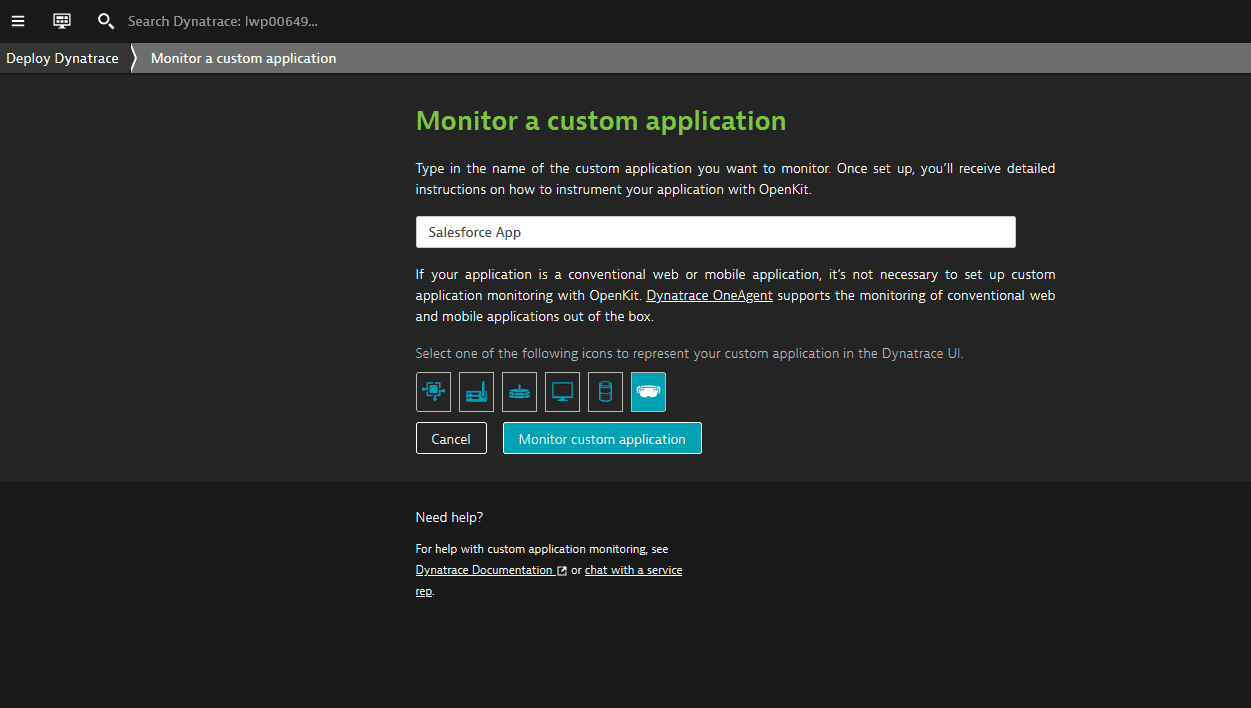
To create a custom application to receive the data:
- In Hub, see Digital Experience Monitoring section. Then, select Generic front end > Set up.
- Create your custom application—name it and choose an icon.
- Select Monitor custom application.
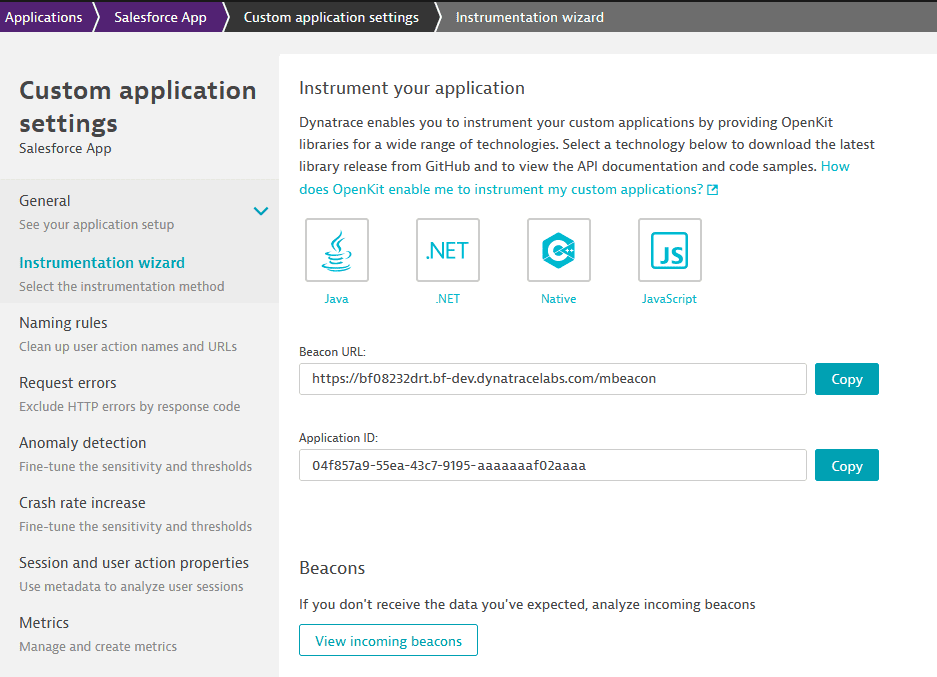
- In the Custom application settings, go to Instrumentation wizard and save the
Application IDfor later.
- Now you can enable the extension. For details, go back to the #enable-extension section.
The data is sent to the Frontend application that you created, so you can access:
- Sessions Details
- The individual properties, by selecting User Action > Perform waterfall analysis
To use these properties in User Sessions Query Language:
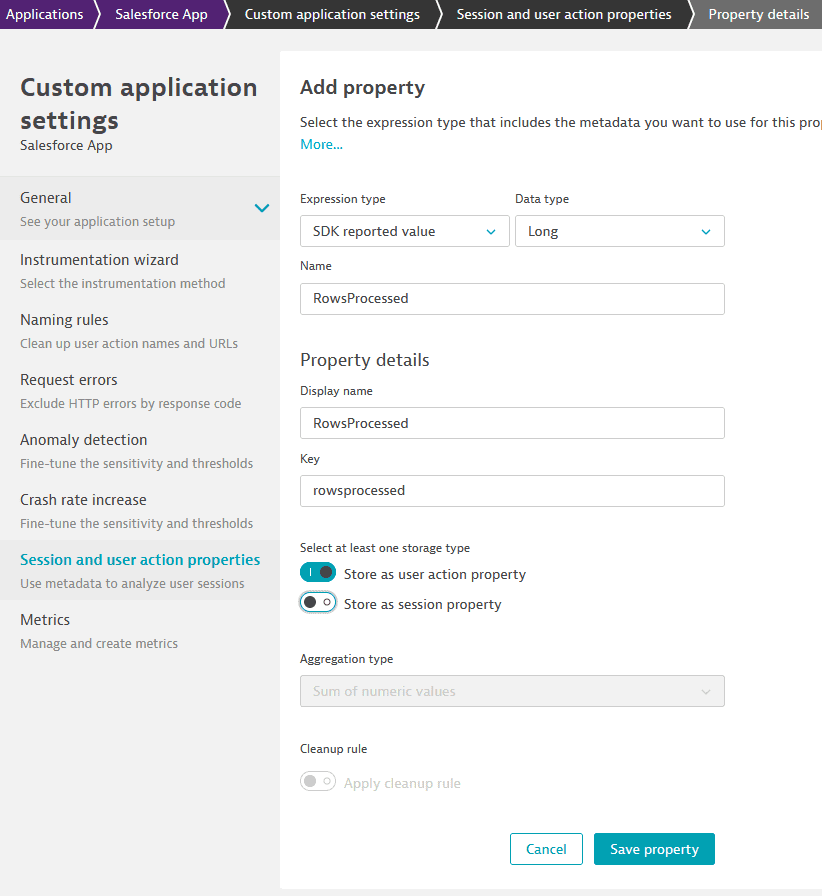
- In the application settings, go to Session and user action properties.
- Create a property. Note: the Name must match exactly the property name, see Salesforce events.
Example: Capture the rows number
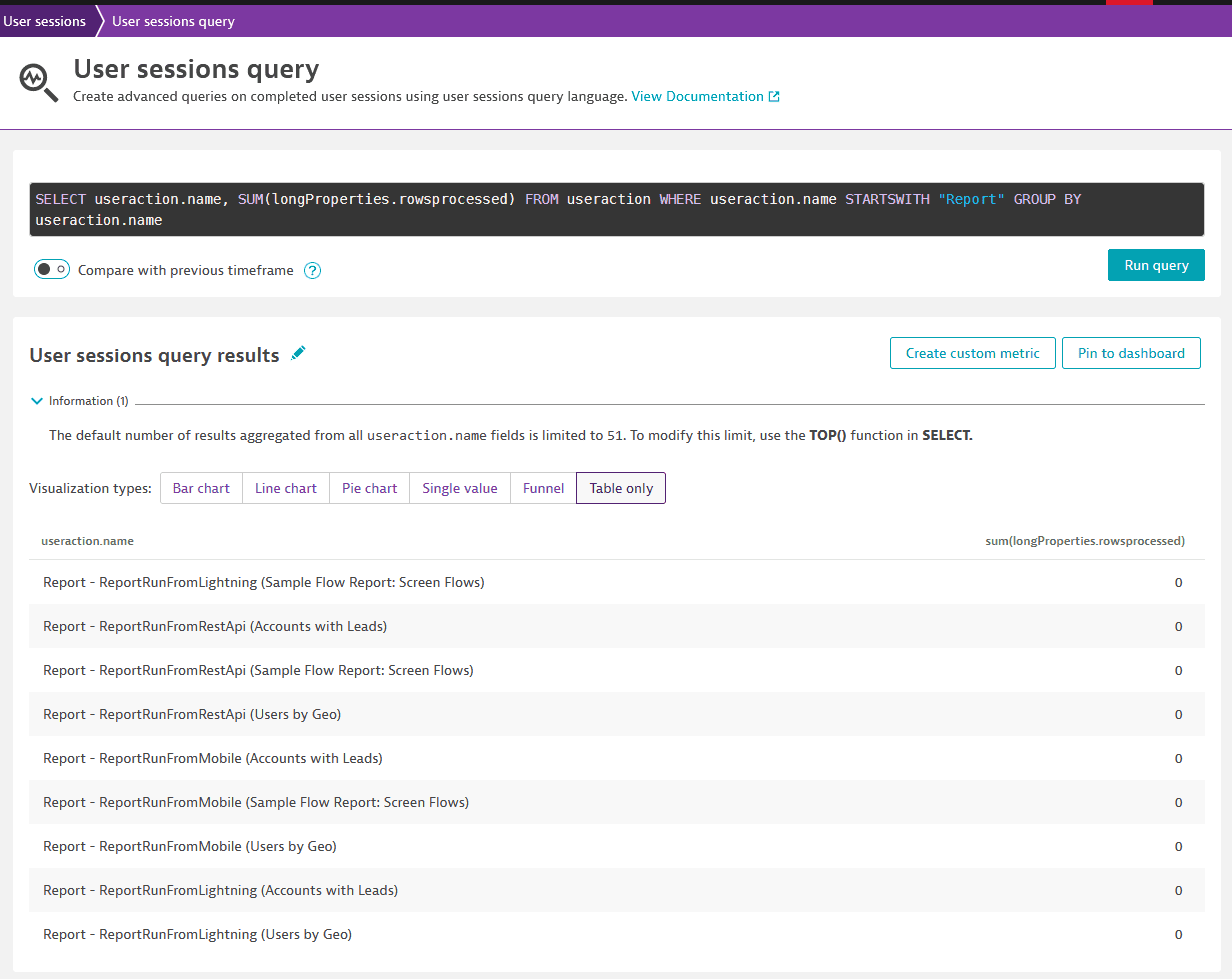
Querying the property:
SELECT useraction.name, SUM(longProperties.rowsprocessed) FROM useraction WHERE useraction.name STARTSWITH "Report" GROUP BY useraction.name
Extend the retention period for Salesforce Insights data
By default, your ingested data is stored for 30 days. You can adjust the retention time by creating a custom bucket.
To create a custom bucket for a Salesforce event
-
In Dynatrace, go to
 Settings > Business Observability > Bucket assignment.
 -
On the Business event bucket assignment page, select Add rule and name your rule.
-
In the Bucket field, choose your retention period.
-
Add a Matcher to your rule by typing or pasting your matcher-specific DQL query. Events that match your rule will be assigned to your selected bucket. If no rules match, events will be assigned to the default bucket. To assign all your Salesforce events to your bucket, you need to use the matcher containing the
matchesValuefunction and your Salesforce URL, as in the example below.matchesValue(event.provider, "https://environment.my.salesforce.com") -
Select Save changes.
FAQ
How do I access error logs?
In Dynatrace, go to the extension page and select Status for each monitoring configuration.
How do I get detailed logs?
Detailed logs can be obtained by using ActiveGate diagnostics.