Add annotations to a dashboard
- Latest Dynatrace
- How-to guide
- 10-min read
Annotations allow you to indicate significant events such as deployments, incidents, or configuration changes on a timeseries chart. This helps you correlate metric behavior with what happened in your environment when troubleshooting or reviewing trends.
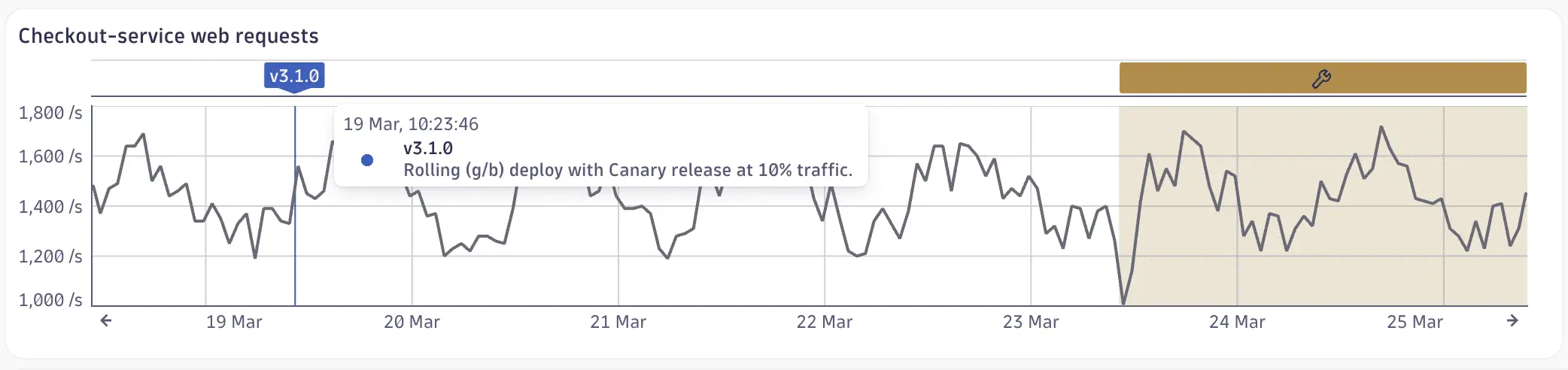
Annotations are data-driven, so they stay current as your data changes. You can create an annotation in three ways:
- DQL query that returns timestamps and associated metadata.
- Code snippet that returns annotation records.
- Alert selection that uses one or more anomaly detection configurations to generate the query automatically.
When you apply an annotation to a chart, the result is mapped to the chart so you can see what happened and when it happened.
List annotations
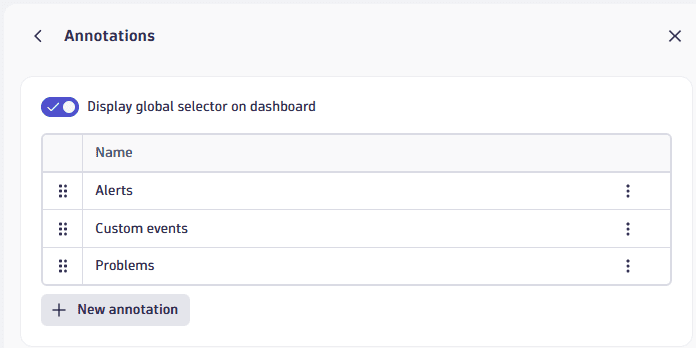
The Annotations panel is your starting point for all annotations-related activities on a dashboard.
To list all annotations
-
Select (Settings) in the upper-right corner of a dashboard to display the dashboard Settings panel.
-
Select Annotations.
Optional: Turn on Display global selector on dashboard to display the Annotations controls on your dashboard.
Use annotations
When annotations are defined for your dashboard, you can use them to look for correlations between metric behavior on your timeseries charts and significant events such as deployments, incidents, or configuration changes.
Use the global selector for interactive control of your annotations. This can be useful when, for example, you're troubleshooting an issue and you want to see only problem annotations on your charts. In this case, you could select your problems annotation and hide your other annotations.
Global selector
The global selector is a section of controls labeled Annotations that you can display in the upper-left corner of the dashboard, directly under the dashboard name. It's shown only when at least one annotation exists on the dashboard.
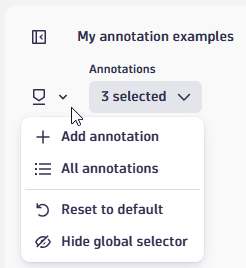
The global selector has two menus:
The menu gives you quick access to common annotation actions.
| Action | Description |
|---|---|
Add annotation | |
All annotations | Display the Annotations panel. |
Reset to default | Restore annotation settings to their defaults: all annotations applied to the tiles selected in the References setting. |
Hide global selector | Hide the Annotations section on your dashboard. To display the global selector again, turn on Display global selector on dashboard on the Annotations panel. |
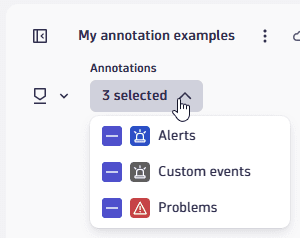
This menu shows you how many annotations are currently applied to the dashboard. Open the menu to see exactly which annotations are currently applied to your dashboard.
- When you define an annotation for a dashboard, you use the References setting to specify which tiles to apply the annotation to by default.
- When you select or clear annotations in the global selector, you temporarily override those defaults. This can be useful when, for example, you are troubleshooting an issue and you want to see only problem annotations on your charts, and hide any other annotations.
Annotation actions
An annotation indicator is displayed above the chart.
- An indicator can use color and an icon or emoji to express information visually.
- An indicator can display a number when more than one annotation occurs at the same time.
Hover over an indicator to display a tooltip with details such as name, date, time, and description.
Select an indicator to pin the tooltip open and access additional actions:
- Copy value copies the annotation name to your clipboard.
- Edit annotation opens the annotation in the edit panel.
- Edit alert opens the associated alert definition in the Edit alert window. Available only for annotations created from the Alert data source.
- View problem details opens the details of the underlying Davis problem. This action is available only when the query result for the entry includes an
event.kindfield that identifies a Davis problem (for example,DAVIS_PROBLEM) together with a matchingevent.id. Neither field needs to be mapped in Data mapping—Dynatrace reads them directly from the query result. See Example 4: Open problems.
This action menu is specific to annotation indicators. It's separate from the platform-wide Open with intents feature available on tiles and data points—annotations don't expose the full Open with dialog, only the fixed actions listed above.
To enable View problem details, make sure your query returns event.id and event.kind, for example:
fetch dt.davis.problems| fieldsevent.name,event.description,event.start,event.end = coalesce(event.end, now()),event.id,event.kind
Add an annotation
To add an annotation to a dashboard
-
Go to the Annotations panel.
-
Select Add annotation.
-
Define the annotation:
- Data: select the annotation type you want to create: DQL, Code, or Alert.
- Data mapping: map fields.
- Display settings: configure display settings/references.
See below for details on each part.
Data
In the Data section, choose whether to use DQL, code, or alerts for your annotation.
-
Enter a DQL query.
To get you started, select any of the buttons under the edit box (such as Open alerts) to automatically add example DQL here.
-
Select Run to fetch preview data.
-
If the query is valid and the returned results include at least one timestamp and one string field (for label or description), fields are automatically mapped and are populated in the Data mapping section.
-
If automatic data mapping fails, error and validation messages will guide you.
- If the query is not valid, you get error messages as for tiles or variables. Correct your query and retry.
- If the query result doesn't contain a timestamp, you get an error message in the Data mapping section. Select an appropriate field to map a timestamp to your annotation.
-
Use variables
You can use dashboard variables in an annotation's DQL or code query the same way you use them in tiles. Prepend the variable name with $, for example $Host.
Data mapping
The optional Data mapping section maps the annotation data, specifying what you want to see and where you want to see it.
This mapping is created automatically in the previous step (the Data section), but you can adjust it manually as needed.
| Field | Required? | Description | Preferred DQL field | Expected type |
|---|---|---|---|---|
| Required | The text shown on the chart (or the primary label for the annotation). |
|
|
| Optional | The text shown in the tooltip when hovering the annotation. |
|
|
| Required | The timestamp used for the annotation start/anchor. |
|
|
| Optional | An optional timestamp to create a time range (bar or area) instead of a single instant. |
|
|
The automatic mapping is based on the following steps:
- Normalization: The field type map normalizes unsupported types (
binary,geo_point,smartscape_id) toany, and assignsanywhen a field has multiple types across type mappings. - Preferred mapping: Check if the query result contains the exact preferred fields (
event.name,event.description,event.start,event.end) with matching types. Any match is used directly. - Fallback population: If the mapping is still incomplete after the preferred pass, it iterates over all fields in the query result and assigns the first unused field that fits the expected type:
- First unmatched
stringfield is mapped toname - First unmatched
timestampfield is mapped tostart - Second unmatched
stringfield is mapped todescription - Second unmatched
timestampfield is mapped toendFields already assigned in the preferred pass are skipped.
- First unmatched
Display settings
The Display settings section determines how the annotations appear on the chart.
-
References: choose which tiles on the dashboard should display this annotation.
- An asterisk (
*) displays the annotation on all tiles with a supported visualization type. - Annotations are shown only on tile types with a timeframe.
- An asterisk (
-
Pin indicator: when this is turned on, the line and areas in the chart itself (below the alert indicator) are shaded the same color as the indicator (from the Color settings).
-
Color: specifies the color of the indicator.
- To use a predefined color, switch to the Colors tab and select an Apdex or Loglevel color.
- To specify your own color, switch to the Custom tab, and then either enter the hex code for the color (for example,
13C937) or select the color block.
-
Icon: to display an icon or emoji on the indicator, turn on Icon, open the list under Icon, and select an icon or emoji.
Tile intents
Annotations referenced by a tile are included when you send that tile to another app through a tile intent (for example, Open with or Add to notebook). The receiving app gets its own copy of the tile's annotation definitions, not just a reference to them.
For example, sending an area chart tile with the Open problems annotation applied to it produces a tile payload similar to this. The annotations array is the part specific to annotations; the rest of the payload (visualization, dt.query, customLinkSettings, layout) describes the tile itself.
{"sourceApplication": "dynatrace.dashboards","settings": {"dt.timeframe": {"from": "now()-2h","to": "now()"},"dt.segments": []},"dt.timeframe": {"from": "now()-2h","to": "now()"},"title": "Average CPU usage across all hosts","visualization": "areaChart","visualizationSettings": {"chartSettings": {"legend": {"hidden": true}},"dataMapping": {"displayedFields": ["CPU usage"]},"coloring": {"colorRules": [{"field": "DT.name","comparator": "= *value*","value": "","type": "string","colorMode": "color-palette","colorPalette": "blue"}]},"autoSelectVisualization": false},"customLinkSettings": {"version": 1,"customLinks": [{"name": "Show hosts","icon": "HostsIcon","urlPattern": "/ui/apps/dynatrace.infraops/explorer/Hosts?perspective=Utilization&sort=healthIndicators%3Adescending","added": 1771330075347}]},"layout": {"x": 0,"y": 0,"w": 8,"h": 6},"querySettings": {"maxResultRecords": 1000,"defaultScanLimitGbytes": 500,"maxResultMegaBytes": 1,"defaultSamplingRatio": 10,"enableSampling": false},"dt.query": "timeseries `CPU usage` = avg(dt.host.cpu.usage)","annotations": [{"key": "233e0021-d5ef-495d-8dc1-c29364aff76c","name": "Open problems","input": "fetch dt.davis.events\n| filter event.status == \"ACTIVE\"\n// Optional: filter by specific anomaly detector\n//| filter dt.settings.object_id == \"...\"\n| fields\n event.name,\n event.description,\n event.start,\n event.end = coalesce(event.end, now()),\n event.id,\n event.kind\n| sort event.start desc\n| limit 20","dataMapping": {"name": {"field": "event.name","type": "string"},"description": {"field": "event.description","type": "string"},"start": {"field": "event.start","type": "timestamp"},"end": {"field": "event.end","type": "timestamp"}},"displaySettings": {"color": "var(--dt-colors-charts-loglevel-info-default, #134fc9)","referenceIds": ["0"]},"type": "query","version": 2}]}
You don't need to build this payload by hand—it's generated automatically when you send a tile with annotations through an intent. If you're developing an app that receives tile intents, be aware that annotations may be present alongside the tile's other properties.
Edit an annotation
To edit an annotation
-
Go to the Annotations panel.
-
Select the annotation you want to edit.
Alternative: open the menu for the annotation you want to edit and select Edit.
-
Edit the annotation as needed. Configuration options are described in the Add an annotation section. For instance, edit the name displayed at the top of the annotation details panel.
Duplicate an annotation
To duplicate an annotation
-
Go to the Annotations panel.
-
Open the menu for the annotation you want to duplicate and select Duplicate.
Alternative: select the annotation to display the annotation details, open the menu next to the annotation name, and then select Duplicate.
-
Edit the duplicate annotation as needed. Configuration options are described in the Add an annotation section.
Delete an annotation
To delete an annotation
-
Go to the Annotations panel.
-
Open the menu for the annotation you want to delete and select Delete.
Alternative: select the annotation to display the annotation details, open the menu next to the annotation name, and then select Delete.
Change annotation order
The order of annotations on the list defines which goes first (higher means also visually higher on the same track).
To change the order of annotations on your dashboard
-
Go to the Annotations panel.
-
Drag the annotations into the order you want.
Alternative: open the menu for the annotation you want to move and select Move up or Move down.
Examples
Example 1: Alerts
To create annotations for alerts
-
Start with a dashboard that has at least one timeseries chart.
Example
- Create a dashboard.
- Select DQL.
- Paste the following DQL to chart CPU usage:
timeseries avg(dt.host.cpu.usage), by: { dt.smartscape.host }| fieldsAdd dt.smartscape.host.name = getNodeName(dt.smartscape.host)| limit 10
- Select Run.
- On the Visual tab, select the Line visualization.
- Close the edit panel. You should now have a dashboard with a line chart showing CPU usage over time.
-
Select (Settings) in the upper-right corner of a dashboard to display the dashboard Settings panel, and then select Annotations.
-
Select Add annotation.
-
At the top of the annotation edit panel, name the annotation (for example,
Alerts). -
In the Data section, select Alert.
-
Select the alert configurations you want to annotate.
Use the alert group dropdown and filter bar to narrow the list, then select the checkboxes for the alerts you want. Select Update to refresh the list after changing filters.
-
Select Run to fetch preview data. Default data mapping is applied automatically in the Data mapping section:
- Name:
event.name - Description:
event.description - Time start:
event.start - Time end:
event.end
- Name:
-
In the Display settings section, adjust display settings as needed.
- References: For this example, leave it as an asterisk to apply the annotation to all applicable charts.
- Pin indicator: For this example, turn it on to show alert indicators directly on the charts.
-
Review the results on your charts.
- By default, the Annotations global selector is displayed on the dashboard under the dashboard name. You can use it, for example, to display or hide annotations.
- Alerts that occurred during the selected timeframe are indicated above the timeseries charts.
- To see details of an alert, hover over an indicator. Details are displayed in a tooltip.
- For more actions, select the tooltip to pin it, and then select an option from the tooltip's menu.
- Because we selected Pin indicator, the alerts are also displayed as a line on the charts.
If the alert annotations are clustered closely together, zoom in on the chart to separate annotations visually.
Example 2: Custom events
To create annotations for custom events
-
Start with a dashboard that has at least one timeseries chart.
Example
- Create a dashboard.
- Select DQL.
- Paste the following DQL to chart CPU usage:
timeseries avg(dt.host.cpu.usage), by: { dt.smartscape.host }| fieldsAdd dt.smartscape.host.name = getNodeName(dt.smartscape.host)| limit 10
- Select Run.
- On the Visual tab, select the Line visualization.
- Close the edit panel. You should now have a dashboard with a line chart showing CPU usage over time.
-
Select (Settings) in the upper-right corner of a dashboard to display the dashboard Settings panel, and then select Annotations.
-
Select New annotation.
-
At the top of the annotation edit panel, name the annotation (for example,
Custom events). -
In the Data section, select DQL.
-
In the DQL edit box, paste the following DQL query to fetch events.
fetch events| filter event.type == "CUSTOM_INFO"//| filter contains(event.description,"deploy")| fieldsAdd event.description = coalesce(event.description,concat("[", event.provider, "] ",event.name,if(isNotNull(dt.entity.process_group_instance.name), then:concat(" | PGI: ", dt.entity.process_group_instance.name), else:""),if(isNotNull(dt.entity.environment.name), then:concat(" | Env: ", dt.entity.environment.name), else:""),if(isNotNull(Environment), then:concat(" | Environment: ", Environment), else:""),if(isNotNull(Service), then:concat(" | Service: ", Service), else:""),if(isNotNull(appId), then:concat(" | App: ", appId), else:""),if(isNotNull(Version), then:concat(" | Version: ", Version), else:""),if(isNotNull(Tenant), then:concat(" | Tenant: ", Tenant), else:""),if(isNotNull(Channel-Name), then:concat(" | Channel: ", Channel-Name), else:""),if(isNotNull(Compatibility), then:concat(" | Compatibility: ", Compatibility), else:""),if(isNotNull(user), then:concat(" | User: ", user), else:"")))| fieldstimestamp,event.start,event.end,event.name,event.description,event.status,event.status_transition,event.provider,dt.davis.impact_level,dt.davis.mute.status,dt.source_entity,dt.source_entity.type,dt.entity.process_group_instance.name,dt.entity.environment.name,Environment,Service,appId,appVersion,Version,Tenant,Channel-Name,Channel-Type,App-Id,Compatibility,user,affected_entity_ids,affected_entity_types,entity_tags,maintenance.is_under_maintenance,dt.event.correlation_id| sort timestamp desc| limit 20 -
Select Run to fetch preview data. Fields are automatically mapped as displayed in the Data mapping section. In this example, you should get:
- Name:
event.name(String) - Description:
event.description(String) - Time start:
event.start(Timestamp) - Time end:
event.end(Timestamp)
- Name:
-
In the Display settings section, adjust display settings as needed.
- References: For this example, leave it as an asterisk to apply the annotation to all applicable charts.
- Pin indicator: For this example, turn it on to show alert indicators directly on the charts.
-
Review the results on your charts.
- By default, the Annotations global selector is displayed on the dashboard under the dashboard name. You can use it, for example, to display or hide annotations.
- Events that occurred during the selected timeframe are indicated above the timeseries charts. Hover over an indicator to see details in a tooltip.
- Because we selected Pin indicator, the alerts are also displayed as a line on the charts.
- Tip: If the alert annotations are clustered closely together, zoom in on the chart to separate annotations visually.
Example 3: Problems
To create annotations for problems
-
Start with a dashboard that has at least one timeseries chart.
Example
- Create a dashboard.
- Select DQL.
- Paste the following DQL to chart CPU usage:
timeseries avg(dt.host.cpu.usage), by: { dt.smartscape.host }| fieldsAdd dt.smartscape.host.name = getNodeName(dt.smartscape.host)| limit 10
- Select Run.
- On the Visual tab, select the Line visualization.
- Close the edit panel. You should now have a dashboard with a line chart showing CPU usage over time.
-
Select (Settings) in the upper-right corner of a dashboard to display the dashboard Settings panel, and then select Annotations.
-
Select New annotation.
-
At the top of the annotation edit panel, name the annotation (for example,
Problems). -
In the Data section, select DQL.
-
In the DQL edit box, paste the following DQL query to fetch problems.
fetch dt.davis.problems| filter event.category == "SLOWDOWN"| filter event.status == "ACTIVE"| fieldsevent.start,display_id,event.name,dt.davis.impact_level| sort event.start desc -
Select Run to fetch preview data. Fields are automatically mapped as displayed in the Data mapping section. In this example, you should get:
- Name:
event.name(String) - Description:
display_id(String) - Time start:
event.start(Timestamp) - Time end:
event.start(Timestamp)
- Name:
-
In the Display settings section, adjust display settings as needed.
- References: For this example, leave it as an asterisk to apply the annotation to all applicable charts.
- Pin indicator: For this example, turn it on to show alert indicators directly on the charts.
-
Review the results on your charts.
- By default, the Annotations global selector is displayed on the dashboard under the dashboard name. You can use it, for example, to display or hide annotations.
- Events that occurred during the selected timeframe are indicated above the timeseries charts. Hover over an indicator to see details in a tooltip.
- Because we selected Pin indicator, the alerts are also displayed as a line on the charts.
- Tip: If the alert annotations are clustered closely together, zoom in on the chart to separate annotations visually.
Example 4: Open problems
To create annotations for open problems that also support the View problem details annotation action
-
Start with a dashboard that has at least one timeseries chart.
Example
- Create a dashboard.
- Select DQL.
- Paste the following DQL to chart CPU usage:
timeseries avg(dt.host.cpu.usage), by: { dt.smartscape.host }| fieldsAdd dt.smartscape.host.name = getNodeName(dt.smartscape.host)| limit 10
- Select Run.
- On the Visual tab, select the Line visualization.
- Close the edit panel. You should now have a dashboard with a line chart showing CPU usage over time.
-
Select (Settings) in the upper-right corner of a dashboard to display the dashboard Settings panel, and then select Annotations.
-
Select New annotation.
-
At the top of the annotation edit panel, name the annotation (for example,
Open problems). -
In the Data section, select DQL.
-
Select Open problems under the edit box to insert the following example query, or paste it in yourself.
fetch dt.davis.events| filter event.status == "ACTIVE"// Optional: filter by specific anomaly detector//| filter dt.settings.object_id == "..."| fieldsevent.name,event.description,event.start,event.end = coalesce(event.end, now()),event.id,event.kind| sort event.start desc| limit 20The query includes
event.idandevent.kind, even though neither is required in Data mapping. Dynatrace uses these two fields to enable the View problem details action for entries that identify a Davis problem. -
Select Run to fetch preview data. Fields are automatically mapped as displayed in the Data mapping section. In this example, you should get:
- Name:
event.name(String) - Description:
event.description(String) - Time start:
event.start(Timestamp) - Time end:
event.end(Timestamp)
- Name:
-
In the Display settings section, adjust display settings as needed.
- References: For this example, leave it as an asterisk to apply the annotation to all applicable charts.
- Pin indicator: For this example, turn it on to show indicators directly on the charts.
-
Review the results on your charts.
- By default, the Annotations global selector is displayed on the dashboard under the dashboard name. You can use it, for example, to display or hide annotations.
- Open problems are indicated above the timeseries charts. Hover over an indicator to see details in a tooltip.
- Select an indicator to pin the tooltip open, and then select View problem details to open the associated Davis problem.
FAQ
Which visualizations support annotations?
Where can I get the data to use annotations?
Because annotations are powered by DQL, you can use virtually any data accessible through DQL as an annotation source, including logs, metrics, events, business events, spans, and more.
- Use existing data: For an overview of available data, see how to explore data to find the right data type and query from there.
- Bring your own data: If you want to use data beyond what's already available in Grail, see ingest data.
Here are some common examples:
- Alerts: use
dt.davis.eventsas shown in Example 1: Alerts - Custom events: use
eventsas shown in Example 2: Custom events - Problems: use
dt.davis.eventsas shown in Example 3: Problems - Open problems: use
dt.davis.eventsas shown in Example 4: Open problems, which also enables the View problem details annotation action.
How is the timeframe applied?
Annotations use the global dashboard timeframe. Tile-specific custom timeframes aren't used.
This is by design. Fetching annotation data for every unique tile timeframe would multiply the number of queries, increasing cost and processing time—especially on dashboards with many different tile timeframes.
Note: If a tile has a custom timeframe or you've panned within a tile, annotations outside that visible range won't appear.
How are segments applied?
Annotations use the globally set segments. Tile-specific custom segments aren't used.
As with timeframes, fetching annotation data for every unique combination of tile-level segments would significantly increase the number of queries executed.
How are annotations fetched and refreshed?
- Dashboard load: Annotation data is fetched only for annotations that are referenced in visible tiles (in the viewport) with a supported visualization.
- Scrolling: If you scroll to a tile with a supported visualization and a configured annotation, the data is fetched on demand, but only if it hasn't been fetched already.
- Disabled globally: If an annotation is disabled in the global selector, its data is never fetched.
- Enabled globally: If an annotation is enabled in the global selector, it's applied to all tiles with a supported visualization, regardless of individual tile references.
- Dashboard refresh: On manual or automatic refresh, all previously fetched annotations are updated, regardless of whether the tiles are currently in the viewport.
- Tile query execution: Running a tile's query doesn't trigger a refresh of its referenced annotations. Annotations are global; tile data is local.
- Changing references: The existing annotation data is reused on the newly referenced tile. However, if the annotation previously had no references to supported tiles and you add one, the data is fetched for the first time.
Why doesn't my annotation appear?
If your annotation isn't visible, check the following:
- The visualization on your tile isn't a supported type (line, bar, or area).
- The tile isn't referenced in your annotation definition.
- You unchecked the annotation's visibility in the global selector.
- The query defined in the annotation doesn't return any results.
- There are no records within the visible timeframe of the chart. For example, your tile might have a custom timeframe that differs from the global dashboard timeframe used to fetch annotation results. Alternatively, you may have panned within the tile to a different timeframe.
My data mapping didn't auto-assign. What should I do?
An annotation requires at least a name and a timestamp field. Adjust your query to include both. For details, see the Data mapping section.