Proxy for ActiveGate
- 5-min read
Your ActiveGate connectivity configuration allows you to define one or more proxies for outgoing connections: You can use a single proxy for all outgoing traffic, or you can specify different proxies for different purposes, or you can even define exceptions by turning off proxy use for specific connections, while using proxies for other connections.
To see this configuration in a wider context, refer to the supported connectivity schemes and in particular to the proxy and load balancer configuration.
Proxy configuration properties
ActiveGate proxy configuration consists of the following settings. Depending on the type of communication for which you want to use (or disable) a proxy, the following configuration properties can appear in different configuration sections of your ActiveGate configuration.
| Property | Description |
|---|---|
| Server address (hostname or IP address) |
| Port Optional If left empty, the default |
| Scheme Optional If left empty, the default Must be set to |
| User name Optional |
| User domain in the case of NTLM authentication |
| Password Optional The password provided in the If a comma ( |
| If set to |
| A list of hosts for communication with which proxy should not be used by ActiveGate The hosts in the list should be separated by ActiveGate version 1.335+ CIDR notation is supported for the following technologies:
For example, |
| ActiveGate version 1.271+ A list of proxy authentication schemes Optional This is a prioritized list of proxy authentication schemes that ActiveGate should use when authenticating with the proxy server.
Supported values: |
Specify proxy configuration for ActiveGate
ActiveGate proxy configuration can be specified during ActiveGate installation on Linux or Windows (only the setting for all outgoing connections), or it can be configured after ActiveGate is installed.
ActiveGate version 1.333+
You can use agctl to configure proxy properties in the http.client section:
# Set proxy server and portagctl property set --section=http.client --key=proxy-server --value=127.0.0.1agctl property set --section=http.client --key=proxy-port --value=8080# Set basic authentication credentials (if required)agctl property set --section=http.client --key=proxy-user --value=usernameagctl property set --section=http.client --key=proxy-password --value=password
After configuring proxy settings with agctl, you must restart ActiveGate for the changes to take effect.
Note that after the service is restarted, the proxy password is encrypted and moved from the proxy-password property to proxy-password-encr.
ActiveGate proxy settings for simple proxy configuration scenarios
The following simple proxy configuration scenarios for ActiveGate are the most common and widely used. If you have special and more complex requirements, you can also define an advanced configuration.
ActiveGate proxy settings for all outgoing traffic
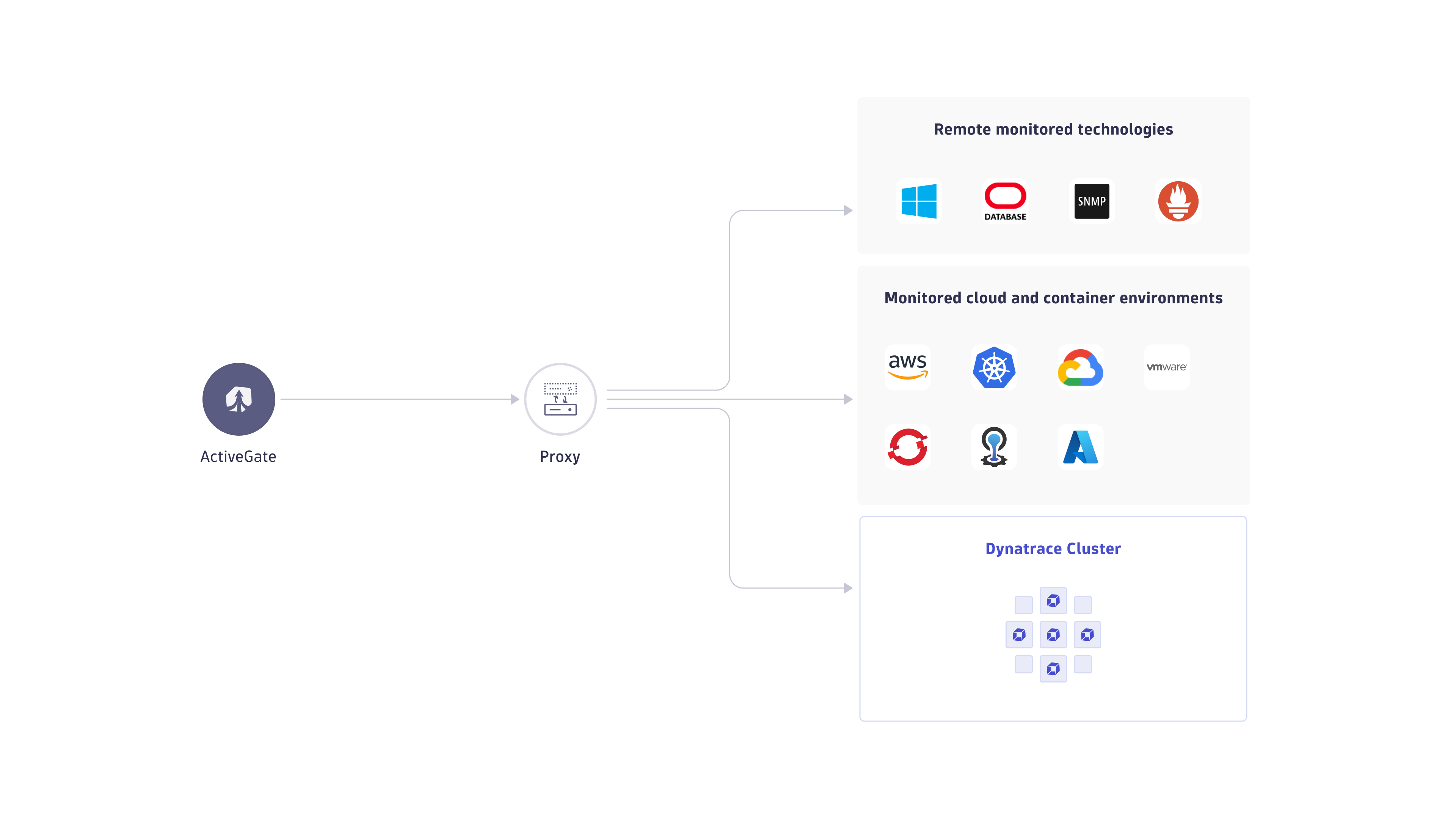
The following configuration covers the most common case of specifying proxy settings for ActiveGate outgoing connection to both the Dynatrace Cluster as well as monitored technologies, such as AWS, VMware, or Azure.
Specify the proxy-related parameters in the [http.client] section of the custom.properties file— including those parameters related to authentication, if required:
ActiveGate version 1.333+
# Set proxy server and portagctl property set --section=http.client --key=proxy-server --value=127.0.0.1agctl property set --section=http.client --key=proxy-port --value=8080# Set basic authentication credentials (if required)agctl property set --section=http.client --key=proxy-user --value=usernameagctl property set --section=http.client --key=proxy-password --value=password
ActiveGate proxy settings for Dynatrace Cluster only
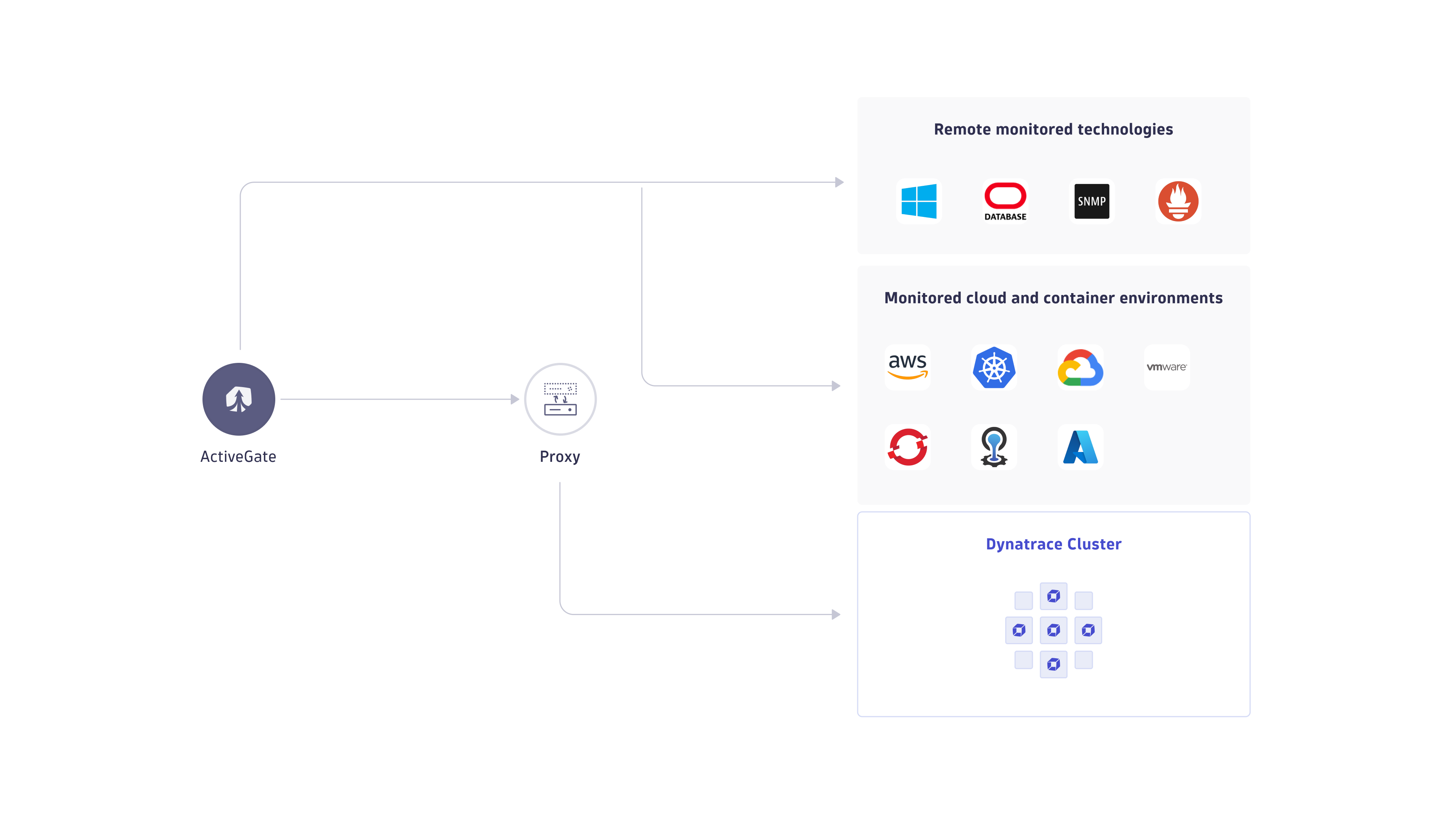
To set up a proxy specifically for Dynatrace Cluster, while allowing outgoing monitoring traffic to connect directly to monitored technologies, define proxy settings in the [http.client.internal] section of ActiveGate configuration.
ActiveGate version 1.333+
# Set proxy server and portagctl property set --section=http.client.internal --key=proxy-server --value=127.0.0.1agctl property set --section=http.client.internal --key=proxy-port --value=8080# Set basic authentication credentials (if required)agctl property set --section=http.client.internal --key=proxy-user --value=usernameagctl property set --section=http.client.internal --key=proxy-password --value=password
ActiveGate proxy for outgoing monitoring traffic, with direct connection to Dynatrace Cluster
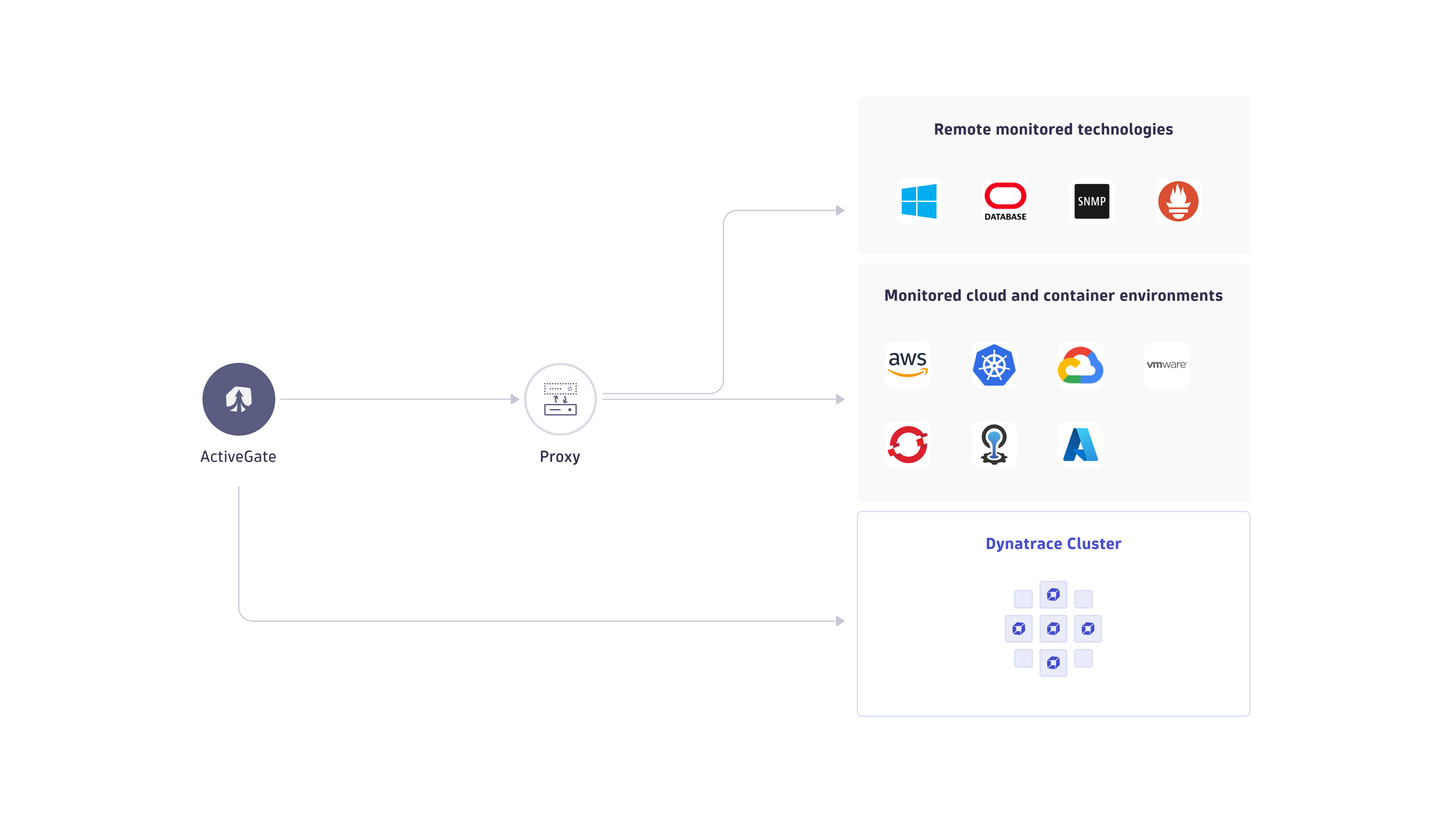
To set up a proxy specifically for outgoing monitoring traffic, but keep connection to Dynatrace Cluster direct:
- Specify proxy configuration in the
[http.client]section of thecustom.propertiesfile. - Turn proxy off in the
[http.client.internal]section.
For example:
ActiveGate version 1.333+
# Set proxy for all traffic in http.client sectionagctl property set --section=http.client --key=proxy-server --value=127.0.0.1agctl property set --section=http.client --key=proxy-port --value=8080agctl property set --section=http.client --key=proxy-user --value=usernameagctl property set --section=http.client --key=proxy-password --value=password# Disable proxy for Dynatrace Cluster communicationagctl property set --section=http.client.internal --key=proxy-off --value=true
Advanced proxy configuration scenarios for ActiveGate
To set up a proxy for outgoing connections from ActiveGate—that is for connections to monitored technologies or to the Dynatrace Cluster—edit the custom.properties file and set properties in the appropriate section. Depending on the configuration section in which the properties are specified, the proxy (and other communication settings) affect only selected types of connections:
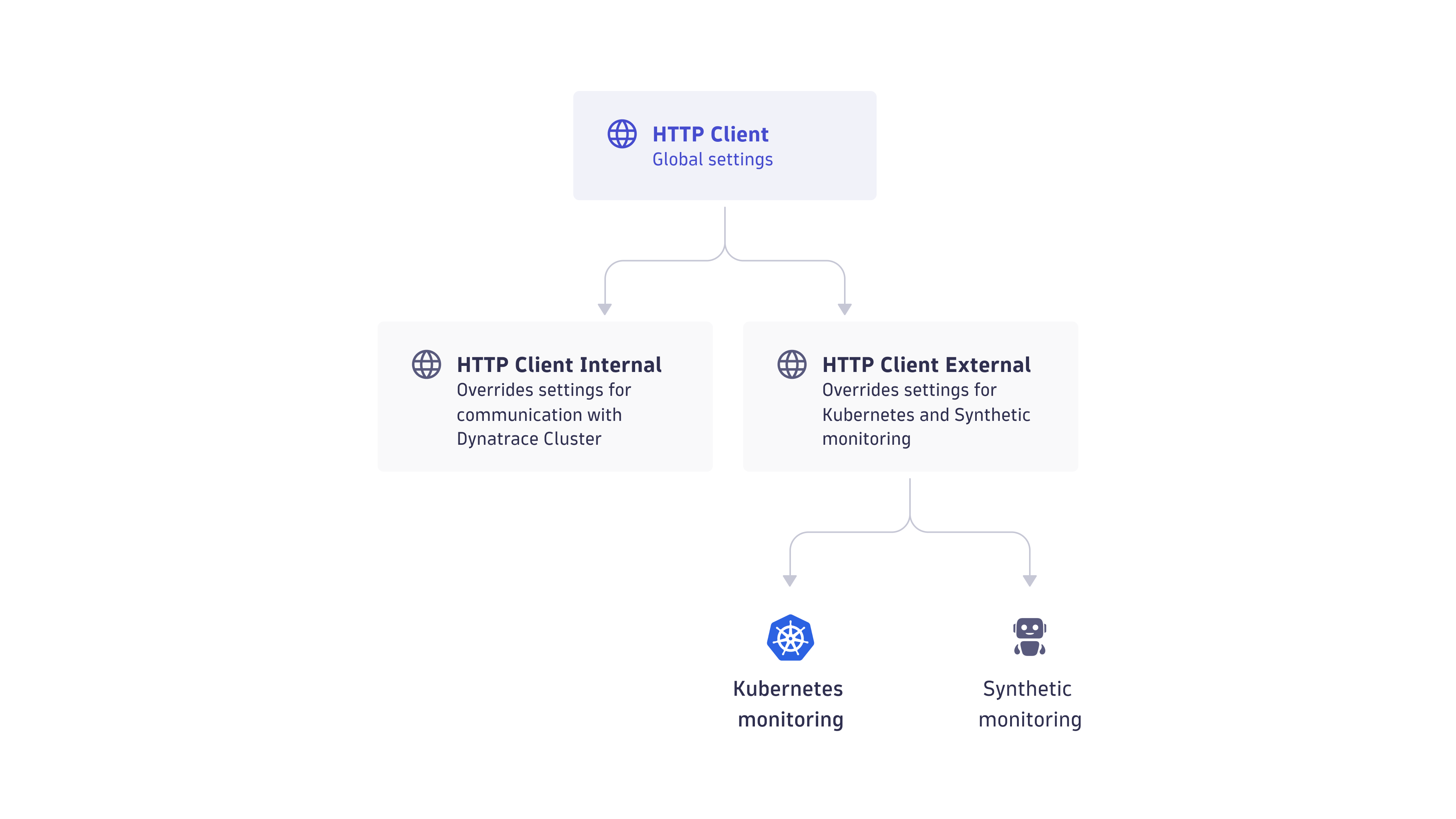
[http.client]—proxy settings for all ActiveGate outgoing connections, including the Dynatrace Cluster as well as all monitored technologies.[http.client.internal]—proxy settings specifically for the communication with Dynatrace Cluster. These settings override the settings specified in[http.client][http.client.external]—proxy settings specifically for monitored technologies: CloudFoundry, Kubernetes, private Synthetic monitoring. These settings override the settings specified in[http.client][<technology name>]—proxy settings specifically for the particular monitored technology, such ascloudfoundry_monitoring,kubernetes_monitoring,synthetic. These settings override the settings specified in[http.client]and[http.client.external]. Note that Settings for many of these technologies can be specified jointly in[http.client.external].
This precedence and inheritance of configuration settings between different configuration sections can be pictured graphically as follows:
ActiveGate proxy for Kubernetes, CloudFoundry, and private Synthetic Monitoring
You can specify proxy settings for a number of monitored technologies at once. Settings given in the http.client.external section affect Kubernetes, CloudFoundry, and private Synthetic monitoring (this set might be extended in the future):
ActiveGate version 1.333+
# Set proxy server and port for external monitoring trafficagctl property set --section=http.client.external --key=proxy-server --value=127.0.0.1agctl property set --section=http.client.external --key=proxy-port --value=8080# Set basic authentication credentials (if required)agctl property set --section=http.client.external --key=proxy-user --value=usernameagctl property set --section=http.client.external --key=proxy-password --value=password
Different proxies for Kubernetes, CloudFoundry and private Synthetic Monitoring
You can also specify dedicated proxy settings for a particular monitored technology:
- CloudFoundry in the
cloudfoundry_monitoringsection - Kubernetes in the
kubernetes_monitoringsection - private Synthetic Monitoring in the
syntheticsection
For example:
ActiveGate version 1.333+
agctl property set --section=kubernetes_monitoring --key=proxy-server --value=127.0.0.1agctl property set --section=kubernetes_monitoring --key=proxy-port --value=8080agctl property set --section=kubernetes_monitoring --key=proxy-user --value=usernameagctl property set --section=kubernetes_monitoring --key=proxy-password --value=password
See also: How to set up an ActiveGate proxy for private Synthetic monitoring
ActiveGate proxy settings for AWS role-based access
AWS-specific proxy configuration is described separately.