Navigate using the web UI
- How-to guide
- 4-min read
To navigate Dynatrace Managed, use the left-side menu to access pages and the user menu to manage your account.
Dynatrace menu
Use the menu to navigate Dynatrace.
Filter the menu
Use the filter box at the top of the menu to find and select Dynatrace pages.
-
Enter a partial search string.
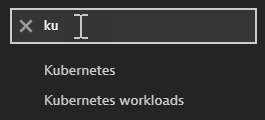 Filter the menu
 -
Select the best match.
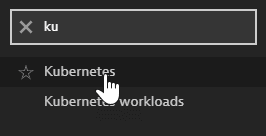 Select a menu item from the filter results
Save your favorites
-
To add a Dynatrace page to your favorites, hover over the page name and select the star.
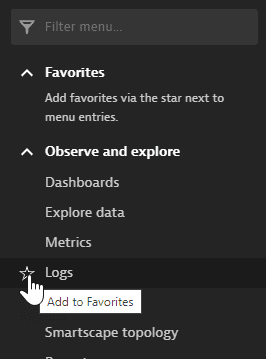 Add menu item to Favorites
 -
To access a favorite, expand the Favorites section and select the page.
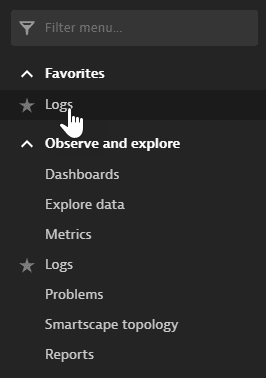 Select a menu item from Favorites
 -
To remove a page from your favorites, select the star again.
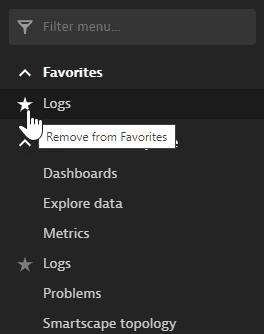 Remove menu item from Favorites
Expand and collapse menu sections
-
To show the contents of a menu section, select the expand button.
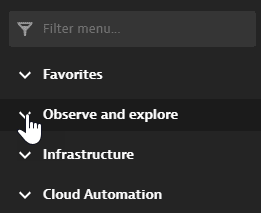 Expand menu section
 -
To hide the contents of a menu section, select the collapse button.
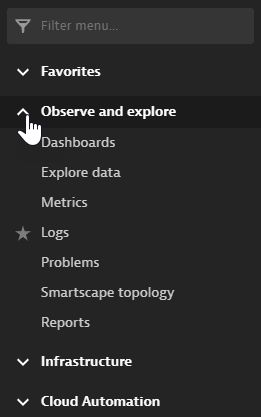 Collapse menu section
Hide or show the menu
-
To hide the menu, select the arrow button at the top of the menu.
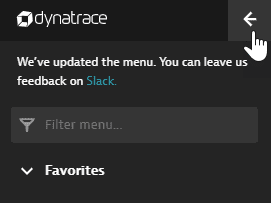 Hide menu
 -
To display the menu, select the menu button in the upper-left corner.
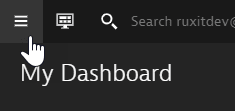 Display the hidden menu
User menu

The contents of the user menu depend on your permissions.
- Go to the user menu for your own account information, to sign out, to switch between environments, and to get the latest Dynatrace news.
- If you have administration permissions, select Account settings on the user menu to manage user, group, and account settings.