Manage investigations
- Latest Dynatrace
- How-to guide
With  Investigations, you can
- Share your investigations with other users in your Dynatrace environment.
- Download investigations for archiving purposes.
- Upload investigations from other sources as a starting point for a new investigation.
- Duplicate investigations for reuse, backup, sharing, or access purposes.
See below for details.
Share investigations
You can share your investigations with others in your Dynatrace environment. You have the following options:
-
Allow everyone in your environment to view the investigation.
-
Give access to specific users or groups to view or edit your investigation.
-
Create a link allowing anyone you share it with to view or edit your investigation.
Be aware that distributed links can be forwarded to others and accessible with the same permissions as when they were created.
You can combine sharing options. For example, you might want to maintain a list of people who need regular access to the investigation (collaboration and joint editing), and you might also want to occasionally send out an access link to a wider audience (people who only need to view the investigation).
To share an investigation
- Open the investigation that you want to share.
- Select Share.
- Select the desired option.
- For Share access and Share link, select the desired permission level.
- Select Share investigation.
You can also share access and links without opening an investigation, for example, when you don't want to lock the investigation.
- On the main page of Investigations, select Investigations.
- Select the menu for the respective investigation.
- Select Share.
Permissions
Regardless of how you share your investigation, you need to specify the permission level of your sharing:
-
Read-only: With the Can view option, people can view the investigation but can't edit anything. For example, they can't run queries, edit nodes, change timeframes, or add or delete elements in your evidence collection.
In read-only mode, nodes refresh every few minutes, allowing you to stay updated with investigation changes.
-
Read and write: With the Can edit option, people can do anything the investigation owner can do except share or delete the investigation.
Locking an investigation
To provide integrity, multiple people are not allowed to edit an investigation at the same time. When someone is editing an investigation, it's locked into read-only mode for everyone with edit rights (including the investigation owner). It's released again when the investigation is closed by the person who locked it or after 10 minutes of inactivity.
Even when an investigation is locked in read-only mode, the investigation owner can still access and use the Share option.
View access
There are several ways to view the sharing state and permission level of an investigation:
-
On the main page of
Investigations, in the lower-right corner of an investigation, there's a specific symbol for each state; hover over it for details.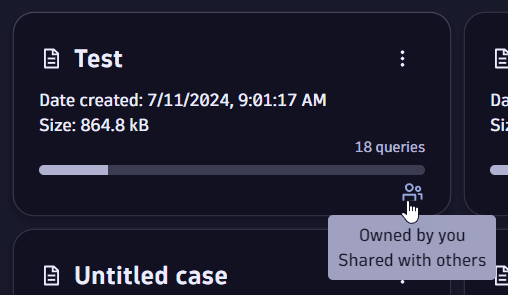
-
When expanding the Recent investigations panel on the left-hand side of an investigation, the shared investigation symbol is displayed next to an investigation name; hover over it for details.
-
Within an investigation, next to the title name:
- When the Share option is displayed, it means you own the investigation. To see and manage who you're sharing it with, see Manage access.
- When the Share option isn't displayed, the investigation is shared with you in edit mode.
- When
 Read-only is displayed, the investigation is shared with you in read-only mode.
 - When someone locks the investigation, you receive a notification indicating that the investigation is locked and who locked it.
Manage access
The share option provides you with a control panel where you can manage all access to your investigation.
-
Open the investigation that you want to manage.
-
Select Share.
If you don't see a Share option at the top of the investigation, you don't own the investigation, so you can't access the share settings.
-
Select Manage access , and then select any option you want.
In the Manage access section, you can
- View a list of people or groups with access to your investigation and their permission level
- Edit or remove permissions
- View, copy, or remove links that you created with edit or view permissions
- View how many times your links have been accessed
- Remove all shared permissions for your investigation
Download and upload investigations
You can download any investigation you have access to and continue your work in another Dynatrace environment or just store the investigation in another location to safeguard it.
To download an investigation, you have two options.
- On the main page of Investigations, select Investigations.
- Select the menu for the respective investigation.
- Select Download.
- Select which investigation sections you want to download.
- Select whether you want to download the investigation as an investigation or template, then select Download.
You can upload an investigation as an investigation or template (select Upload on any page of Investigations, make your choice, then select Confirm).
Duplicate investigations
You can duplicate any investigation you have access to. This creates a copy of the original within the same environment and can be helpful in various scenarios, such as:
-
Reuse: Start a new investigation from an older investigation while preserving the integrity of the original.
-
Backup: Create a snapshot of the investigation to prevent accidental data loss.
-
Share: Share the current state of your investigation with your peers so they can start their investigations based on your work.
-
Access: Start your investigation from an investigation to which you have read-only access, or edit a coworker's investigation without interfering with their investigation.
To duplicate an investigation you have two options.
- On the main page of Investigations, select Investigations.
- Select the menu for the respective investigation.
- Select Duplicate.