Site Reliability Guardian
- Latest Dynatrace
- App
- 15-min read
Prerequisites
Permissions
The following table describes the required permissions.
Consider  Workflows permissions for automation purposes:
automation:workflows:read: View a workflow.automation:workflows:admin: Create and edit a workflow.automation:workflows:run: Trigger a workflow via API (if pipeline calls API directly instead of relying on an event).
Installation
Make sure the app is installed in your environment.
Get started
The Site Reliability Guardian is a Dynatrace app that automates change impact analysis to validate service availability, performance, and capacity objectives across various systems. It enables DevOps platform engineers to make the right release decisions and empowers SREs to apply Service-Level Objectives (SLOs) for their critical services.
Learning modules
Go through the following process to learn using Site Reliability Guardian:
- How-to guide
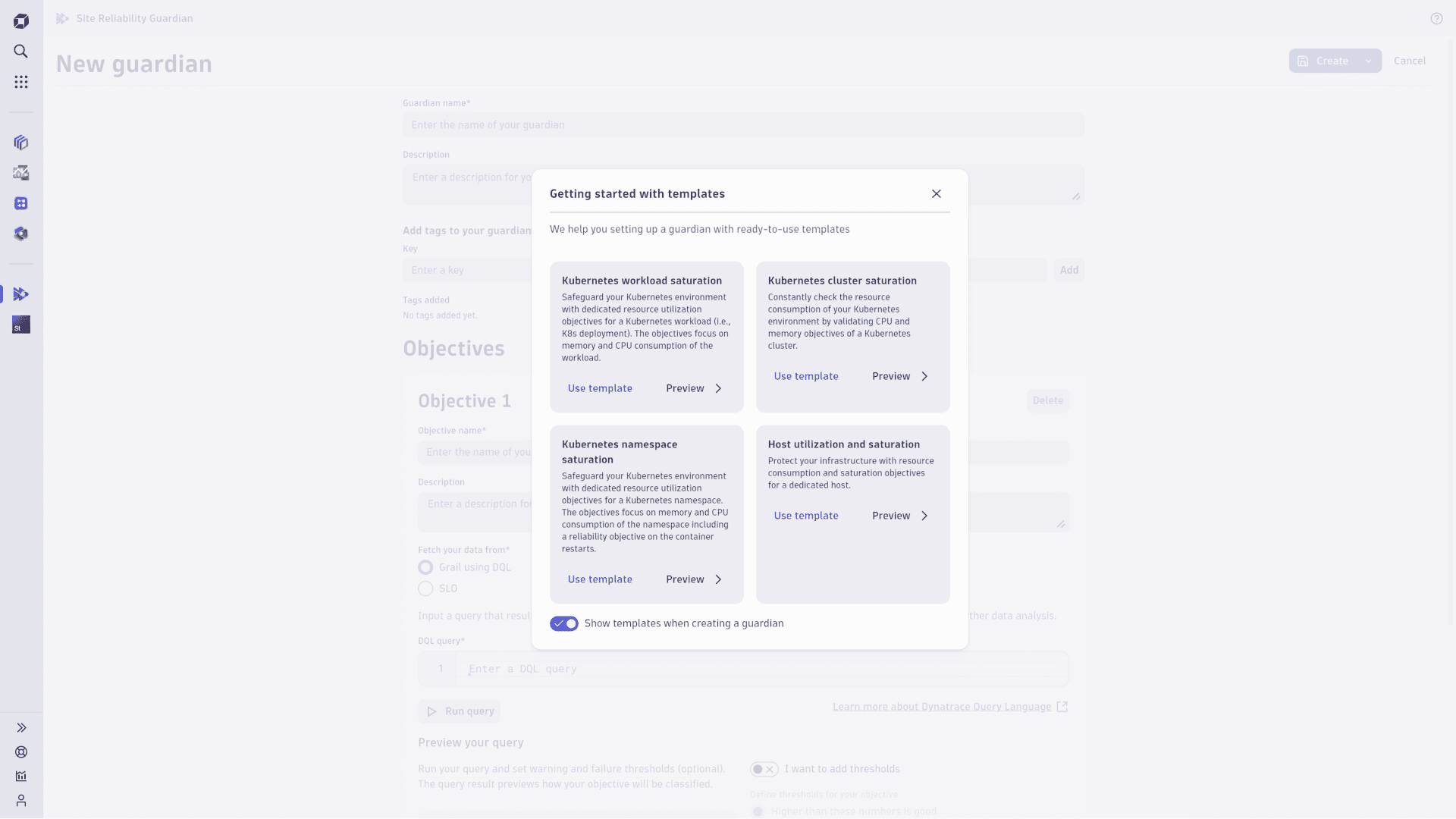
- Create a guardian manually or from a predefined template.
- How-to guide
- Duplicate a Site Reliability guardian manually based on an existing SRG.
- How-to guide
- List your guardians to view, compare, or delete them in bulk.
- Reference
- Add a new Site Reliability Guardian objective.
- How-to guide
- Add and access validation insight links to provide contextual information and resources for an objective.
- How-to guide
- Filter Site Reliability Guardian validation events triggered by an external tool using the context information provided by the tool.
- How-to guide
- See configuration as code examples for a guardian and its workflow.
- Reference
- Configure role permissions to use the Site Reliability Guardian.
- Reference
- Details about the event structure of the Site Reliability Guardian.
- Tutorial
- Trigger a guardian validation either manually or automatically using a workflow to evaluate service reliability.
Concepts
Site Reliability Guardian is based on the following concepts:
1. Guardian
A guardian is the grouping of objectives. It is built around a set of entities reflecting a service or application you want to safeguard.
A guardian provides you with a default automation workflow that performs the objective validation. As a result, a guardian always represents the latest validation result derived from the objectives.
We support two types of guardians. While these two types don't differ from a conceptual point of view, there are technical and semantic differences that distinguish them.
Lifecycle guardian (SDLC events)
- Reads and writes SDLC events as validation results.
- It is aligned with the validation events specification in the Semantic Dictionary.
- It is intended to be used in the context of the Software Development Lifecycle.
- As a quality gate in progressive delivery scenarios
- As a performance indicator after load testing
- As a continuous health monitor for services and components
Business guardian (Business events)
- Reads and writes Business events as validation results
- It is intended for business-level usage and insights into application behavior
As these two types of guardians have different data sources (bizevents vs. events) and different event data structures, you need to adapt your DQL queries that target guardian validation events in Notebooks or Dashboards when switching from one type to the other.
For more details on the structural differences, see Site Reliability guardian event structure.
You can create a maximum of 1000 guardians.
2. Objective
Objectives are means for measuring the performance, availability, capacity, and security of your services. Objectives are measured by indicators. You can define an objective for your guardian that is validated on demand or automatically.
You can create a maximum of 50 objectives for each guardian.
3. Indicator
An indicator is a value against which the warning and failure thresholds are checked using a comparison operator. To retrieve an indicator value, use DQL.
4. Static thresholds
The static warning and failure thresholds determine whether the measured value of the indicator meets the objective, is close to violating the objective, or violates the objective.
Warning and failure are optional; objective validation can vary:
- If both the warning and failure thresholds are set, the objective validation can return warning, failure, or pass.
- If just the warning threshold is set, the objective validation can return warning or pass.
- If no threshold is set, the objective validation does not return a status but is used for informational purposes.
5. Auto-adaptive thresholds
Auto-adaptive thresholds are dynamic limits that adjust over time based on previous validations. If an objective changes its behavior, the threshold adapts automatically.
- Auto-adaptive thresholds are only available for fetching data via DQL. The Dynatrace Intelligence threshold analyzer requires a minimum of 5 validations for auto-adaptive thresholds to take effect. During this learning phase, the objective validation returns an info state. All subsequent validations will then use the auto-adapted thresholds, impacting the overall validation.
- Switching from static to auto-adaptive is supported.
6. Operator
The comparison operator defines whether the objective is met: the indicator is less than or equal to (A lower value is good for my result), or it is greater than or equal to (A higher value is good for my result), the warning and failure threshold.
7. Tags
To organize your guardians, you can assign tags to them. Tags use the key:value format, with the value being optional.
To assign a tag to your guardian, either specify it in the Add tags to your guardian section during guardian creation or add the tag later in edit mode.
To filter the list of all guardians by a tag, type the tag in the Search by name or tag field—the page automatically updates to show only guardians with matching tags.
This DQL shows you all validation.finished SDLC events tagged with a specific tag value.
fetch events| filter event.kind == "SDLC_EVENT"| filter event.provider == "dynatrace.site.reliability.guardian"| filter event.type == "validation"| filter event.status == "finished"| filter contains(dt.srg.tags, "payment-api")
8. Guardian workflow action
You can automate the execution of a guardian via Workflows, tying guardian execution to an event or an API call.
Add a guardian action to an existing workflow or create a new workflow
The same final steps apply, whether you add a guardian to an existing workflow or create a new workflow.
Edit an existing workflow
- Go to Workflows and open your workflow.
- Go to the last task, which should be the predecessor of the guardian validation action, and select to browse available actions.
Create a new workflow
- Go to Workflows and select Workflow.
- Select a trigger.
- On the trigger node, select to browse available actions.
Set up a guardian validation action
- Find
Site Reliability Guardianin the Choose action panel. - On the Input tab, you have two options to select the required guardian:
- Select the guardian from the list.
- Use an expression to extract the guardian from the triggering event or a previous workflow action.
- Configure the validation timeframe.
Create a workflow from the All guardians page
You can trigger your guardian automatically using a workflow.
To create a workflow for this guardian, follow these steps:
-
Go to your guardian.
-
To automate the trigger for your guardian, on the All guardians page, hover over your guardian or open it, and then select Automate. Workflows
opens in a new browser tab. You can also access Automate from the validation details.This step creates a new workflow for your guardian with an even trigger and a run validation action.
When you create a workflow in this manner, the following parameters are configured; however, ensure that you adapt them as needed.
You can create a new workflow by selecting Automate. When you create a workflow this way, the following parameters are configured, but be sure to adapt them as needed.
-
A new workflow with an event trigger and a run validation action is created.
-
Depending on the type of guardian - Lifecycle or Business - the event type and the filter query are set accordingly.
-
For Lifecycle guardians (SDLC events) the event type is set to
eventsand the filter query defaults to:event.provider == "dynatrace.site.reliability.guardian"AND event.type == "validation"AND event.status == "finished" -
For Business guardians (Business events) the event type is set to
bizeventsand the filter query defaults toevent.type == "guardian.validation.triggered". -
If the guardian has tags defined, they're used as additional filters in the filter query of the trigger.
-
-
The only action of the workflow is the respective guardian validation action.
The guardian validation action generates the following output and passes it to the subsequent actions of the workflow.
| Parameter | Description |
|---|---|
| The ID of the validated guardian |
| The name of the validated guardian |
| An array of tags assigned to the validated guardian |
| The execution context property of the trigger, if it was set |
| The ID of all events generated by the validation |
| The URL with the full validation details |
| The status of the validation, indicating the overall result. The following values are possible:
|
| The number of objectives for each status |
To learn more about workflows for a guardian, select > Get started with Automation.
9. Validation
If a workflow is created, your guardian can be validated automatically, depending on the trigger you chose. You can also perform the validation manually.
Validation overview
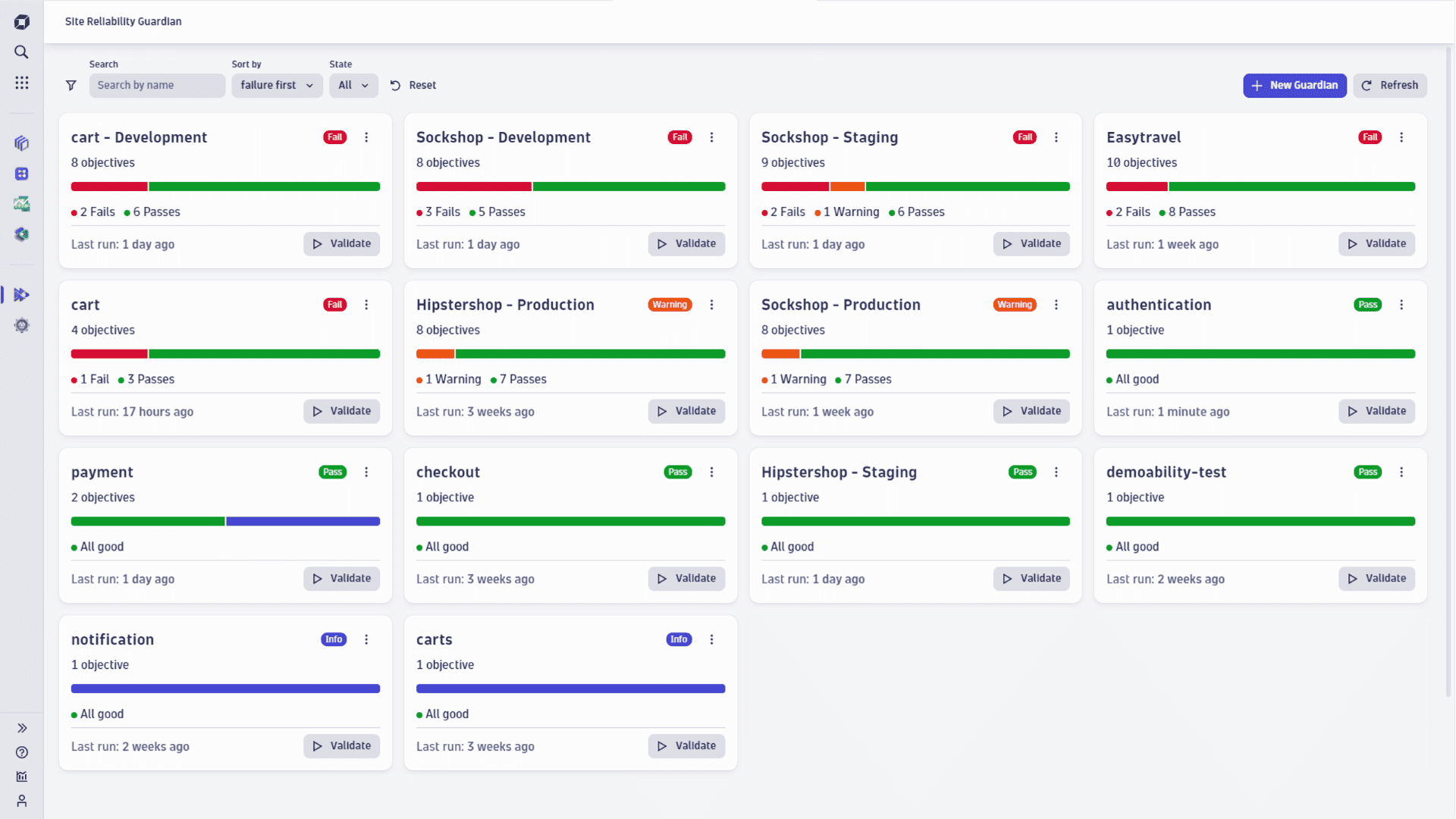
By default, the All guardians page lists all the guardians.
For more information on the All guardians page, see List and work with your guardians.
Automated validation
The event subscriptions in the workflow define when the validation of a guardian has triggered automatically.
Manual validation
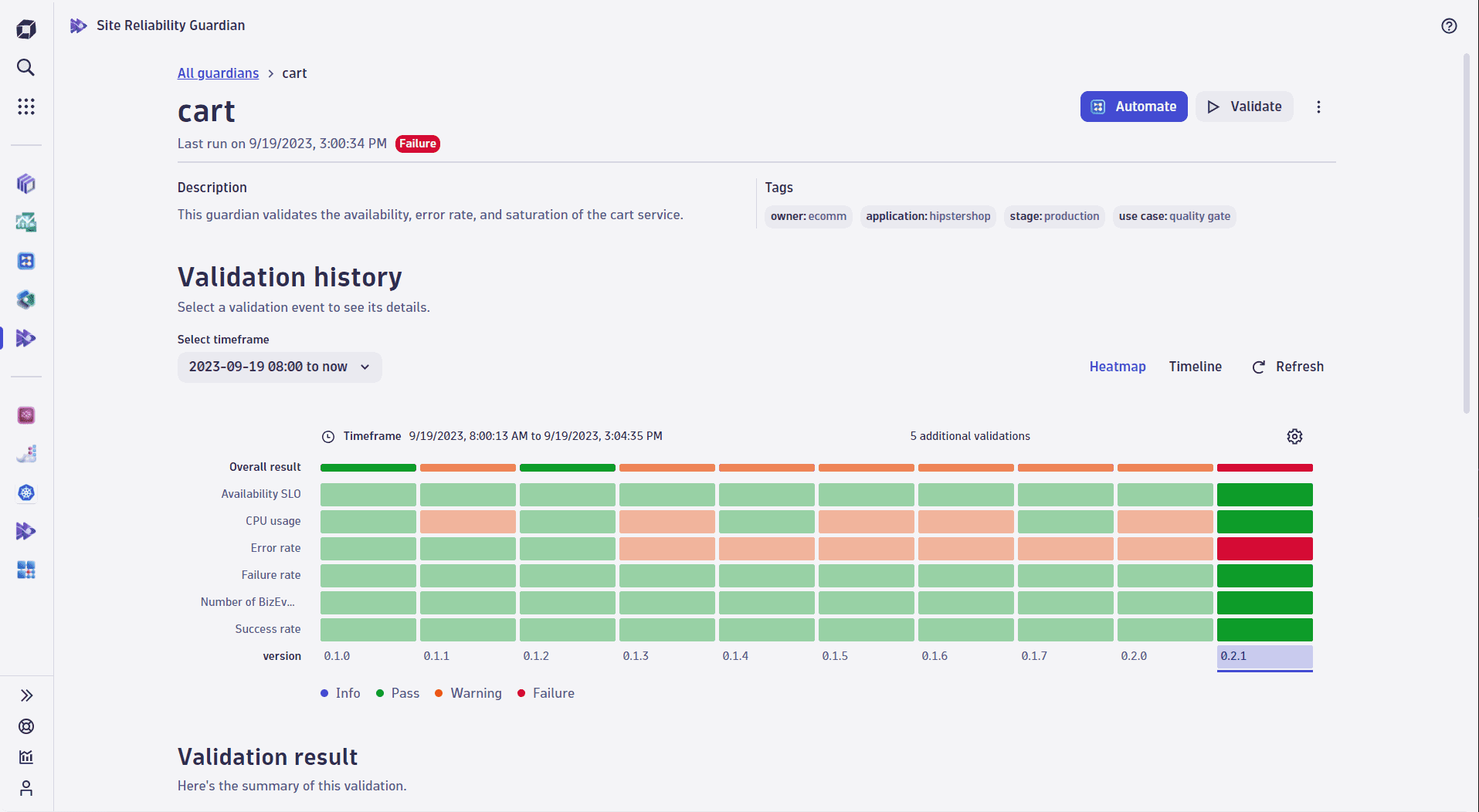
You can perform a validation of a guardian by selecting the Validate button on the overview screen or within the validation details screen.
- Select the validation timeframe.
- Select the Validate button.
Individual objective result
For each objective, the validation returns the derived value and classification. The severity goes from the highest (1) to the lowest (5).
| Severity | Name | Description |
|---|---|---|
1 | Error | The objective could not be validated due to an error deriving the indicator. |
2 | Fail | The value violates the failure threshold; the objective is not met. |
3 | Warning | The value is in the warning range; the objective is met, but close to failure. |
4 | Pass | The value is within the target range, the objective is met. |
5 | Info | No classification, but the objective's value can be used for informational purposes. |
Overall validation result
After the validation of each objective is done, the guarding uses the most severe of individual validations as the overall validation result. Examples of this result usage include:
- Making a release decision in your delivery pipeline.
- Reporting on the current status of your service.
10. Segments
Leverage Segments in DQL-based objectives to logically structure and conveniently filter observability data.
Use cases
Related topics
 Site Reliability Guardian