Configure masking
- Latest Dynatrace
- How-to guide
- 5-min read
- Published May 07, 2026
Session Replay records every user interaction. Therefore, protecting confidential user data by masking is of utmost importance. Masking settings give you options to protect confidential user data when recording and playing back sessions. You can specify separate masking rules for recording sessions and, additionally, for playing back captured sessions, enabling you to apply layers of masking controlled by user permissions.
Session Replay implements masking functionality that ensures that private user information is either not captured at the time of recording or masked at the time of session playback.
The masking option masks only alphanumeric characters; format characters such as periods, commas, and colons are not masked. Therefore, when user sessions are played back, you can still validate the format of the content without viewing the actual information.
As an example, consider an email address field on a typical web form. The user enters their email address, as shown below:

Session Replay masks this data and displays asterisks in place of the non-numeric characters:

The masked data—displayed in the replayed session as asterisks (*****) for non-numeric input or as zeros (0000) for numeric input—either never leaves the client browser (masked at recording) or is captured but masked during playback. Note that playing back captured sessions is permission controlled.
Recording masking rules are transmitted to the client, which ensures that confidential data does not leave the client browser by default. Masking settings for recording as well as playback are configurable.
Session Replay provides two options for configuring content masking.
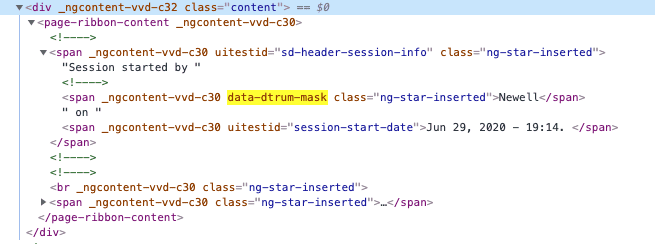
Privacy must be built into applications by design, implemented from the beginning when an application is created. Any feature that involves the processing of private data or non-functional requirements as relevant dimensions should be evaluated for data privacy risk early on. Dynatrace recommends that user-confidential elements and input fields be flagged. For instance, if Session Replay detects an HTML attribute, such as data-dtrum-mask, it automatically masks its data.
We recommend that you start with the Mask all option and then gradually tweak your settings if you think some of the blocked elements can be safely allowed for display.
Mask data with data-dtrum-mask attribute
The data-dtrum-mask attribute requires a change in the application code and is secure by design. It allows you to consider the elements that can contain confidential information at the design and implementation stages. The recorder automatically detects and masks the content (text, input values, and attributes values) and interactions (cursor movements and scrolls) in the node that contains the attribute as well as its descendants.
The application code must be modified to incorporate the data-dtrum-mask attribute.
Mask data via UI
The page for configuring Session Replay settings in Dynatrace allows a more customized approach. You can change the configuration to suit your session-recording requirements. Also, there's no need to change the application code if you go with this option.
This settings page also provides masking options that you can use to hide interactions with specific elements that might inadvertently reveal confidential end-user information. For example, consider a list that provides multiple options for responding to a form question about the user's religion or gender. Even with the text masked, others would still be able to deduce the end user's response by seeing the selected option.
To configure Session Replay masking
- Go to Web.
- Select the application that you want to configure.
- In the upper-right corner of the application overview page, select More (…) > Edit.
- From the application settings, select General settings > Data privacy > Session Replay.
- Under Content masking preferences, select a predefined masking option for recording and playback.
- If you selected Allow list or Block list, add the desired masking rules.
Content masking levels
Session Replay predefined masking options are available for both recording and playback:
- Recording masking settings control data masking at the time of recording ("masking at capture"). Masked user data never leaves the client browser and is not captured. Note that when you set the Recording masking settings to a more restrictive level, the same settings are also applied to Playback masking settings, which affects all past recorded sessions as well.
- Playback masking settings affect data masking at the time of playback ("masking at display"). Data captured during recording can still be masked and restricted from being viewed at the time of playback.
You can define masking rules for session recording and session playback.
Playback masking rules are meant to provide an additional layer of masking over recording masking rules. Playback masking settings cannot be less restrictive than recording masking settings.
You can use user permissions to decide whether to allow session playback with or without playback masking rules in effect.
Once you configure the masking rules correctly, Session Replay applies the latest masking configuration to all recorded sessions, including those recorded before the correct masking rules were implemented. Updated masking rules are applied at the time of playback, and users who have permission to replay sessions are not able to view masked user data. Note that playback masking rules are ignored for those users who have permission to replay sessions without masking.
Content masking options
The following predefined masking options can be used to restrict capturing and playing back personal and confidential end-user data:
| Masking option | What is masked | When to use |
|---|---|---|
Mask all | All texts, user input, attributes values, and images | Use it to test Session Replay and ensure that confidential data is not collected. You'll still be able to see how users interact with your application. Also, use it to troubleshoot your applications when the order in which the users interact with different web UI controls is relevant. It's the best masking option for testing Session Replay with no risk of exposing confidential user data. |
Mask user input | All user input, including options in list boxes | Select this option when confidential information comes only from user input. |
Allow list | All elements in the Mask all option except for the elements that you've specified | We recommend this option for most applications; it allows you to collect only the required information. This option ensures that, even with subsequent code changes, new elements that display confidential information are not recorded by the Session Replay recorder. The elements are defined by the CSS selector. |
Block list | Only elements specified in this block list | When you select this option, a list with all the rules applied to the Mask all option is presented to you. Use this list to clear elements and attributes that you want to capture. You can also create your own additional block list rules. To deactivate all masking, remove all predefined rules. |
-
Mask user input is the default masking option starting with Dynatrace version 1.262. Previously, the default option was Mask all.
-
The Mask all, Mask user input, and Allow list options do not hide user interactions with elements. With the Block list option, you can decide if you want to hide user interactions with masked elements.