Business Flow Details
- Latest Dynatrace
- Explanation
- 2-min read
To get to the Business Flow Details section, select  Business Flow app name in the upper-left corner. From the list of already created business flow configurations, select the one you want to explore, and you'll be presented with the Business Flow Details view of that configuration.
In Business Flow Details, you can choose a Tree or Funnel view.
Tree view
The Tree view displays all steps with the corresponding numbers of unique flows at each step. If you have defined business exceptions, the number of exceptions is displayed for each relevant step.
Tree view in Business Flow details
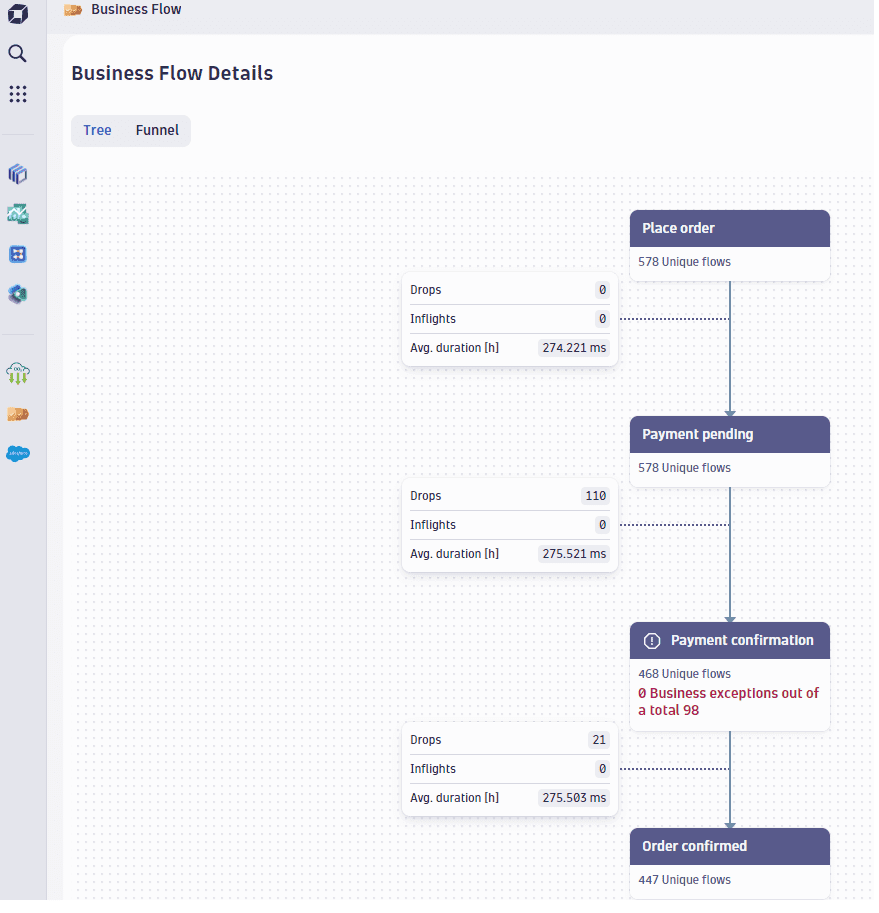
You can select any of the nodes (steps) and explore the details in a side panel.
- Select Definition to view the step’s definition. On the side panel, expand the dropdown menu to see a list of completed unique flows that have reached that step. For any of the listed flows, select the icon (under Actions in the rightmost side panel) to explore the end-to-end business flow details.
- If the step includes business exceptions, the side panel will allow filtering and displaying them. The values displayed in the nodes are referring to the number of business exceptions that are related to the unique flows in the step from the total amount of business exceptions collected on that step.
- Select drops or inflights in the filter to show inbound drops or inflights to that step. For any of the listed flows, select the magnifier icon to explore the end-to-end business flow details.
Flow details include timestamps and all attributes associated with each business event on the flow.
If the configuration is scoped to specific buckets and the selected analysis timeframe extends beyond the retention period of a scoped bucket, a data completeness alert appears in the analysis view. The alert identifies which bucket's retention period is responsible. What may look like a drop in unique flows could reflect missing historical data rather than a real change in the business process. Adjust the timeframe or review the bucket's retention settings to resolve the gap.
Funnel view
The Funnel view displays the business process as a conversion funnel. Business exceptions are listed as errors.
The Funnel view is not active if the flow has branches.
The DQL query that Business Flow executes to retrieve the funnel data can be used to explore the data further using Notebooks and to add the information to a dashboard using Dashboards. Select the Open query icon at the bottom of the funnel and choose Notebooks or Dashboards.
Funnel view in Business Flow details
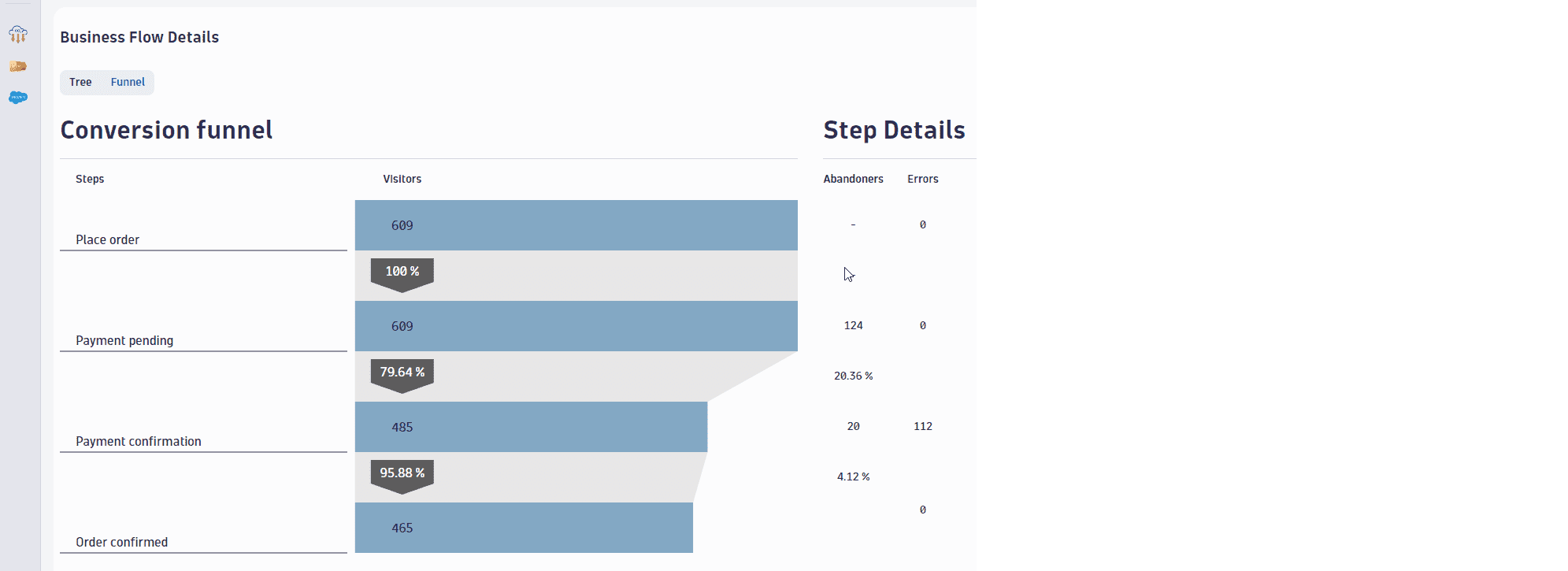 Business Flow