Get business events from Workflows
- Latest Dynatrace
- How-to guide
- Published Sep 04, 2025
Generate business events from automated workflow tasks. Use the Ingest business event action in  Workflows to capture and persist business-grade data from scheduled or event-driven runs.
Generate business events in Workflows
You can generate business events from Workflows to capture and persist business-grade data. Examples of how this can be used include:
- Daily ingestion of currency conversion rates for use in cost calculations.
- Ingestion of third-party information daily or on a scheduled basis to capture business data from a system not monitored by Dynatrace.
- Ingestion of aggregated business information for baselining, forecasting, and anomaly detection.
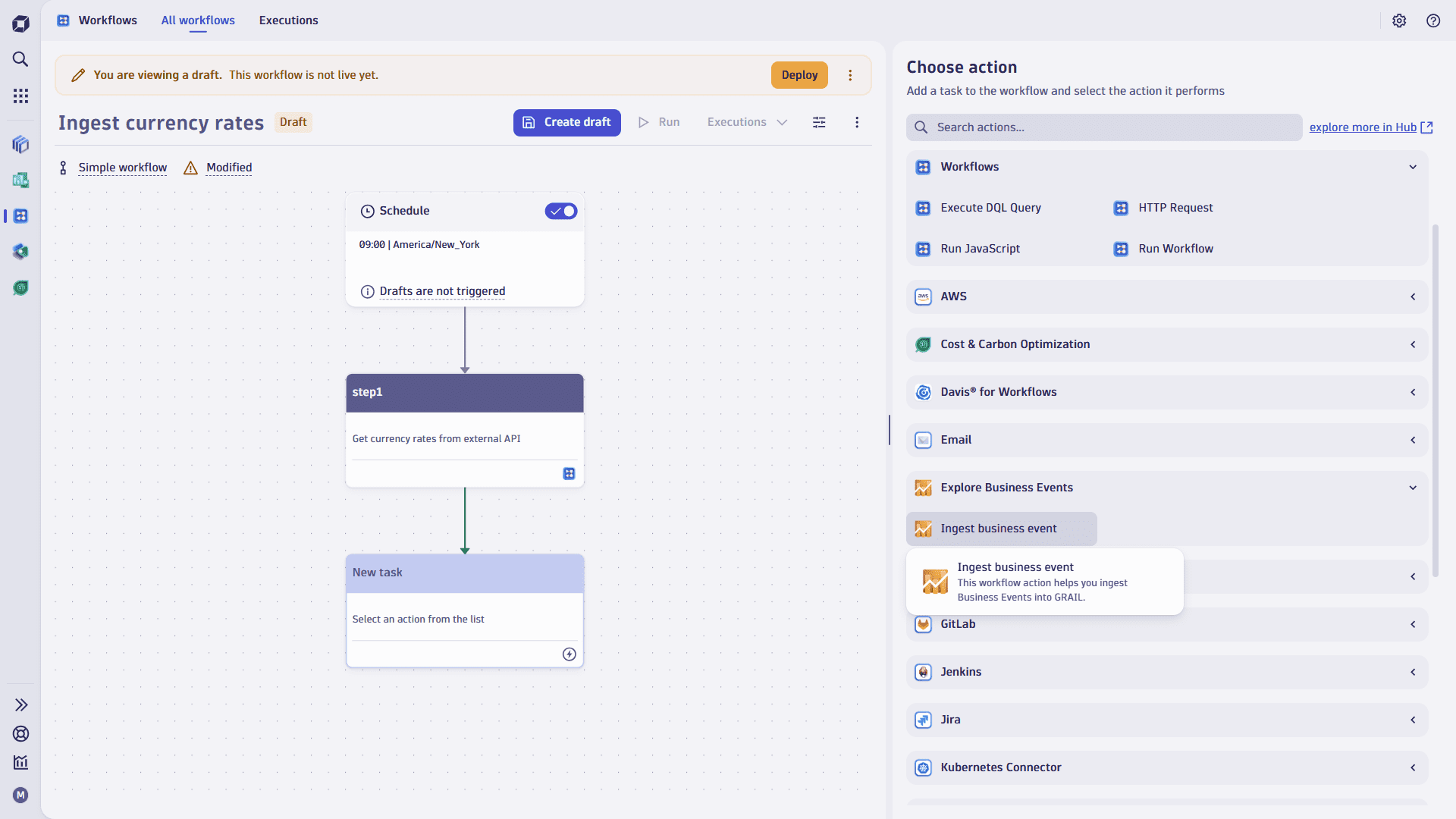
You can generate business events as a workflow action by selecting the Ingest business event action type.
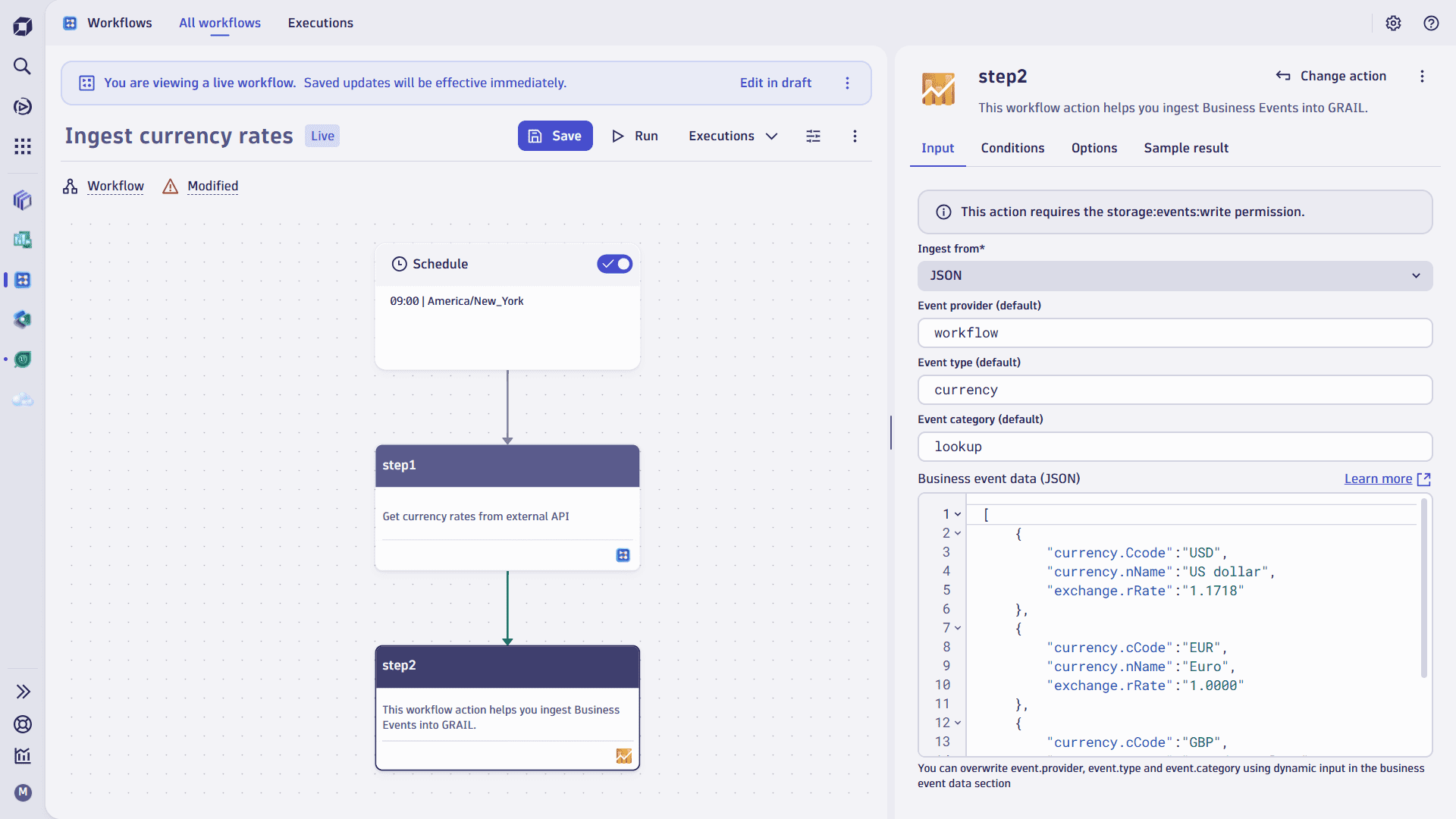
The Ingest business event action can take data either from user-provided JSON data, or by executing DQL. For example:
- Select JSON to ingest JSON data from an API call response in a previous workflow step, or to provide a custom-defined block of data.
- Select DQL to query Grail for fields to store in the business event. This enables the querying and aggregation of business-quality metrics from other sources of data in Grail.
In addition to the Business event data source and Ingest from attribute, default values for Event provider, Event type, and Event category attributes should be provided to generate the business event. These values might be overridden by the data provided in the JSON or DQL statement. For example, if your DQL query returns a value for event.type, this value will be written to the business event instead of the default value.
If default values aren't provided, event.provider and event.type will be assigned attribute value Unknown when the event is generated, while event.category will be assigned attribute value Other.
The Business event data can include one or more events to be generated. This applies to both DQL and JSON options:
-
A DQL query that returns multiple rows of data will generate as many business events.
-
JSON data with multiple elements will generate as many business events. For example, the following JSON payload generates three separate currency-related events:
[{"currency.code":"USD","currency.name":"US dollar","exchange.rate":"1.1718"},{"currency.code":"EUR","currency.name":"Euro","exchange.rate":"1.0000"},{"currency.code":"GBP","currency.name":"Pound sterling","exchange.rate":"0.86320"}]You can use the JSON payload mentioned earlier by parameterizing Business event data (JSON) input as follows:
{{ result("stepname")| to_json }}You need use the
| to_jsoninstruction to convert the previous step response into correctly-formatted JSON. This will include all payload content, including JSON, body, and headers. To omit the body and headers, and ingest only the JSON content, use the following:{{ result("stepname")["json"]}}
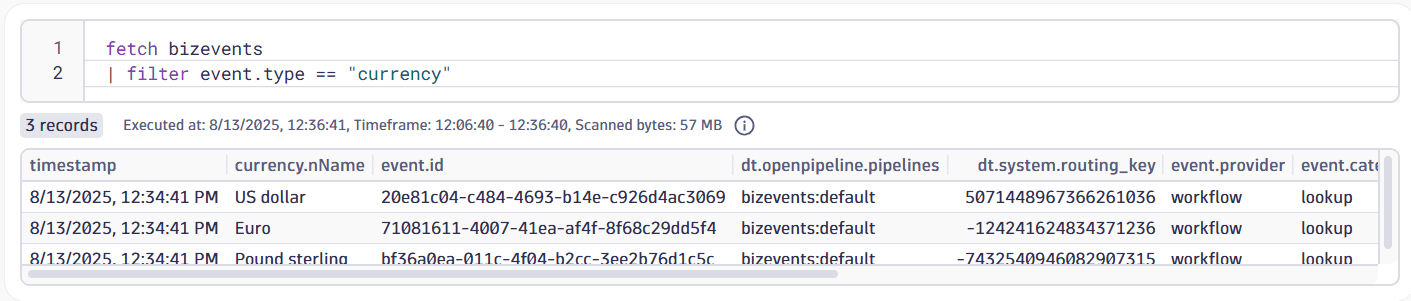
After the successful execution of the workflow and the Ingest business event action, business events will be generated based on your parameters. The following is an example of a successful execution:
Workflow steps have a limited execution time window. We recommend using a separate Execute DQL Query workflow step for long-running complex DQL queries. Then, you can use the returned data in the Ingest business event using the parameterization support ({{ result(“stepname” }}).
This action requires the storage:events:write permission defined in the Workflow authorization settings. For more information, see User permissions for workflows
If you're using DQL, your workflow actor needs permissions to run the DQL statement against necessary buckets.
Handle JSON response data
Some use cases require you to use JSON data returned by an API call from a previous workflow action, and convert it into correct JSON that can be used with Ingest business event. Suppose you want to ingest currency rates from an external service on a daily basis and persist them as business events that can be used in other queries. To do that, you can define a workflow that triggers two steps:
- Issues an HTTP request to any API.
- Ingests a business event.
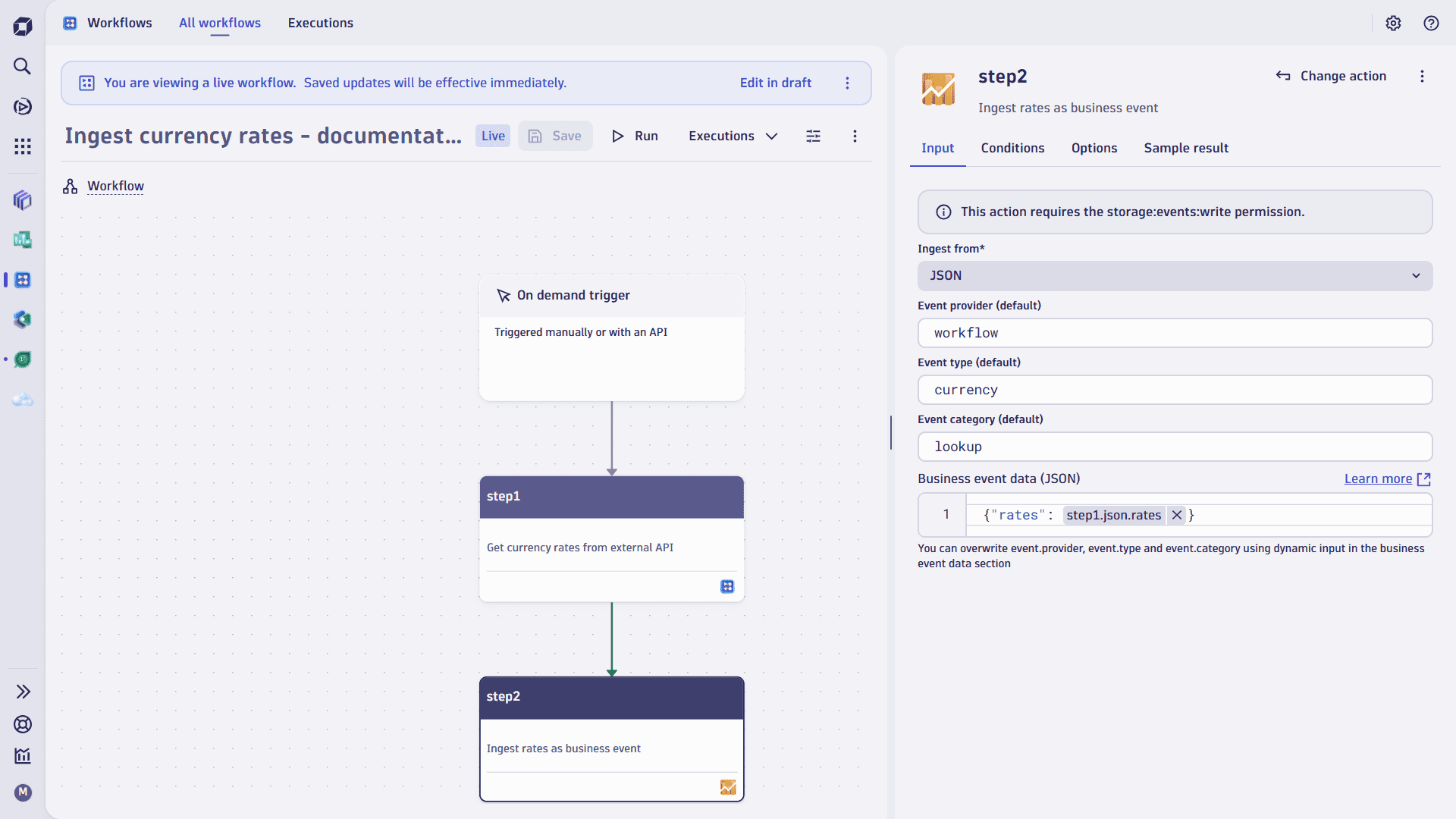
The HTTP request returns the JSON payload content in the following format:
{"success": true,"timestamp": 1754946555,"base": "EUR","date": "2025-08-11","rates": {"USD": 1.161388,"JPY": 171.953923,"AUD": 1.78907,"CAD": 1.600567}}
For our use case, we want to keep only the rates data.
Next, you need to configure the Ingest business event action. To do that:
-
Choose the Ingest from > JSON option.
-
Define Event provider (default), Event type (default), and Event category (default).
-
Using the Business event data (JSON) editor, define the data to be sent as the following:
{"rates": {{result("step1")["json"]["rates"]| to_json }}}To make it easier to edit the syntax, you can select Maximize to maximize the editor. You can also select Preview to preview the results of the action execution.
This will ensure that only the rates section from the JSON payload are kept in the generated business event.
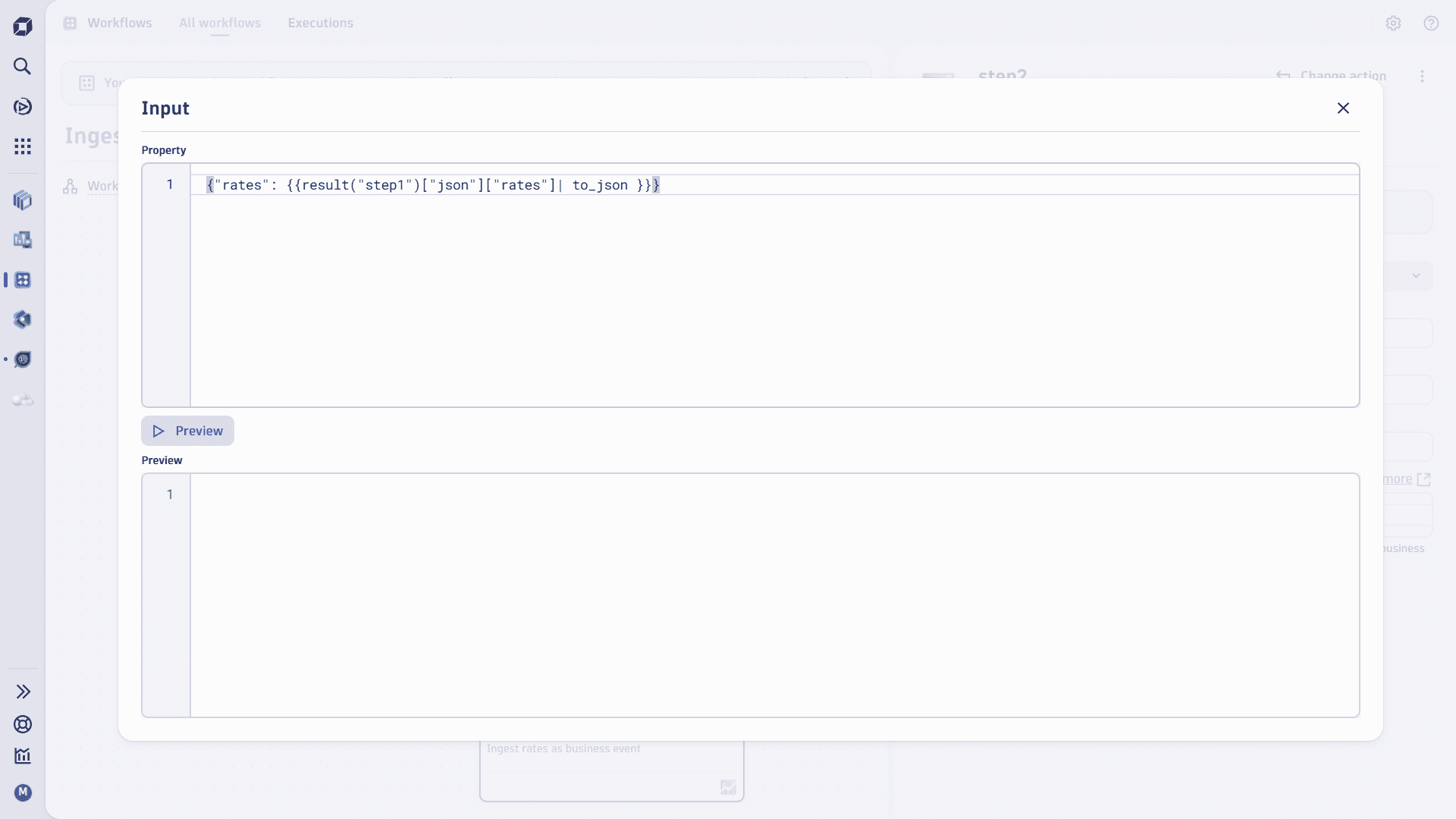 Editing JSON input in editor
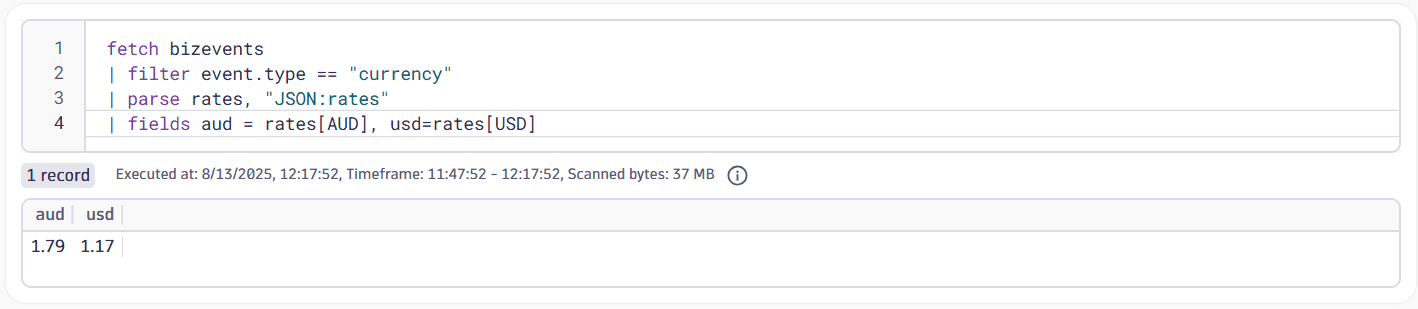
After the workflow is executed, you can query the business event and get the following data:

To extract individual rates from the event, use the following DQL:
fetch bizevents| filter event.type == "currency"| parse rates, "JSON:rates"| fields aud = rates[AUD], usd=rates[USD]