Restrict users to the latest Dynatrace apps
- Latest Dynatrace
- 10-min read
- Published Aug 12, 2025
When you upgrade to the latest Dynatrace, you might want to prevent your users from using the classic Dynatrace apps. In this guide, you learn how to set up policies to block users from opening classic apps.
You need account admin permission to perform the following steps.
Set up a policy boundary
We use the IAM policies and policy boundaries to limit the access for certain users.
First, you need to create a boundary that limits user access, so users can only open the latest Dynatrace apps.
-
Go to Account Management.
If you have more than one account, select the account you want to manage.
-
Go to Identity & access management > Policy management.
-
Select the Boundaries tab.
-
Select Create boundary.
-
On the Policy boundary page, define the boundary.
-
Boundary name: enter a useful name, such as
only latest Dynatrace -
Boundary query: use the following:
shared:app-id not startsWith "dynatrace.classic";
Example:
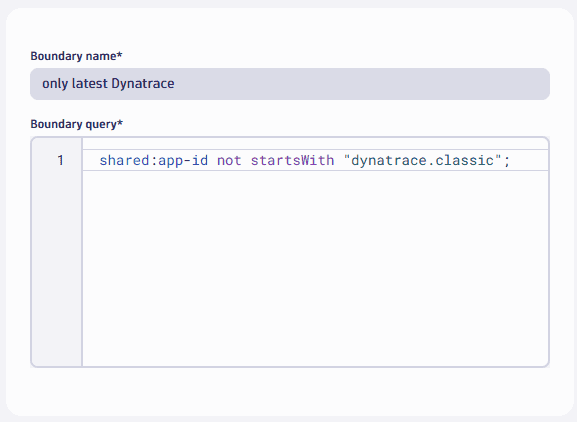 Example: define a policy boundary
 -
-
Select Save.
Add the boundary to a group
In the next step, we will update the group whose members should not be able to access classic apps.
-
In Account Management, go to Identity & access management > Group management.
-
Find your group.
-
In that row, open the menu and select View group to edit the permissions of a group.
-
Select Permission and define the permission.
- Permission name: select the permission you want to change.
- If you are using the default Dynatrace access permissions (Admin User, Pro User, Standard User), select to edit one of them.
- If you have custom definitions, edit the one that has the statement
ALLOW app-engine:apps:run;.
- Scope: select each environment to which this change should apply (or select Account (all environments)).
- Boundaries: then select the boundary that you created earlier (in the example, it's
only latest Dynatrace).
- Permission name: select the permission you want to change.
-
Select Save.
Example:
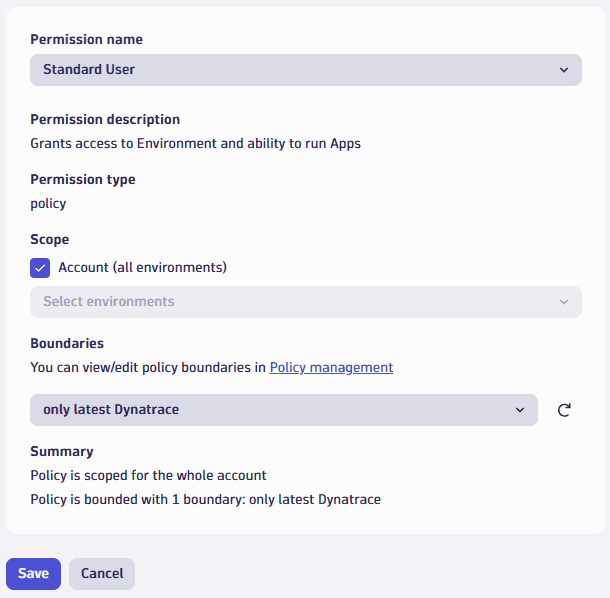 Example: add boundary to group
Restrict domain access
Dynatrace classic runs on the live subdomain (for example, playground.live.dynatrace.com). We can restrict access to this domain by applying the following steps.
- In Account Management, go to Identity & access management > Group management.
- Select the group that you edited earlier.
- Make sure this group is not assigned any of the following permissions:
-
Any permission of type
ROLE -
Any permission of type
POLICYthat contains a policy statement withALLOW environment:roles*Note down all applied policies.
-
- Go to Identity & access management > Policy management.
- Check the details of those policies you have noted down in step 3 to see if they include statements that start with
environment:roles.