Upgrade role-based permissions to Dynatrace IAM policies (Dynatrace Classic)
- Dynatrace Classic
- 11-min read
Dynatrace version 1.266+
This guide defines and compares role-based access control (RBAC) and attribute-based access control (ABAC), and provides guidelines and recommendations to consider when planning your upgrade from RBAC to ABAC. Upgrade in this context means expressing classic RBAC permissions targeting the previous Dynatrace as statements within IAM policies. As is explained later, upgrading offers you multiple benefits.
The guide is primarily intended for use by account administrators wanting to take advantage of the power of the ABAC framework within the previous Dynatrace.
What is ABAC?
ABAC is the preferred industry-wide access management framework because of its business-oriented and modern approach to defining security policies through logical, plain language.
It defines access to secure resources based on a combination of user, resource, action, and contextual attributes. It uses security policies as a mechanism to define access rules for resources.
Understanding the Difference: RBAC vs ABAC
RBAC roles are typically created to map work functions, such as department, seniority, or work assignment. RBAC permissions typically grant all-or-nothing access to resources based on pre-defined static roles.
For example, assigning "View Logs" permission to a group in Dynatrace grants users in that group the ability to view all captured logs. There is no ability to further refine their access to the logs.
- Various user, resource, and contextual information is not considered in classic RBAC.
- RBAC roles do not adapt well to changing access permission requirements and the dynamic nature of the attributes of the resources being secured.
ABAC, on the other hand, determines user access by evaluating resource, data, user, and contextual attributes, along with the specific user action being requested. This provides for a flexible permissions framework that handles changes in access requirements in a more dynamic way, rather than relying on static RBAC roles. Furthermore, the access control granularity offered makes it possible to design common or complex access requirements.
Dynatrace’s IAM permissions framework uses these core ABAC principles and further enhances them with features like policy templating and policy boundaries to make our implementation of ABAC more flexible and user friendly.
ABAC implementation in your Dynatrace
The Dynatrace IAM permissions framework currently supports the classic RBAC as well as the newer, ABAC, which leverages security policies to define permissions. Security policies are stand-alone components of the ABAC framework that allow combining one or many policy statements to define conditional access to your Dynatrace resources.
The access permissions defined in a security policy take effect when that policy is bound to a group, thus directly controlling the permissions of the users of that group. For simplicity, we will refer to security policies as simply policies for the remainder of this guide.
The following diagram captures the relationship between users, groups, policies, and policy boundaries.
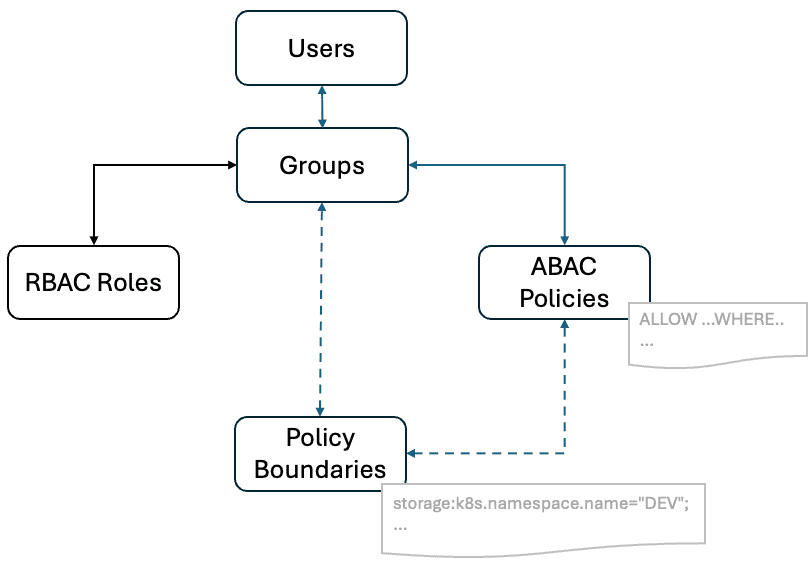
Policies leverage user, resource, data, and contextual attribution to enable you to configure access to your Dynatrace secure resources. You can secure individual data resources, apps, and services while optionally specifying business-specific access control conditions through the expressiveness of the policy statements syntax.
One or many policy statements can be combined into one policy. The policy can then be bound to one or many user groups, ultimately granting the users of those group the resource access defined by the policy.
For example, the Dynatrace ABAC policy below grants the ability to read (action) settings objects and schemas (resources) where (condition) the settings schema identifier (resource attribute) is prefixed with "builtin:container." (attribute value):
ALLOW settings:objects:read, settings:schemas:read WHERE settings:schemaId startsWith "builtin:container.";
The next example leverages additional contextual information (the time of the day) to restrict environment access only to business working hours.
ALLOW environment:roles:viewer WHERE global:time-of-day > "09:00+01:00" AND global:time-of-day < "17:00+01:00";
Classic RBAC roles can also be expressed in policies. For example, the policy statement below grants environment access but only for a specific management zone.
ALLOW environment:roles:viewer WHERE environment:management-zone = "mgmt-eu";
The ability to include classic RBAC roles in your policy statements is a very important feature of ABAC policies to help you transition from RBAC.
The true power of the Dynatrace ABAC framework lies in its ability to dynamically target individual or groups of platform resources, while optionally combining available attributes to further narrow down access parameters using the expressive nature of policy statement syntax.
Benefits of upgrading to ABAC
Dynatrace’s ABAC permissions framework offers the following advantages:
Security and compliance
- Policies enable admins to adopt the principle of least privilege
- Policies provide a better framework to adhere to your IT compliance standards
Flexibility
-
Policies are built to be adaptable to changes and future platform services
-
Multiple policy statements can be combined to form one policy, allowing administrators to build policies that align with their access control business requirement
Scalability
- Policies allow for a concise expression of complex permissions
- Policy boundaries offer further policy optimization and generalization
- Policy templating enables parameterization of policies through binding parameters
Granularity
- Each policy statement can target one or many platform resources
WHEREconditions can be appended to statements to further limit access
Usability
Policy boundaries can be re-used in multiple policies.
Futureproofing
- ABAC is here to stay and will continue to be developed and extended.
RBAC to ABAC upgrade planning
The following upgrade guide recommends a strategy and best practices to consider when planning and executing your upgrade from RBAC to ABAC.
If you use management zones for access control, this guide offers examples of how to refer to management zones within policies so that you can remove the corresponding RBAC assignments.
Upgrade guidelines
The upgrade strategy you choose will depend on your current Dynatrace configuration.
The general strategy is to:
-
Identify RBAC permissions that you have currently configured with your groups.
-
Define a mapping on how those RBAC permissions map to ABAC permissions that can be implemented in policies.
- You can repeat doing this in batches until you cover all your groups.
You can use this sample PowerShell script to give you an initial assessment and some recommendations to get you started. We will use the script output from our sample Dynatrace environment to illustrate some important concepts and best practices you should consider as you plan your RBAC upgrade to ABAC.
Note that any automation scripts that you might have built that use RBAC permissions will also have to be reviewed for potential changes in the event that you transition to solely using ABAC for your access control.
Your Dynatrace RBAC assessment
An upgrade plan should start with an assessment of your current RBAC configuration. This means identifying existing RBAC roles assigned to your groups. We are interested in RBAC role assignments that are scoped to target environments or management zones.
Account management roles cannot be expressed as policies. You can manage the associated permissions via the Account Management portal.
Consider the steps below to conduct an initial assessment. You can use the Account Management portal to complete the steps or use the provided PowerShell script.
- Create the required OAuth client in the Account Management portal with permissions as instructed in the script.
- Download the provided PowerShell script.
- Run the script.
- The output will be a table like the example below:
| permissionName | scope | scopeType | mgmtzone_name | group_name | abacRole |
|---|---|---|---|---|---|
tenant-replay-session-with-masking | xyz:mgmt_na_east | management-zone | mgmt_na_east | group_na_supp |
|
tenant-replay-session-without-masking | xyz:mgmt_na_east | management-zone | mgmt_na_east | group_na_supp |
|
tenant-manage-settings | xyz:mgmt_na_east | management-zone | mgmt_na_east | group_na_supp |
|
… | … | … | … | … | … |
tenant-replay-session-with-masking | xyz:mgmt_na_west | management-zone | mgmt_na_west | group_na_supp |
|
tenant-replay-session-without-masking | xyz:mgmt_na_west | management-zone | mgmt_na_west | group_na_supp |
|
tenant-manage-settings | xyz:mgmt_na_west | management-zone | mgmt_na_west | group_na_supp |
|
… | … | … | … | … | … |
Upgrade to ABAC
With the inventory of assigned RBAC permissions already created, you can now map RBAC permissions to ABAC ones.
We will use ‘group_na_supp’ to help us illustrate some key best practices you should consider for your ABAC configuration.
This group currently has the following RBAC permissions scoped to two management zones ‘mgmt_na_east’ and ‘mgmt-na_west’:
| RBAC Role Name | ABAC role name |
|---|---|
tenant-replay-session-with-masking |
|
tenant-replay-session-without-masking |
|
tenant-manage-settings |
|
tenant-view-sensitive-request-data |
|
tenant-view-security-problems |
|
tenant-manage-security-problems |
|
tenant-log-viewer |
|
If we were to create a new custom policy to assign those permissions, we could write the following policy statement:
ALLOW environment:roles:replay-sessions-with-masking, environment:roles:replay-sessions-without-masking, environment:roles:manage-settings, environment:roles:view-sensitive-request-data , environment:roles:manage-security-problems, environment:roles:logviewerWHERE environment:management-zone startsWith "mgmt_na";
We could then bind this policy to the group_na_supp group and remove the old RBAC role assignment from the group. The WHERE condition, however, ties the policy to North America management zones, so we would need a near-identical policy for every other region.
This is where policy boundaries come into play. We can store the condition environment:management-zone startsWith "mgmt\_na"; in a policy boundary and drop the WHERE clause from the policy. The boundary then restricts the permissions when we bind the policy to our group, and the same policy can be reused for other regions with their own boundaries.
First, let’s create the policy boundary. In Account Management, under Identity & Access management > Policy management, we can create a policy boundary specific to North America management zones.
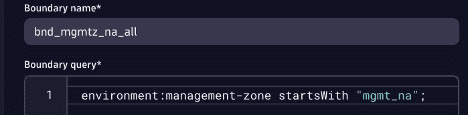
Next, we assign the policy to group_na_supp and apply the boundary we just created.
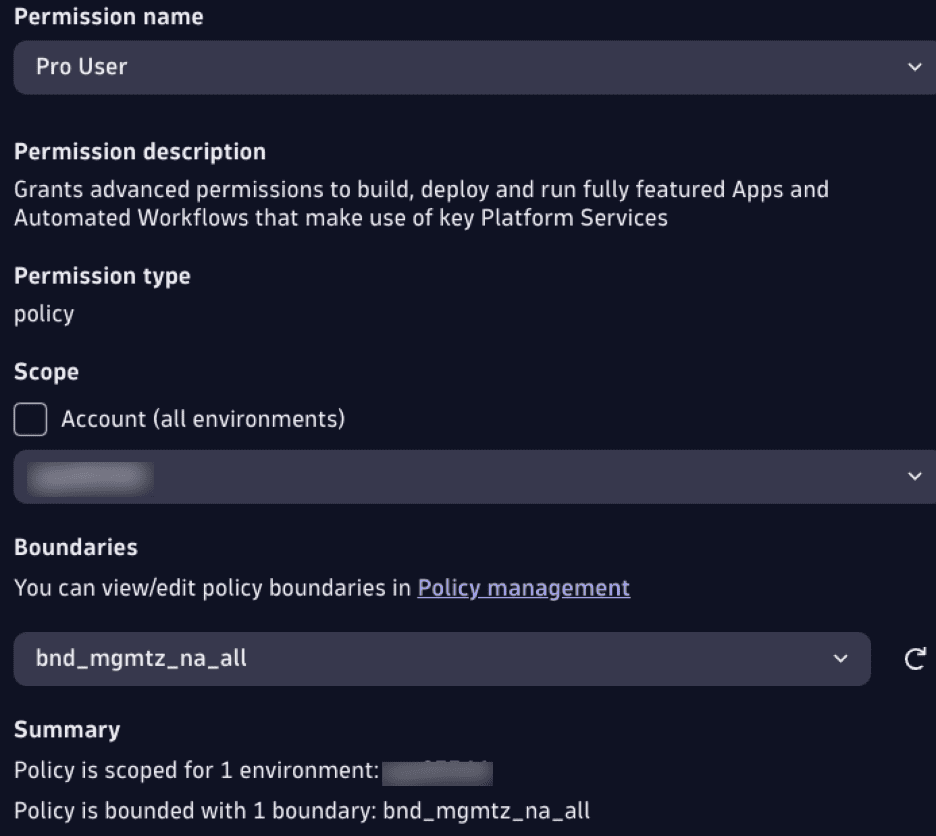
As may be obvious from this example, policy boundaries make it possible to extract your business-specific access requirements out of the policy and into a standalone unit that can be re-applied over and over across multiple policies. Policy boundaries can be assigned to one or many group-to-policy bindings, making them reusable.
Define your business-specific access conditions in policy boundaries, so you can reuse the same policies across groups.
Testing and validation
We recommend mocking up groups and users and testing separately, ideally in a sandboxed environment if possible.
Also, Dynatrace’s Enterprise API could be used to provide useful permissions information for specific users or groups. For example, the following GET request to https://api.dynatrace.com will return current permissions for a specific user:
https://api.dynatrace.com/iam/v1/resolution/account/:accountIdHere/effectivepermissions?entityType=user&entityId=:userIdHere
Deployment
Deploy policies in a phased approach to minimize user access disruptions. You may choose to do these in batches of groups or some other way more appropriate to your setup.
Consider deploying your changes in batches rather than all at once.
Monitoring and tuning
Monitor your ABAC permissions over time to see if they have adversely affected user access and adjust accordingly.
Upgrade support
Refer to our online documentation and Dynatrace Community forums for additional help during your upgrade from RBAC to ABAC. Additionally, make use of Dynatrace’s support channels for more targeted help.
Final checklist
- Compile your existing RBAC roles and group assignments
- Identify and plan to replace any custom automation still relying on RBAC
- Design your ABAC policies:
- Create policy boundaries to capture your specific business logic
- Decide on an upgrade strategy
- Consider a phased rather than a big-bang approach by introducing changes in multiple batches
- Test your upgrade
- Use a sandbox environment if available to test the effects of your new ABAC-only configuration
- Try upgrading a select set of groups first
- Monitor the effects of your upgrade to catch and correct any misconfigurations