Add a predefined tile from the library
- Latest Dynatrace
- How-to guide
- 10-min read
Use predefined dashboard tiles in the library to start your data analytics journey.
Add a tile from the library
To add a predefined tile to your dashboard
-
In the upper-right of the dashboard, open the (Add) menu.
Keyboard shortcut: Ctrl/Cmd+Shift+Enter
-
Scroll down to the Library section and choose a predefined tile.
SearchUse the search box at the top of the menu to search for a tile by name.
-
After you select a predefined tile, the edit panel displays the tile you added.
-
Edit the query or code and the visualization settings as needed.
-
Select Run to see results.
-
Close the side panel when you're done.
Examples
Recent logs
-
In
 Dashboards, select Dashboard to create a new dashboard.
 -
In the upper-right of the dashboard, select (Add) to open the add menu.
-
In the menu, scroll down to (or search) the Library section and select Recent logs.
That's it. You have created a dashboard with a DQL tile that fetches the 100 latest logs and displays them starting with the most recent.
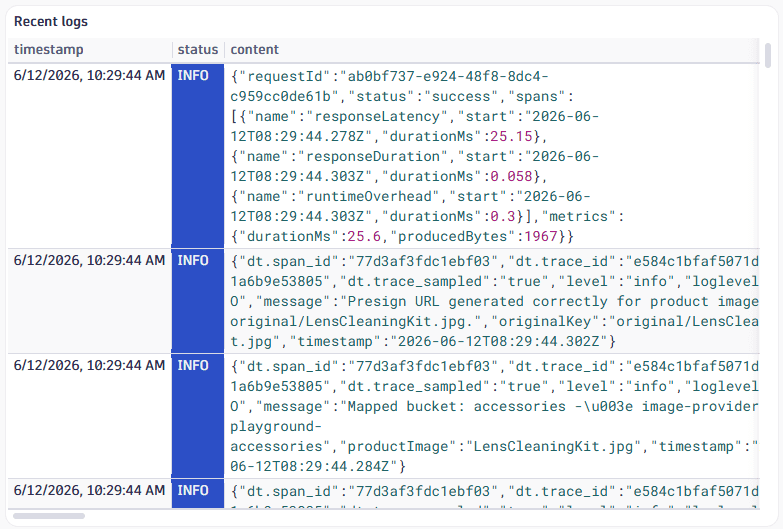
The DQL behind your tile is:
fetch logs| sort timestamp desc| limit 100
The DQL commands are run in order:
fetch logsgets the log datasort timestamp descsorts the data by timestamp in descending orderlimit 100limits the results to 100
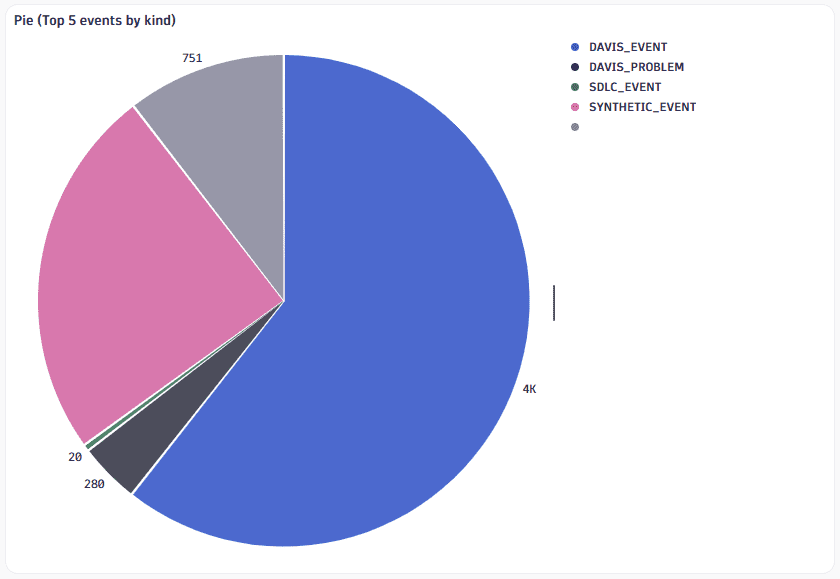
Pie (Top 5 events by kind)
-
In
Dashboards, select Dashboard to create a new dashboard. -
In the upper-right of the dashboard, select (Add) to open the add menu.
-
In the menu, scroll down to (or search) the Library section and select Pie (Top 5 events by kind).
This one creates a tile based on the following DQL:
fetch events| summarize `event count`=count(), by:{event.kind}| limit 5
The results are displayed as a pie chart.
What's next
The library of predefined tiles is long and growing. Create a new dashboard and try them out.
When you find something interesting:
- Inspect it to see how it works
- See if you can tweak and adapt it to your own purposes